
Workflow orchestration: risk, approvals, verification and recovery
Operation risk classes and the approval rule, two-person and expiring approvals, verification steps that re-read the system, undo steps and compensation, manual intervention, circuit breakers, coordination limits and the plan templates.
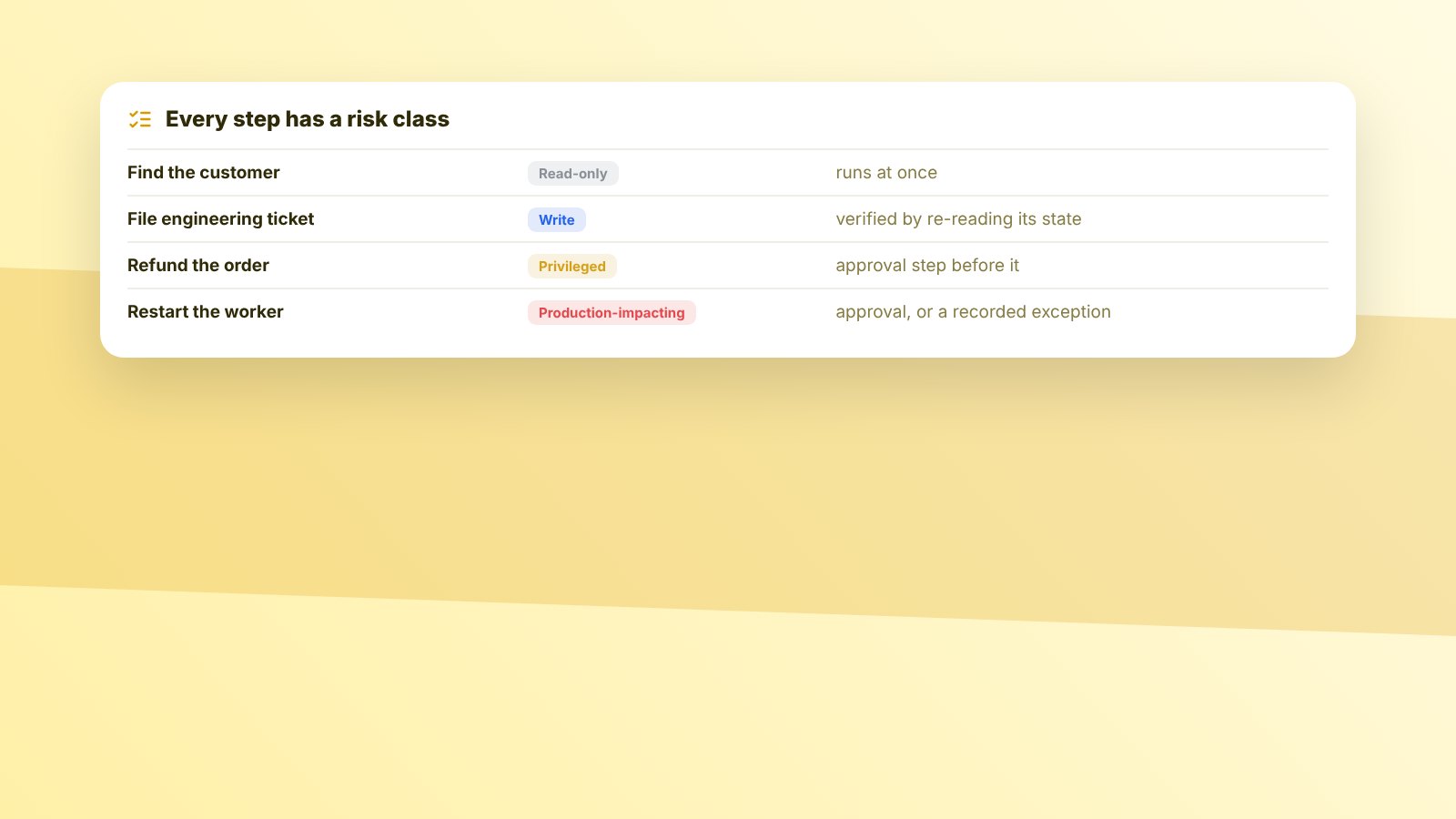
Workflows run multi-step operations across your tools. This page covers how they stay safe: what each step is allowed to do, who approves it, how a result is checked, and what happens when something fails. Open Workflows from the dashboard.
Operation risk
| Class | Examples |
|---|---|
| Read-only | Find the customer, conditions, waits, verification, connector actions that only read |
| Write | Notes, drafted replies (a person sends them), queues, investigations, engineering tickets, notifications, connector actions that change a record |
| Privileged | Connector actions that move money (refunds, credits) |
| Destructive | Connector actions that delete, cancel, revoke or disable |
| Production-impacting | Connector actions that deploy, roll back, restart, scale or fail over |
Privileged, destructive and production-impacting steps need an approval step before them on every path through the workflow. Saving is refused otherwise. A narrow exception for one step needs a written reason and is recorded in the audit log. Connector actions that change an account also wait in Backend Actions, as before.
Each workflow shows its execution plan: every step’s class, how it’s approved, what verifies it and what undoes it, with warnings such as “no verification step”.
Approvals
- One person, or two different people.
- Never the person who started the run.
- Expires after 1 hour to 7 days. On expiry the run ends, or the approval escalates to managers once and the deadline is extended.
- Waiting approvals appear in Workflows → Needs attention and in the Intelligence decision inbox, and the right people are notified.
When an approval guards a privileged, destructive or production-impacting action, the approval shows an execution preview from the operations twin: what the target reaches, exposed customers, open incidents and safer options. It informs the approver and never decides for them.
Verification
| Check | Re-reads |
|---|---|
| Connector value | A read-only connector action, compared with a value (for example data.status eq paid) |
| Investigation | The state of the investigation an earlier step opened |
| Engineering ticket | The state of the ticket an earlier step filed |
| Drafted reply | Whether the reply an earlier step drafted was approved and sent |
| Ticket outcome | Whether the run’s ticket has a verified outcome in Outcome Assurance |
| Security finding | Whether the finding that started the run was verified fixed |
| Incident | Whether the incident that started the run was mitigated or resolved |
A check can re-run up to 10 times, every 1 minute to 24 hours. If it can’t confirm, it escalates to managers and continues, fails the run, or records the result and continues. A run counts as verified in Outcome Assurance only when every check passed; otherwise it stays executed.
Failures and recovery
- Retries after 1, 4, 16 … minutes, then the dead-letter list.
- Circuit breaker: a connector action that failed five times in a row in 15 minutes, in any run, waits 10 minutes before the next try.
- Retry from the failed step, or Skip step and resume with a note about what you did by hand.
- Undo changes: steps can name an undo step. Compensation runs the undo steps of the steps that completed, last first, and follows the usual approvals. It can also start automatically when a run fails. A compensated run counts as reversed in Outcome Assurance.
- Runs are checkpointed after every step and resume where they stopped; the same event never starts a workflow twice.
Coordination limits
A workflow whose steps cause another workflow to start is recorded as its parent. Chains stop at 3 levels and 10 runs. A run stops after 20 AI calls. A skipped start is recorded in the audit log.
Parallel branches, loops and sub-workflows
Parallel runs 2–5 branches at the same time and waits for all of them. Each branch runs as its own run of the same workflow version, from its first step until it reaches the step you continue at; its step results and values come back into the run, and a branch that doesn’t succeed fails the step (a retry starts fresh branches). Approvals, retries and verification work inside branches as anywhere else, and the risk policy checks every branch: a high-risk step in a branch still needs an approval before it.
For each repeats steps for every item in a list from the run (such as steps.lookup.items, or a JSON list in a value), up to 50 items. The repeated steps use {{loop.item}} and {{loop.index}}; each item’s last result is collected in {{steps.<id>.results}}. Loops run one item at a time, are durable across restarts, and can’t be nested.
Run a workflow starts another workflow in the workspace with values you pass as {{vars.*}}, waits for it, and returns its values as {{steps.<id>.vars.*}}. A workflow can’t run itself. Branches and sub-workflows count toward the chain limits (3 levels, 10 runs) but not toward a workflow’s runs per hour or day, and only the run that started them is recorded in Outcome Assurance. Cancelling a run cancels its branches and sub-workflows; the run’s detail links to each of them.
Transforming data
A Transform step reshapes a value from the run without code and saves the result as {{vars.<name>}}: keep some fields of an object or of every item in a list, list one field from every item, keep the items that meet a condition, count, add up (a field of) the items, join them into one line, take the first or last, sort (by a field, largest first if you like) or remove duplicates. It reads lists from connector results, earlier values or a JSON list, up to 1,000 items; a list result works directly with For each. A value that doesn’t fit — counting something that isn’t a list, adding up text — stops the step with a plain message.
Connector actions: arguments and health
HTTP connectors (your own APIs with defined actions, rate limits, sandbox and money caps) and MCP servers are connected in Procedures and run through Backend Actions, like every other connector action. Workflows check each action against its schema: the builder shows the arguments it takes and which are required, and a workflow can’t be switched on while an action is missing a required argument (save it switched off to keep working). The execution plan also warns about arguments an action doesn’t take, actions whose connector isn’t connected, actions that failed at least 30% of the time in workflow runs over 7 days (with the last error), actions paused by the circuit breaker, and connectors whose last connection test failed. The action picker shows the same health.
AI workflow builder
Describe a workflow turns a description — what starts it, what should happen, who approves what — into a workflow draft. Personal data in the description (emails, phone and card numbers, keys) is masked before it reaches the AI. The AI is given your real catalogue — step types, trigger events, and only the connector actions you have connected, with their arguments — and one model call drafts the workflow (a second only if the first answer can’t be read or doesn’t validate). Then, without the AI: actions that aren’t connected are left out and listed, a manager approval is inserted before every high-risk action, and the draft goes through the same validation and risk policy as any workflow.
The draft is saved switched off and marked “AI draft”, with an explanation of each step, the assumptions to check, the tools it needs that aren’t connected, the execution plan, and 2–4 test scenarios you can run as test runs (nothing is changed). A person reviews it in the builder and switches it on; the AI never publishes a workflow. Up to 20 drafts per workspace per day; the description itself isn’t stored. The AI workflow builder is listed in the AI Control Plane, where it can be paused like any agent.
Visual studio
The builder opens on a canvas of the workflow: every step is a node, laid out in the order it runs, with edges for what happens next — yes and no for conditions, branches and where they join, the repeated steps of a loop, and dashed lines for undo steps and loops back. It follows the engine’s own rules, so a step with no “next” is drawn going to the step below it, as it runs. Click a node (or press Enter on it) to edit that step; the step list stays as the accessible editing view, and both edit the same definition.
Add picks a step from the catalogue — flow, people, systems, data, checks — and inserts it after the selected step, taking over where that step went, so the flow isn’t broken. Values you can use lists every template the steps can use — ticket and customer fields, values saved by earlier steps, each step’s result, the loop item — with a click to copy. Compare with a version shows what changed since any earlier version: steps added, removed, changed (and which fields) or moved, and name or trigger changes.
Governed AI steps
An AI step does one bounded job inside a run: classify (pick one of your labels), extract (named fields, each text, a number, true/false or empty), summarise (up to 1,200 characters) or decide (choose one of your options, with a reason). You say what it reads — a template such as {{ticket.subject}} or an earlier value — and the result is saved as {{vars.<name>}}, with the AI’s confidence in {{steps.<id>.confidence}}.
Personal data is masked before the AI reads the text, and the text is given to it as data, not instructions. The AI must answer in a fixed format with a confidence from 0 to 1; the answer is checked without the AI — a label or option that isn’t on your list, a field you didn’t ask for, a summary that’s too long or an answer that can’t be read counts as not valid. A valid answer at or above the step’s threshold (0.5–0.99, default 0.8) is used. Otherwise, as you choose: a person decides (the default), the run fails, or it continues with no value. You can also set a step so a person always reviews the AI’s answer. The confidence is the AI’s own estimate, so the threshold is a routing rule, not a guarantee — use “always reviews” where a wrong answer is costly.
When a person decides, the run waits like an approval (support leads or managers, notified and queued). They see the AI’s suggestion, its confidence and reason, and the allowed answers, and either accept the suggestion or give the value — checked the same way as the AI’s answer. The person who started the run can’t decide it, and either can reject the run. AI steps run as the Workflow AI step agent in the AI Control Plane: if it’s paused there, the step goes to a person instead of failing. Their calls count toward the run’s AI call limit. Test runs show the suggestion and what would happen, without waiting.
Simulation and testing
Test cases (up to 20 per workflow) say what a workflow should do. Each has the values a run starts with (and optionally a ticket), simulated results for any step — what a connector action returns, the AI’s answer, whether a verification passes — and injected failures: a step fails with an error or a timeout after its retries, fails at once, or is rejected by a person. Then what should happen: how the run ends, the values it ends with, and steps that should or shouldn’t run. A test case runs as a simulation of the saved version and shows each check with what actually happened.
Simulations are test runs: nothing changes in any system, approvals are taken as given unless a failure rejects them, and waits are skipped. An AI step with a simulated answer doesn’t call the AI, but the answer still goes through the step’s checks and threshold. An AI step without one asks the AI as usual. A test case that names a step the workflow no longer has fails, saying which.
Tests before switch-on. When a workflow that has test cases is changed and switched on — by saving it switched on or with the switch — every case runs first. If one fails, the workflow is saved but left switched off, and the message names the failing case and check.
Replay re-runs recent real runs (the last 30 days, up to 20) on the current version, as test runs, following what really happened: the connector results that were recorded, the decisions people made, the AI answers that were used, and the step that failed. Each run is shown as the same or changed — how it would end now, and which steps it would now run or skip. Runs that were undone aren’t replayed. Values a run started with are kept from this release on, so older runs replay without them.
Health and self-healing
The Health tab lists workflows with failures, changes from normal, connector warnings or repairs to decide. For each workflow, failed runs from the last 7 days are grouped by the step they stopped at and the cause, read from the error: not authorised, not found, rate limited, service unavailable, rejected input, unexpected data, AI step, approval expired, paused after repeated failures, a limit reached, or other. Each group says the likely cause and the recovery that fits, links to its runs, and can retry those runs (up to 20 from the last 7 days).
Changes from normal compare the last 7 days with the 4 weeks before: a rising failure rate, runs taking much longer, a step reached by a very different share of runs (the data coming in may have changed), AI steps sending more answers to a person, and kinds of failure that are new. Nothing is said until there are at least 10 runs on each side. Connector warnings from the execution plan — arguments that no longer match, actions that aren’t connected or keep failing — are shown too.
Where a small change fits, a repair is proposed: more retries (up to 5) for a step whose service errors or times out, half the runs per hour when the service rate-limits, or escalating an approval that expires instead of failing (or a longer window, up to 7 days). Credentials, arguments and data problems get a diagnosis and a recommendation, not a change. Nothing is applied on its own: a person applies or dismisses each repair (with a reason). Applying saves a new version through the usual checks and the workflow’s test cases; if those fail, the version that was running is put back. A repair proposed for an earlier version can’t be applied. After a repair, its outcome shows whether the same failure has come back at that step.
Process intelligence
Insights on a workflow shows how its real runs actually flowed over the last 30 days (test runs aren’t counted): the paths runs took, with each path’s share, success rate and median time; for every step, how often it was reached, its average and 90th-percentile time (a step’s time runs until the next step starts, so for an approval or an AI step sent to a person it’s how long people took) and how many runs had to run it again after an error; the median approval wait; and the share of runs that finished without a person. The slowest step is named. With fewer than 5 finished runs the figures are shown as examples, not patterns.
Template gallery and bundles
The template gallery groups templates by category — Support, Billing, Engineering, Reliability, Security, Knowledge — and shows each one’s steps and the connector actions it uses.
Export saves a workflow as a JSON bundle together with every workflow it runs as a sub-workflow and their test cases. A bundle holds definitions only: no IDs, run history, approvals or secrets (sub-workflows are referred to inside the bundle). Import bundle creates the workflows in this workspace, always switched off, with sub-workflows linked to the new copies and the test cases carried over; a name that already exists gets “(imported)”, and connector actions that aren’t connected are listed. An import is all or nothing: if one workflow doesn’t pass validation, nothing is created. Up to 20 workflows and 1 MB per bundle.
Developer API
With an API key: GET /v1/workflows lists workflows; POST /v1/workflows/{id}/runs starts a run (write scope; the workflow must be on); GET /v1/workflows/runs/{id} returns a run with its steps; GET /v1/workflows/{id}/process returns the process view (?days= 1–90); GET /v1/workflows/{id}/bundle exports a bundle; POST /v1/workflows/import imports one (write scope; imported workflows are switched off).
Service request steps (TR ESM)
Workflows triggered by “A service request was submitted” fulfil TR ESM requests. Two steps work with the request: give a department a task (it waits until the task is done; cancelling the task fails the step) and update the request (tell the requester, ask them for information, or mark it fulfilled — only when no task is open). Approval steps can name the requester’s manager, the department head or a named person as the only person who can decide. In test runs these steps are simulated.
Templates
Customer issue → verified resolution, production incident response, security vulnerability remediation, failed deployment investigation, recurring issue elimination, customer escalation management, knowledge-base improvement, infrastructure health investigation, engineering hand-off, SLA breach prevention, and payment failure. Templates start switched off, are versioned like any workflow, and can be edited.
New events for triggers: an infrastructure incident opened, a production deployment failed, and a new critical or high security finding.
API
GET /api/trial/:trialId/workflows/:id/plan, POST …/workflows/runs/:runId/skip and POST …/workflows/runs/:runId/compensate (each needs a note), alongside the existing run, decide, retry and cancel endpoints.