
TicketResolve Sign: Sign & Download PDF, versions, certificates and evidence
How TicketResolve Sign works: uploading and converting documents, the signature editor and its fields, consent, signed PDFs with SHA-256 hashes, completion certificates, e-mailing signed PDFs, external signing, templates, saved signatures, the hash-chained activity log, permissions and usage.
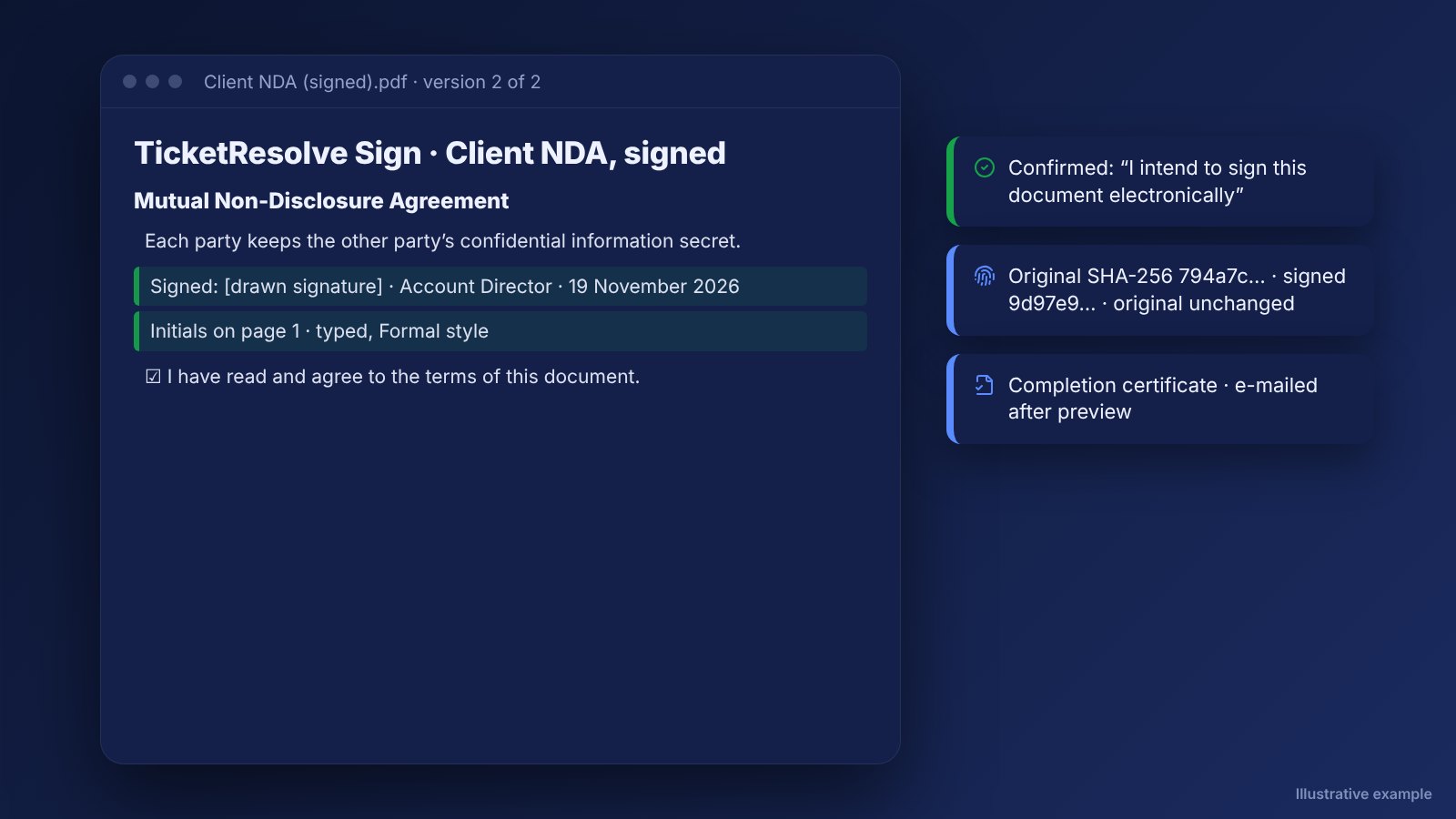
TicketResolve Sign (Sign & Agreements in the dashboard) lets a person sign a document themselves and download the signed PDF straight away, or send it to other people to sign. Every version is kept with its hash, and every step is recorded.
Uploading and converting
| File | What happens |
|---|---|
| Used as it is. Password-protected or damaged PDFs are refused with a reason. | |
| Word (.docx) | Converted to PDF on our servers: text, bold and italic, headings, lists, tables and images are kept; columns, text boxes, headers and footers are simplified. The original .docx is kept too. |
| PNG or JPEG | Placed on an A4 page, portrait or landscape to fit. |
| Text (.txt) | Laid out on A4 pages. |
Files can be up to 15 MB and 300 pages. Files are recognised by their content, not only their name.
The signature editor
- Fields: signature, initials, date signed (filled in automatically when you sign, in a format you choose), name, company, designation, text, paragraph, checkbox, radio button (grouped), dropdown and acknowledgement. Any field can be required; signatures and acknowledgements always are.
- Placing: drag from the field bar or tap where it goes; move, resize, snap to other fields’ edges, align, centre, duplicate and delete; undo and redo; zoom and page navigation; preview; auto-save every change.
- Signatures: drawn (mouse, trackpad, touch or pen, pressure-aware), typed in one of four handwriting styles, uploaded (white background removed), or reused from a saved signature. All are embedded as images; text fields are drawn as real PDF text in DejaVu Sans, which covers Latin, Greek and Cyrillic.
Consent and the signed PDF
Signing needs an explicit confirmation: “I intend to sign this document electronically, and I agree that my electronic signature is the legal equivalent of my handwritten signature for this document.” Then TicketResolve checks the original against its recorded hash, embeds the signatures and fields into the page content, flattens any existing form fields, keeps page sizes and order, and stores the result as a new version. The original is never changed.
| Label | Meaning |
|---|---|
| Signed through TicketResolve | Electronic signature embedded in the PDF by TicketResolve, with the signer’s account, time, IP address, browser and confirmation recorded. |
| Externally signed and uploaded | Signed outside TicketResolve and uploaded. Who signed and when are as reported by the uploader; TicketResolve doesn’t verify that signature. |
| Certificate-based digital signature | Not offered yet. Never shown unless a certificate-based signature was actually applied. |
After signing
- Download the signed PDF; its SHA-256 is shown on the screen and sent as an
X-Content-SHA256header. - Completion certificate: document ID, title and version, original and signed hashes, signer and user ID, signing time, session, method, confirmation, sign-in evidence (e-mail verified, two-factor), IP address, browser and the key activity, identified as self-signing.
- Save to Documents with a title. E-mail to up to 20 recipients with a preview first; nothing is sent until you press Send; attachments up to 2 MB, larger PDFs as a 7-day link (token stored hashed). History of every step.
Send for Signature
Sign & Agreements → Send for Signature: upload a document (or pick an unsigned one, or a template with roles), add recipients, place fields for each, write the message and send. A request is called an envelope internally; the dashboard shows it under Signing Requests until it is completed, then under Agreements.
| Setting | What it does |
|---|---|
| Role | Needs to sign, Needs to approve (no signature required, they confirm approval), Receives a copy (gets the completed document), Signs in person (the link goes to the sender, who hands over the device). |
| Signing order | Each recipient has a number. Lower numbers go first; the same number signs at the same time. The next group is e-mailed only when everyone before has finished. |
| Check before opening | E-mail link only, a one-time 6-digit code e-mailed when they open the link (10 minutes, 5 tries), or an access code you share separately. Access codes are stored only as a hash. |
| Fields | Each field belongs to one recipient and is colour-coded by recipient. Signers need at least one signature or initials field. Recipients can fill only their own fields; others’ completed fields are shown read-only. |
| Reminders and expiry | Reminders every 1–7 days (up to 10) to whoever it is waiting on, and an expiry date (default 30 days, extendable). Checked every 15 minutes. |
| Reassign | If allowed, a signer or approver can pass it to someone else with a reason; they get a new link and the old one stops working. |
- Recipients don’t need an account. Each link is personal and stored only as a hash (and encrypted so reminders can resend it); opening it starts a session for that browser that lasts 4 hours.
- Before signing, a recipient agrees to use electronic records and signatures; then they confirm their intent to sign, or their approval. They can decline with a reason, which ends the request and tells the sender and the others.
- Senders can remind now, extend, correct a recipient’s name, e-mail or check (a new link is sent), void with a reason, and save the request as a template with its roles.
- When the last person finishes, the signed PDF is generated with every recipient’s fields, and a completion certificate lists each party: role, e-mail, the check they passed, when they opened, consented and signed, IP address and method. Everyone is e-mailed the signed PDF and certificate.
- Bulk send: Templates → Bulk send. Upload or paste a CSV with name and email columns (up to 200 rows); one envelope is sent per row after you check the preview.
External and offline signing
From an unsigned document: download the unsigned PDF, collect the signature however you like, then upload the signed PDF with the signer’s name, e-mail (optional), the date signed and notes. It becomes a new version labelled externally signed; the original stays. Supporting evidence (PDF, image, text or a saved e-mail, up to 10 MB) is kept as its own file with a hash.
Integrity and the activity log
- Every version is an immutable row with its SHA-256. Check a file (Audit & Evidence) hashes a file you choose and tells you whether it is exactly a version you can see.
- The activity log is append-only. Each entry stores
SHA-256(previous hash | sequence | event | document | actor | time | detail); Verify the log recomputes the chain and names the first entry that doesn’t match. - Events: uploaded, converted, signing session started, signature added, fields placed and filled, consent, signed PDF generated, certificate generated, downloaded, e-mailed or failed, saved, external upload and signing, evidence added, templates and saved signatures; and for requests: prepared, sent, link sent, opened, access check passed or failed, consent, signed, approved, declined, reassigned, corrected, reminded, extended, voided, expired and completed.
Permissions and privacy
| Permission | Allows |
|---|---|
| View signed documents (sign.view) | Their own documents, versions, certificates and history |
| Sign documents (sign.use) | Upload, sign, download, e-mail, external signing, templates and saved signatures |
| Sign & Agreements settings (sign.manage) | See every document in the workspace for audit (without signing or changing them), share templates, verify the activity log |
Viewers get sign.view; agents, account managers and leads also get sign.use; admins and owners get everything. Documents belong to the person who uploaded them, and nothing crosses workspaces. Saved signatures are stored only after the person agrees, can be used only by them, and are deleted (the image removed) when they ask.
Usage
Sign is included in every plan. Sign → Settings shows this month’s self-signed documents, conversions, uploads, storage, e-mails, certificates, external uploads and downloads. Multi-party requests, identity checks and certificate-based signing are shown as not available yet.