
AI Ops Copilot: how it works
What the AI Business Operations Copilot answers, which areas it can see for each person, how calculated and written answers differ, the shared daily limit, and what it never does.
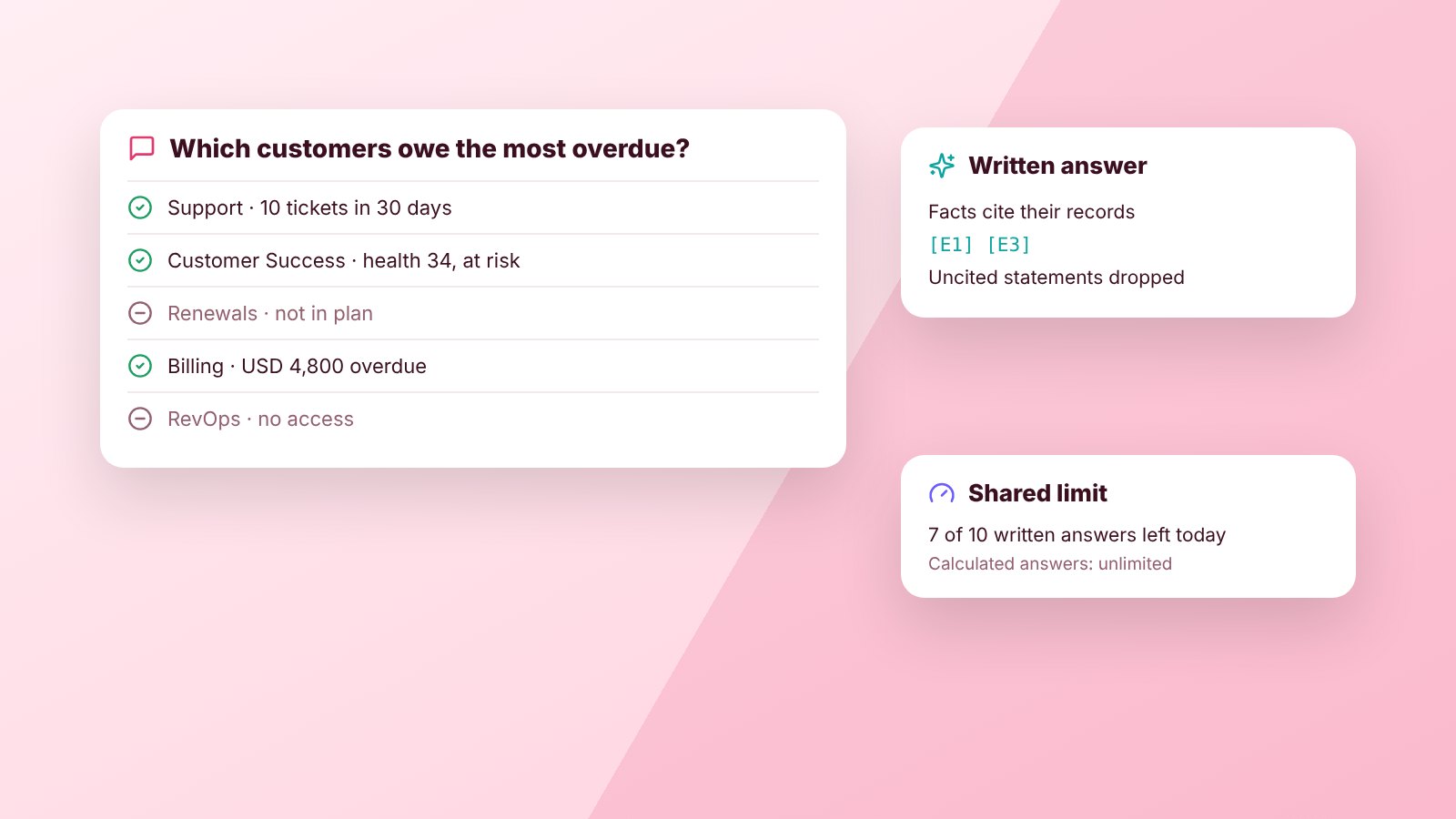
The AI Business Operations Copilot answers questions about the whole business in one place: support, customer success, renewals, billing and revenue. It is included, at no extra price, with any Intelligence add-on — Customer Success, Renewal, Billing or RevOps Intelligence. Open it from Dashboards & reports → AI Ops Copilot.
What it can see
The Copilot answers as the person asking. An area is included only when the workspace has its module and the person can view it:
| Area | Needs |
|---|---|
| Support | Every plan; the permission to view analytics. |
| Customer Success | Customer Success Intelligence and the View Customer Success permission. |
| Renewals | Renewal Intelligence and the View Renewal Intelligence permission. |
| Billing | Billing Intelligence and the View Billing Intelligence permission. |
| RevOps | RevOps Intelligence and the View RevOps Intelligence permission. |
The top of the page shows which areas are included for you. Every answer names the areas it used and lists the ones it couldn’t see, with the reason. Amounts follow the same revenue-figures permission as everywhere else.
Calculated answers
Most questions are answered exactly from each module’s own rules, with no AI and no limit:
- Business overview (“How is the business doing?”): one line per area — tickets and TR-AI resolution, escalations, SLA breaches and CSAT; customers, average health and churn risk; open renewals and renewals at risk; receivables, overdue and failed payments; ARR, this quarter’s forecast, the risk radar and leakage.
- Support (“How is support doing this month?”): tickets in the last 30 days against the 30 days before, how many TR-AI resolved, escalated or sent for review, SLA breaches, CSAT and the top categories.
- Module questions: a question about invoices, renewals, deals or customer health is routed to that module and gets the same calculated answer its own Copilot gives. When a question doesn’t name an area, the Copilot tries RevOps, Customer Success, Renewals and Billing in that order.
Written answers and business briefs
- 1The evidence is gatheredFrom every area you can see: the overview, top risks and reasons, renewals at risk with their explanations, renewals with overdue invoices, the risk radar, deals at risk and leakage — or, for one customer, their health and risk reasons, renewals, overdue invoices, failed payments, deals and tickets.
- 2One AI call writes the answerFrom those records only, each line labelled with its area. The AI is told which areas are not covered, quotes scores and forecasts rather than making its own, and treats the records as data, not instructions.
- 3Citations are checkedEvery fact must cite a record that exists. Facts without valid evidence are dropped and counted under the hypotheses. The records used are listed under the answer.
Written answers and briefs share the daily limit of all the Copilots — 10 a day per workspace by default, adjustable from 0 to 50 in any module’s settings. A failed AI call doesn’t count. Written answers need a seat in at least one module the person works in; calculated answers work for everyone with access.
Investigations
Five cross-module investigations are calculated with fixed rules — no AI and no limit. Each shows its period, data freshness, method, definitions and limitations, and recommends next steps with an owner. Nothing is done for you.
| Investigation | What it calculates |
|---|---|
| Why did revenue change? | ARR at the start and end of the last 30, 90 or 365 days for every customer. Each customer is in exactly one bucket — new, expansion, contraction or churn — so the parts add up to the net change, with the previous period for comparison. Renewal outcomes, overdue receivables and deals won or lost are shown as context, not added in. |
| High-value customers at risk | Customers with revenue and at least one risk signal: low health, a fall of 10+ health points in 30 days, a risky renewal within 120 days, overdue invoices, open chargebacks or 3+ escalations in 30 days. Ranked by severity, then ARR, with owner and next steps. |
| Technical issues by revenue at risk | Open problems and known issues, through the tickets to the customers who raised them: their ARR, renewals within 90 days and health. |
| Revenue recovery | Overdue customers by a collection-risk score (age, failed payments, chargebacks, health, renewal soon) with the next dunning step. Needs Billing Intelligence. |
| Churn patterns | How often each health risk reason appeared before churn compared with retained customers. An association, not a cause; shown from 3 churned customers. |
Explain in writing turns a finished investigation into a short written explanation from its figures only — one written answer from the shared daily limit.
Action Center
The Action Center (AI Ops Copilot → Action Center) holds actions drafted by your team or started from an investigation, each with a priority, owner, due date, linked customer, evidence and a full history.
| Kind | What happens |
|---|---|
| Task | Tracked here; its owner marks it done and records the outcome. |
| Notify people | An in-app notification (and e-mail, per each person’s settings) to members of the workspace. Completed only when it has been sent. |
| Run a playbook | Runs a Customer Success, Billing or RevOps playbook on one customer through that module, with the runner’s own seat and permission checked. Needs a second person’s approval by default. |
| Request in its module | Refunds, credits, contract or invoice changes and anything sent to a customer are never done here: the action links to the module where they are requested and approved within its limits. |
- Statuses: new, acknowledged, in progress, awaiting approval, blocked, completed, dismissed. A notification or playbook run can only be completed by a successful run; a failed run is marked blocked with the reason.
- Approvals: choose which kinds need a second person (people with “Change automation”). Approvers need “Approve risky changes”; nobody approves their own request.
- Workflows from findings: start a retention, recovery or incident workflow from an investigation finding. It creates a linked set of actions — for example a retention plan for the customer’s owner, a billing check, a support review and a notification — once per customer per day, only in areas you can see.
- Who can act: anyone who can work in at least one module (Customer Success, Renewals, Billing, RevOps or support reviews). Actions in a module you can’t view aren’t shown to you.
Executive reports
Under AI Ops Copilot → Reports, reports are calculated from each module’s figures and the investigations above — no AI and no limit. Each covers only the areas the person can open and lists the ones it couldn’t.
| Report | What it contains |
|---|---|
| Executive summary | Where things stand across every area, why recurring revenue changed and the high-value customers at risk. |
| Revenue at risk | Renewals, RevOps and Customer Success: high-value customers at risk and the revenue movement. |
| Customer health | Customer Success figures and churn patterns. |
| Billing and collections | Receivables, overdue and failed payments, and the accounts to recover first. |
| Support impact | Ticket volume, TR-AI resolution, escalations, SLA, CSAT, top categories and the technical issues by revenue at risk. |
- Options: period (7, 30 or 90 days) and summary or full detail. Amounts are hidden from people without “View financials”.
- Export: download any saved report as CSV (cells that look like formulas are neutralised) or print it.
- Schedules: people with “Change automation” can send a report daily, every Monday or on the 1st of the month at 07:00 UTC, as a notification and an e-mail. Each recipient’s copy is calculated with their own access. Up to 25 schedules per workspace.
Proactive alerts
Rules with thresholds are checked every hour over the same calculated figures — no AI. Each alert fires once per rule, customer and week; a repeat only counts up.
| Rule | Fires when |
|---|---|
| Ticket volume up | Tickets in 30 days are up by the threshold percentage (default 30%) on the 30 days before, from at least 20 tickets. |
| SLA breaches | SLA breaches in 30 days reach the threshold (default 5). |
| Recurring revenue down | ARR in a currency fell by the threshold percentage (default 5%) over 30 days. Needs RevOps Intelligence. |
| High-value customer at risk | A high-severity finding in the high-value customers investigation — one alert per customer. |
| Overdue cash to recover | A high-severity collection case — one alert per customer. Needs Billing Intelligence. |
| Technical issue hitting customers | A high-severity finding in the technical issues investigation — one alert per issue. |
Administrators choose each rule’s threshold and severity and who is notified; a person is told only about alerts in areas they can open. Anyone who can work in a covered module can acknowledge, resolve (with a note) or reopen an alert.
Business context
Teach the Copilot your definitions, policies, preferences, ownership and decisions — for example “a strategic account pays more than USD 50,000 a year”. Anyone who can act may propose an entry; only entries approved by someone with “Change automation” are given to written answers, where they are cited like any other evidence and never change the Copilot’s rules. Editing an entry sends it back for approval; calculated answers don’t use them. Up to 200 entries.
Usage
AI Ops Copilot → Usage shows today’s written answers against the shared daily limit, Ops answers by kind and by person over 30 days, and the reports, alerts and actions in the same period.
What it never does
- It never contacts customers or moves money. Playbooks run only when a person runs them from the Action Center (with approval when required); answers and investigations change nothing.
- It never calculates a figure, score or forecast with AI, and never adds currencies together.
- It never shows a module or a record the person asking can’t view.