
Billing Intelligence: how it works
Step by step: connect Stripe, read receivables and failed payments, work collections, check reconciliation findings, handle billing cases and chargebacks, request and approve refunds or credits — and how every figure is calculated.
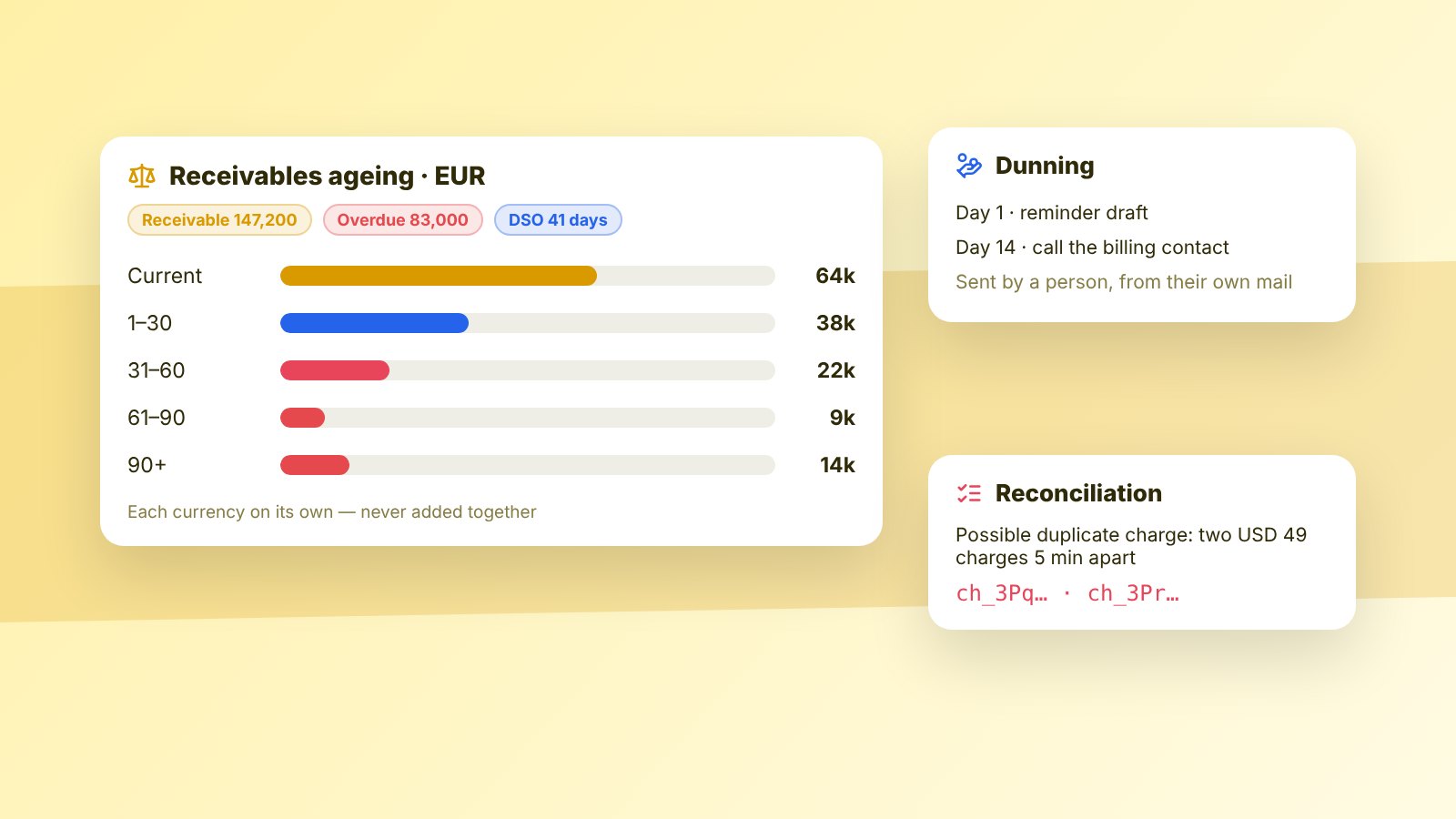
Billing Intelligence reads your own Stripe account and puts its invoices, payments, refunds, credit notes and chargebacks next to the customer: their account, their support tickets, their health and their renewal. Finance sees why a customer is unhappy; support sees what the customer was charged. It uses the same customer accounts as Customer Success and Renewal Intelligence and is sold separately, per billing seat.
Before you start
- Turning it on: the 7-day free trial includes it. After that, add Billing Intelligence under Billing → Add-ons and choose the number of billing seats ($79 per seat a month).
- Who needs a seat: anyone who changes billing data — runs the sync, works collections or cases, requests an action, uses the Billing Copilot. Viewing doesn’t need one, and neither does approving an action. If more people can change billing data than you have seats, choose who has them in Billing → Settings → Billing seats.
- Roles: the built-in Billing manager, Billing admin and Finance approver roles cover most teams. The permissions are View Billing Intelligence, Work customer billing, Approve billing actions and Billing Intelligence settings. Customer e-mail addresses are masked unless you can see personal data.
- Stripe key: connect your own key under Connectors → Stripe. A restricted key with read access to Invoices, Charges, Refunds, Disputes and Credit notes is enough for everything except approved actions, which also need write access to Refunds, Credit notes, Payment links or Subscriptions.
1. Get billing data in
- 1Sync from StripeEvery 15 minutes (or Sync now) invoices, charges, refunds, chargebacks and credit notes are read. The first sync reads a year; later syncs read what changed, with an overlap so late updates aren’t missed. Every open invoice is re-read each time. Syncing never writes to Stripe.
- 2Match customers to accountsA Stripe customer is matched by its Stripe id, then by its e-mail domain. If nothing matches a new account is created (you can switch that off). Link the rest by hand from Invoices → Not linked, or from the reconciliation finding; their records move to the account and later syncs use the link.
- 3Import other invoicesInvoices → Import CSV with the columns invoice_id, account, number, status, currency, total, amount_paid, issued_at, due_at and paid_at. Amounts are in normal units (1250.00). Re-importing the same invoice_id updates it.
2. Read the overview
Every figure is per currency — currencies are never added together — and comes from the synced records, with no AI.
| Figure | How it is calculated |
|---|---|
| Receivable | The amount still due on open invoices. |
| Overdue | The amount still due on open invoices whose due date has passed (the issue date when there is none). |
| Ageing | Overdue amounts by days past due, in the buckets you set (30, 60, 90 by default: Current, 1–30, 31–60, 61–90, 90+). |
| DSO | An approximation: receivables ÷ (amount invoiced in the last 90 days ÷ 90). |
| Invoiced / collected (30 days) | Totals of finalised invoices issued (void excluded) / amounts paid on invoices in the last 30 days. |
| Payment failure rate | Failed charges ÷ all charges attempted in the last 30 days. |
| Recovered after failure | Invoices with at least one failed payment in 90 days that were later paid, and the amount; the rest is still outstanding. |
| Renewals with overdue invoices | Customers renewing in the next 90 days who have an overdue invoice. |
3. Understand failed payments
Each failed charge carries Stripe’s reason code (for example expired_card, insufficient_funds,do_not_honor, authentication_required). Payments shows what the code means in plain words, the usual next step, and whether Stripe’s automatic retries can help — an expired card won’t start working on a retry; insufficient funds may. Failures in the last 30 days are grouped by reason with the number of customers and amounts. Payment retries stay with Stripe’s own settings; Billing Intelligence never retries a payment.
4. Work collections
- 1Cases open by themselvesWhen a customer has an invoice overdue by at least the days you set (1 by default) and above the amount you set, a collection case opens — one per customer and currency.
- 2The dunning scheduleBy default: day 1 friendly reminder, day 7 second reminder, day 14 call the billing contact, day 30 final notice, day 45 escalate to the account owner and finance. You can change the days and steps, add “review whether to pause service” (a person decides) and remove steps. Paused, disputed and promise-to-pay cases don’t advance.
- 3Drafts, not e-mailsReminder steps write a template draft listing the overdue invoices with their payment links — no AI. A person checks it, sends it from their own mail and presses Contacted by e-mail or Called.
- 4Close the caseA case closes as paid by itself when nothing is overdue. Writing off needs a reason, and records the decision only: mark the invoice uncollectible in Stripe yourself. A promise to pay needs the promised date.
5. Check reconciliation findings
After every sync eight fixed rules compare invoices, payments, refunds and subscriptions. A finding is something to check, not a proven error.
| Rule | What it finds |
|---|---|
| Possible duplicate charge | Two successful charges of the same amount to the same customer within 24 hours (adjustable), neither fully refunded. |
| Refunds above the payment | Refunds on a payment add up to more than the payment. |
| Paid without a payment | An invoice marked paid with no successful payment recorded (it may have been paid outside Stripe). |
| Paid amount mismatch | The payments on an invoice don’t add up to what it says was paid. |
| Overdue, never attempted | An automatically charged invoice is past due and no payment was ever attempted. |
| Active subscription, unpaid | A subscription is active while its customer has an invoice more than 30 days overdue. |
| Customer not linked | Invoices for a Stripe customer that isn’t linked to an account. |
| Currency mismatch | An account is invoiced in a different currency from its subscription. |
Mark a finding resolved, expected or ignored — each needs a note. A resolved finding reopens if the next check still finds it; one no longer found closes by itself.
6. Billing cases and chargebacks
- Billing cases are customers’ billing problems: charged twice, wrong amount, payment keeps failing, refund request, refund not received, cancellation, invoice question, tax or billing details. Billing tickets from the last 30 days without a case are listed with a suggested kind (from the ticket’s words) that a person confirms. A case holds the ticket, invoice and payment it concerns; resolving it needs how it was resolved.
- Chargebacks come from Stripe with the evidence due date. Give each an owner and keep notes; submit the evidence in Stripe before the due date.
- Each customer’s billing page shows what the records show (for example “the card used most recently expired in 2025-01”), every invoice, payment, refund, chargeback, subscription and case, the customer’s support tickets, and one timeline of all of it.
7. Refunds, credits, payment links and coupons
- 1RequestFrom a payment (refund) or an invoice (credit note, payment link), with the amount and a reason of at least 10 characters. You can’t refund more than is left on the payment, or credit more than is left on the invoice.
- 2ApproveSomeone else with “Approve billing actions” approves or rejects it on Actions & approvals — nobody approves their own request (the workspace owner excepted). Rejecting needs a note.
- 3Run onceAn approved action runs once in your Stripe account, with an idempotency key so a retry can’t refund or credit twice. The Stripe id, or Stripe’s error, is kept on the action.
8. Billing Copilot and reports
Questions it can answer exactly — who owes the most overdue, why payments are failing, which chargebacks need a response, which renewals have overdue invoices, how much was recovered or refunded, which Stripe customers aren’t linked, the DSO — are calculated from your records, with no AI and no limit. A customer’s billing summary, an explanation of their charges, a collection e-mail draft and a hand-over summary are written by AI from that customer’s billing records, with every fact citing the record it came from and hypotheses kept apart. Customer e-mail addresses aren’t sent to the model. Written answers share one daily limit with the Success, Renewal and RevOps Copilots (10 a day per workspace by default, adjustable from 0 to 50). Drafts are never sent from here.
There are eleven reports — ageing, overdue invoices, invoiced and collected by month, failed payments, failure reasons, collection cases, chargebacks, refunds and credit notes, reconciliation findings, approved actions, and billing tickets and cases — with CSV export and print / save as PDF.
9. Playbooks, notifications and the API
- Playbooks run on the workflow engine: nine templates (payment failed → tell the billing team, invoice overdue → reminder draft, chargeback opened → case and alert, evidence due → managers, overdue before renewal → summary and owner …), created switched off for you to review. Steps can alert people, open a billing case, save a reminder draft, write a billing summary or call your webhook. No playbook moves money or contacts a customer.
- Notifications for failed payments, overdue invoices, chargebacks and their deadlines, high-severity reconciliation findings, approvals waiting and billing tickets — grouped with a count.
- Renewals: with Renewal Intelligence, overdue invoices and failed payments appear as risk signals on the customer’s renewal, with the invoice or payment as evidence.
- Webhooks:
bi.*events (payment failed, invoice overdue, collection step, chargeback opened or due, finding, renewal with overdue invoices, billing ticket, action requested, decided, run or failed). - API:
GET /api/v1/billing/invoiceswith a read-only key.
What it never does
- It never moves money without a request and a second person’s approval, and never retries a payment.
- It never e-mails a customer, never changes or voids an invoice in Stripe, and never writes an invoice off in Stripe.
- It never adds currencies together, and never presents a reconciliation finding or a hypothesis as a confirmed error.