
Customer Success: how it works
Step by step: switch on Customer Success, add accounts, read and override health, work at-risk accounts, build success plans and playbooks, manage renewals and QBRs, connect your CRM and billing — and how scores, risk and revenue are calculated.
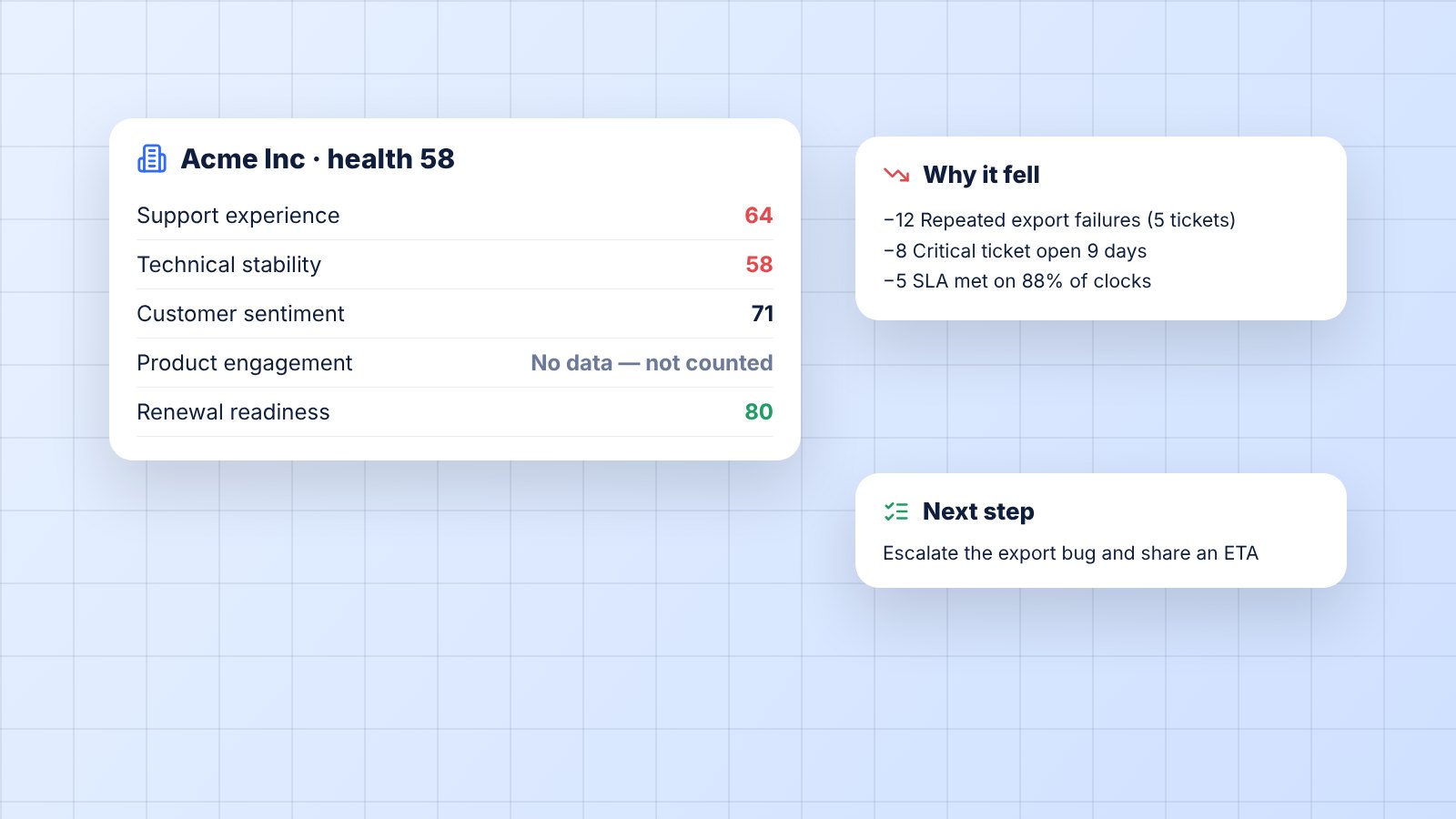
Customer Success turns what your support team already knows — tickets, SLA misses, failed fixes, open investigations — together with engagement, product usage and contracts into one explainable health score per customer, an early warning when an account is at risk, and the work to keep it: interventions, success plans, playbooks, renewals and business reviews. It is sold separately, per CSM seat.
Before you start
- Turning it on: the 7-day free trial includes it. After that, add Customer Success under Billing → Add-ons and choose the number of CSM seats ($99 per seat a month).
- Who needs a seat: anyone who changes Customer Success data. Read-only roles (Executive, viewers) don’t. If more people can edit than you have seats, choose who has them under Customer Success → Settings → CSM seats.
- Roles: three ready-made roles — Customer Success Admin (settings, playbooks, sync), Customer Success Manager (works accounts) and Executive (read-only). Contract and revenue figures need the permission “See contract and revenue figures”.
Add your accounts
- 1Adopt the companies in your ticketsOpen Customer Success → Accounts and choose From tickets. TicketResolve lists the companies it has seen in tickets over 180 days, by e-mail domain. Select them and press Add; each becomes an account linked to its tickets.
- 2Or create, import or syncPress New account to create one (its website’s domain links the tickets), Import to load a CSV, or connect Salesforce, HubSpot, Gainsight or Stripe under Integrations. A record that matches an existing account by domain or name is flagged as a duplicate before it is created.
- 3Fill in ownership and the contractOn the account, press Edit to set the CSM, account owner, segment, lifecycle stage, contract value, contract dates and renewal date. Assignment rules in Settings can set the CSM for new accounts automatically.
- 4Link anything that’s missingUnder Contacts & links, add contacts (their e-mail links their tickets) and identifiers — another domain, the help-desk organisation name, or a CRM or billing id. One identifier can belong to one account only.
Read and override health
- 1Open the Health tabEach account is scored once a day (press Recalculate to do it now). You see the score, its category, the confidence, the change over 7, 30 and 90 days and the history.
- 2Read each dimensionEvery dimension lists the factors that moved it, each with its points and links to the tickets, investigations or known issues behind it. A dimension marked No data — not counted is left out of the score.
- 3Override when you know betterPress Override, enter the score and a reason (required) and, if you like, when it expires. The calculated score keeps being recorded next to it, and the override goes in the activity log.
| Dimension (default weight) | What counts | No data when |
|---|---|---|
| Support experience (25%) | SLA met, first response and resolution time, reopened tickets, answers that didn’t work, escalations, CSAT, tickets waiting | no tickets are linked |
| Customer sentiment (20%) | Word-based tone of messages and its change, churn language, feedback you log | fewer than two messages or feedback entries |
| Technical stability (20%) | Recurring issues, critical open tickets, known issues and problems affecting them, open investigations, technical risk | no tickets are linked |
| Product engagement (15%) | Usage and active users month on month, inactivity, features used, milestones | no usage events |
| Relationship engagement (10%) | Last interaction, meetings, overdue follow-ups, follow-up completion, replies | no activity logged |
| Renewal readiness (10%) | Renewal stage, silence before the renewal, critical issues, open commitments, payment problems | no renewal date |
Work at-risk accounts
- 1Open At riskAccounts flagged high or critical are ranked with their reasons, the evidence for each, the 14-day trend, the renewal date and — if you can see it — the ARR at stake.
- 2Open or update the interventionHigh and critical accounts get one intervention automatically (you can switch that off). Move it through Detected → Reviewed → Assigned → In progress → Monitoring → Resolved, with an owner, deadline, next follow-up and notes. Resolving it needs an outcome: retained, improved, no change, churned or false alarm.
- 3Change many at onceOn the Interventions tab, select rows to assign them or move them to another status together.
Build a success plan
- 1Start the planOpen Success plans → New plan, choose the account and a 30, 60, 90 or 180-day horizon, then a template, a blank plan, or Draft from evidence — a plan built from the account’s goals, repeated issues, open investigations, usage and renewal date, with the reason for each item. Remove what you don’t want before saving.
- 2Work the planSet owners, due dates and dependencies on milestones and tasks; a task can’t be marked done before the one it depends on. Track KPIs with a target and current value, add links and comment.
- 3Reuse itPress Save as template to reuse the structure for other accounts.
Automate with playbooks
- 1Add a templateCustomer Success admins open Playbooks and choose a template — for example Health below threshold → intervention or Renewal approaching → prepare. It’s added switched off.
- 2Review and switch onOpen it in the workflow builder to change the steps, conditions and approvals, then press Switch on. Pausing works the same way.
- 3Run it on one accountOn an account, choose Run playbook; Test does a dry run.
Playbooks run on the workflow engine: each event starts a playbook once per account per day, steps that fail retry with back-off and then wait in the dead-letter list, and e-mail steps only write drafts for a person to send.
Renewals, expansion and QBRs
- 1Follow renewals by stageRenewals appear from the account’s renewal date, CRM renewal opportunities or by hand. Open one to change the stage, owner, commitments and action plan. Marking it Renewed records the new value and moves the dates on; Lost marks the account churned.
- 2Check expansion signalsAccounts with two or more signals — usage or team growth, broad adoption, positive feedback, new requirements — are listed with the evidence. Nothing is guessed.
- 3Generate a QBROn the account’s QBRs tab, choose the period and press Generate QBR. Every section is filled from data and editable; add your logo and colour, then Share (a link valid for 30 days, revocable) or Print / save PDF.
The Success Copilot
Portfolio questions such as “Identify our 10 most at-risk enterprise customers” or “Which technical issues are affecting customer retention?” are answered exactly from the scores — no AI, no limit. Briefings, follow-up e-mail drafts, plan narratives and QBR summaries are written by AI from one account’s evidence, every fact carries its evidence id, and invalid citations are removed. Written answers count toward a daily limit for the workspace: 10 by default, adjustable in Settings from 0 (off) to 50.
Analytics and the revenue definitions
All revenue figures come from one shared revenue data layer, so they agree on every page:
- MRR / ARR: synced or pushed subscriptions, otherwise the recorded annual contract value ÷ 12. Accounts with neither have no revenue and are not estimated.
- GRR: (MRR at the start from customers then active − churned − contraction) ÷ MRR at the start.
- NRR: the same plus expansion from those customers. New customers in the period are excluded.
- Revenue at risk: ARR today of accounts that are At risk or Critical, or whose risk is high or critical.
Connect your CRM, billing and usage
Gainsight
Enter your Gainsight address (https://yourcompany.gainsightcloud.com) and a REST access key. The key is encrypted and never shown again. Each sync reads Companies through the Data Management query API — name, industry, employees, stage, renewal date and ARR by default, plus any fields you map — and the CSM, who becomes the account’s CSM when they’re a member of your workspace. Nothing is written back to Gainsight.
Gainsight’s own health score (CurrentScore__gr.Score, or the field you name) is shown on the account as “Gainsight health” with the date it was read. TicketResolve’s health score is calculated from your own signals and never takes Gainsight’s score as an input. If the health field can’t be read, the sync still completes and the log says why. Built against Gainsight’s documented API; not yet verified against a live tenant.
Salesforce and HubSpot
Customer Success uses your existing connection. Under Integrations, map the fields you want, choose what happens when a value differs (the CRM wins, keep ours, or list it for a person), decide whether unmatched companies create accounts, and switch on the 6-hourly sync or press Sync now. HubSpot needs the read scopes for companies, contacts, deals and owners. Nothing is written back to the CRM.
Stripe and other billing systems
Stripe uses your own key from Connectors. Other systems push subscriptions with an API key:
curl -X POST https://www.ticketresolve.ai/api/v1/cs/subscriptions \
  -H "Authorization: Bearer $TR_API_KEY" -H "Content-Type: application/json" \
  -d '{"subscriptions":[{"id":"sub_88","customerId":"cus_12","customerEmail":"billing@acme.com","status":"active","mrr":1200,"currency":"USD","startedAt":"2026-01-01"}]}'
Product usage
curl -X POST https://www.ticketresolve.ai/api/v1/adoption/events \
  -H "Authorization: Bearer $TR_API_KEY" -H "Content-Type: application/json" \
  -d '{"events":[{"company":"acme.com","email":"ann@acme.com","event":"login","feature":"reports","id":"evt_1"}]}'
The event id makes each event count once. You can also import a CSV under Integrations.
Troubleshooting
- An account has no score: nothing is linked to it yet. Add its domain, organisation or contacts under Contacts & links.
- “You don’t have a CSM seat”: an admin assigns seats under Settings, or adds seats in Billing.
- GRR and NRR show “—”: add contract values or connect billing; figures are hidden for roles without the financial permission.
- A sync failed: the sync log shows the error, and a notification is raised. Check the connection and scopes, then press Sync now.