
Service management (TR ESM): departments, the service catalogue, requests and tasks
How TR Enterprise Service Management works: department service desks and teams, the service catalogue with request forms, eligibility and SLA targets in business hours, requests and their lifecycle, tasks across departments, and who can see and do what.
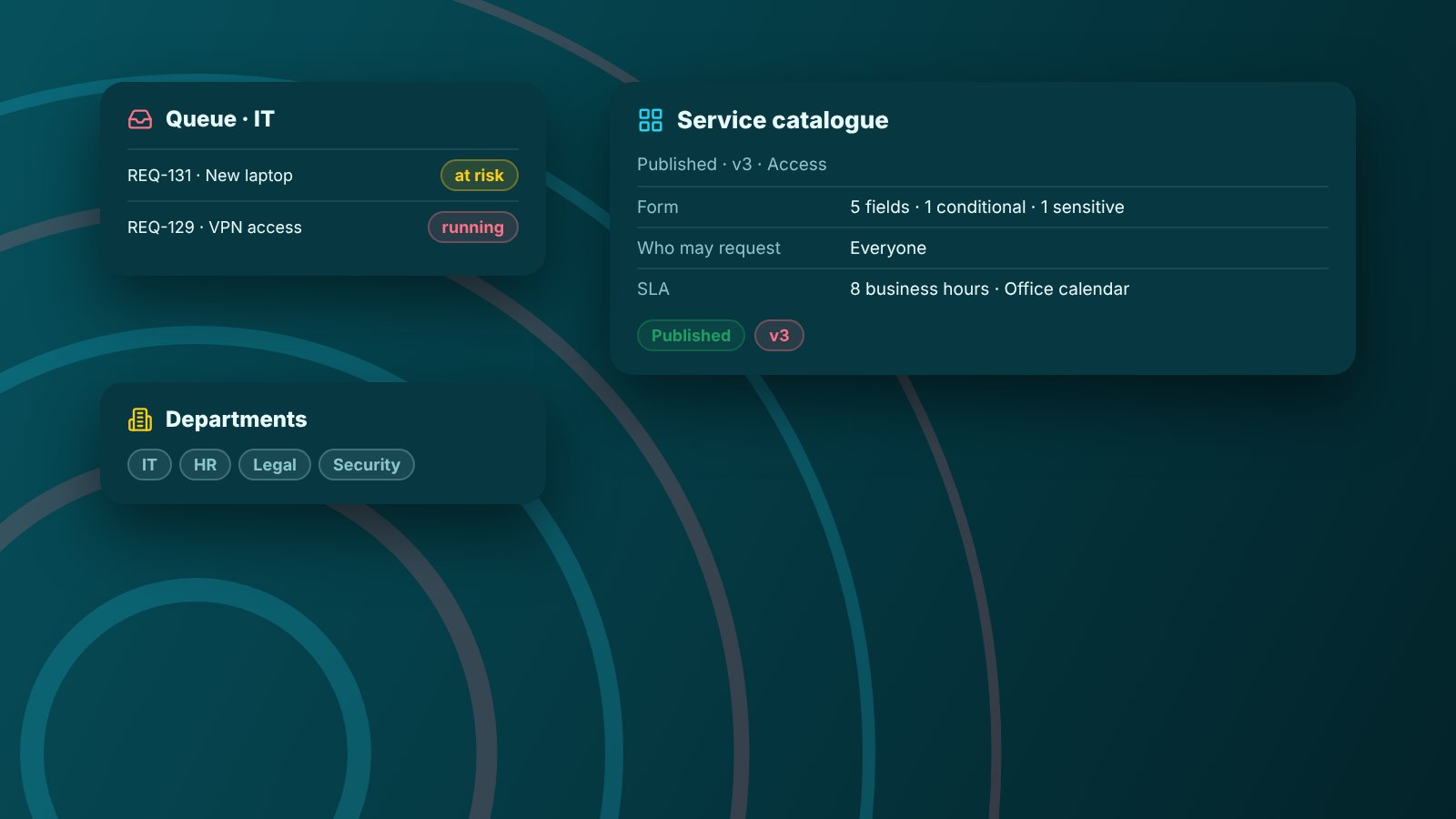
TR Enterprise Service Management lets people in your organisation request services from IT, HR, Finance, Facilities and other departments, and lets each department’s service desk work those requests to completion. Open it from Work → Service requests. It’s available on every plan, with no charge per employee, request or department.
TR ESM coordinates service delivery. It doesn’t replace your HR, ERP, procurement or device-management systems — it works with them.
Departments and service desks
Departments are the ones defined in AI VP of Operations, so there is one list of departments for the organisation. Under Service requests → Departments, each department’s service desk can be opened or closed, given a contact (such as a channel name) and a default team. Teams are groups of workspace members who work the department’s requests.
The service catalogue
Under Catalogue, a service has:
- a name, category, description and the department (and optionally the team) that provides it;
- a request form: short or long text, one or several choices, numbers, dates, e-mail addresses, links and yes / no fields. Fields can be required, shown only when an earlier field has a given answer, and marked sensitive (shown only to the requester and to desk staff allowed to see personal data);
- who may request it: everyone, or people whose employee record (in AI Chief People Officer) is in chosen departments;
- an SLA target in business hours, counted on an SLA calendar (or 24 × 7);
- what the requester can expect, and what “done” means for the desk;
- how long after fulfilment the requester may reopen it (7 days unless you change it).
A service is a draft until you publish it. Each publish is a new version; a request keeps the version it was made with, so later changes to the form don’t change earlier requests. A retired service can’t be requested. Services that need an approval run it in their linked fulfilment workflow, so they can’t be published without one (see below).
The employee portal
The Portal tab starts with requests waiting on your answer, then What do you need?: describe it in your own words — “I need access to the finance reporting application” — and the service finder suggests a service. It explains who provides it, whether it needs an approval, the target and what you’ll be asked for, and can pre-fill answers your description clearly states (never sensitive fields). Open the form, check the answers and submit; nothing is requested until you do.
The finder is the Service finder agent in the AI Control Plane. Personal details such as e-mail addresses and phone numbers are hidden before it reads your text, which it treats as data rather than instructions. It only sees the services you may request, and its answer is checked: a service it names must be one of those, and pre-filled answers must fit the form. If it’s paused, unavailable, or its answer can’t be used, the services are ranked by keywords instead and the portal says so. It never submits, approves or provisions anything.
Matching help articles from your knowledge base and published articles are listed alongside, and often-requested services are one click away. When a request is fulfilled, you can rate it from 1 to 5 with an optional comment, once; the service desk sees the rating on the request.
Requests and their lifecycle
A request gets a number (REQ-1, REQ-2 …), the answers to the form — checked against it, with answers to hidden fields dropped — and an SLA due time. The department’s team (or the department head when there is no team) is notified.
| State | Meaning |
|---|---|
| New | Waiting for the service desk |
| In progress | Someone is working on it (adding a task starts it) |
| Waiting on you | The desk needs something from the requester; their reply puts it back in progress |
| Fulfilled | Done — only when every task is done or cancelled |
| Closed | Finished |
| Cancelled | Withdrawn by the requester or the desk |
Moving a request to fulfilled, cancelled or waiting needs a note the requester sees. The requester can cancel an open request and reopen a fulfilled or closed one within the reopen window. The timeline shows every change; desk staff can add internal notes, which the requester never sees.
The SLA shows as running, at risk (less than a fifth of the time left), met or breached, against the real times the request was made and fulfilled.
Tasks across departments
One request can have several tasks, each in a department’s queue — for example IT grants access while HR confirms the cost centre. The requester sees one request with each task’s progress; people working a task can open the request it belongs to. A task is finished with a note saying what was done.
Fulfilment through TR Workflow OS
A service can have a fulfilment workflow — a TR Workflow OS workflow whose trigger is “A service request was submitted”. When someone requests the service, that workflow (and only that one) starts for the request, with the form answers as {{vars.<field>}} and the request as {{esm.number}} and {{esm.requester}}. If the workflow is switched off, the desk is told to fulfil the request by hand.
- Approvals. An approval step can name who decides: the requester’s manager (from their employee record in AI Chief People Officer), the department head (from AI VP of Operations) or a named person. Only that person can decide, the requester never can, and the requester sees who it’s waiting for. If no manager is known, the step fails with that reason instead of guessing. A service with an approval policy can only be published when its switched-on workflow has a matching approval step.
- Department tasks. A “give a department a task” step puts a task in that department’s queue and waits until it’s done. Parallel branches give several departments tasks at once. Cancelling a task stops the workflow.
- The requester. Steps can tell the requester something, ask them for information (“waiting on you”) or mark the request fulfilled.
The request has one lifecycle: it is fulfilled when the workflow succeeds; a rejected approval cancels it with the approver’s reason; a cancelled task or a failed step stops the workflow and tells the desk, and the request stays open for the desk to finish by hand. Start from the service-request templates in Workflows — application access, employee onboarding and new workstation — and choose the departments for each task.
Assets and CMDB
There is one asset register: the same inventory Security Intelligence and the operations twin use. Service management adds the IT asset lifecycle and its history. Your endpoint-management and procurement tools stay the systems of record; TR imports their exports.
| State | Moves | Who |
|---|---|---|
| In stock | Assign, send for repair, retire | Desk |
| Assigned | Transfer, return to stock, send for repair, retire | Desk (retire: manager) |
| In repair | Back from repair, assign, retire | Desk (retire: manager) |
| Retired | Reinstate, dispose (with a disposal reference) | Service management manager |
| Disposed | None — kept as history and archived from the inventory | — |
- Assignment against a request. Give the request or incident number when you assign: the asset shows on the request, and the request on the asset’s history. The person is told; on a transfer, the previous holder is told too. Employees see their equipment and licences in the portal.
- Import. Paste a CSV export with the columns type, identifier and name (optional: model, location, assigned_email, purchased_at, warranty_ends, cost). Existing assets are updated, never deleted. An assignment in the file only applies to an asset that’s in stock, so nobody’s device is moved silently. Every line that couldn’t be applied is listed.
- Configuration items and relationships. Link an asset to the business services that use it. Relationships come from the operations twin: connected records, and business relationships people define or confirm. A suggestion stays inferred until a person confirms it.
- Impact. An asset, an incident’s service and a change’s services show what depends on them and what they depend on. Each item is marked confirmed (a person or a connected record) or inferred (needs confirmation), and open incidents on the services reached are listed. Inferred items are never presented as fact.
- Safeguards. Retiring an asset that confirmed services depend on needs you to acknowledge them. Disposing of one is refused until those relationships are moved, and needs a disposal reference.
Incidents
Anyone who can request services can report an incident — Something broken? on the portal asks who is affected and whether they can keep working; the desk uses impact and urgency directly. Other parts of TicketResolve can raise incidents too; repeated signals for the same thing are added to the open incident instead of creating new ones. Choose which department’s desk receives incidents under service management settings.
| Impact ↓ / urgency → | High | Medium | Low |
|---|---|---|---|
| High | P1 | P2 | P3 |
| Medium | P2 | P3 | P4 |
| Low | P3 | P4 | P4 |
Each priority has a resolution target — by default P1 4 hours (around the clock), P2 8, P3 24 and P4 72 business hours — and changing the priority moves the target. Incidents go new → triage → assigned → investigating ⇄ pending → resolved → verified → closed. Resolving needs a resolution code and a note; verifying needs a note on how the service was confirmed restored. An employee can’t report more than medium impact; the desk classifies.
Major incidents are declared with a reason and an incident commander (who must work the desk). The desk, the department heads, the commander and the reporter are notified; status updates go to stakeholders (or stay internal), and a post-incident review — what happened, the causes (say whether suspected or confirmed) and follow-up actions — is required before a major incident can close. The review is visible to the desk only.
Recurring incidents and problems
Three or more incidents on the same service and category within 30 days are listed under Recurring incidents. Create problem opens a problem in Problems with the incident numbers attached (or links them to an existing one). The cause stays unidentified or suspected until someone confirms it in Problems — TR ESM never marks a cause as confirmed.
Changes
A change has a kind (standard, normal or emergency), why it’s needed, the implementation, test and rollback plans, a maintenance window and the affected business services (from Business operations). It moves draft → assessment → approval → scheduled → implementation → verification → closed, or is rejected, cancelled or rolled back.
Assessing calculates a risk score you can read line by line: +2 emergency, +3 a tier 1 or +2 a tier 2 service, +2 open P1/P2 incidents on an affected service, +2 changes rolled back on these services in 90 days, +2 changes overlapping the window on a shared service, +3 no rollback plan, +1 no test plan. 6 or more is high, 3–5 medium. A standard change must be low risk and needs no approval; a normal change needs one approval (two when high risk); an emergency change needs one. Approvers need the approvals permission and can’t be the person who raised or owns the change; each approval is from a different person. Closing or rolling back needs a note on the outcome. The change calendar lists changes in progress by window, with overlaps.
SLA escalation
Every 5 minutes, open requests and incidents are checked against their SLA. At 80% of the time (measured on the clock between creation and the due time) the assignee — or the team — is warned once; at the due time the breach is recorded and the desk, the assignee and the department head are notified once.
Who can see and do what
| Permission | What it allows |
|---|---|
| Request services (esm.request) | Browse the catalogue, make requests, follow and comment on their own, cancel or reopen them |
| Work the service desk (esm.work) | Work requests and tasks in their departments’ queues — every department when they’re on no team |
| Service management settings (esm.manage) | Desks, teams, the catalogue and publishing; every queue |
Built-in roles: Service Management · Employee (the portal only), Desk agent and Desk manager. Existing roles keep their access; viewers and agents can request services, agents can work the desk. Every change is recorded in the audit log.