
Time Tracking for Support Teams: Timesheets, Attendance and Payroll Without Spying on People
Support teams need hours for payroll, client billing and staffing, but heavy-handed monitoring damages trust. Start with a plain timer, weekly timesheets and time off; add monitoring only with clear, visible rules; compare time with the schedule; and pay and invoice from approved hours. A complete guide with an illustrative team, start to finish.
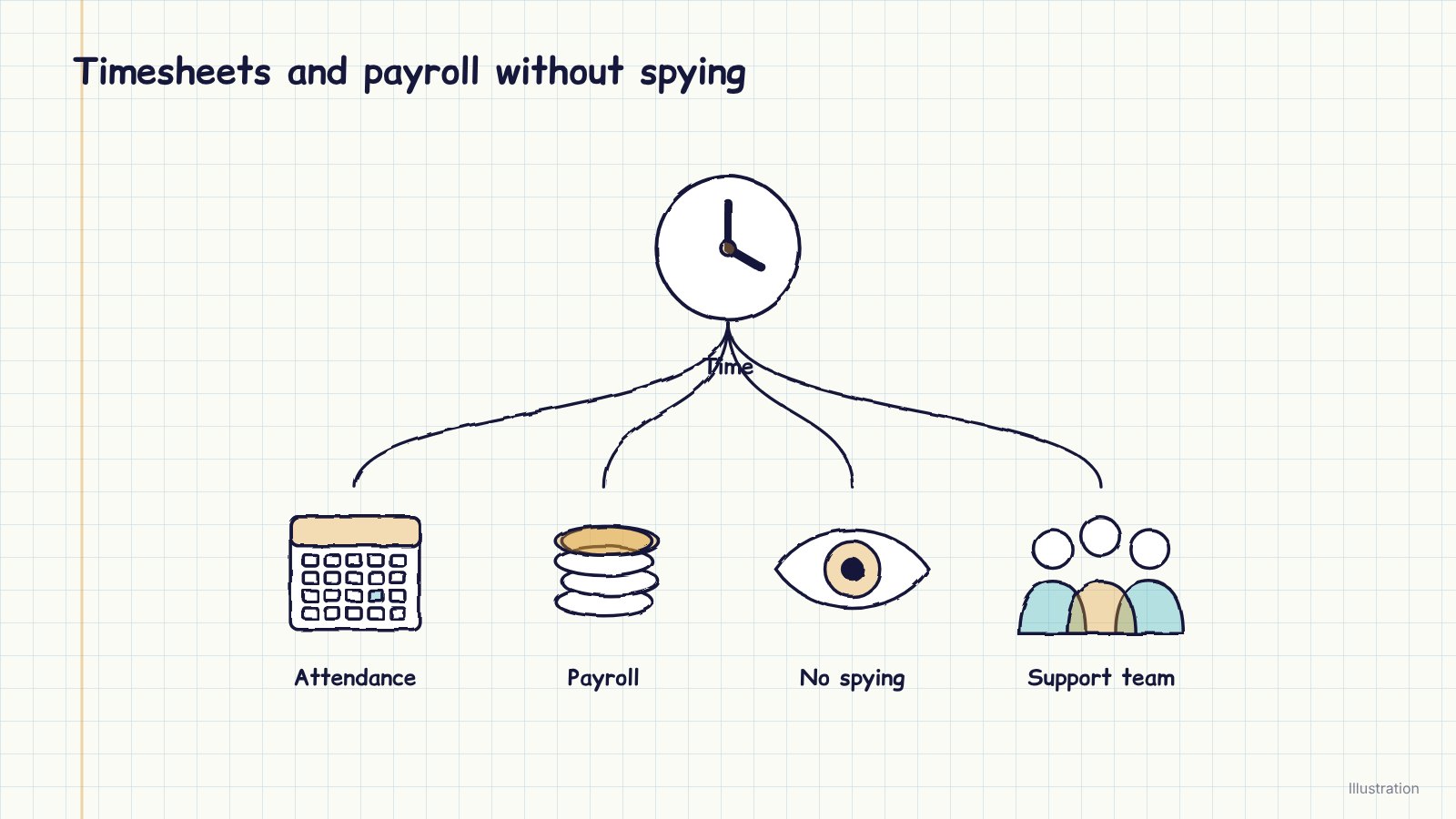
Support teams need to know where time goes. Payroll needs hours, outsourced teams bill clients by the hour, and capacity planning needs real numbers. Yet time tracking is also where trust breaks most easily: an agent who feels watched every second doesn't do better work.
The good news is that you can get accurate hours without turning tracking into surveillance.
Here's the before picture at a company that provides multilingual support for a travel-booking platform, with 30 agents across four countries:
- Hours are logged in a spreadsheet each Friday, from memory.
- Leave is agreed in chat and forgotten by the time payroll runs.
- Client billing for two outsourced contracts is rebuilt by hand every month.
- Attendance is a feeling: "it seems like Tuesday afternoons are thin".
- A new manager suggests installing screenshot software on every laptop "to be sure". Three senior agents say they'll leave if that happens.
Everyone wants the same thing: accurate hours, fair pay, covered shifts and invoices clients don't dispute. The question is how to get it without breaking the team.
First, the basics
- A timer records when someone starts and stops work, optionally against a project or client.
- Manual time is time added by hand, with a reason, when someone forgot the timer.
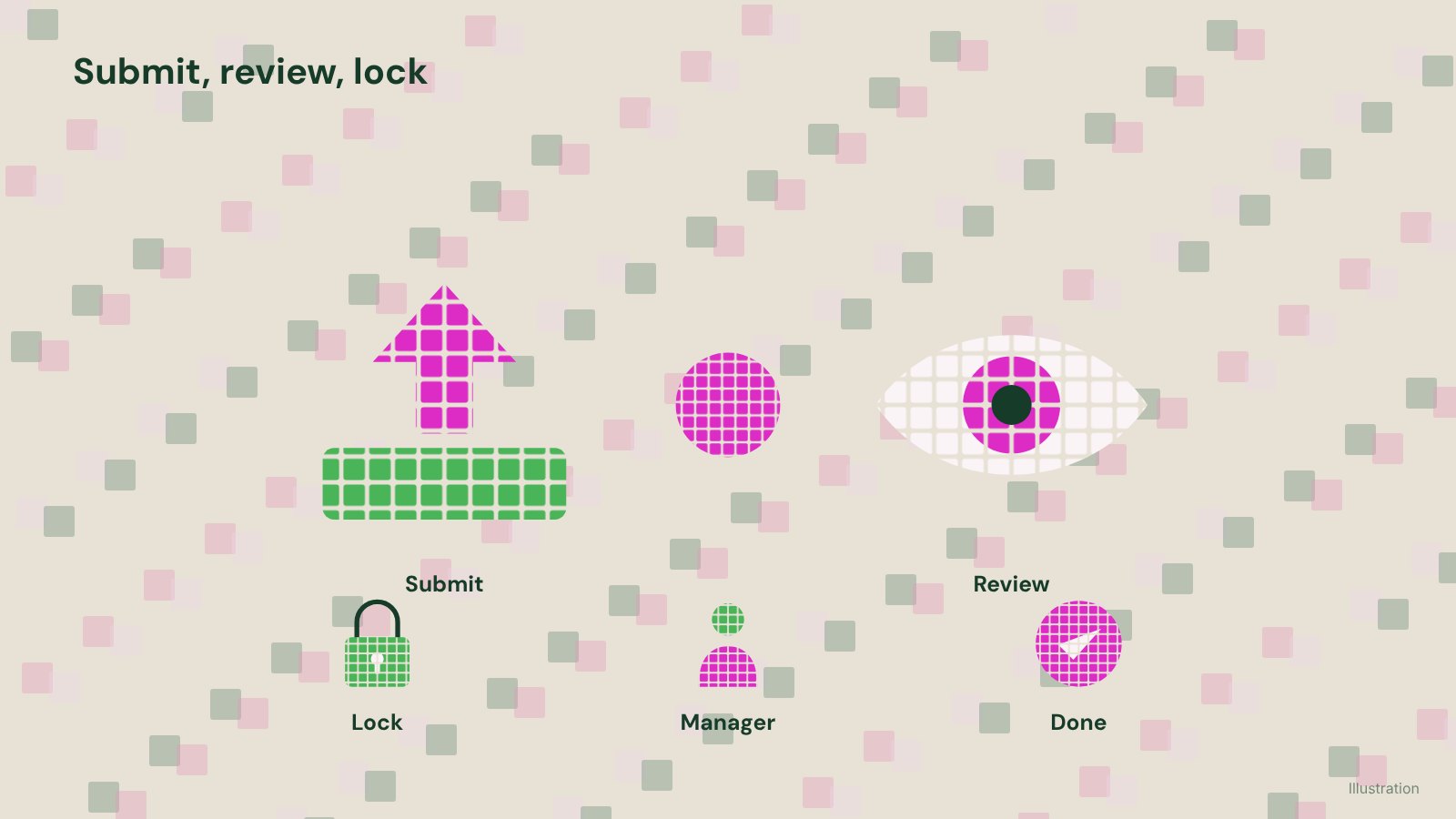
- A timesheet is a week of tracked time, submitted for approval and then locked.
- Time off is leave requested and approved in the same place.
- Attendance compares tracked time with the shifts in the schedule.
- Activity monitoring records signals like input counts or application names while the timer runs.
- Billable time is time charged to a client at a rate.
Why does this matter? Accurate hours make pay fair, invoices defensible and staffing decisions real. Doing it with clear limits keeps the trust that good support work depends on. You don't have to choose between the two.
The problem, in plain terms
- Hours are rebuilt from memory, so pay and invoices are guesses.
- Leave lives in chat, so payroll and cover miss it.
- Coverage gaps are felt, not seen.
- Monitoring is proposed as the fix, and it costs trust.
- Too many people see too much, including pay.
Start with the timer, not the screenshots
Most of what payroll and billing need comes from a plain timer:
- Start and stop, optionally against a project or client.
- Manual time with a reason for when someone forgot, clearly marked for the approver.
- Weekly timesheets submitted for approval, then locked.
- Time off requested and approved in the same place.
That covers hours, overtime limits, billable time and paid leave.
If you add monitoring, set the rules first
Some teams (remote contractors, regulated work, client contracts) need more than hours. If you record activity, keep it narrow and visible:
- Only while the person's own timer runs. Nothing when it's stopped.
- A notice they accept, listing exactly what is recorded. Ask again whenever it changes.
- Counts, not content. Keyboard and mouse activity as numbers per ten minutes, never the keys pressed.
- Names, not detail. Application names; web sites as domains only.
- Screenshots off by default, blurred if used, and people can delete their own.
- People see everything recorded about them.
And treat activity percentages as context. Reading a long ticket, a customer call or thinking through a bug all look like low activity. More in activity monitoring with consent.
Attendance against the schedule
If your team works shifts, compare tracked time with the schedule: on time, late (after a grace period you set), left early, absent or on time off. It catches coverage gaps (the Tuesday afternoon nobody covered) without anyone keeping a spreadsheet. See attendance against shifts.
Pay and invoices from approved time
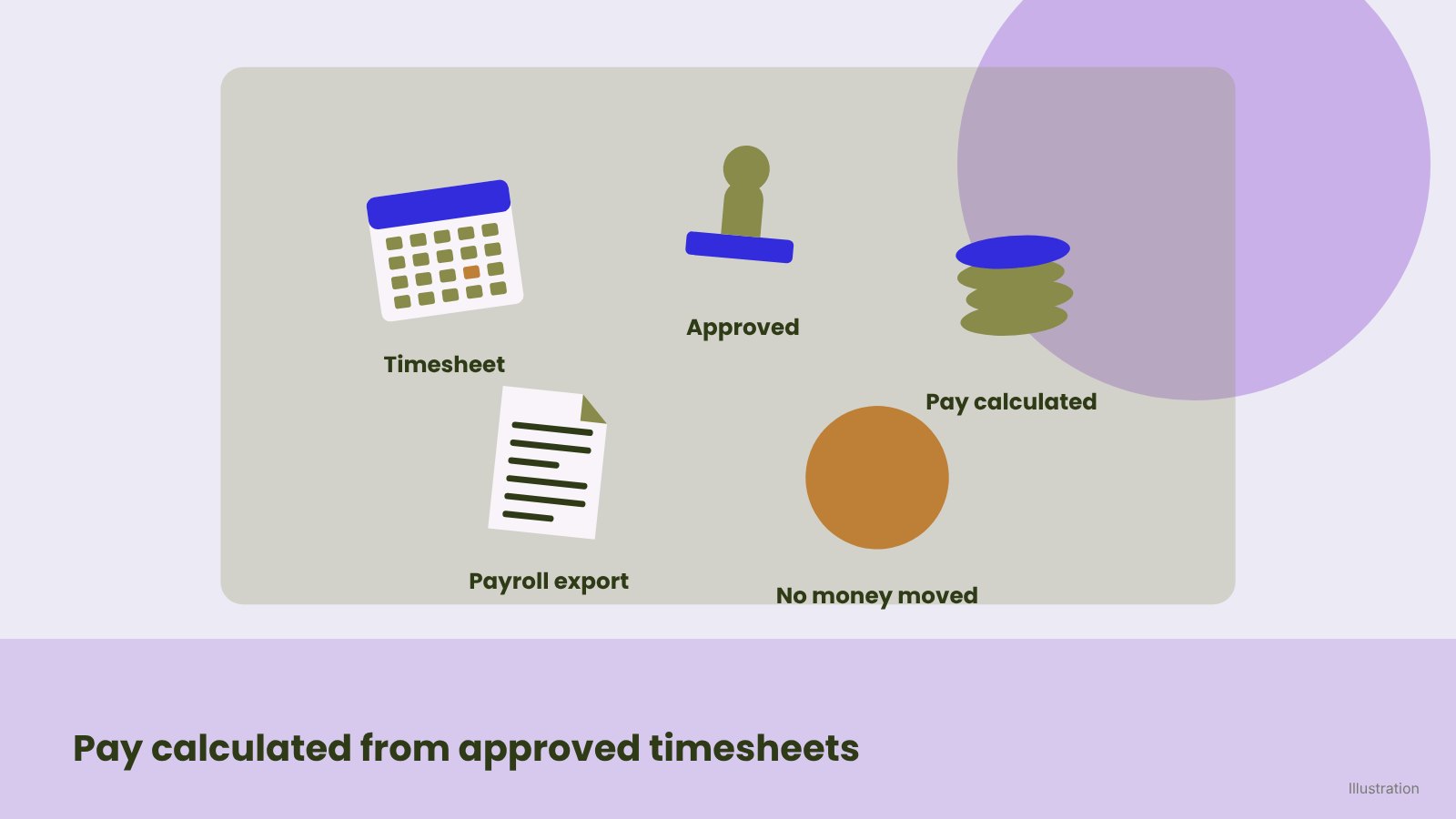
Payroll should use approved timesheets plus approved paid time off, multiplied by each person's rate. Client invoices should use billable project time at the project or person's rate, and list, not guess, any time with no rate. The tool calculates; people still pay and send invoices through their own payroll provider and bank. See payroll from approved timesheets and invoicing billable hours.
In TR-AI
The Workforce tab (/dashboard/workforce) brings this together: a browser timer, timesheets, time off, attendance against your support schedule, reports, payroll and client invoices. The TR-AI Time desktop app for Windows, macOS and Linux adds activity counts, application names and optional domains and screenshots, only while the person's own timer runs and after they accept your notice. Leads approve; only admins see pay.
A worked example, start to finish
Here's the travel-booking support team moving to Workforce over one month. The names and numbers are illustrative.
Week 1: the timer. Esther, the support director, sets up projects: one per outsourced client contract, one for the in-house queue, and "Training" and "Team meetings" as non-billable. Agents start using the browser timer. Two who forget it often install the desktop app, which is always one click away.
Week 1: the screenshot debate. The new manager still wants screenshots. Esther asks what question they'd answer. The real need is that one client contract asks for evidence that billed hours were worked. She turns on activity counts and application names, with a written notice, and leaves screenshots off. Agents read and accept the notice in the desktop app. The three senior agents stay.
Week 2: time off. Leave requests move from chat to Workforce → Time off. Leads approve in Approvals.
Week 2: attendance. Attendance shows Tuesday 14:00–18:00 UTC regularly has two absences: one schedule entered in the wrong time zone and one agent whose start time no longer fits. Both are fixed in the schedule.
Week 3: timesheets. Agents submit on Friday. Leads approve on Monday. One timesheet shows a 13-hour day; it was a timer left running and is sent back with a note.
Week 4: pay and invoices. The admin runs payroll from approved timesheets and approved leave; one contractor shows "No pay rate set" and gets his rate from his contract before the run is saved. Invoices for both outsourced clients are created from billable project time, one line per project and person, and saved as PDF.
End of month. Pay was right, both invoices went out without a rebuild, Tuesday afternoons were covered, and nobody's screen was photographed.
Five more real-world scenarios
1. An agent forgot the timer
Situation. Someone worked an outage call without starting the timer.
How TR handles it. They add the time by hand with a reason; it's highlighted for the approver.
2. A contractor billed to a client
Situation. The client asks for proof of hours.
How TR handles it. Time plus activity counts and application names, with the person's consent, usually meet the need.
3. A shift in another time zone
Situation. An agent in Lisbon works a slot set up in Karachi time.
How TR handles it. Attendance shows the mismatch, and the schedule is corrected in the owner's time zone.
4. A lead wants to see pay
Situation. A lead approves timesheets and asks for rates.
How TR handles it. Only admins see pay.
5. Time per ticket
Situation. Someone suggests tracking every ticket by hand.
How TR handles it. Track per project or client instead, and use ticket analytics for handle time.
Before and after
Before. Hours from memory, leave in chat, invoices rebuilt by hand, coverage felt rather than seen, and a screenshot proposal that nearly cost three senior agents.
After. A timer, weekly timesheets, time off in one place, attendance against the schedule, narrow monitoring with consent, and pay and invoices from approved hours.
How to tell it's working
- Payroll and invoices need no rebuilding.
- Fewer corrections after payday.
- Coverage gaps are fixed in the schedule.
- People trust what's recorded because they can see it.
Who it's for
- Support managers and directors.
- Outsourced and managed support providers.
- Remote and distributed teams.
- Admins running payroll and billing.
How it fits with the rest of TicketResolve
Workforce connects to the support schedule for attendance and to capacity planning for real staffing numbers. Its approvals follow the same rule as elsewhere in TR-AI: nobody approves their own.
Why "counts, not content" is the line
Counts answer the legitimate questions: was someone working, did a timer run overnight? Content (keys, page text, window titles) answers questions you shouldn't be asking, and creates privacy and security risks you don't need. Drawing the line at counts and names gives you what payroll and clients need while protecting the people doing the work.
Rolling it out to a team
Introduce one piece at a time: the timer first, then timesheets, then time off and attendance, and monitoring last and only if needed. Explain each step in one sentence people would agree with. Teams accept tools that make their lives easier, like no more Friday spreadsheets, and push back on tools that feel like surveillance. Order the rollout so the easy wins come first.
What to measure after a month
Check four things after the first month: how many timesheets were submitted on time, how many were sent back and why, how many payroll lines needed a correction, and whether attendance changed the schedule. If timesheets come in late, the rhythm needs a reminder. If many are sent back for the same reason, such as timers left running, the desktop app's idle prompt may help. If payroll needed no corrections and the schedule changed for the better, the system is doing its job.
Mistakes to avoid
- Starting with monitoring instead of the timer.
- Recording outside work time.
- Using activity % as a score.
- Letting people approve their own time.
- Guessing missing rates.
Do it in TicketResolve, step by step
Where: Workforce (/dashboard/workforce) and the Support schedule (/dashboard/schedule). You'll need: an admin to set up projects, rates and settings; leads to approve. Full guides: Time tracker and Workforce management: who sees and changes what and Support schedule: who works when.
- Create projects: one per client engagement (billable) and internal ones (non-billable).
- Start with the browser timer; offer the desktop app to people who forget.
- Move leave requests to Workforce → Time off.
- Set a weekly rhythm for timesheets: submit Friday, approve Monday.
- Check attendance against the support schedule and fix gaps in the schedule.
- Add monitoring only if needed, with a written notice, in Workforce → Settings.
- Set pay and bill rates; run payroll and invoices from approved time.
How to check it worked: timesheets are approved weekly, payroll and invoices come from Workforce without spreadsheets, and attendance shows covered shifts.
Frequently asked questions
Is it legal to monitor employees' computers? It depends on where you and your team are. Many places require telling employees what is recorded and why. Check local employment and privacy rules before turning on screenshots or site tracking.
What does an activity percentage mean? The share of tracked time with keyboard or mouse input. It doesn't measure quality or effort, and calls or reading show as low activity.
Should support agents track time per ticket? Usually not by hand; it adds work. Track time per project or client, and let ticket analytics show handle time.
Do people need the desktop app? No. The browser timer covers hours; the app adds convenience and optional activity counts.
Who sees pay? Only admins.
Is anything recorded when the timer is off? No.
Can time off and payroll work together? Yes. Approved paid leave is added to payroll on weekdays.
How are invoices built? From billable project time at the project or person's rate, listing any time with no rate.
Who approves timesheets? Leads and managers; nobody approves their own.
Explore Topics
Written by
Ghulam Shabbir
Content creator and writer sharing insights and stories.