
Support Team Scheduling Across Time Zones: Follow-the-Sun Coverage Without the Spreadsheet
Once a support team spans time zones, schedules break quietly: daylight saving, overnight shifts, “9–5 where?”. Record shifts in the zone they’re worked, show everyone the team in their own time, overlap handovers, and staff each hour from a forecast of the tickets that still need a person. With an illustrative three-hub team.
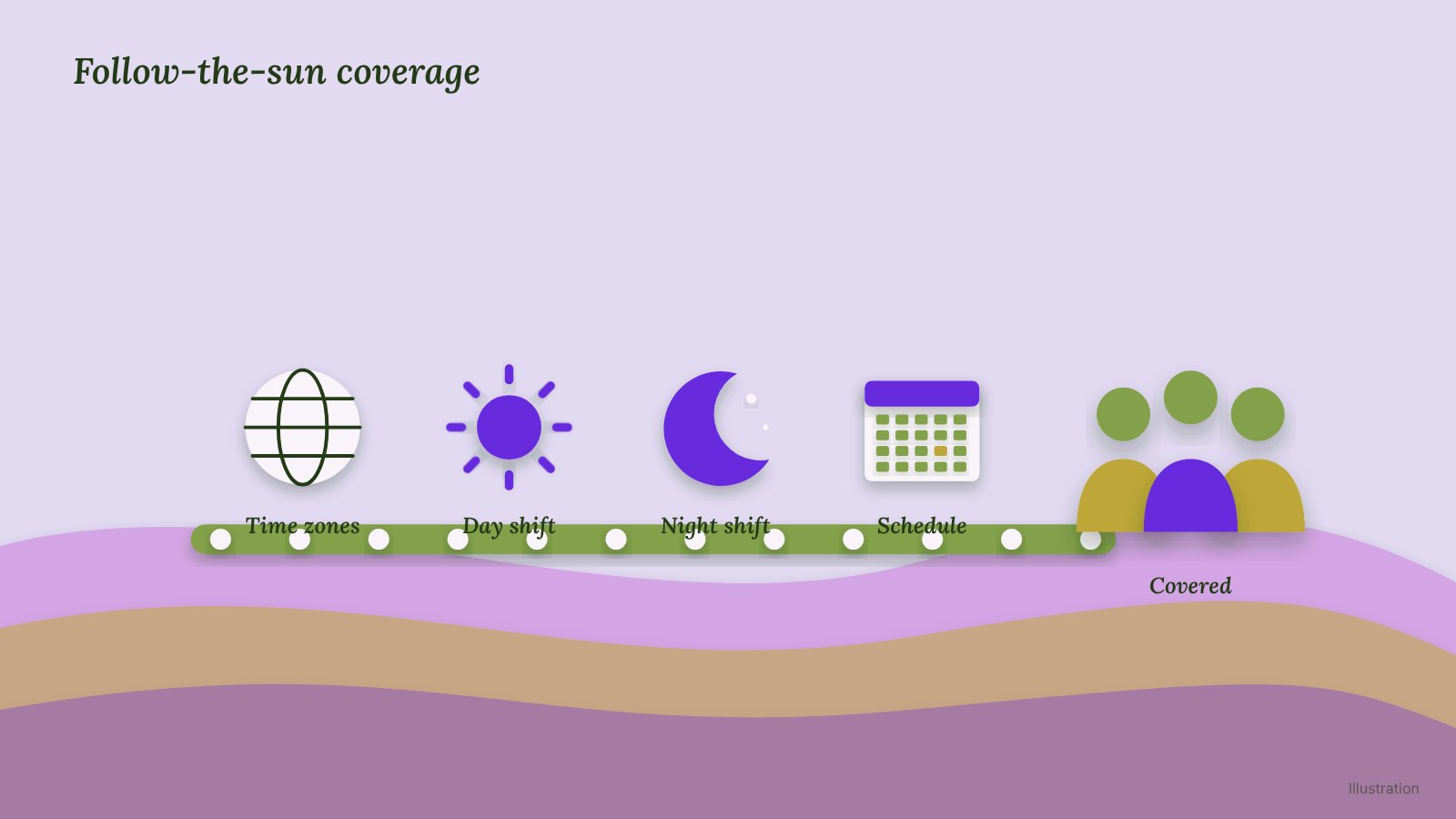
Once a support team spans more than one time zone, the schedule becomes a source of quiet errors. A shift entered as "9–5" in a spreadsheet means 9–5 where? Daylight saving moves New York an hour relative to Karachi twice a year, and a London on-call slot "Friday night" lands on Saturday morning for half the team. Then a customer emails at 03:00 UTC, nobody is on, and the SLA clock runs.
Follow-the-sun support can give customers round-the-clock coverage without anyone working nights. But that only works if the schedule is unambiguous. This guide covers how to set one up: how to record shifts, handle overnight slots and daylight saving, show everyone the same schedule in their own time, and decide how many people each hour needs.
Here's the quiet failure at a company that sells a booking app, with support in Karachi, London and Austin. The events are illustrative:
- The spreadsheet: every shift is stored in "office time", GMT. Austin's 08:00–16:00 is typed as 14:00–22:00.
- The second Sunday in March: US clocks change. Europe's don't change for another two weeks. For those two weeks, every Austin shift in the sheet is an hour wrong.
- 03:00 UTC on a Tuesday: a customer emails about a failed payment. The sheet says Karachi starts at 03:00; Karachi actually starts at 04:00 (09:00 local). Nobody is on for an hour.
- Friday: a London agent reads "on call Friday 22:00–06:00" and isn't sure whether it ends Saturday.
- Monthly: the manager staffs for total ticket volume, though AI now answers a share of it.
Nobody made a big mistake. The schedule did, a little, every week.
First, the basics
- Follow-the-sun spreads a team across regions so each covers its own daytime.
- A named time zone (IANA, like
Europe/London) knows its daylight-saving rules; a fixed offset doesn't. - An overnight slot ends the next day (22:00–06:00).
- Shrinkage is time paid but not available: breaks, meetings, training, leave.
- Erlang C turns volume, handling time and a target into a number of agents.
- Occupancy is the share of time agents spend handling tickets.
Why does this matter? A schedule that's wrong by an hour leaves customers waiting and SLA clocks running. Getting the data right once, and converting only for display, removes a whole class of errors; forecasting the tickets that need a person stops you paying for idle hours.
The problem, in plain terms
- Shifts stored in one office time break at daylight saving.
- Agents convert times themselves and get it wrong.
- Overnight slots are ambiguous.
- Handovers have no overlap.
- Staffing ignores what AI already answers.
Rule one: record every shift in the time zone it is worked in
The most common scheduling mistake is converting everything to one "office" time zone and storing that. It looks tidy, but it breaks twice a year. When the US and Europe change their clocks on different weekends, every converted shift is off by an hour until somebody notices.
Instead, store each shift as the person works it: "Monday–Friday, 09:00–17:00, Asia/Karachi". Use a named time zone (an IANA name like Europe/London), not a fixed offset like "GMT+0". A named zone knows its daylight-saving rules: 09:00 in London stays 09:00 London time in summer and in winter. Convert only when you display the schedule.
Rule two: show everyone the schedule in their own time
People read a schedule to answer one question: who is working when I am? Show each person the whole team converted into their own time zone by default, with the option to switch to any other zone or to each person's own local time.
Showing time zones as UTC offsets, such as "UTC+05:00" or "UTC-04:00", removes another source of confusion. Abbreviations like "IST" can mean India, Ireland or Israel. An offset can't be misread.
Overnight and split shifts
Two shift patterns trip up most schedules:
- Overnight shifts. A slot from 22:00 to 06:00 ends the next day. The schedule needs to treat "end earlier than start" as an overnight shift, not an error. It should also show it as ending the next day ("+1") when converted to other zones.
- Split shifts and different days. One person may work weekday mornings and Saturday afternoons. Let them have several slots, and block slots for the same person from overlapping. Overlaps are almost always typos.
Who is working right now
The most useful line in any support schedule is "working now". It answers the questions that come up during the day: who can take this escalation, who is on during the outage, can I hand this over yet. Work it out from the slots in each person's own zone, not by converting to an office time zone.
Designing follow-the-sun coverage
With slots stored correctly, designing coverage comes down to arithmetic:
- Map your demand. When do tickets arrive, by hour and day of week, in UTC? Most teams find a clear daily peak tied to their biggest market.
- Place your regions. Two hubs about 8–12 hours apart (for example South Asia and the Americas) can cover most of a day in normal working hours. A third hub (Europe, say) closes the gaps.
- Overlap the handovers. Schedule 30–60 minutes where outgoing and incoming shifts both work. That's when the shift handover procedure actually happens.
- Cover the edges deliberately. Weekends and regional holidays are where coverage silently drops. Put explicit slots there, even if they are on-call.
How many people does each hour need?
A schedule says who is on. It doesn't say whether that's enough. Staffing comes from forecasting:
- Forecast tickets that need a person, not all tickets. If AI answers part of your volume, plan for what remains.
- Use handling time, not gut feel. Average minutes per ticket changes the staffing number more than anything else. Take it from your help desk's reports.
- Account for shrinkage. Breaks, meetings, training and leave mean nobody is available 100% of their paid time.
- Set a response target. "80% of tickets get a first human reply within an hour" turns a forecast into a headcount.
The Erlang C formula, borrowed from call centres, is a common starting point for turning volume, handling time and a service target into a number of agents. Tickets aren't phone calls (customers don't hang up, and agents juggle several), so treat the result as a planning estimate, not a precise answer.
How TR-AI handles scheduling
TR-AI has a Support schedule in the left sidebar, next to the Playbook and the escalation queues:
- Support Leads and Support Managers add weekly slots for each team member: the days, a from/to time and the time zone those times are in, plus an optional note like "Chat" or "On call".
- Overnight slots (22:00–06:00) and whole days (00:00–24:00) work, and daylight saving is followed automatically. Slots for the same person can't overlap.
- Everyone, Support Agents included, sees the schedule. It opens in the zone they work in (taken from their own slots, or their device's zone if they have none), and their own row is marked "(you)".
- "Show times in" switches the view to any time zone or to each person's own. Time zones are shown as UTC offsets, and a "+1" marks slots that end the next day.
- A "Working now" list shows who is on at this moment.
For the staffing side, Workforce planning (Bronze and Growth Pro plans) forecasts the tickets that will need a person over the next 14 days, hour by hour. It uses the last 8 weeks of history, adjusted for the recent trend. It then suggests how many agents to schedule each hour from your handling time, first-response target, share within target and shrinkage. It uses Erlang C with occupancy capped at 85%, and you can export the hourly forecast as a CSV for your scheduling tool.
Because TR-AI answers part of the queue itself, the forecast covers only the tickets that still need a person. As automation improves, the staffing suggestion goes down with it. That is the core of scaling support without scaling headcount.
Common mistakes to avoid
- Storing shifts as UTC offsets. "GMT-5" is wrong for half the year in New York. Store
America/New_York. - One schedule view for everyone. If agents have to convert times themselves, someone will get it wrong. Convert for them.
- No handover overlap. Back-to-back shifts with zero overlap mean handovers happen in writing only, and context gets lost.
- Staffing for total volume. If AI resolves part of your tickets, staffing for the full queue means paying for idle hours.
- Forgetting holidays. Regional public holidays leave gaps that follow-the-sun coverage doesn't fill on its own.
A worked example, start to finish
Here's the booking-app team moving to TR-AI's Support schedule. The names are illustrative.
Set-up. Farah, the support manager in Karachi, opens Support schedule and adds weekly slots for each person in their own zone:
- Karachi (Asia/Karachi): Bilal, Mon–Fri 09:00–17:00. Sana, Mon–Fri 13:00–21:00.
- London (Europe/London): Ellie, Mon–Fri 08:00–16:00. Tom, Fri 22:00–06:00, note "On call".
- Austin (America/Chicago): Jordan and Mia, Mon–Fri 08:00–16:00, staggered; Mia also Sat 10:00–14:00.
Tom's overnight slot is accepted as ending the next day. When Farah accidentally gives Sana an overlapping Saturday slot, it's refused.
What each person sees. Ellie opens the schedule in London time, with her row marked "(you)". Jordan sees everyone in Austin time; Tom's Friday slot shows "+1". Time zones appear as UTC offsets, so nobody mixes up abbreviations.
March. The US changes its clocks. Jordan's 08:00 stays 08:00 Austin time; in London and Karachi views it moves by an hour automatically. No one edits anything.
The 03:00 UTC payment ticket. The "Working now" list shows no one, so Farah moves Bilal's start an hour earlier (08:00 Karachi time), and Karachi now starts at 03:00 UTC.
Staffing. In Workforce planning, Farah enters a handling time of 12 minutes, a first-response target of one hour for 80% of tickets, and 30% shrinkage. The 14-day hourly forecast, built from the last 8 weeks and adjusted for trend, covers only the tickets that still need a person. It suggests three agents at the European morning peak and one overnight. She exports the CSV for payroll planning.
What changed: shifts that survive daylight saving, everyone seeing the team in their own time, an overnight slot nobody misreads, a covered gap, and staffing based on the work that's actually left.
Five more real-world scenarios
1. A split shift
Situation. Someone works weekday mornings and Saturday afternoons.
How TR handles it. Give them several slots; overlapping slots for the same person are blocked.
2. A whole-day on-call
Situation. Someone is on call all Sunday.
How TR handles it. Whole days (00:00–24:00) work.
3. An agent with no slots
Situation. A new hire hasn't been scheduled yet.
How TR handles it. The schedule opens in their device's zone until they have slots.
4. A planning tool
Situation. You schedule in a separate WFM tool.
How TR handles it. Export the hourly forecast as a CSV.
5. Automation improves
Situation. TR-AI starts answering more tickets.
How TR handles it. The forecast covers only tickets that still need a person, so the staffing suggestion goes down with it.
Before and after
Before. Shifts in "office time", a two-week daylight-saving error, an uncovered hour, an ambiguous overnight slot, and staffing for the full queue.
After. Shifts in each person's zone, automatic daylight saving, a "Working now" list, "+1" on overnight slots, and an hourly forecast of the tickets people still handle.
How to tell it's working
- No gaps in "Working now" during business hours you promise.
- No schedule edits at daylight-saving changes.
- Handovers overlap.
- Staffing tracks the forecast, not total volume.
Who it's for
- Distributed support teams.
- Support managers planning coverage.
- Teams moving to follow-the-sun.
Do it in TicketResolve, step by step
Where: Support schedule (/dashboard/schedule) and Workforce planning. You'll need: a Support Lead or Support Manager role to edit; Bronze or Growth Pro for workforce planning. Full guides: Support schedule, Workforce planning and Playbook.
- Open Support schedule from the left sidebar.
- Add weekly slots for each person: days, from/to time and the time zone those times are in, plus an optional note.
- Add overnight and whole-day slots where needed.
- Check the view in another zone with "Show times in".
- Look at "Working now" during each region's hours.
- Open Workforce planning, enter handling time, target and shrinkage.
- Export the forecast if you use another scheduling tool.
How to check it worked: each person sees the team in their own zone with their row marked "(you)", and an overnight slot shows "+1" in other zones.
Frequently asked questions
What is follow-the-sun support? Follow-the-sun support spreads a team across regions so each region covers its own daytime hours. Customers get help around the clock and nobody has to work permanent night shifts. It needs a schedule that handles time zones correctly and clear handovers between regions.
How should I record shifts for a team in several time zones? Record each shift in the time zone the person works in, using a named zone such as Asia/Karachi or Europe/London rather than a fixed offset. Convert only for display. That way daylight-saving changes are handled automatically.
How do I handle overnight support shifts in a schedule? Treat a shift whose end time is earlier than its start time (for example 22:00–06:00) as ending the next day. When it is shown in other time zones, mark it clearly as ending the next day.
How many support agents do I need per hour? Forecast the tickets that will need a person each hour, then combine that with average handling time, a response-time target and shrinkage. Erlang C is a common way to turn those into a headcount. Treat the result as an estimate, because tickets behave differently from phone calls.
Who can edit the schedule? Support Leads and Support Managers. Everyone, Support Agents included, can see it.
Does it handle daylight saving? Yes, automatically, because each slot keeps its own named time zone.
How far ahead does workforce planning forecast? 14 days, hour by hour, from the last 8 weeks of history adjusted for the recent trend.
What occupancy does the staffing suggestion assume? Erlang C with occupancy capped at 85%.
Which plans include it? The Support schedule is on every plan; workforce planning is on Bronze and Growth Pro.
Explore Topics
Written by
Ghulam Shabbir
Content creator and writer sharing insights and stories.