
Attendance Tracking Against Shifts: Late, Absent or Just in Another Time Zone?
Coverage gaps hurt customers more than any single slow reply. Compare tracked time with the support schedule you already keep, in each person’s own time zone, and get five plain outcomes per shift: on time, late, left early, absent or time off. Use it to fix the schedule, not to punish people. With an illustrative week, start to finish.
A support schedule says who should be on. Attendance says who was. The gap between them is where customers wait, and most teams only find it after the queue has already backed up.
Here's how a coverage gap hides at a company that provides support for a project-management app, with agents in Karachi, Lisbon and Toronto:
- Monday: the schedule shows four agents on the 14:00–18:00 UTC slot. The queue still backs up.
- Tuesday: same again. The support manager assumes volume is up.
- Wednesday: she checks a spreadsheet of logins someone keeps by hand. It's three days out of date.
- Thursday: she finally notices that one Lisbon agent's shift was entered in Karachi time, so the schedule showed him on duty five hours before he was actually due.
- Friday: another agent has been starting 40 minutes late every day because her children's school changed its hours. Nobody knew; she assumed her lead did.
Neither problem was about effort. One was a time-zone mistake in the schedule; the other was a schedule that no longer fitted someone's life. Both were invisible because nobody compared the schedule with what actually happened.
First, the basics
- A shift is a scheduled working slot for one person, such as Monday 09:00–17:00 in their own time zone.
- Tracked time is time someone records with the browser timer or the desktop app.
- Attendance compares each shift with the time actually tracked.
- A grace period is how late someone can start before it counts as late, such as 10 minutes.
- Coverage is how many people are working at a given time, compared with how many you need.
- Time zone matters because 09:00 in Karachi and 09:00 in Toronto are ten hours apart.
- Daylight-saving time shifts the clock in some places twice a year, which moves shifts if you're not careful.
Why does this matter? Customers feel coverage, not individual effort. When attendance shows where the schedule and reality don't match, you can fix the schedule, have a kind conversation early, and keep the queue covered, instead of discovering the gap from angry tickets.
The problem, in plain terms
- The schedule and the time tracker live in different places.
- Logins are tracked by hand, late and incompletely.
- Time zones and daylight saving quietly move shifts.
- Approved leave looks like absence.
- Attendance gets used to punish, so people hide problems instead of raising them.
Start from the schedule you already have
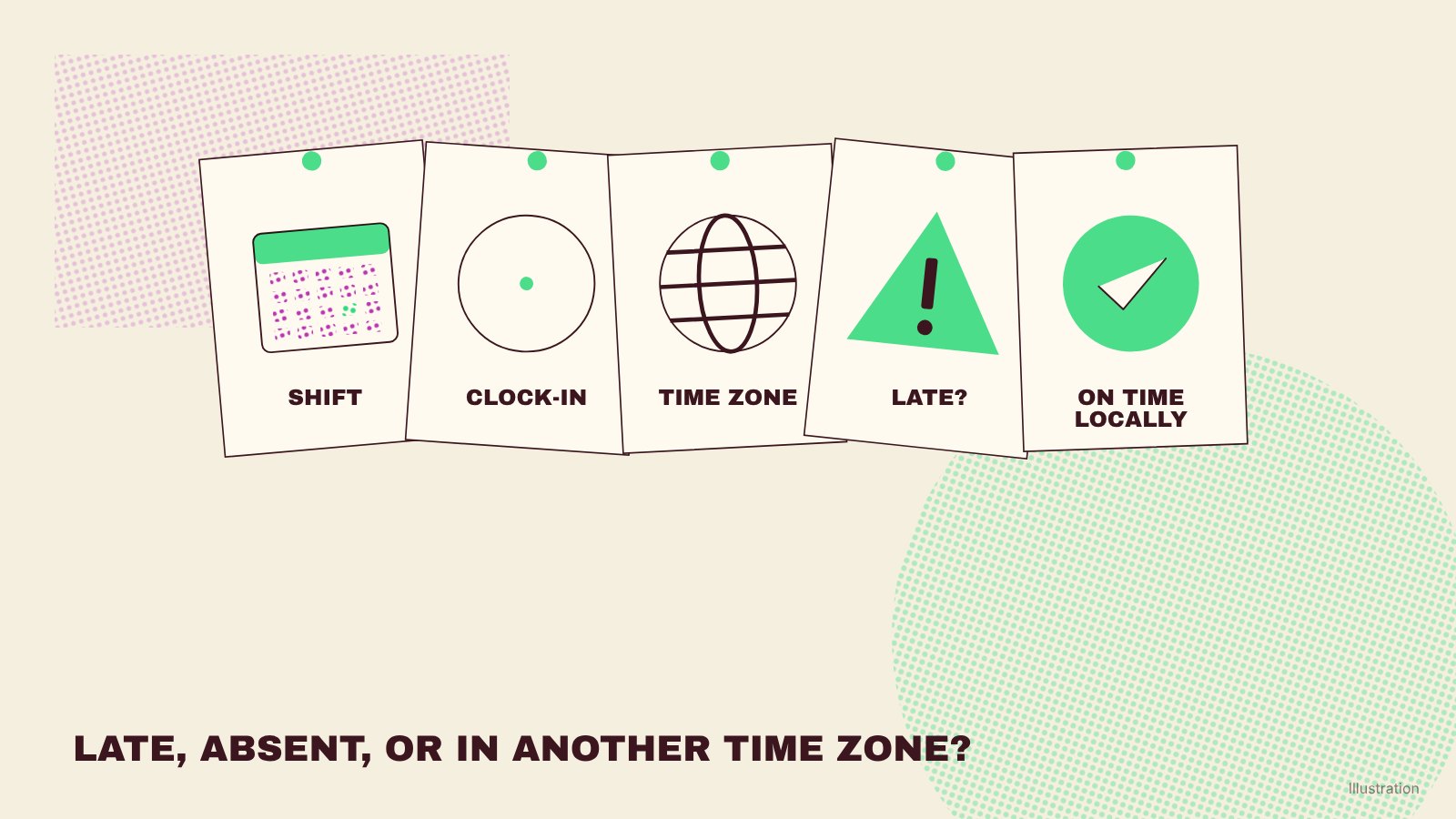
Attendance only works if it uses the real schedule: each person's working slots, in their own time zone. TR-AI uses the support schedule your leads already maintain, so there's nothing new to set up.
Five plain outcomes
For each shift, compare it with the time tracked:
- On time: started within the grace period.
- Late: started after it, with the minutes.
- Left early: stopped well before the shift ended.
- Absent: no tracked time at all.
- Time off: approved leave covers the day.
Five words anyone can read. No scores, no percentages, no ranking.
Set a fair grace period
Ten minutes late because of a slow laptop isn't a pattern. Set the grace period the team agrees with, and look at trends over weeks, not single days.
Time zones without mistakes
A 09:00 shift in Karachi and one in London are different moments. Each shift is placed in its owner's time zone, including daylight-saving changes, before comparing.
Use it for coverage, not punishment
The most useful view isn't a person; it's the Tuesday afternoon where two people were absent and the queue doubled. Attendance shows where the schedule doesn't match reality, so you can fix the schedule.
In TR-AI
Leads open Workforce → Attendance (/dashboard/workforce), choose a date range, and see each shift with its status and the time worked. Approved time off shows as time off, not absent. Shifts come from the support schedule (/dashboard/schedule), and tracked time comes from the browser timer or the desktop app.
A worked example, start to finish
Here's the project-management support team with attendance in TR-AI. The names and times are illustrative.
Set-up. The support schedule already lists each agent's shifts in their own time zone: Ayesha in Karachi, Rui in Lisbon, Hannah in Toronto. The grace period is the default 10 minutes. Agents use the browser timer; two use the desktop app.
Monday, end of day. Fatima, the support manager, opens Workforce → Attendance for today. Every shift has a status:
- Ayesha (Karachi, 09:00–17:00): on time, 8 h worked.
- Rui (Lisbon, 14:00–22:00): absent.
- Hannah (Toronto, 09:00–17:00): late, 38 minutes.
Monday, 18:05. Rui being "absent" surprises Fatima; she saw him online. She opens the schedule: his shift was entered as 14:00 Karachi time, which is 10:00 in Lisbon. He tracked 14:00–22:00 Lisbon time, exactly as agreed. The schedule was wrong, not Rui. She fixes the time zone on his slots. Attendance re-compares: on time.
Tuesday to Friday. Hannah shows late by 35–45 minutes every day. Fatima looks at the trend, not the single days, and asks Hannah privately whether the start time still works. Hannah explains her children's school now starts later. They move her shift to 09:45–17:45. From the next week she's on time.
Thursday. Ayesha is on approved vacation. Attendance shows time off, not absent.
Following week. The 14:00–18:00 UTC slot now really has four people. The afternoon queue stops backing up.
What changed: two problems fixed in a week, both by changing the schedule. Nobody was written up, and the queue was covered.
Five more real-world scenarios
1. A daylight-saving weekend
Situation. The clocks change in Europe but not in Pakistan.
How TR handles it. Each shift is placed in its owner's time zone, including the change, so Lisbon shifts move and Karachi shifts don't.
2. A slow start
Situation. Someone starts 7 minutes late after a laptop update.
How TR handles it. It's within the 10-minute grace period: on time.
3. Leaving early for an appointment
Situation. An agent leaves two hours early with their lead's blessing but no request.
How TR handles it. Attendance shows left early. Recording it as a few hours of time off next time makes it show correctly.
4. No desktop app
Situation. Half the team only uses the browser.
How TR handles it. That's enough. Attendance compares shifts with tracked time from either.
5. A recurring thin afternoon
Situation. Every Tuesday afternoon shows one absence and a doubled queue.
How TR handles it. The pattern is visible across weeks, so the manager can add cover to that slot.
Before and after
Before. A schedule in one place, logins in a stale spreadsheet, a time-zone mistake making someone look absent, a lateness pattern nobody mentioned, and a queue that backed up every afternoon.
After. Each shift compared with tracked time in its owner's time zone, five plain outcomes, a schedule fixed within a day, a kind conversation about a changed start time, and the afternoon covered.
How to tell it's working
- Schedule changes follow attendance patterns.
- "Absent" is rare and real.
- Coverage gaps shrink at the times customers notice.
- People raise schedule problems themselves.
Who it's for
- Support managers and leads responsible for coverage.
- Distributed teams across several time zones.
- Shift-based support desks running long hours or 24/7.
How it fits with the rest of TicketResolve
Attendance uses shifts from the support schedule, tracked time from the browser timer and desktop app, and approved leave from time off requests. The same tracked time feeds timesheets, payroll and client invoices.
Reading trends instead of days
One late morning tells you nothing. Five late mornings in a row tell you the shift no longer fits. Look at a week or a month at a time, and ask about patterns rather than single entries. The best outcome of an attendance review is usually a schedule change, not a warning.
When attendance shows a real problem
Sometimes the pattern is not the schedule. Someone may be struggling, disengaged or dealing with something outside work. Attendance can show you that something changed; it can't tell you why. Start with a private, curious conversation, and treat the numbers as the reason to talk, not the conclusion.
Planning next month from this month
Attendance is also a planning tool. Before you publish next month's schedule, look at this month's attendance by time slot rather than by person. Slots that are regularly thin, because shifts start late, end early or clash with school runs, are slots where the schedule doesn't fit the team. Moving a start time by 30 minutes, swapping two people's days or adding one part-time shift often fixes a gap that no amount of reminders ever would.
What people should see about themselves
People can see their own shifts in the support schedule and their own tracked time on their timesheet, so they can check both against each other. That matters for fairness: if attendance says someone was late, they should be able to check it before anyone else raises it, and point out a schedule mistake if there is one.
Mistakes to avoid
- Entering shifts in the wrong time zone.
- Judging from single days.
- Forgetting to record approved leave.
- Ranking people by lateness.
Do it in TicketResolve, step by step
Where: Workforce → Attendance (/dashboard/workforce) and the Support schedule (/dashboard/schedule). You'll need: shifts in the support schedule and people tracking time. Full guides: Support schedule: who works when and Time tracker and Workforce management.
- Check the support schedule: every shift in its owner's own time zone.
- Agree the grace period with the team (10 minutes by default).
- Make sure people track time with the browser timer or the desktop app.
- Record approved leave in Workforce → Time off.
- Open Workforce → Attendance and choose a date range.
- Read each shift's status: on time, late, left early, absent or time off.
- Look for patterns across weeks and fix the schedule first.
How to check it worked: each shift shows a status and the time worked, and approved leave shows as time off.
Frequently asked questions
Do people need the desktop app for attendance? No. The browser timer is enough; attendance compares shift times with tracked time from either.
What counts as late? Starting more than the grace period you set (10 minutes by default) after the shift begins.
How are time zones handled? Each shift is placed in its owner's time zone, including daylight-saving changes, before comparing.
Does approved leave count as absent? No. It shows as time off.
Where do shifts come from? The support schedule your leads already maintain.
Can I change the grace period? Yes. Set the one your team agrees with.
What does "left early" mean? The person stopped tracking well before the shift ended.
Is attendance a performance score? No. It shows where the schedule and reality don't match, so you can fix coverage.
Who can see attendance? Leads and managers, for the people they look after.
Explore Topics
Written by
Ghulam Shabbir
Content creator and writer sharing insights and stories.