

Time Tracker for Agents, Workforce Management for Leads: Who Should See What
Time tracking touches three kinds of information: a person’s own time, the team’s time, and money. Agents get a Time tracker for their own time, Support Leads get Workforce management for the team’s, and Support Managers get settings and pay, with nobody approving their own hours.
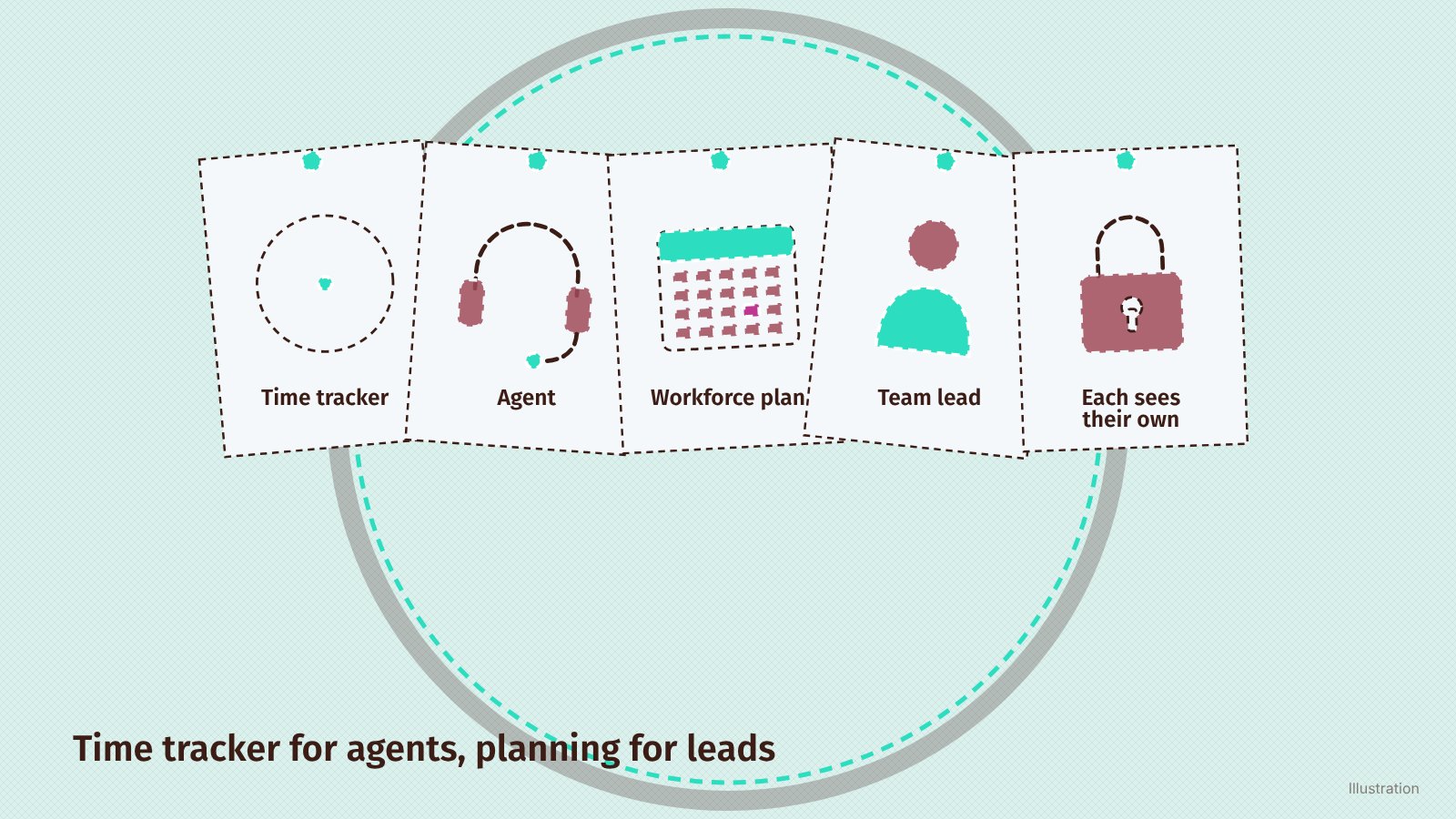
Time tracking touches three kinds of information: a person's own time, the team's time, and money. Each belongs to a different role.
Here's what happens when everyone sees everything, at a company that runs outsourced support for several software clients:
- An agent, Ama, opens the time-tracking tool to start her timer and sees a colleague's screenshots and the team's pay rates.
- A team lead, Hugo, approves his own overtime because the tool lets him.
- A well-meaning lead turns on screenshots every five minutes for the whole team on a Friday afternoon. Nobody accountable for the decision approved it, and the team finds out on Monday.
- Payroll discovers that rates were edited by someone who also approves timesheets.
Every feature worked. The problem was who could use which one.
First, the basics
- Time tracking records how long people work, often with a timer.
- A timesheet is a week's recorded time, submitted for approval.
- Time off is leave requested and approved.
- Attendance compares worked time with the support schedule.
- Pay rates and bill rates are what people are paid and what clients are billed.
- Payroll pays people from approved timesheets; invoices bill clients.
- Screenshots and idle rules are what the desktop app records.
- A permission grants one kind of access; a role groups permissions.
Why does this matter? Time data is personal, team data is operational, and pay data is sensitive. Splitting them across roles protects privacy, separates duties so nobody approves their own hours, and makes decisions about monitoring deliberate rather than accidental.
The problem, in plain terms
- Agents see colleagues' data and pay.
- Leads approve their own time.
- Monitoring settings change without accountability.
- The same person sets pay and approves hours.
- Custom jobs (payroll, coordination) don't fit standard roles.
Support Agents: their own time
Agents need a Time tracker, not a management console: start and stop the timer (in the browser or the desktop app), add forgotten time with a reason, submit the weekly timesheet, request time off, and see everything recorded about them, including deleting their own screenshots. Nothing about colleagues, nothing about pay.
Support Leads: the team's time
Leads run the shift. In Workforce management they see who is working now, approve or send back timesheets and time off (never their own), check attendance against the support schedule, look at each person's activity, run hours reports and manage projects with hour budgets.
They don't see pay rates, and they don't change what is tracked.
Support Managers: settings and money
Managers have everything leads have, plus:
- what the desktop app records, the idle rule, screenshots and the notice employees accept;
- who is tracked and each person's weekly hour limit;
- pay and bill rates, payroll from approved timesheets, and client invoices.
Why split it this way
- Privacy. Pay rates and screenshots are sensitive; fewer people should see them.
- Separation of duties. The person who approves hours isn't necessarily the person who sets pay.
- Consent. Changing what is tracked should be a deliberate decision by the person accountable for it.
Adjust it per role or person
Use three permissions (track own time, manage the team's time, and workforce settings, pay and invoices) so a custom role (a payroll specialist, a team coordinator) gets exactly the access it needs.
In TR-AI
Agents see Time tracker in the sidebar; Support Leads and Managers see Workforce management. The permissions are under Team & roles → Time tracking & workforce. More on the workflows: timesheet approval and payroll from approved timesheets.
A worked example, start to finish
Here's the outsourced support company, with roles. The details are illustrative.
Ama, Support Agent. Her sidebar shows Time tracker. She starts the timer in the desktop app at 08:58. On Wednesday she forgot to start it after lunch; she adds the forgotten hour with a reason: "Started after lunch at 13:00; timer missed." On Friday she submits her weekly timesheet and requests two days off next month. She opens everything recorded about her, sees a screenshot from a personal banking tab she'd opened by mistake, and deletes it. She can't see colleagues or pay.
Hugo, Support Lead. His sidebar shows Workforce management. Monday morning he sees who is working now, checks attendance against the support schedule, and notices one agent is consistently 30 minutes late for the early shift: a conversation, not a penalty. He approves Ama's timesheet and time off. He sends back another timesheet with a note about a missing project. His own overtime? He can't approve it; it goes to his manager. He runs an hours report for a client project with an hour budget. He can't see pay rates or change what's tracked.
Selin, Support Manager. She reviews the desktop app settings: screenshots every 10 minutes; idle after 5 minutes; the notice employees accept explains both. A lead's request to increase screenshot frequency comes to her; she declines it, and the decision is hers to make. She sets weekly hour limits and pay and bill rates, runs payroll from approved timesheets, and creates client invoices.
Kwesi, payroll specialist. A custom role with only workforce settings, pay and invoices. He runs payroll without seeing tickets.
Hugo's overtime is approved by Selin. Nobody approved their own hours this month.
Five more real-world scenarios
1. A coordinator who schedules but doesn't pay
Situation. A team coordinator manages shifts.
How TR handles it. A custom role with "manage the team's time" only.
2. A lead approving their own time off
Situation. Hugo requests leave.
How TR handles it. Nobody approves their own timesheet or time off.
3. An agent who wants to see what's recorded
Situation. Ama wants to know what screenshots exist.
How TR handles it. Agents see everything recorded about them, and can delete their own screenshots.
4. A change to monitoring
Situation. A lead wants more frequent screenshots.
How TR handles it. Only Managers change what is tracked.
5. Forgotten time
Situation. An agent forgot to start the timer.
How TR handles it. Add forgotten time with a reason.
Before and after
Before. An agent seeing pay rates, a lead approving his own overtime, a monitoring change nobody accountable approved, and rates edited by an approver.
After. Agents with their own time only, leads running the team without pay data, managers owning settings and money, a payroll specialist with exactly what he needs, and nobody approving their own hours.
How to tell it's working
- Nobody approves their own time.
- Pay data is seen only by people who need it.
- Monitoring changes have an accountable decision-maker.
Who it's for
- Support Agents tracking their time.
- Support Leads running shifts.
- Support Managers and payroll handling settings and money.
How it fits with the rest of TicketResolve
Time tracking and Workforce management connect to Team & roles for permissions, the support schedule for attendance, Resolution intelligence's Costs tab (tracked time makes team cost measured), and payroll and invoices.
Why agents can delete their own screenshots
Screenshots catch things by accident: a personal message, a banking tab, a medical appointment. Letting people see everything recorded about them, and delete their own screenshots, is basic respect, and it makes monitoring something people can live with rather than resent. The notice employees accept explains what's recorded, so nothing is a surprise.
Designing custom roles
Start from the job, not the permissions. A payroll specialist needs pay and invoices, not tickets or shift management. A team coordinator needs to manage the team's time, not pay. A contractor needs to track their own time, nothing else. Give each the smallest set of the three permissions that does the job, and review roles when people change jobs.
Introducing time tracking to a team
How you introduce tracking matters as much as how you configure it.
- Explain why first. Client billing, fair workload, payroll accuracy: say which applies, plainly.
- Show the notice employees will accept before switching anything on, and give people time to ask questions.
- Start with the timer only. Add screenshots or activity only if there's a clear reason, and decide the settings as a manager, not in a hurry.
- Show agents what's recorded about them, including that they can delete their own screenshots.
- Agree the approval flow: who approves each lead's time, and how quickly timesheets are reviewed.
- Review after a month. Ask the team what's working and what feels intrusive, and adjust.
Reading attendance fairly
Attendance compares worked time with the support schedule, and it's easy to misread. A late start might be a school run, a bus strike or a shift swap someone forgot to record. Use attendance to start conversations and spot patterns (a shift that's consistently hard to cover is a scheduling problem), not to penalise one-off differences. The same goes for activity: it shows what was recorded, not how hard someone worked.
Privacy and trust
People accept tracking when they understand it and can see it. Keeping pay rates to those who need them, letting agents see and delete their own screenshots, and making monitoring changes a deliberate manager decision are what keep tracking a tool for fairness rather than a source of suspicion.
Mistakes to avoid
- Giving leads pay access "just in case".
- Changing tracking settings without telling the team.
- Letting anyone approve their own hours.
Do it in TicketResolve, step by step
Where: Time tracker (agents) and Workforce management (Leads and Managers) at /dashboard/workforce; permissions in Team & roles → Time tracking & workforce. You'll need: roles set up for your team. Full guides: Time tracker and Workforce management: who sees and changes what and Team and security.
- Check each person's role: Agent, Lead or Manager.
- (Agents) Track time, add forgotten time with a reason, submit timesheets, request time off.
- (Leads) Approve or send back timesheets and time off for others.
- (Leads) Check attendance, activity and hours reports.
- (Managers) Set what's tracked, the idle rule, screenshots and the notice.
- (Managers) Set hour limits, pay and bill rates; run payroll and invoices.
- Create custom roles with the three permissions as needed.
How to check it worked: agents see only their own time, leads see no pay rates, and nobody can approve their own timesheet.
Frequently asked questions
What do agents see? Their own time, timesheets, time off and everything recorded about them.
Can agents delete screenshots? Their own, yes.
What do Leads see? Who's working, timesheets and time off to approve, attendance, activity, hours reports and projects; not pay.
What do Managers add? Tracking settings, hour limits, pay and bill rates, payroll and invoices.
Can a lead approve their own timesheet? No. Nobody approves their own timesheet or time off.
Can we give a payroll specialist pay access without the rest? Yes. Give a custom role "Workforce settings, pay and invoices" without the ticket permissions.
Who changes what's tracked? Managers, with the workforce settings permission.
Where are the permissions? Team & roles → Time tracking & workforce.
Can agents see their own screenshots? Yes, along with everything else recorded about them, and they can delete their own screenshots.
Explore Topics
Written by
Ghulam Shabbir
Content creator and writer sharing insights and stories.