
Timesheet Approval That People Don’t Dread: Submit, Review, Lock
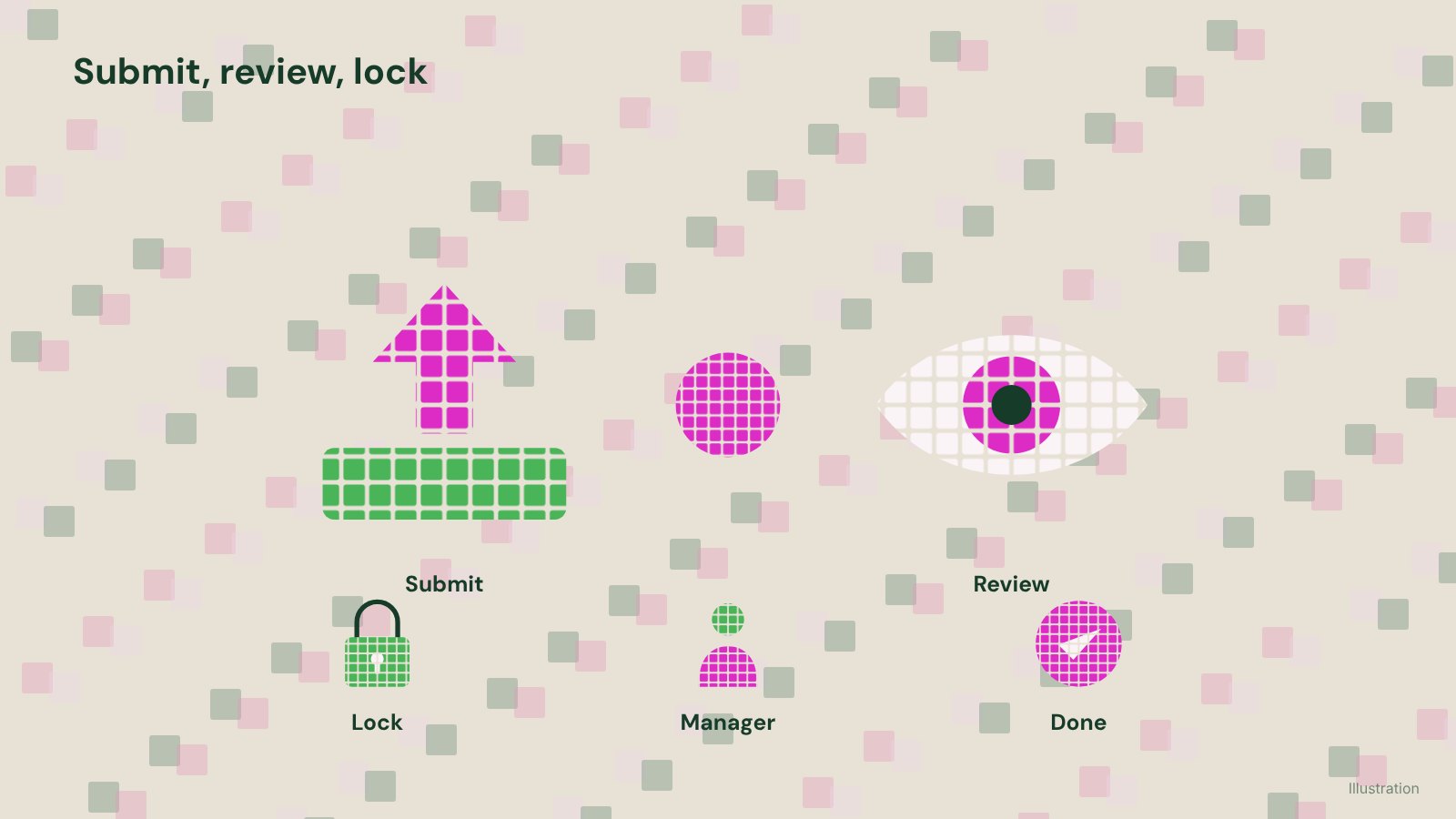
Timesheets go wrong in two places: people forget to submit, and approvers rubber-stamp. A simple weekly flow (submit, review with context, approve or send back with a note, then lock) fixes both, and means payroll pays from hours someone actually checked. With an illustrative week, start to finish.
Every payroll run depends on one question: are these hours right? A good approval flow answers it once a week, quickly, with a record. A bad one either never happens or happens so fast that nobody actually looks.
Here's a typical timesheet week at a company that provides technical support for a smart-thermostat maker:
- Friday 17:00: a reminder goes out to submit timesheets. Half the team forgets.
- Monday: the lead chases five people on chat.
- Tuesday: the lead approves twelve timesheets in four minutes. One shows a 15-hour Wednesday; she doesn't notice.
- Wednesday: an agent edits last week's entries after approval to "tidy them up".
- Payday: payroll pays the 15-hour day, including seven hours of a timer left running overnight, and the edited entries that nobody approved.
The tool wasn't the problem. The flow was: no clear moment to submit, nothing to tell the approver where to look, and nothing stopping edits after approval.
First, the basics
- A timesheet is a person's tracked time for a period, usually a week, grouped by project and day.
- Submitting means the person says "these hours are right" and sends them for review.
- Approving means someone else checks and accepts them.
- Sending back means returning a timesheet with a note asking for a fix.
- Locking means submitted entries can't be edited unless the timesheet is sent back.
- Time added by hand is time entered manually rather than by the timer, usually with a reason.
- An approver is a lead or manager responsible for checking timesheets.
Why does this matter? Pay, invoices and project budgets all come from tracked time. One weekly check, done properly, catches the timer left running overnight, the forgotten project and the manual entry that doesn't add up, before they turn into wrong pay or a disputed invoice.
The problem, in plain terms
- People forget to submit, and leads spend Monday chasing.
- Approvers see too much detail, or too little, and rubber-stamp.
- Sending back without a reason starts a second round of messages.
- Entries change after approval.
- People approve their own time.
One week, one decision
Approve a week at a time, not individual entries. The person sees their week by project and day, checks it, and submits. The approver gets one item to review.
Show the approver what matters
Approvers don't need every start and stop time. They need:
- total hours against the expected week;
- time added by hand, with the reason given ("forgot to start the timer during the outage call");
- anything unusual, like a 14-hour day.
Approve, or send back with a note
Sending a timesheet back without saying why creates a second round of messages. Require a note: "Wednesday shows 14 hours. Did the timer run overnight?" The person fixes it and submits again.
Lock what's submitted
Once a week is submitted, its entries can't be edited; otherwise the approver approves one thing and payroll pays another. If something needs changing, send it back.
Nobody approves their own
The simplest control: you can't approve your own timesheet or time off. A second person always looks.
Pay from approved time
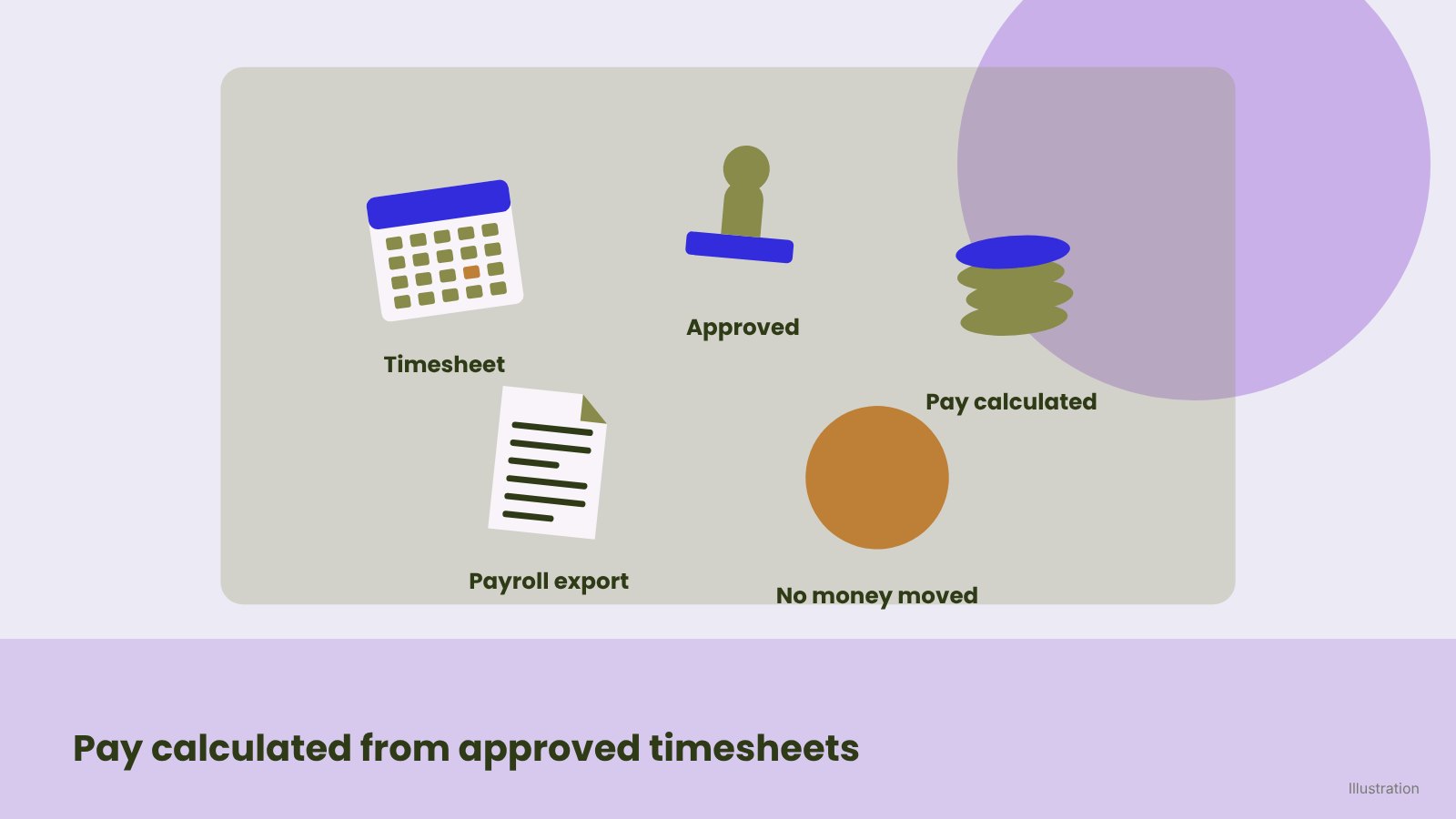
Payroll should default to approved timesheets only. Unapproved weeks stay out until someone looks at them. See payroll from timesheets.
In TR-AI
People submit from Workforce → Timesheet (/dashboard/workforce). Leads and managers see waiting timesheets under Approvals, with time added by hand highlighted, and approve or send back with a note. Submitted weeks are locked, and Payroll uses approved timesheets by default.
A worked example, start to finish
Here's the smart-thermostat support week with this flow. The names and hours are illustrative.
Friday 16:30. Agents open Workforce → Timesheet. Each sees their week by project and day: "Thermostat · Tier 1", "Installer line", "Training". Sofia checks hers: 40 hours, one manual entry on Tuesday ("outage call, forgot to start the timer", 1.5 hours). She submits. Her week locks.
Friday 16:45. Kenji checks his and notices Wednesday shows 15 hours. He doesn't remember why, so he submits anyway and adds nothing.
Monday 09:00. Amara, the lead, opens Approvals. Eleven timesheets are waiting; she can also see which two people haven't submitted, and sends them a reminder.
Monday 09:05. Sofia's week: 40 hours against 40 expected, one manual entry highlighted with its reason. Reasonable; the outage happened. Approved.
Monday 09:07. Kenji's week: 47 hours against 40 expected. Wednesday stands out at 15 hours, with nothing added by hand. Amara sends it back with a note: "Wednesday shows 15 hours, 18:00 to 09:00 overnight. Did the timer run after your shift?"
Monday 10:30. Kenji checks: he left his timer running on Wednesday evening. He corrects Wednesday to 8 hours and resubmits. 40 hours. Approved.
Monday 11:00. All submitted timesheets are approved except the two late ones. Those stay out of payroll until submitted and approved.
Payday. Payroll uses approved timesheets only. Seven hours of an overnight timer never reach anyone's pay, and no entries changed after approval because submitted weeks were locked.
What changed: the same ten minutes of reviewing, but focused on the two things that mattered, with one clear note instead of a chain of messages.
Five more real-world scenarios
1. Someone forgets to submit
Situation. An agent is on a long weekend and doesn't submit.
How TR handles it. Their week stays out of payroll until they do; a lead can see who hasn't submitted.
2. A legitimate long day
Situation. An incident kept someone on for 12 hours.
How TR handles it. The approver sees the long day, recognises the incident and approves.
3. A change after submitting
Situation. Someone realises they picked the wrong project on Thursday.
How TR handles it. The week is locked, so they ask the approver to send it back, fix it and resubmit.
4. A lead's own timesheet
Situation. The lead tracks time too.
How TR handles it. Another lead or a manager approves it; nobody approves their own.
5. Manual entries without reasons
Situation. Someone adds three hours by hand with no reason.
How TR handles it. The entry is highlighted, so the approver asks before approving.
Before and after
Before. Chasing on chat, rubber-stamped approvals, edits after approval, and an overnight timer paid as overtime.
After. A weekly submit, an approver who sees totals, manual entries and unusual days, a note when something's sent back, locked weeks, and payroll from approved time only.
How to tell it's working
- Fewer payroll corrections.
- Sent-back timesheets have notes and come back fixed the same day.
- Leads spend less time chasing, because they can see who hasn't submitted.
- No edits after approval.
Who it's for
- Support agents who track time.
- Leads and managers who approve it.
- Admins who run payroll and invoices.
How it fits with the rest of TicketResolve
Timesheets come from the browser timer and the desktop app. Approved timesheets feed payroll, client invoices and project budgets. The same rule (nobody approves their own) covers time off requests.
Why weekly works for support teams
Weekly is fresh enough that people remember Wednesday, and infrequent enough that it's not a chore. Daily approval turns leads into full-time approvers; monthly approval asks people to remember four weeks ago. Most support teams settle on weekly, submitted on Friday and approved on Monday.
What a good "send back" note looks like
It names the day, says what looks wrong and asks a question: "Thursday has 3 hours added by hand with no reason. What was it for?" It doesn't accuse. Most timesheet problems are timers left running or forgotten, not dishonesty, and a friendly, specific note gets them fixed in minutes.
Making approval fast without making it careless
The aim is a few minutes per timesheet, spent on the right things. Start with the total: if it matches the expected week and nothing is highlighted, approval takes seconds. Spend your time on the exceptions, which are manual entries, very long or very short days, and weeks well above or below the usual. On a team of twelve, that usually means looking closely at two or three timesheets and approving the rest quickly. That's not rubber-stamping; it's putting attention where problems actually show up.
Timesheets during incidents
Big incidents produce messy timesheets: people start early, stay late, forget to switch projects and add time by hand afterwards. Expect that. When reviewing a week that includes an incident, check the long days against the incident's timeline rather than sending them back by reflex, and ask people to add a short reason to any time they entered by hand, such as "incident bridge, timer not running". That keeps the record honest without making anyone feel accused for working late.
When the approver is away
Leads go on holiday too. Make sure every team has a second approver, another lead or a manager, so timesheets don't sit waiting for a week and fall out of payroll.
Mistakes to avoid
- Approving without looking at totals and manual entries.
- Sending back without a note.
- Allowing edits after submitting.
- Paying from unapproved time.
Do it in TicketResolve, step by step
Where: Workforce → Timesheet and Approvals (/dashboard/workforce). You'll need: a lead or manager for each team to approve. Full guides: Time tracker and Workforce management and Roles & permissions.
- Agree the weekly rhythm: submit on Friday, approve on Monday.
- People open Workforce → Timesheet, check their week by project and day, and submit.
- Leads open Approvals and see who's waiting and who hasn't submitted.
- Check totals against the expected week, manual entries and their reasons, and unusual days.
- Approve, or send back with a note.
- People fix and resubmit; submitted weeks stay locked.
- Run payroll from approved timesheets.
How to check it worked: every week in the pay period is approved or visibly waiting, and sent-back timesheets have notes.
Frequently asked questions
How often should support teams submit timesheets? Weekly works for most teams: fresh enough to remember, infrequent enough not to be a chore.
What if someone forgets to submit? Their week stays out of payroll until they do; a lead can see who hasn't submitted.
Can I edit a submitted timesheet? No. Ask the approver to send it back, then fix and resubmit.
Can I approve my own timesheet? No. A second person always looks.
What does the approver see? Total hours against the expected week, time added by hand with reasons, and anything unusual.
Do I need to give a reason when sending back? Yes. A note saves a second round of messages.
Does payroll include unapproved time? Not by default; approved timesheets only.
Are manual entries allowed? Yes, with a reason, and they're highlighted for the approver.
Who approves leads' timesheets? Another lead or a manager.
Explore Topics
Written by
Ghulam Shabbir
Content creator and writer sharing insights and stories.