
Project Budgets in Time Tracking: Catch Overruns Before the Invoice
An hour budget is only useful if someone sees it filling up. Set a budget per project, count every tracked hour against it as the work happens, look at it by period and in total, and act at three-quarters full, weeks before the client sees the invoice. With an illustrative migration project, start to finish.
"We agreed 120 hours for the migration support." Three weeks later someone checks: 160 hours, and the client is surprised. Budgets rarely fail because the estimate was wrong. They fail because nobody looked until the end.
Here's how it usually goes at a company that provides managed support for software vendors, billing some clients by the hour:
- Week 1: the account manager agrees a 120-hour block with a client for help during a data migration.
- Week 2: the support team logs time in a shared spreadsheet, when they remember.
- Week 3: the migration runs into trouble. Three agents spend long days on it.
- Week 4: finance builds the invoice: 160 hours.
- Week 5: the client disputes it. "Nobody told us we were over."
The 40 extra hours were real work and probably necessary. But because nobody saw the budget filling up, the conversation happened after the fact, as a dispute, instead of in week 3, as a decision.
First, the basics
- A project is a piece of work you want to track time against: a client engagement, a migration, a launch or an internal initiative.
- An hour budget is the number of hours agreed or planned for that project.
- Tracked time is time people record with a timer or enter manually.
- Budget used is tracked hours divided by the budget, shown as "86 of 120 hours".
- A billable project is one where hours are charged to a client at a rate.
- Re-scoping means agreeing a new scope or budget with the client before the old one runs out.
Why does this matter? A budget you check once at the end is a record, not a tool. A budget you see filling up every day lets you warn the client, re-plan or move people while there's still time. That protects your margin, the client relationship and your team's goodwill.
The problem, in plain terms
- Time is logged late or not at all, so totals lag reality.
- Budgets live in a contract, not next to the hours.
- Nobody owns the check. The account manager assumes support is watching; support assumes the account manager is.
- Overruns surface at invoice time, when the only options are to argue or write off.
- Internal and client work get mixed, so totals don't mean anything.
Budget per project
Give each project an hour budget when it starts: a client engagement, a migration, a launch. Keep internal projects without budgets. A project without a budget still collects hours for timesheets and reports; it just has nothing to fill up.
Track against it continuously
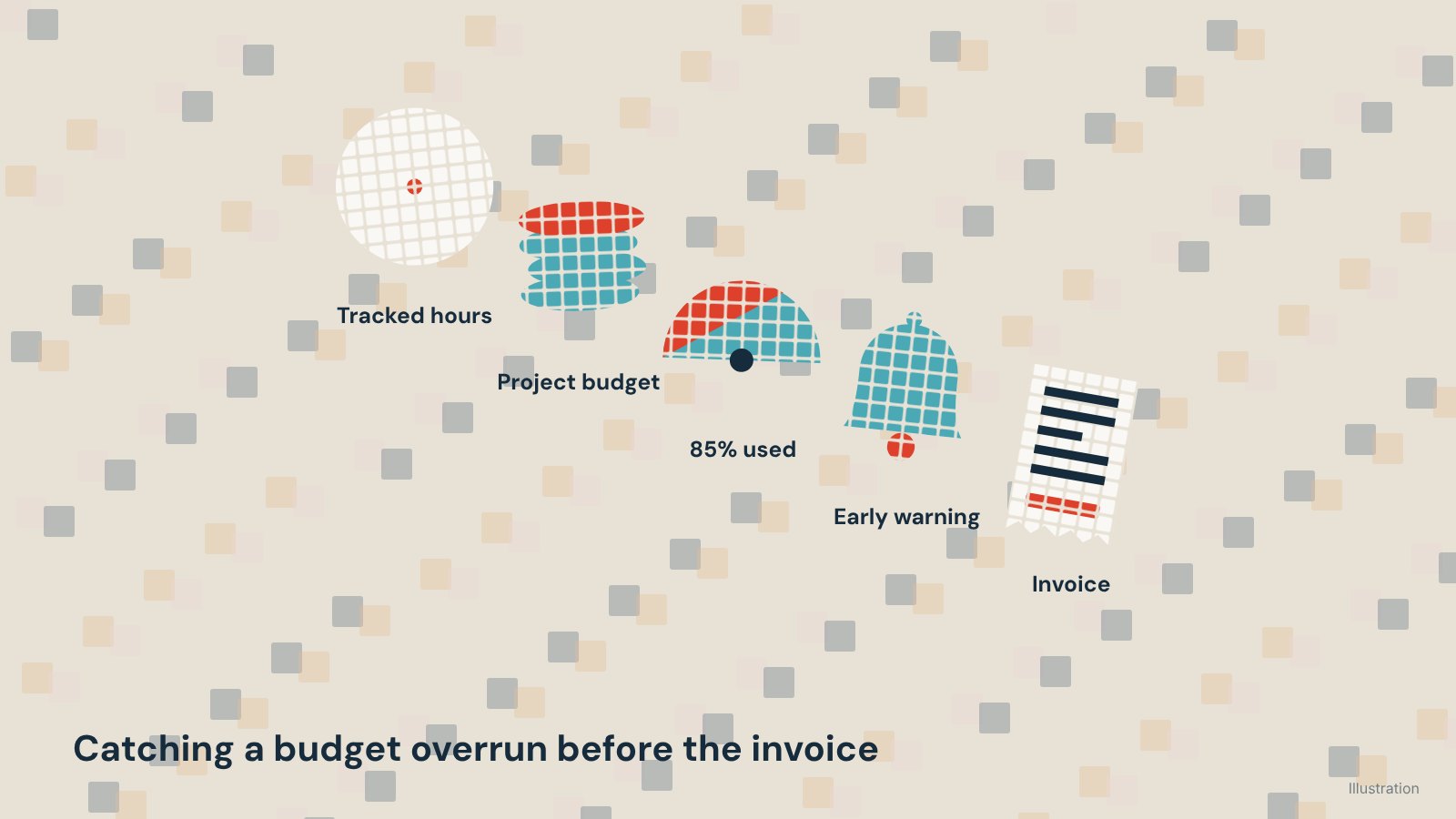
Every tracked hour on the project counts against the budget immediately: "86 of 120 hours". A progress bar is enough; red when it's over. Because the timer records the project as people work, the bar is current, not a week behind.
Look by project and by period
Two views matter:
- This period: hours per project for a date range, to see where the team's time went this week or month.
- All time vs budget: how much of each budget is used since the project started.
The first answers "what did we work on?"; the second answers "how close are we to the limit?". You need both.
Act at 75%, not 100%
When a project passes three-quarters of its budget, that's the time to tell the client, re-scope or move people, not after the invoice. At 75% you still have a quarter of the budget to finish, change course or agree more hours. At 100% you only have an awkward email.
Connect it to billing
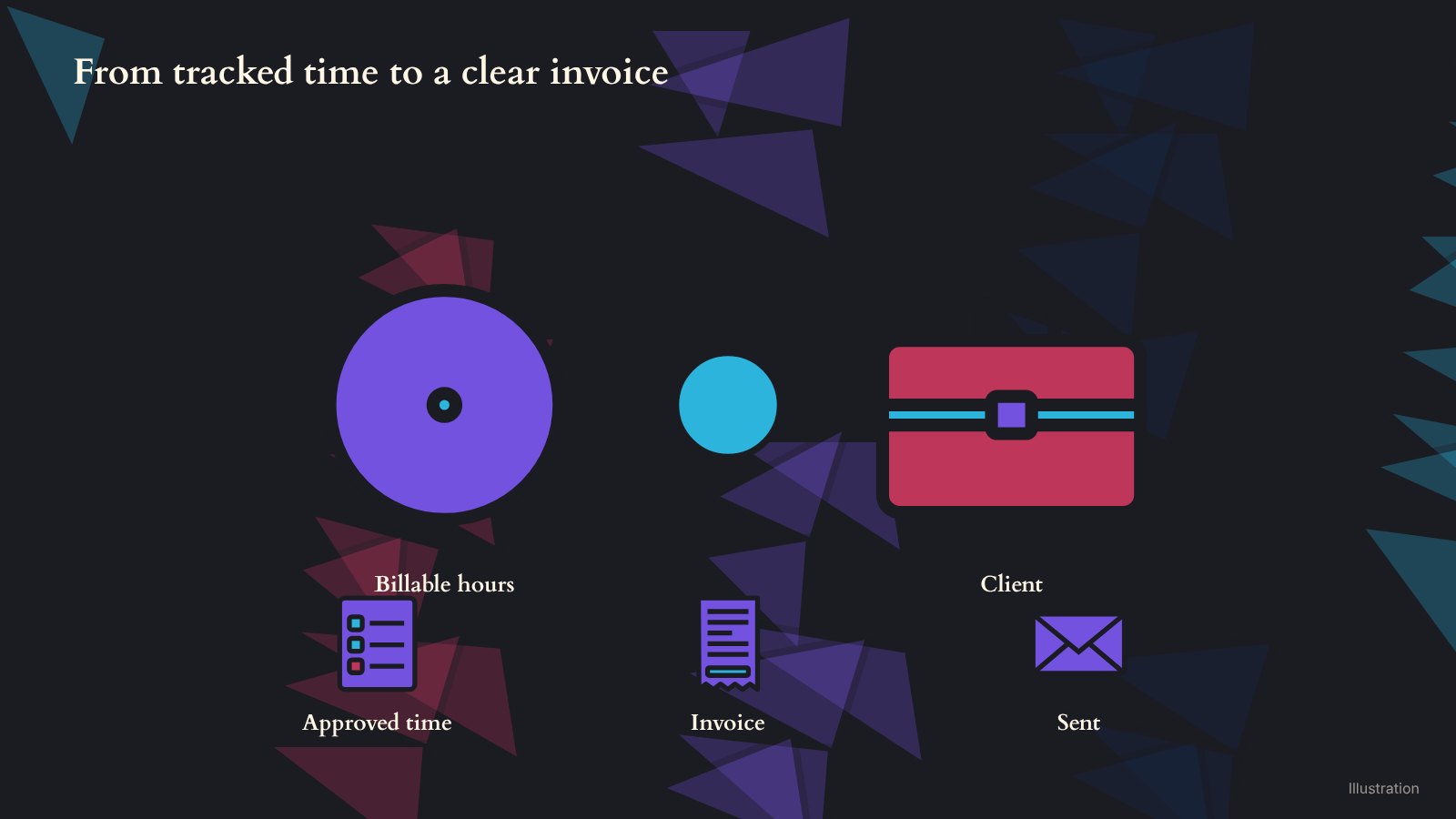
For billable projects, the same hours flow into client invoices at the project's rate. The number the client sees on the invoice is the number your team watched all month, so there are no surprises on either side.
In TR-AI
Leads add projects with a client and an hour budget in Workforce → Projects (/dashboard/workforce). Reports show hours per project for any range, with a bar for budget used; admins can also set project bill rates. People pick the project when they start their timer in the web app or the desktop app, so hours land in the right place as the work happens.
A worked example, start to finish
Here's the migration engagement again, with a budget in TR-AI. The names and numbers are illustrative.
Day 1. Bilal, the support lead, creates the project "Northwind data migration" in Workforce → Projects: client Northwind, budget 120 hours. An admin sets the bill rate. He tells the three agents on the engagement to pick it when they start their timers.
Week 1. The team tracks 28 hours. The bar shows 28 of 120, comfortably green.
Week 2. Another 34 hours: 62 of 120, just over half. On track for a four-week engagement.
Week 3, Wednesday. The migration hits a problem with duplicate records. Hours jump. On Wednesday afternoon the bar passes 90 of 120: 75%, with more than a week of work still ahead.
Week 3, Thursday. Bilal opens the period report for the last seven days: 32 hours on Northwind, most of it on the duplicate-record problem. He sends the client a short note: "We've used 90 of the 120 hours. The duplicate-record issue has taken more time than planned; we expect to need about 40 more hours to finish. Would you like us to continue at the same rate, or pause after the import and review?"
Week 3, Friday. The client agrees an extra 40 hours. Bilal changes the budget to 160. The bar drops back to amber.
Week 4. The migration finishes at 157 of 160 hours. The invoice goes out with the hours already agreed. No dispute, no write-off, and a client who felt informed rather than surprised.
What changed: the same 157 hours of work, but the conversation happened on day 17 instead of day 35.
Five more real-world scenarios
1. A fixed-fee project
Situation. You charge a fixed fee but still want to know if you're losing money.
How TR handles it. Give the project a budget equal to the hours the fee covers. The bar shows when you've gone past the point where the work stops paying.
2. Internal work
Situation. A team spends time on a knowledge-base clean-up.
How TR handles it. Create a project without a budget. Its hours show in reports and timesheets, with no bar to fill.
3. Time without a project
Situation. Someone forgets to pick a project.
How TR handles it. The time still counts for timesheets and payroll, just not against any budget. Leads can see unassigned hours in reports and ask about them.
4. A finished engagement
Situation. The migration is done.
How TR handles it. Archive the project. It disappears from the timer but keeps its history in reports.
5. Several clients, one team
Situation. Five client projects share the same three agents.
How TR handles it. The period report shows hours per project side by side, so you can see which client is taking more than planned this week.
Before and after
Before. A spreadsheet, a contract in someone's inbox, a surprise at invoice time and a disputed bill.
After. A budget next to the hours, a bar that turns amber at three-quarters, a conversation with the client while there's still room to choose, and an invoice nobody argues with.
How to tell it's working
- Clients hear about overruns before the invoice, not on it.
- Fewer write-offs and disputed invoices.
- Leads check the bars in weekly reviews without being asked.
Who it's for
- Support leads running client engagements.
- Agencies and managed-service teams that bill by the hour.
- Account managers who own the client relationship.
How it fits with the rest of TicketResolve
Project hours come from the time tracker in the web app and the desktop app. The same hours feed timesheets, timesheet approval, payroll and client invoices, so everyone works from one set of numbers.
Why 75%
Three-quarters is late enough that the trend is real and early enough that you can still act. Some teams prefer 60% on long engagements or 85% on short ones. What matters is choosing a point before the end, and having someone own the check when the bar crosses it.
Budgets are a conversation, not a cap
Going over budget isn't a failure in itself. Migrations hit surprises; customers change their minds. The goal is to make the overrun a decision both sides take with the facts in front of them. The budget bar is simply what makes that conversation possible on time.
Mistakes to avoid
- Setting budgets on internal projects and creating noise.
- Letting people track time without a project for client work.
- Changing the budget silently instead of agreeing it with the client.
- Checking only at invoice time.
Do it in TicketResolve, step by step
Where: Workforce → Projects and Reports (/dashboard/workforce). You'll need: the Support Lead role or higher to create projects; an admin to set bill rates. Full guide: Time tracker and Workforce management: who sees and changes what.
- Create the project in Workforce → Projects, with the client name and an hour budget.
- Ask an admin to set the bill rate if the project is billable.
- Tell the team to pick the project when they start their timer, in the web app or the desktop app.
- Watch the bar in Reports: hours used against the budget.
- Open the period view to see where this week's hours went.
- At 75%, talk to the client and agree what happens next.
- Update the budget if more hours are agreed.
- Archive the project when the work is done.
How to check it worked: Reports show the project with "X of Y hours" and a bar that changes colour as it fills.
Frequently asked questions
Can people track time without a project? Yes. Time without a project still counts for timesheets and payroll, just not against a budget.
Do archived projects keep their hours? Yes. Archiving hides a project from the timer but keeps its history in reports.
Who can create projects? Leads add projects with a client and an hour budget; admins can also set bill rates.
Can I change a budget later? Yes. Update it when you agree more hours; the bar recalculates straight away.
Does every project need a budget? No. Internal projects usually don't.
How do billable hours reach the invoice? The same tracked hours flow into client invoices at the project's rate.
What does the bar show? Tracked hours against the budget, red once it's over.
Can I see hours for a single week? Yes. The period view shows hours per project for any date range.
Do desktop app hours count? Yes. Hours from the web timer and the desktop app count the same way.
Explore Topics
Written by
Ghulam Shabbir
Content creator and writer sharing insights and stories.