
Support Team Roles and Permissions: Who Should Be Able to Do What
As a support team grows, “everyone is an admin” stops working. A practical model for Owner, Support Manager, Support Lead, Support Agent, Account Manager and Level 2/3 roles, single-permission overrides, channel limits, temporary access, a dashboard for every role and an activity log, with an illustrative growing team, start to finish.
Small support teams start with everyone as an admin. It works until an agent "fixes" a threshold during a busy shift, a contractor exports customer data, or a new hire changes the brand voice without telling anyone. Roles and permissions aren't bureaucracy. They let a growing team move fast without breaking things.
This post sets out a practical role model for support teams, and how to apply it.
Here's how "everyone is an admin" breaks at a company that sells an online course platform, after growing from four agents to twenty:
- Monday: during a busy shift, an agent lowers the auto-send threshold "to clear the queue". Over the next hour, several wrong answers go out.
- Tuesday: a contractor hired for a two-week backlog exports the full customer list "to work offline".
- Wednesday: a new hire experiments with the brand voice and makes every reply sound like a sales email.
- Thursday: the support manager asks who changed what. Nobody knows; everyone could.
- Friday: the account managers ask for a list of at-risk customers. They don't have access to anything, so someone exports it for them, again.
Nobody did anything malicious. Everyone simply had access to everything.
First, the basics
- A role is a named set of permissions, such as Support Lead.
- A permission allows one kind of action, such as "manage knowledge sources" or "export customer data".
- Least privilege means each person gets what their job needs, and no more.
- Separation of duties means the person who changes something isn't the only one who can check it.
- An override grants or removes one permission for one person on top of their role.
- A channel limit restricts what someone sees to certain channels, such as chat only.
- Temporary access grants a permission or role until a date, then ends on its own.
- An activity log records who changed what, and when.
Why does this matter? Clear roles prevent accidents, protect customer data, and let people do their jobs without asking someone else for access. They also make it obvious who to ask when something changes.
The problem, in plain terms
- Everyone can change everything, including mid-shift.
- Contractors get full access.
- Nobody can see who changed what.
- Some roles have no access to what they need.
- Per-seat pricing tempts teams to share logins.
The core roles
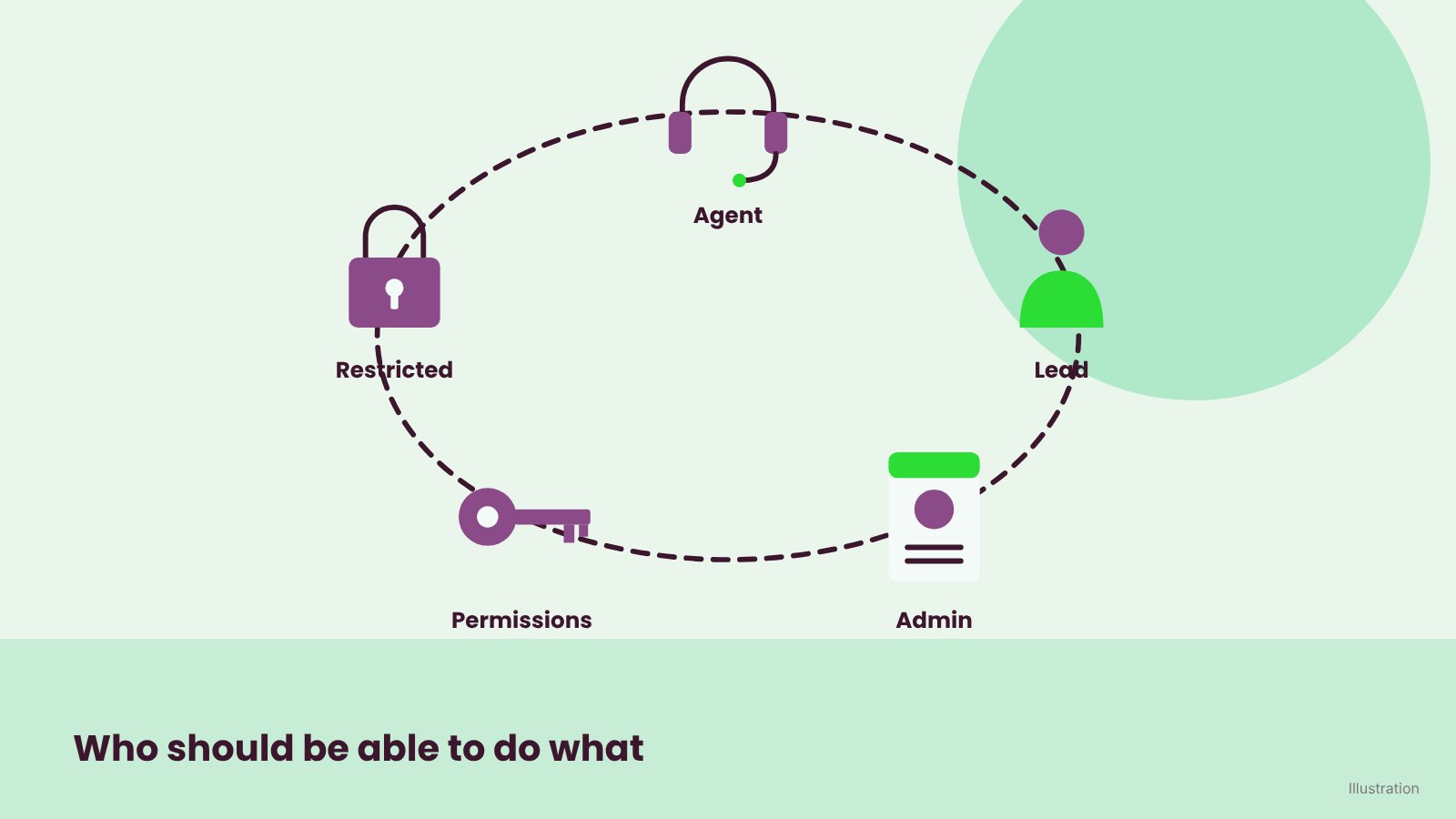
| Role | For | Typically can |
|---|---|---|
| Owner | The account holder | Everything, including billing, security rules and deleting the account |
| Support Manager | The person who runs support | Everything a lead can, plus team members, roles, API keys and customer-data tools; every report |
| Support Lead | Shift and team leads | Configuration (automation, thresholds, knowledge, known issues, channels, tests), reports and the activity log, plus editing the playbook and schedule. Not team members, roles or API keys |
| Support Agent | People answering tickets | Review AI drafts, approve proposed actions, read the ticket log, use the copilot, raise engineering tickets. No settings or cost reports |
| Account Manager | People who own customer relationships | Accounts at risk of churn and why, the bugs affecting their accounts |
| Level 2 / Level 3 Support | Specialists | Their queues and tools, such as the log analyzer |
Two principles make this work. Least privilege: give each role what its job needs and no more. Separation of duties: the person who changes automation settings shouldn't also be the only one who can see whether they worked.
Beyond roles: overrides and channels
Real teams don't fit neat boxes. You'll want to:
- Grant or remove one permission for one person on top of their role. For example, one agent who also maintains the knowledge base.
- Limit people to channels, such as a chat-only team.
- Edit the built-in roles or create your own, e.g. "Billing specialist".
A dashboard for every role
Permissions control what people can do. Dashboards shape what they see first:
- Support Leads: the live queue, each agent's output, and what to coach.
- Support Managers: KPIs, trends, AI performance and cost.
- Account Managers: churn risk by account and the reasons.
- Agents: their queue, their drafts, their mentions.
Audit what changed
When an answer suddenly changes, "who changed what, and when?" must have an answer. An activity log of settings changes, role changes and exports is essential once more than a few people have access.
Escalation queues follow roles
Roles also decide who sees which escalations. Leads should see customers who asked for a team lead, and managers those who asked for a manager. See designing a support escalation process.
How TR-AI handles roles
Roles and permissions (/dashboard/team) are on every plan, with unlimited team members and no per-seat fees:
- Ready-made roles, named by product: Support AI · Manager, Lead, Agent, and Level 2 and Level 3 Specialist; Customer Success, Renewals, Billing and RevOps roles; and Workspace · Owner, Executive, Auditor and Viewer. Edit them or create your own.
- Single-permission overrides per person, and limits to specific channels.
- A dashboard per role: Support Lead, Support Manager and Accounts dashboards.
- Escalation, Support Lead and Support Manager queues, each visible only to the roles that should see them.
- An activity log of who changed what. SSO group-to-role mapping is available with SSO on Growth Pro.
A worked example, start to finish
Here's the course platform setting up roles after the bad week. The names are illustrative.
Monday. Map people to roles. Rafael, the support manager, lists the team:
- Himself: Support AI · Manager.
- Three shift leads: Support AI · Lead.
- Fourteen agents: Support AI · Agent.
- Two technical specialists: Level 2 Specialist.
- Three account managers: Customer Success role.
- The finance controller: Workspace · Auditor, to read reports and logs without changing anything.
Monday. Invite and assign. On the Members tab he changes each person's role. Nobody is an admin any more except the owner and him. Because there are no per-seat fees, the account managers and the controller get their own logins instead of borrowing someone else's.
Tuesday. Overrides. Ines, an agent, also maintains the knowledge base. Rafael clicks Edit access and grants her "Manage knowledge sources" on top of the Agent role; it's marked "granted". Two agents work only the chat widget, so he limits them to the Chat widget channel; their ticket log and review queue show chat only.
Wednesday. A contractor. A contractor joins for the backlog. Rafael invites her as an Agent with an end date two weeks away. She can review drafts and answer tickets; she can't export customer data or change settings. On the end date, her access ends on its own.
Thursday. Holiday cover. One lead goes on holiday. Rafael gives a senior agent temporary access to the Lead role until the lead returns. It ends automatically.
Following week. A threshold question. Answers in billing seem more cautious. Rafael opens the activity log: a lead raised the billing threshold on Tuesday, through a tested release. The question takes thirty seconds to answer.
Dashboards. Leads open the Support Lead dashboard each morning; Rafael uses the Support Manager dashboard for the weekly review; the account managers check the Accounts dashboard for churn risk and reasons. Nobody asks for exports any more.
What changed: no more mid-shift threshold changes by agents, contractors without export access, a clear answer to "who changed what?", and every role seeing what it needs.
Five more real-world scenarios
1. A billing specialist
Situation. You need someone who handles refunds but nothing else.
How TR handles it. Create a "Billing specialist" role with just those permissions.
2. Someone leaves
Situation. An agent leaves the company.
How TR handles it. "Remove from workspace" revokes their API keys, connected AI apps and browser-extension access, ends temporary access, and signs them out everywhere if they belong to no other workspace.
3. Two-factor for leads
Situation. You want leads to use two-factor authentication.
How TR handles it. When building or editing a role, require two-factor for people with that role.
4. SSO groups
Situation. Your identity provider already has support groups.
How TR handles it. SSO group-to-role mapping is available with SSO on Growth Pro.
5. An auditor
Situation. Internal audit wants to read logs and reports.
How TR handles it. The Workspace · Auditor role reads without changing anything.
Before and after
Before. Twenty admins, a threshold lowered mid-shift, a contractor exporting customers, a sales-sounding brand voice, nobody knowing who changed what, and account managers asking for exports.
After. Roles by job, overrides for real exceptions, channel limits, contractors with end dates, temporary cover that ends on its own, dashboards per role, and an activity log with the answers.
How to tell it's working
- Settings change only through leads and managers.
- "Who changed this?" is answered in seconds.
- Contractor access ends on time without anyone remembering.
- Fewer ad-hoc exports.
Who it's for
- Support managers whose team is growing.
- Owners and admins responsible for security.
- Companies using contractors or outsourced teams.
How it fits with the rest of TicketResolve
Roles decide access to the review queue, escalation queues, settings, reports and customer-data tools. Access reviews check who has which role every quarter, and SSO and MFA strengthen sign-in. Staged releases give leads a safe way to change settings.
Should support agents be able to change AI settings?
Usually not. Agents review and approve AI drafts. Leads change settings, ideally through tested releases, so the people answering tickets aren't also changing the system mid-shift. That's separation of duties in practice.
Do roles affect cost?
In TR-AI they don't: there are no per-seat fees, so you can give every person the role that fits instead of sharing logins. Shared logins are the biggest hidden risk in growing teams, because they make the activity log meaningless.
Reviewing roles every quarter
Teams change faster than roles do. People move from agent to lead, contractors finish, account managers join. Once a quarter, look at the member list with each person's role, last sign-in and two-factor status, remove anyone who no longer needs access, and check that overrides still make sense. It takes half an hour and keeps the model honest.
Mistakes to avoid
- Making everyone an admin "for now".
- Giving contractors permanent access.
- Sharing logins to save seats.
- Overrides nobody reviews.
Do it in TicketResolve, step by step
Where: Team & roles (/dashboard/team). You'll need: the owner or a Support Manager. Full guides: Roles & permissions, Quarterly access reviews and Team roles, SSO, MFA and encryption.
- List your people and the job each one does.
- Invite or update members on the Members tab with the matching role; add an end date for contractors.
- Use "Edit access" for single-permission overrides and channel limits.
- Create custom roles on the Roles tab for jobs that don't fit, with two-factor if needed.
- Give temporary access for holiday or incident cover.
- Point each role to its dashboard.
- Check the activity log when something changes, and review roles quarterly.
How to check it worked: each person has a role that matches their job, overrides are marked "granted" or "removed", and the activity log shows who changed what.
Frequently asked questions
What roles does a customer support team need? Most teams need an owner, a Support Manager, Support Leads, Support Agents and, for B2B, Account Managers. Larger or technical teams add Level 2 and Level 3 specialist roles.
What is the difference between a Support Lead and a Support Manager? Leads run shifts and configuration: automation, knowledge and channels. Managers also manage people, roles and API keys, and see every report.
Should support agents be able to change AI settings? Usually not. Agents review and approve AI drafts. Leads change settings, ideally through tested releases, so the people answering tickets aren't also changing the system mid-shift.
Do roles affect cost? In TR-AI they don't: there are no per-seat fees, so you can give every person the role that fits instead of sharing logins.
Can I create my own roles? Yes, and edit the built-in ones.
Can access be temporary? Yes. Grant a permission or role until a date; it ends on its own.
What happens when someone is removed? Their API keys, connected AI apps and browser-extension access are revoked, and they're signed out everywhere if they belong to no other workspace.
Can I limit someone to chat only? Yes, with channel limits.
Is there an activity log? Yes, of who changed what.
Explore Topics
Written by
Ghulam Shabbir
Content creator and writer sharing insights and stories.