
Team Chat and Calls Built Into Your Support Tool: Fewer Tabs, Faster Escalations
Support agents switch between the help desk, Slack, Zoom and a wiki all day. Internal chat with channels, private messages and mentions, plus voice and video calls with screen sharing, work better next to the queue: more context, faster escalations, better onboarding, and nothing leaking to customers. With an illustrative escalation, start to finish.
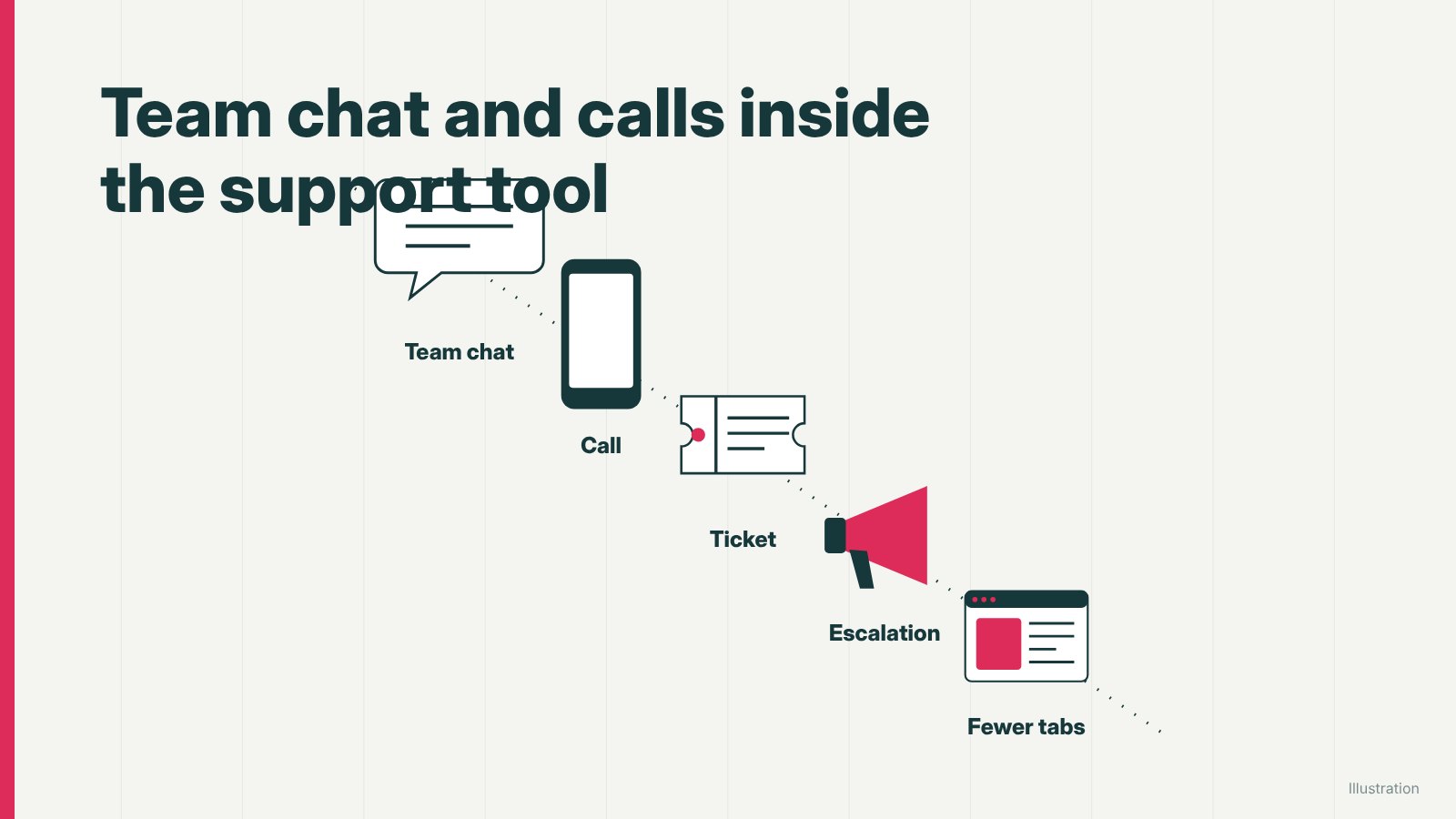
A typical escalation: an agent hits a tricky ticket, opens Slack to ask a lead, pastes a link, waits, moves to Zoom to share their screen, then goes back to the help desk to reply. Four tools, three context switches. For remote and distributed support teams, that's the normal day.
Built-in team chat and calls don't replace your company's chat tool. They keep support's collaboration next to the work. This post covers what's worth having there.
Here's that escalation in detail at a company that sells a payroll app to small businesses:
- 14:05: Nia, a new agent, gets a ticket about tax codes she doesn't understand.
- 14:07: she posts in the company Slack's #support channel, which has 300 members. Her question scrolls away under a product announcement.
- 14:25: she messages her lead directly. He's in a meeting.
- 14:50: he replies: "Can you share your screen?" She sends a Zoom link. It needs an update.
- 15:05: they're finally on a call. The answer takes four minutes.
- 15:10: she goes back to the help desk, finds the ticket again, and replies. The customer has been waiting over an hour for a four-minute answer.
Nothing was wrong with any single tool. The cost came from moving between them.
First, the basics
- Team chat is internal messaging for your support team: channels, direct messages and mentions.
- A channel is a shared conversation on a topic, such as #billing-escalations.
- A direct message is private between two or more people.
- An @mention notifies a person, with an unread count and an alert.
- A call is voice or video between team members, one-to-one or in a group.
- Screen sharing shows your screen, a window or a browser tab to the call.
- Cross-product calls let people on a company's other products be called.
Why does this matter? Most escalations are solved by a quick question or a short look at the screen. When asking is one click away from the ticket, those answers come in minutes instead of an hour, new agents learn faster, and support conversations don't drown in company-wide chat.
The problem, in plain terms
- Four tools for one escalation.
- Support questions get lost in company-wide channels.
- Links lose context: which ticket, which draft?
- Screen sharing needs another app.
- New agents hesitate to ask.
Why collaboration next to the queue helps
- Context. A mention on a ticket or a review draft opens that exact item.
- Speed. "Can you look at this?" plus a screen share resolves most escalations in minutes.
- Focus. Support talk doesn't get lost in a company-wide chat with hundreds of channels.
- Onboarding. New agents learn faster when asking is one click away.
Team chat that suits support
- Channels for topics (#billing-escalations, #shift-handover), readable by everyone on the team.
- Private direct messages that even admins can't read.
- @mentions with unread counts and email alerts, the same as mentions on tickets and drafts.
- Sensible permissions: people who work tickets write, read-only roles read, and leads can tidy up.
Pair it with a support playbook, so answers given in chat become procedures everyone can find.
Calls with screen sharing
Some problems are faster to show than to type: a confusing configuration, a customer's odd screenshot, a new hire's first escalation. What makes calls work for support:
- One-to-one and group calls, voice or video.
- Screen sharing of a screen, a window or a browser tab.
- Background blur or replacement for agents working from home.
- Calls that follow you while you keep working in the support tool.
- Calls across products. For companies supporting several products, leads and managers can call colleagues on the other teams.
Security basics
Internal chat and calls should be limited to people in your company. Customers never see them, and nothing should leak into the help desk. Calls that go directly between browsers keep audio and video off third-party servers where possible.
How TR-AI handles team chat and calls
Both are on every plan:
- Team chat (
/dashboard/team-chat): #general plus your own channels, private direct messages (not even the owner can read them), and @mentions with unread counts, alerts and email. Messages appear within seconds and can be edited or deleted, and leads and managers can archive channels. Customers never see team chat, and nothing is posted to your help desk. - Calls (
/dashboard/calls): voice or video, one-to-one or groups of up to 8, with your workspace or your company's other products. Screen sharing (screen, window or tab), background blur or your own image, and a minimised call that follows you from page to page. Only people in your company can be called, and calls go directly between browsers.
Calls can also produce notes and action items automatically; see call notes and action items.
A worked example, start to finish
Here's the payroll-app escalation with team chat and calls in TR-AI. The names are illustrative.
14:05. Nia gets the tax-code ticket. In the review draft she types a comment: "@Owen could you check this tax code question? Not sure the draft is right."
14:05. Owen gets an unread count and an alert. The mention opens the exact draft, not a link he has to find.
14:08. Owen is between meetings. He replies in the draft's comments: "Quick call?" and starts a one-to-one call from TR-AI.
14:09. Nia joins. She shares her browser tab with the ticket and the payroll settings screenshot the customer sent. Her background is blurred; she's working from her kitchen.
14:12. Owen spots it: the customer changed their tax year start date, so the code shown is for next year. He explains; Nia edits the draft.
14:13. The call minimises and follows Nia as she goes back to the review queue, so Owen can stay on while she sends. She sends the reply. The customer waited eight minutes.
14:20. Owen posts in #tax-and-payroll: "Tip: if a customer's tax code looks wrong, check whether they changed their tax year start date." Later that week it goes into the playbook.
Next month. A tax-code bug affects customers of the company's other product, a time-clock app. Owen calls the time-clock team's lead directly with a cross-product call. They agree a shared reply in five minutes.
What changed: an eight-minute answer instead of an hour, a new agent who learned something she'll use again, and a tip that became a procedure.
Five more real-world scenarios
1. A shift handover
Situation. The evening shift needs to know what's still open.
How TR handles it. A #shift-handover channel, readable by everyone on the team.
2. A private conversation
Situation. A lead needs to give an agent feedback.
How TR handles it. Direct messages are private; not even the owner can read them.
3. A group problem
Situation. An incident needs five people to look at the same dashboard.
How TR handles it. A group call of up to 8 with screen sharing.
4. A read-only role
Situation. An analyst should follow channels but not post.
How TR handles it. Read-only roles read; people who work tickets write.
5. A tidy-up
Situation. Old channels clutter the list.
How TR handles it. Leads and managers can archive channels.
Before and after
Before. A question lost in a 300-person channel, a lead in a meeting, a Zoom update, an hour's wait for a four-minute answer.
After. A mention on the draft, a call from the support tool, a shared browser tab, an eight-minute answer, and a tip in a channel that became a procedure.
How to tell it's working
- Escalations resolve faster.
- New agents ask more and earlier.
- Fewer support questions in company-wide chat.
- Tips from chat end up in the playbook.
Who it's for
- Remote and distributed support teams.
- Leads who unblock agents all day.
- Companies supporting several products.
How it fits with the rest of TicketResolve
Chat and calls connect to mentions on tickets and drafts, call notes and My tasks, the playbook, and the support schedule for handovers. Cross-product calls work across a company's portfolio.
Should a support team use its own chat instead of Slack?
Many teams use both: company chat for everything else, and built-in chat for support work, because mentions link to the exact ticket or draft and conversations stay next to the queue. The aim is fewer switches for support work, not replacing company chat.
Are internal support chats visible to customers?
No. Internal chat and calls are for your team only. Nothing is posted to the help desk or shown to customers. That separation is what makes it safe to ask "is this draft right?" in the open.
Building a habit of asking
Tools only help if people use them. Leads can make asking normal by answering quickly, thanking people for questions, and turning good answers into channel tips or playbook entries. New agents in particular watch how their first questions are received; a fast, friendly reply teaches them to ask early, which is exactly when a question saves the customer the most time.
Mistakes to avoid
- Posting support questions in company-wide channels.
- Pasting ticket links instead of mentioning on the ticket.
- Leaving chat answers out of the playbook.
- Too many channels nobody reads.
Do it in TicketResolve, step by step
Where: Team chat (/dashboard/team-chat) and Calls (/dashboard/calls). You'll need: nothing; both are on every plan. Full guides: Team chat, Calls: voice and video with your team and Team comments and @mentions.
- Create a few channels for the topics your team asks about most.
- Mention people on tickets and drafts so the alert opens the exact item.
- Start a call from TR-AI when it's faster to show than type.
- Share a screen, window or tab.
- Keep working while the call follows you.
- Post useful answers in the right channel, then add them to the playbook.
- Archive channels nobody uses.
How to check it worked: escalations happen through mentions and calls inside TR-AI, and answers from chat appear in the playbook.
Frequently asked questions
Should a support team use its own chat instead of Slack? Many teams use both: company chat for everything else, and built-in chat for support work, because mentions link to the exact ticket or draft and conversations stay next to the queue.
Can support agents share their screen with a lead? Yes. Built-in calls with screen sharing let an agent show a lead a confusing configuration or ticket without switching to another tool.
Are internal support chats visible to customers? No. Internal chat and calls are for your team only. Nothing is posted to the help desk or shown to customers.
Can teams supporting different products talk to each other? With cross-product calls, yes: people on the company's other products can be called, but nobody outside the company.
How many people can join a call? Up to 8.
Can admins read direct messages? No. Not even the owner can read them.
Do calls go through a third-party server? Calls go directly between browsers.
Is it on every plan? Yes, both chat and calls.
Can I blur my background? Yes, or use your own image.
Explore Topics
Written by
Ghulam Shabbir
Content creator and writer sharing insights and stories.