
ServiceNow AI Ticket Automation: Resolving Incidents From Your Knowledge and History
How AI can answer and resolve ServiceNow incidents automatically: imported work-note history, close codes, internal work-note drafts, assignment-group triage, and a safe rollout with assisted mode and a kill switch. With an illustrative IT team, start to finish.
ServiceNow is built for process: assignment groups, SLAs, close codes. What it doesn't do on its own is write the answer to "Outlook keeps asking for my password" for the hundredth time.
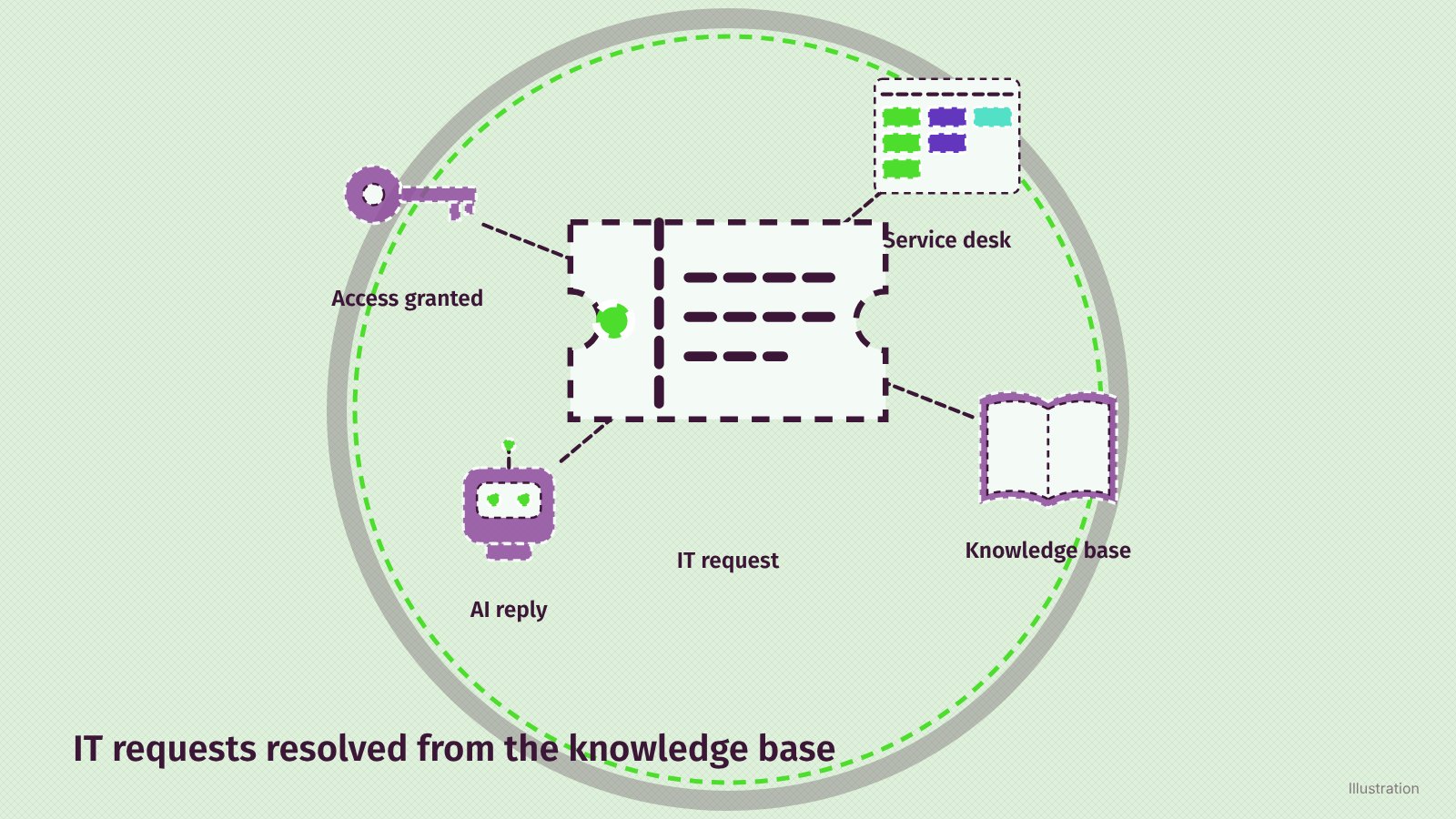
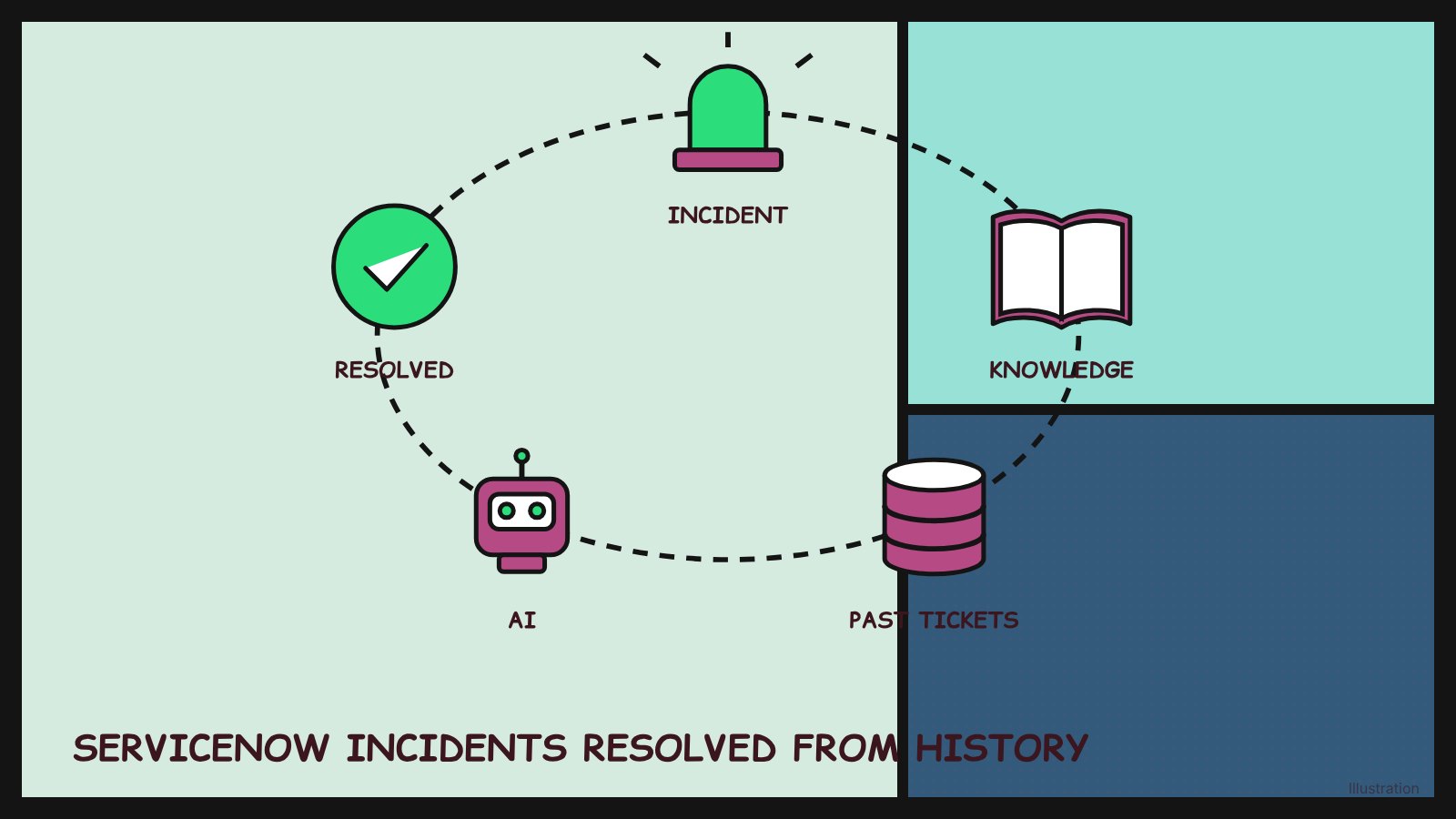
Short answer: AI ticket automation for ServiceNow connects to the Incident table through the ServiceNow REST API, imports resolved incidents (including work notes) as history, and answers new incidents from your knowledge base and that history. Confident answers are sent and the incident is resolved with a close code; uncertain drafts are posted as internal work notes; incidents the AI shouldn't answer are assigned to a triage group.
Here's a typical week at an IT service desk for a 2,000-person logistics company, before any automation. The events are illustrative:
- Monday 08:30: 40 incidents arrive in the first hour after a password-policy change. Most say some version of "Outlook keeps asking for my password".
- Monday: agents type the same fix (clear cached credentials) again and again. The real fix is in last month's work notes, not in any knowledge article.
- Tuesday: a site's network goes down. The major-incident team is pulled into answering password tickets while the outage waits.
- Wednesday: someone asks how to install the approved PDF reader. The knowledge article still points to software retired last year.
- Friday: the SLA report shows breaches in categories that have well-known fixes.
The fixes existed. They were in the work notes and in agents' heads.
First, the basics
- An incident is a ServiceNow record of something broken or a request for help.
- The Incident table is where those records live.
- An assignment group is the team an incident is routed to.
- A close code records how an incident was resolved.
- Work notes are internal comments on an incident, not visible to the caller.
- A confidence threshold decides whether an answer is sent or held; the default auto-resolve threshold is 82%.
- Assisted mode holds every reply for approval.
Why does this matter? IT teams spend a large share of their day on incidents with known fixes. Answering those automatically, with the same process data ServiceNow expects (close codes, work notes, assignment groups), frees agents for outages and hardware, without breaking the process the service desk runs on.
The problem, in plain terms
- Repeated incidents with known fixes take agents' time.
- Fixes live in work notes, not knowledge articles.
- Outages compete with routine tickets for attention.
- Articles go stale.
- SLAs slip on easy categories.
Which incidents to automate
| Incident | Automate? |
|---|---|
| Repeated password prompts, sign-in loops | Yes: a known fix usually exists |
| "How do I install the approved PDF reader?" | Yes: software install procedure |
| Printer offline with documented troubleshooting | Yes, if the steps are written down |
| Network outage affecting a site | No: major incident process |
| Hardware failure | No: needs an engineer |
| Security incidents | No: always a person |
The best candidates have a documented fix and are reported often enough that agents are tired of typing it.
How the connection works in TicketResolve
- Connect your instance: enter the instance URL and credentials in the dashboard.
- Choose the triage assignment group: where incidents the AI hands off go.
- Import incident history: resolved incidents and their work notes are indexed alongside your knowledge base.
- Set your confidence threshold: the default auto-resolve threshold is 82%. Turn on assisted mode to approve every reply at first.
- Go live: new incidents are processed automatically, with a full audit trail per incident.
TicketResolve uses the official ServiceNow REST API. It is not a ServiceNow partner or Store app.
What happens to each incident
- Auto-answer: the incident gets an answer and is resolved with a close code and close notes.
- Internal work note: below the threshold, the draft and the AI's reasoning are posted as a work note for the assigned agent.
- Assignment-group triage: incidents below the threshold, matching an escalation rule, or touching a sensitive topic are assigned to your triage group, with a work note explaining why.
Why work notes matter
In many ServiceNow teams the real fix lives in the work notes, not the customer-visible comment: "cleared cached credentials in Credential Manager, issue resolved". Importing resolved incidents with their work notes means the AI learns those fixes too. Work notes are used to understand the fix; customer-facing replies are written from them in plain language.
Knowledge articles still come first
History helps with patterns, but documented procedures are the most reliable source:
- Write the top 20 fixes as knowledge articles. Look at your most common incident categories.
- Keep one fix per article with a clear title.
- Retire articles for software you no longer support, so the AI doesn't recommend them.
A worked example, start to finish
Here's the logistics company's service desk rolling it out. The names are illustrative.
Set-up. Kenji, the service-desk manager, enters the instance URL and credentials, picks "Service Desk Triage" as the triage assignment group, and imports resolved incidents with their work notes. He adds the IT knowledge base as a source and retires the article for the old PDF reader. He turns on assisted mode, leaving the threshold at 82%.
Week 1. Assisted mode. Every answer is held for approval. A password-prompt incident gets a draft: "This usually happens after a password change, when Windows still holds your old password. Open Credential Manager, remove the saved Outlook entries, then restart Outlook and sign in with your new password." It was written in plain language from the work notes ("cleared cached credentials in Credential Manager, issue resolved"). Agents approve it unedited dozens of times. The PDF-reader draft now points to the approved software.
Week 1. A network outage. An incident says a whole site is offline. It matches an escalation rule, so it's assigned to the triage group with a work note explaining why. The AI doesn't attempt it.
Week 2. Automatic for proven categories. Kenji switches off assisted mode for password prompts and software installs, where drafts were approved unedited all week. A new password incident is answered and resolved with a close code and close notes. The audit trail shows the sources and the score.
Week 2. A printer. The draft for an unusual printer error scores below the threshold, so it's posted as a work note for the assigned agent, with the AI's reasoning. The agent fixes it and adds a step to the article.
Week 3. A security report. A user reports a suspicious email with a link they clicked. Security incidents always go to a person.
Month end. Kenji reads incidents resolved without an agent (excluding reopened ones), mean time to resolve for automated versus agent-resolved incidents, and triage volume by category. Triage shows two categories with no articles; the team writes them.
What changed: the hundredth password ticket answered in seconds from the team's own fix, outages left to the major-incident team, stale articles retired, and a list of the articles still missing.
Five more real-world scenarios
1. Something goes wrong after a release
Situation. Answers start looking off.
How TR handles it. A kill switch pauses all automated replies for your account from the dashboard in one click.
2. A sensitive topic
Situation. An incident mentions a data leak.
How TR handles it. Incidents touching a sensitive topic are assigned to your triage group with a work note.
3. A fix only in work notes
Situation. No article exists, but agents fixed it before.
How TR handles it. Imported work notes let the AI learn the fix and write a plain-language answer.
4. Tables other than Incident
Situation. You want change requests automated.
How TR handles it. The supported table is the Incident table.
5. Checking a threshold change
Situation. You want to raise the threshold for one category.
How TR handles it. Run a replay test to see how past incidents would have been handled.
Before and after
Before. Forty password incidents typed by hand, the fix hidden in work notes, an outage waiting behind routine tickets, and an article pointing to retired software.
After. Password and install incidents resolved with close codes, uncertain drafts as work notes, outages and security incidents in triage, and the gaps listed by category.
Safe rollout
- Start with assisted mode for one or two categories.
- Compare drafts with agents' actual fixes for a week.
- Switch on automatic resolution for categories where drafts are consistently approved unedited.
- Keep a kill switch handy: pausing all automated replies should take one click.
Measure
- Incidents resolved without an agent, excluding reopened ones.
- Mean time to resolve for automated vs agent-resolved incidents.
- Triage volume by category: where documentation is missing.
- SLA breaches in categories the AI handles.
Who it's for
- IT service desks on ServiceNow.
- Service-desk managers chasing SLAs.
- Enterprise IT teams with large incident histories.
How it fits with the rest of TicketResolve
ServiceNow incidents use the same knowledge sources, confidence scores, escalation rules and past resolutions as every other help desk. Internal IT helpdesk mode treats your employee domains as verified, and replay tests check changes before you make them.
Mistakes to avoid
- Automating outages or hardware failures.
- Skipping assisted mode.
- Ignoring work notes when importing history.
- Leaving stale articles live.
Do it in TicketResolve, step by step
Where: the dashboard's help-desk connection, and Settings → Automation (/dashboard/settings). You'll need: a ServiceNow instance URL and credentials; a triage assignment group. Full guides: Rolling out safely: assisted mode and the review queue, Confidence scores, Internal IT helpdesk mode and Replay test.
- Connect your instance with the URL and credentials.
- Choose the triage assignment group.
- Import incident history with work notes.
- Add your knowledge base and retire stale articles.
- Turn on assisted mode and keep the 82% threshold to start.
- Review a week of drafts, then switch off assisted mode for proven categories.
- Measure monthly and write articles for triage-heavy categories.
How to check it worked: a test password incident is answered and resolved with a close code, and a low-confidence one gets an internal work note instead.
Frequently asked questions
Which ServiceNow tables are supported? The Incident table.
Is this an official ServiceNow integration? No. It uses the official ServiceNow REST API but isn't a ServiceNow partner or Store app.
Are work notes imported? Yes. Resolved incidents are imported with their work notes so the AI learns how your team actually fixed them.
Can we stop it instantly? Yes. A kill switch pauses all automated replies for your account from the dashboard.
What's the default threshold? The default auto-resolve threshold is 82%.
What happens to incidents the AI shouldn't answer? They're assigned to your triage group with a work note explaining why.
Are work notes quoted to the caller? No. Work notes are used to understand the fix; replies are written in plain language.
Which incidents should stay with people? Network outages, hardware failures and security incidents.
Is there an audit trail? Yes, a full audit trail per incident.
Related: IT help desk automation guide, Jira Service Management AI automation and learning from resolved tickets.
Explore Topics
Written by
Ghulam Shabbir
Content creator and writer sharing insights and stories.