
IT Helpdesk Automation: How AI Handles Password Resets, Access Requests, and More
Internal IT support teams handle enormous volumes of repetitive L1 tickets. Here is how AI automation transforms IT service desks — with specific use cases, setup guidance, and realistic results.
IT service desks have a unique automation problem. The ticket volume is high, the issues are often repetitive, and the correct resolutions are usually well-documented — but agents still spend most of their time on tickets that should never have needed a human.
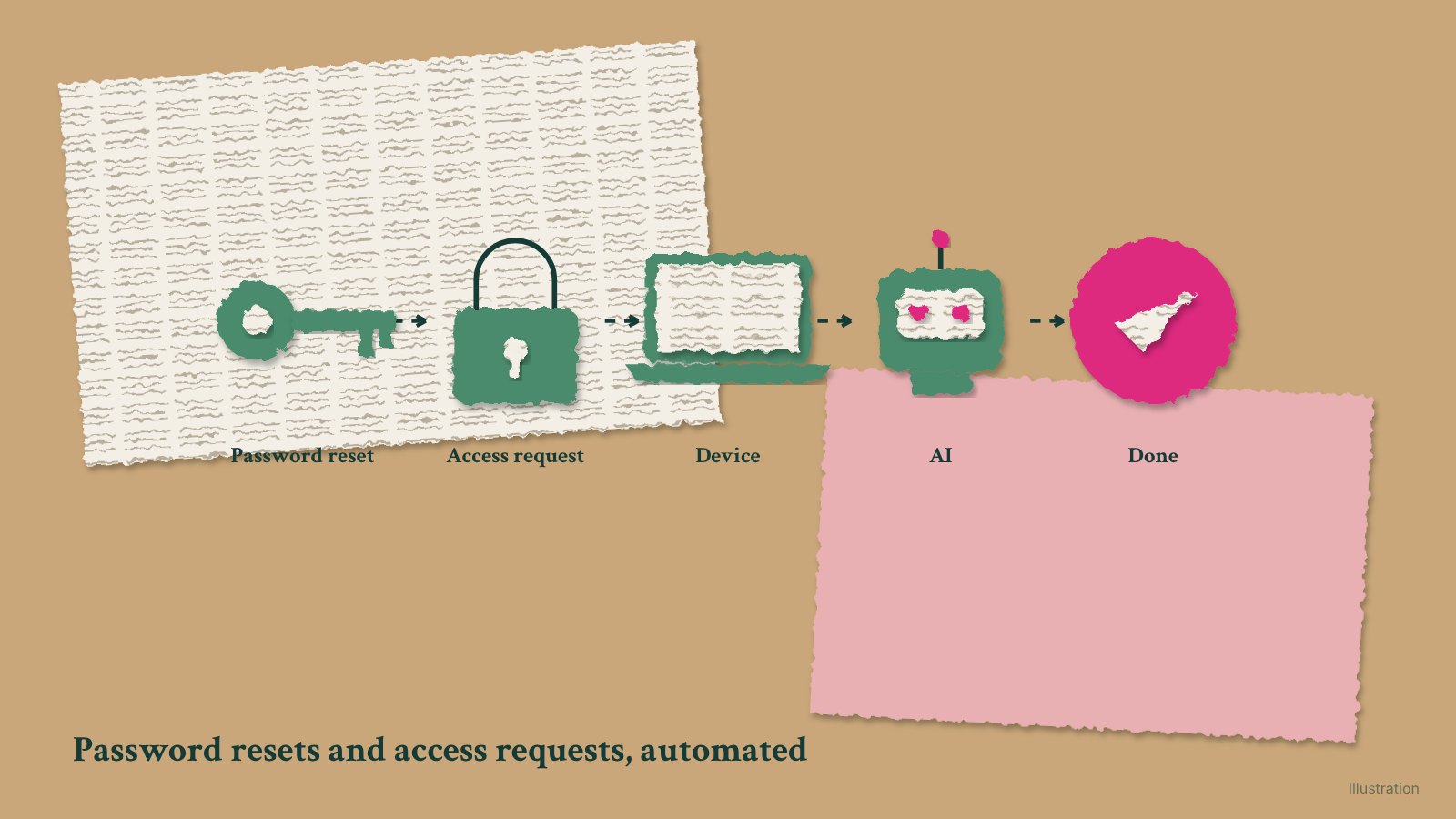
Password resets are one of the biggest single ticket types at many IT helpdesks. Add software access requests, VPN issues, account unlocks, and basic how-to questions, and a large share of IT tickets have documented answers an AI can give.
This guide covers the specific use cases where IT helpdesk automation delivers the most value, how to set it up, and what results to expect.
Why IT Helpdesks Are Ideal for AI Automation
IT support has several characteristics that make it particularly well-suited to AI automation:
High volume, low variance. The same 20–30 ticket types account for the majority of IT support volume. Password resets, account unlocks, software access requests, VPN connectivity, printer issues, email configuration — these are highly repetitive with well-defined resolutions.
Well-documented resolutions. IT teams typically maintain detailed runbooks, knowledge bases, and SOPs. The correct resolution for most L1 tickets already exists in documented form — it just needs to be surfaced quickly.
Clear escalation paths. IT tickets have well-defined L1/L2/L3 boundaries. The AI can resolve L1 tickets and escalate L2/L3 tickets to the appropriate team with confidence.
Internal users are forgiving. Unlike customer-facing support, internal IT users understand that automated responses are part of the service. They are less likely to react negatively to an AI-generated response than external customers.
The Top IT Helpdesk Use Cases for Automation
Password Resets and Account Unlocks
This is the single highest-volume, most automatable IT ticket type. The resolution is always the same: verify identity, reset the password or unlock the account, confirm with the user.
For AI automation, the key is connecting the AI to your identity management system (Active Directory, Okta, Azure AD) so it can actually perform the reset — not just tell the user how to do it themselves. Some AI resolution engines support this via API integration; others provide the instructions and route to a human for execution.
Even without system integration, AI can dramatically reduce resolution time by providing step-by-step self-service instructions tailored to the user's specific situation (which system, which device, which authentication method).
Software Access Requests
"I need access to [application]" is one of the most common IT tickets. The resolution depends on:
- Whether the user is entitled to the software
- Whether a licence is available
- What the provisioning process is
AI can handle the entire intake and routing process: confirm the request, check entitlement rules, route to the appropriate approver, and notify the user of the outcome. For pre-approved software, it can initiate provisioning automatically.
VPN and Remote Access Issues
VPN connectivity issues follow predictable patterns: wrong credentials, expired certificates, client version mismatch, network configuration. AI can diagnose the most common causes based on the user's description and device information, and provide targeted troubleshooting steps.
Many VPN tickets can be answered at L1 from good set-up guides; the rest need deeper investigation or system-side changes, so expect a share to stay with people.
Email and Calendar Configuration
Setting up email on a new device, configuring calendar sync, troubleshooting Outlook or Gmail issues — these are high-volume, well-documented, and highly automatable. The AI queries the knowledge base for the relevant configuration guide and sends it to the user with device-specific instructions.
Hardware and Peripheral Issues
Printer not working, monitor not detected, keyboard or mouse unresponsive — these tickets follow standard troubleshooting flows. AI can walk users through the diagnostic steps and resolve the majority without escalation.
Software Installation and Updates
"How do I install [application]?" and "My software is out of date" are straightforward tickets with documented resolutions. AI can provide installation guides, update instructions, and licence key information from the knowledge base.
Onboarding and Offboarding Requests
New employee setup and departing employee offboarding involve checklists of IT tasks. AI can manage the intake, track completion, and coordinate with relevant teams — significantly reducing the manual coordination burden on IT staff.
Setting Up IT Helpdesk Automation
Step 1: Audit Your Ticket Volume
Before deploying automation, run a report on your top 20 ticket types by volume over the last 6 months. This tells you where the automation opportunity is largest.
For each ticket type, note:
- Volume (tickets per month)
- Average resolution time
- Whether the resolution is documented
- Whether it requires system access to resolve
Step 2: Prioritise Automatable Ticket Types
Focus first on ticket types that are:
- High volume
- Well-documented
- Resolvable without system access (or where you can provide self-service instructions)
Password resets, software how-to questions, and configuration guides are typically the best starting point.
Step 3: Prepare Your Knowledge Base
For each ticket type you want to automate, ensure the resolution is documented clearly in your knowledge base. This means:
- Step-by-step instructions, not just a summary
- Device-specific or OS-specific variations where relevant
- Screenshots or diagrams where helpful
- Links to relevant tools or portals
Step 4: Connect Your ITSM Tool
Most IT teams use a dedicated ITSM tool: ServiceNow, Jira Service Management, Freshservice, or a general helpdesk like Zendesk or Freshdesk. Connect your AI resolution engine to this tool via webhook.
TR-AI supports Zendesk, Freshdesk, Intercom, HubSpot, Salesforce, Zoho Desk, ServiceNow and Jira Service Management.
Step 5: Configure Confidence Thresholds
Keep TR-AI's default auto-send threshold (82%) or set it stricter at first. IT users expect accurate information — an incorrect resolution instruction can cause more problems than it solves. Start high and lower the threshold as you verify quality.
Step 6: Replay and assisted mode
Before going live, replay a few hundred past tickets as a dry run, then run assisted mode for a week or two: every reply waits for an agent's approval, so nothing reaches customers without it. Use the drafts to find knowledge-base gaps and calibrate thresholds.
What results to expect
Results depend on your ticket mix and how complete your sources are, so measure them on your own tickets rather than relying on an average:
- Before go-live: replay a few hundred past tickets as a dry run to see how many the AI would answer and how many agree with your team.
- After go-live: track verified resolutions (answers not reopened, reported as not working, rated low or asked again within 72 hours), reopens and CSAT on AI-answered tickets, by ticket type.
- Speed: confident answers are posted within seconds of the ticket arriving, at any hour.
Tickets that need judgement, such as complaints, disputes and complex technical issues, stay with people by design.
A worked example, start to finish
Here's an illustrative IT team of five supporting a 1,200-person engineering firm.
Audit. They export three months of tickets and tag them. Password and MFA questions, VPN set-up, software installs and "how do I book a meeting room?" make up the routine group.
Knowledge. The IT wiki in Confluence is connected. VPN instructions are split into Windows and macOS pages, written as text with screenshots kept.
Internal IT helpdesk mode. In Trust, they add the company's email domain, so employees count as verified even on Slack and Teams. Access requests and account changes always need approval before anything is done.
Connect and test. They connect Jira Service Management, replay 300 past requests and fix two outdated software pages. Assisted mode runs for a week.
Live. "VPN won't connect from home on my Mac." The answer comes from the macOS page within seconds. "Can I get admin rights on my laptop?" The instructions are given; the approval stays with IT.
What changed: routine requests answered for the right operating system in seconds, approvals kept with people, and agents free for hardware and outages.
Five more real-world scenarios
1. Employees on Slack
Situation. Staff ask IT questions in Slack.
How TR handles it. Slack and Teams are supported; with internal IT helpdesk mode, employees from your domains count as verified.
2. A wiki behind a login
Situation. IT docs need a sign-in.
How TR handles it. Confluence and Notion are supported, as are sign-in-protected sites.
3. A security incident
Situation. "I clicked a suspicious link."
How TR handles it. Security incidents go to people, not automated answers.
4. A hardware failure
Situation. A laptop won't turn on.
How TR handles it. Hardware failures are handed to the team, with what the AI found.
5. ServiceNow incidents
Situation. You run ServiceNow.
How TR handles it. Confident answers resolve the incident with a close code; uncertain drafts become internal work notes; the rest go to your triage group.
Do it in TicketResolve, step by step
Where: Trust → Internal IT helpdesk mode (/dashboard/trust) and your ITSM connection. You'll need: your employee email domains and IT wiki. Full guides: Internal IT helpdesk mode, Connectors, Replay test and Rolling out safely: assisted mode and the review queue.
- Tag three months of tickets and pick routine types.
- Add your employee domains in internal IT helpdesk mode.
- Connect your IT wiki as a knowledge source.
- Review the IT procedures: access and account changes need approval.
- Connect your ITSM tool.
- Replay past requests and run assisted mode.
- Go live with routine types and watch reopens.
How to check it worked: a test VPN question gets the right operating-system answer in seconds, and an access request waits for approval.
The Limits of IT Helpdesk Automation
AI automation is not appropriate for:
- Security incidents: Any ticket involving a potential security breach, compromised account, or data loss should always go to a human.
- Complex infrastructure issues: Network outages, server failures, and application errors require human investigation.
- Sensitive HR-related IT requests: Requests involving disciplinary actions, investigations, or sensitive employee data.
- Novel issues: Problems the AI has never seen before and for which no documentation exists.
The goal is not to automate everything — it is to automate the tickets that should never have needed a human, so your IT team has capacity for the ones that do.
Frequently asked questions
Why are IT help desks well suited to AI automation? Many IT requests repeat — password resets, VPN and email set-up, software installs, access instructions — and have documented answers.
Which IT service desks does TicketResolve AI support? ServiceNow and Jira Service Management, as well as general help desks such as Zendesk and Freshdesk.
What should not be automated in IT support? Outages, hardware failures, security incidents and approvals that need a person.
Can employees use Slack or Teams? Yes. With internal IT helpdesk mode, senders from your employee domains count as verified even on Slack, Teams or chat.
Do access requests get approved automatically? No. Access requests and account changes always need approval before anything is done.
Can the AI read our internal wiki? Yes. Confluence and Notion are supported, as are sign-in-protected sites.
How do we test before going live? Replay past requests as a dry run, then run assisted mode so every reply is approved.
What's the default auto-send threshold? 82%, with stricter levels available for sensitive ticket types.
How fast are routine answers? Confident answers are posted within seconds, at any hour.
Getting Started
Explore Topics
Written by
TR-AI Team
Content creator and writer sharing insights and stories.