
Jira Service Management AI Automation: Resolve IT Requests From Your Knowledge Base
How to add AI request resolution to Jira Service Management Cloud: an agent API token, two automation rules, public versus internal comments, a triage queue, and which requests to automate first. With an illustrative IT team, start to finish.
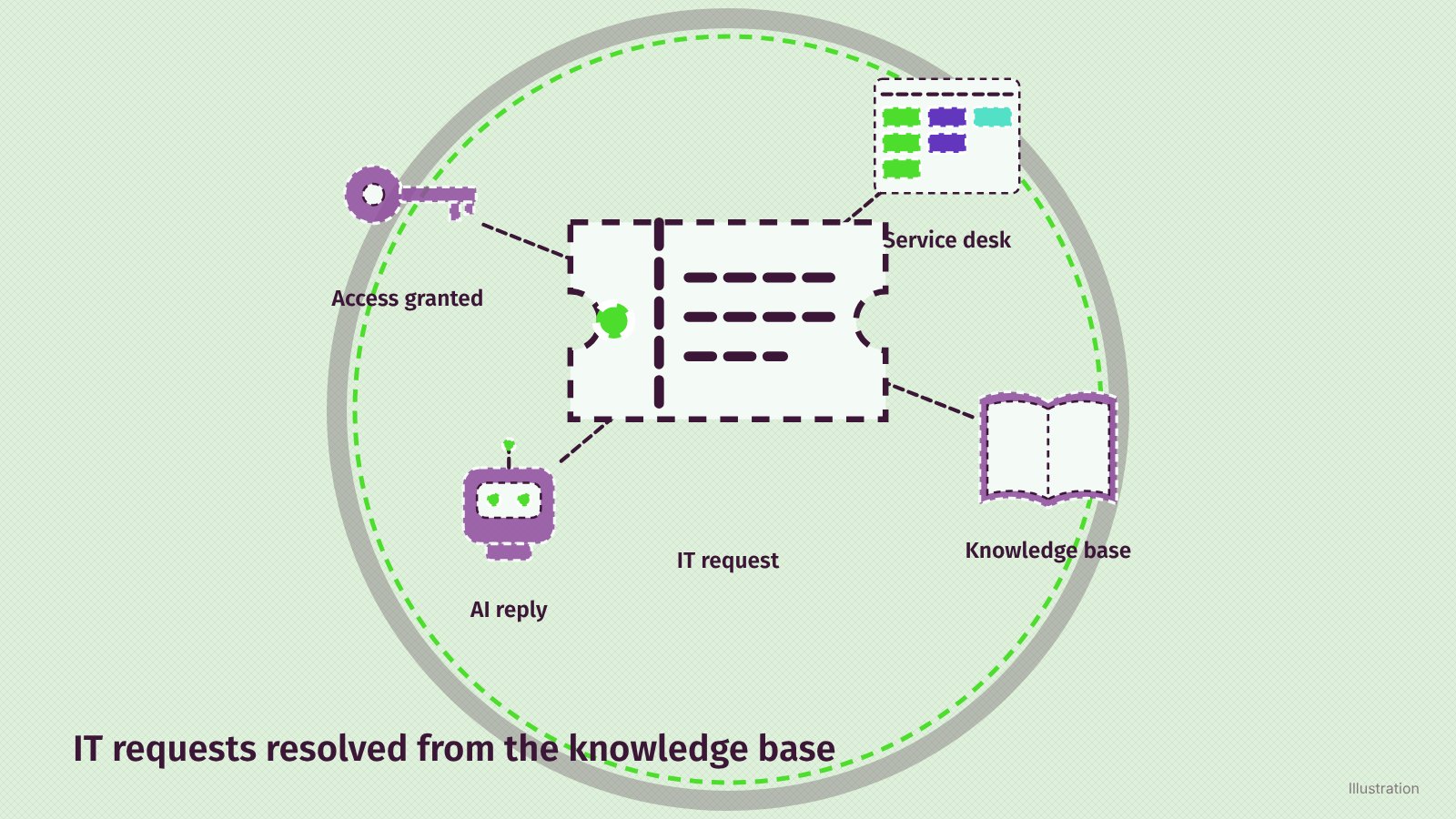
IT service desks running Jira Service Management answer the same requests every week: password resets, VPN set-up, access to a shared drive, software installs. Most of the answers already exist in Confluence or past requests.
Short answer: to automate Jira Service Management with AI, connect an AI resolution tool through the Atlassian Cloud REST API with an agent API token, and add two automation rules ("Work item created" and "Work item commented") that send each new request and comment to it. Confident answers are posted as public comments and the request is moved to Done; uncertain ones are posted as internal comments for an agent to approve; requests it can't answer get a triage label for your queue.
Here's a Monday at an IT team of six supporting a 900-person design agency. The events are illustrative:
- 09:00: the queue holds 70 requests. Twenty are "how do I connect to the VPN from home?", split across macOS and Windows.
- 09:30: an agent pastes the Windows steps into a request from a Mac user.
- 10:00: someone asks for access to the finance shared drive. The instructions are easy; the approval should come from finance. An agent nearly grants it.
- 11:00: a customer follows up on a request an agent has already taken, and gets a second, different answer.
- Afternoon: two laptops fail. They wait behind VPN questions.
Every VPN answer was already on a Confluence page.
First, the basics
- A request (work item) is a Jira Service Management ticket from an employee or customer.
- A public comment is visible to the reporter; an internal comment is visible only to agents.
- An automation rule runs an action when something happens in Jira.
- An agent API token lets a tool act as a licensed agent account.
- JQL (Jira Query Language) defines a queue's filter.
- A triage label marks requests the AI couldn't answer.
Why does this matter? Routine requests with written answers fill IT queues. Answering them from Confluence, with the same public and internal comments agents use, gets employees unblocked in minutes and leaves agents for hardware, outages and approvals.
The problem, in plain terms
- The same requests every week.
- Answers for the wrong operating system.
- Approvals confused with instructions.
- Taken requests get second answers.
- Real failures wait behind routine ones.
What can be automated
| Request type | Usually automatable? | Source of the answer |
|---|---|---|
| Password and MFA resets (self-service) | Yes | Confluence how-to |
| VPN, Wi-Fi, email set-up | Yes | Set-up guides per operating system |
| Access requests | The instructions, yes; the approval, no | Access request procedure |
| Software install requests | Yes, for approved software | Software catalogue page |
| "My laptop is slow" | Sometimes | Past requests with the same pattern |
| Hardware failures, outages | No | Hand off to an agent |
Start with requests that have a written answer and no approval step. Access approvals and hardware replacements should stay with people.
How the connection works in TicketResolve
- Create an agent API token, from an Atlassian account with an agent licence on the service desk, at id.atlassian.com → Security → API tokens.
- Enter site, email, token and service desk ID. TicketResolve checks the token and that the account can see the service desk before saving anything.
- Add two automation rules, "Work item created" and "Work item commented", each with a Send web request action. The dashboard shows the URL and request bodies to paste. A Jira admin needs about fifteen minutes.
- Create a triage queue with JQL
labels = tr-ai-triage. Requests the AI can't answer get that label. - Review drafts, then go live. Turn on assisted mode first if you want every answer approved.
TicketResolve connects through the official Atlassian Cloud REST APIs. It is not an Atlassian partner, certified app or Marketplace listing.
What the AI reads
- Requests and comments: summary, description, reporter, participants, public and internal comments of the connected project.
- Resolved request history: indexed with the agent's public resolution comment. Internal comments are internal context only and never quoted.
- Your knowledge base: help centre or documentation URLs, or a Confluence space.
- Assignee and status: so the AI stays out of requests an agent has taken.
What it posts back
| Situation | In Jira |
|---|---|
| Confident answer | Public comment; request transitioned to Done |
| Uncertain answer, or assisted mode | Internal comment, queued for one-click approval |
| Customer follow-up | Answered in context, unless an agent has taken the request |
| Can't answer | Internal comment with what it found, plus the tr-ai-triage label |
Requests that match an escalation rule or touch a sensitive topic go to your agents, with an internal comment explaining why.
A worked example, start to finish
Here's the design agency's IT team connecting it. The names are illustrative.
Set-up (about fifteen minutes). Amara, the IT lead, creates an agent API token from an account with an agent licence, enters the site, email, token and service desk ID, and TicketResolve checks the account can see the service desk. Her Jira admin adds the two automation rules, pasting the URL and request bodies from the dashboard. She creates a "TR-AI triage" queue with labels = tr-ai-triage, adds the IT Confluence space as a knowledge source, and turns on assisted mode.
Before go-live. She splits the VPN page into "Connect to the VPN from home (macOS)" and "(Windows)", one task per page, written as text with screenshots kept.
Week 1. Assisted mode. A Mac user asks about the VPN. The draft, from the macOS page, appears as an internal comment queued for one-click approval. Agents approve most VPN and Wi-Fi drafts unedited.
Week 1. Access. "Can I get access to the finance drive?" The draft explains the access request procedure. It doesn't grant anything; the approval stays with finance.
Week 2. Live. Amara turns assisted mode off. A VPN request is answered with a public comment and moved to Done within a minute. When the reporter writes "thanks, but my client says 'certificate expired'", the follow-up is answered in context.
Week 2. A taken request. An agent assigns herself a printer request. When the reporter follows up, the AI stays out.
Week 2. A laptop. "My laptop won't turn on." Hardware failures go to people: an internal comment with what the AI found, plus the triage label. It appears in the triage queue straight away, not behind VPN questions.
Month end. The triage queue's topics (a new design tool's licence activation) become the next Confluence pages.
What changed: VPN and Wi-Fi requests answered for the right operating system in a minute, access approvals left to people, no second answers on taken requests, and hardware failures seen first.
Five more real-world scenarios
1. Data Center
Situation. You run Jira Service Management Data Center.
How TR handles it. The integration uses the Atlassian Cloud REST APIs, so it's built for Cloud.
2. A sensitive topic
Situation. A request mentions harassment.
How TR handles it. Requests touching a sensitive topic go to your agents with an internal comment explaining why.
3. Internal comments in history
Situation. Past requests contain internal notes.
How TR handles it. Internal comments are internal context only and never quoted in replies to the reporter.
4. "My laptop is slow"
Situation. A vague performance request.
How TR handles it. Sometimes answerable from past requests with the same pattern; otherwise it goes to triage.
5. Reopens in one category
Situation. Answers about email set-up keep getting reopened.
How TR handles it. Tighten the threshold for that category.
Before and after
Before. Seventy requests at 09:00, Windows steps for a Mac user, a near-miss on an access approval, a second answer on a taken request, and laptops waiting.
After. Answers from the right Confluence page, approvals left to people, the AI out of taken requests, and hardware in the triage queue first.
Make Confluence AI-ready
The AI is only as good as your how-to pages:
- One task per page, titled the way employees ask ("Connect to the VPN from home").
- Separate pages per operating system when the steps differ.
- Keep screenshots, but write the steps as text. The AI reads text.
- Date your pages and review the most-used ones each quarter.
See build an AI-ready knowledge base.
Measure it like an IT service desk
- Requests resolved without an agent, excluding ones reopened afterwards.
- Time to resolution for automated vs agent-handled requests.
- Triage queue size, and the topics in it: your next Confluence pages.
- Reopens per category, to tighten thresholds where answers don't hold.
Who it's for
- IT service desks on Jira Service Management Cloud.
- Teams with Confluence how-to pages.
- Jira admins who want no Marketplace app.
Mistakes to avoid
- Automating approvals.
- One page for every operating system.
- Steps only in screenshots.
- Skipping the triage queue.
Do it in TicketResolve, step by step
Where: the dashboard's help-desk connection, and Settings → Automation (/dashboard/settings). You'll need: an Atlassian account with an agent licence; a Jira admin for the automation rules. Full guides: Rolling out safely: assisted mode and the review queue, Internal IT helpdesk mode, Help article sources and Confidence scores.
- Create an agent API token at id.atlassian.com → Security → API tokens.
- Enter site, email, token and service desk ID.
- Add the two automation rules with the URL and bodies from the dashboard.
- Create the triage queue with
labels = tr-ai-triage. - Connect Confluence or your documentation URLs.
- Turn on assisted mode and review a week of drafts.
- Go live and watch reopens per category.
How to check it worked: a test request gets an internal comment draft in assisted mode, and after go-live a confident answer becomes a public comment with the request moved to Done.
Frequently asked questions
Does it work with Jira Service Management Data Center? The integration uses the Atlassian Cloud REST APIs, so it's built for Jira Service Management Cloud.
Do we need a Marketplace app? No. The connection uses an agent API token and two automation rules.
Can the AI see internal comments? Yes, as internal context for agents' summaries. They're never quoted in replies to the reporter.
What happens when an agent takes a request? The AI stops replying on it, including to customer follow-ups.
Which automation rules are needed? "Work item created" and "Work item commented", each with a Send web request action.
How long does set-up take? A Jira admin needs about fifteen minutes for the rules.
Where do unanswered requests go?
They get the tr-ai-triage label and an internal comment with what the AI found.
Is it an Atlassian Marketplace listing? No. It connects through the official Atlassian Cloud REST APIs and isn't an Atlassian partner, certified app or Marketplace listing.
Should access requests be automated? The instructions, yes; the approval, no.
Related: IT help desk automation guide, ServiceNow AI ticket automation and the AI draft review queue.
Explore Topics
Written by
Ghulam Shabbir
Content creator and writer sharing insights and stories.