
Seeing the Customer’s Browser Without Seeing What They Type
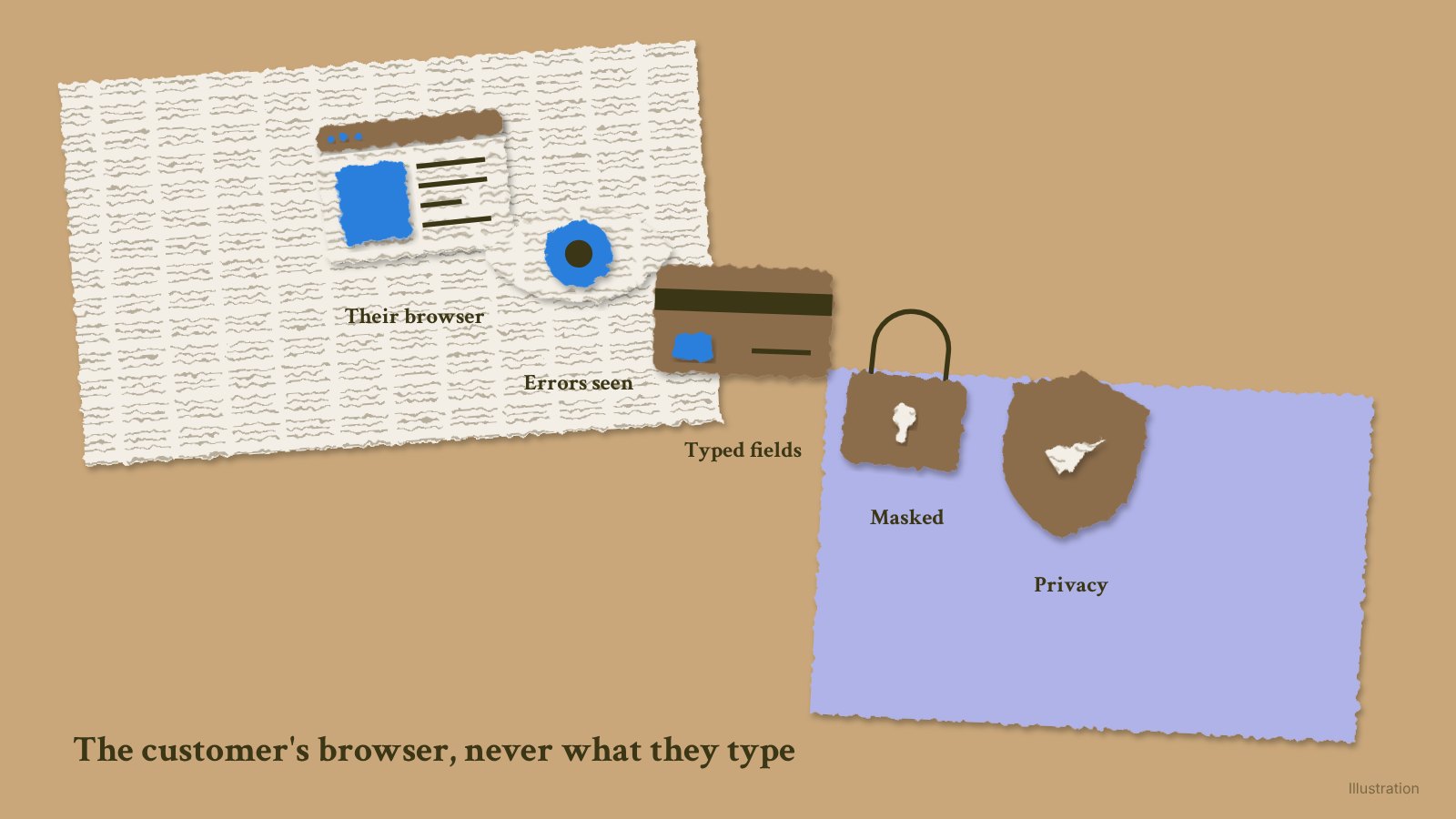
“It just doesn’t work” is the hardest ticket in support: the problem lives in the customer’s browser, not on your screen. The TicketResolve Connect browser recorder captures the errors, failed requests and timings support needs from the customer’s own page, never reads form fields, cookies or request bodies, and lets the customer review everything first.
"It just doesn't work" is the hardest ticket in support. The problem lives in the customer's browser. Their extensions, their network, their account's data: none of it is on your screen. So support asks for a HAR file, gets a screenshot of the error toast, and the ticket goes around again.
Here's a week at an accounting software company, with a customer whose invoice page never finishes loading:
- Monday. Support asks for a screenshot. It shows a spinner.
- Tuesday. Support asks the customer to open the browser's developer tools and export a HAR file. The customer, a finance manager, asks what that means.
- Wednesday. An IT colleague exports one. It contains every request on the page, including the session cookie and a bank account number in a request body. Support now holds data it never wanted, in an e-mail attachment.
- Thursday. Engineering finds the problem in the HAR: a third-party script blocked by the customer's ad blocker. Two days and a data-protection worry, for one blocked script.
TicketResolve Connect 2.0 adds a browser recorder that runs where the problem is: on the customer's own page. It's built around one promise: you see what broke, not what they typed.
First, the basics
- A HAR file records everything a browser sent and received, including cookies and form data. Useful, but full of sensitive information.
- A browser recorder captures what support needs (errors, failed requests, timings) without the sensitive parts.
- JavaScript exceptions are errors in the page's code; a stack trace shows where. Console errors are messages the page logs.
- CORS is a browser rule that can block requests between domains.
- DNS, connection, TLS and first byte are stages of a request's timing.
- First and Largest Contentful Paint, Interaction to Next Paint and layout shift are standard measures of how fast and stable a page feels.
- Masking replaces sensitive values (secrets, tokens, card numbers, e-mail addresses) before they leave.
- A checksum (SHA-256) proves a file hasn't changed. Correlation keys (request IDs, trace IDs) link browser and server evidence.
Why does this matter? Browser problems can't be diagnosed from a description, but the usual tools for collecting browser data grab far too much. A recorder that captures only what breaks, and lets the customer check it first, gets the evidence without the risk.
The problem, in plain terms
- Screenshots don't show what failed.
- HAR files capture everything, including passwords and cookies.
- Customers can't produce technical exports.
- Browser and server evidence aren't linked.
- Reproducing in the customer's browser isn't possible.
What it captures
Once the customer starts recording, the recorder notes:
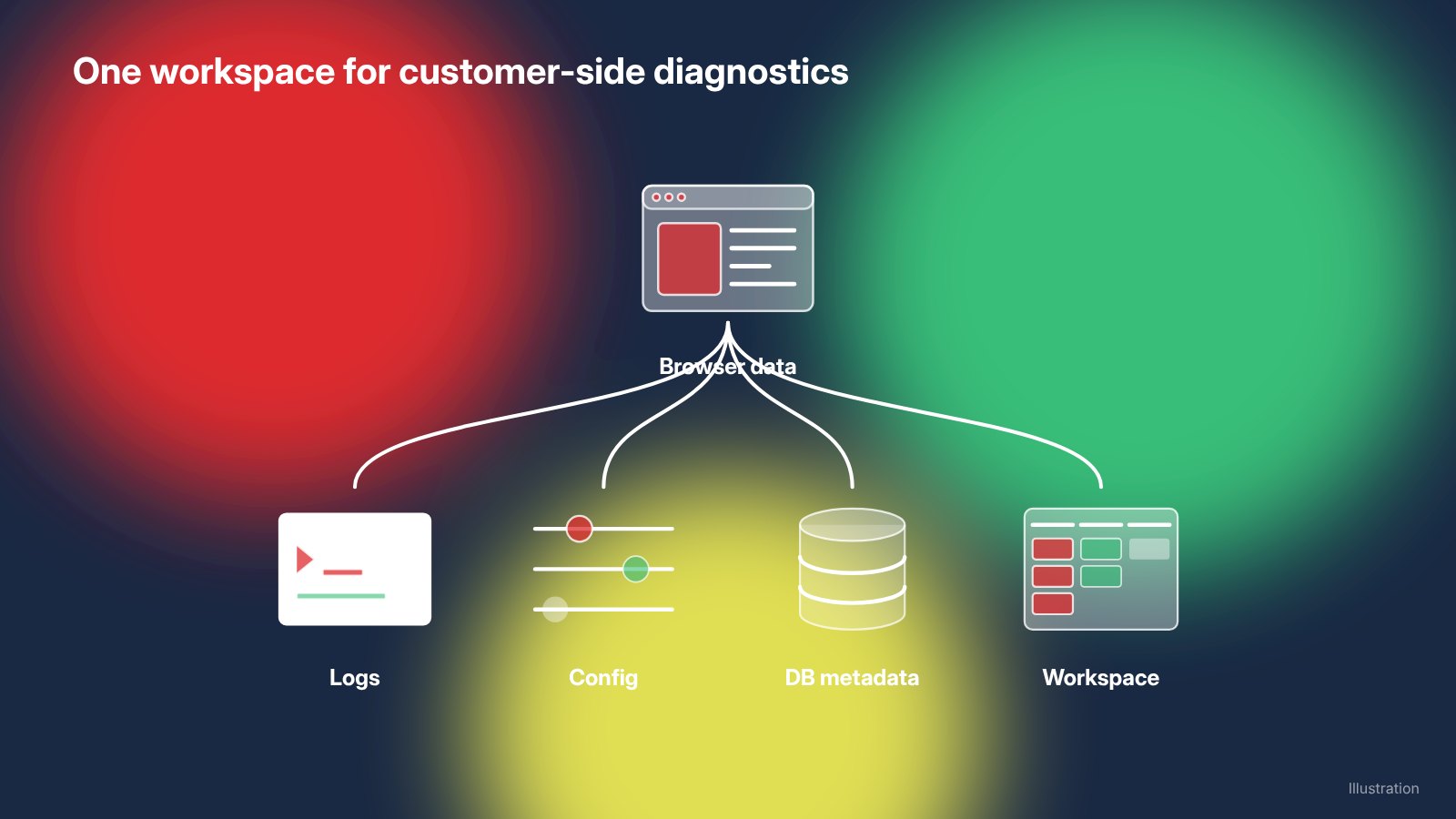
- Errors: JavaScript exceptions with stack traces, unhandled promise rejections, console errors, scripts and images that failed to load.
- Failed and slow requests: method, address, status, and timing down to DNS, connection, TLS and first byte. It also keeps any request or trace IDs the server returned, and flags likely CORS blocks and timeouts.
- Performance: First and Largest Contentful Paint, Interaction to Next Paint, layout shift, long tasks, the slowest resources.
- Screenshots the customer chooses to take. The browser asks which tab to share.
What it never touches
It never reads form fields, passwords, cookies, or local and session storage. It doesn't read request or response bodies or request headers. Addresses keep their parameter names but never their values: /api/export?id&token, not the token.
Secrets, tokens and card numbers are masked in the browser. So are e-mail addresses, phone numbers, IP addresses and any patterns your workspace adds. All of this happens before the customer sees the review screen, so they review exactly what will be sent. They untick anything they'd rather keep, and the server masks everything again on arrival.
If their site's security policy blocks sending from the page, the recorder saves a file instead. They upload it on the authorization page.
Evidence you can weigh
Every item collected in a session, from the browser or the server-side agent, gets the same treatment:
- a category, such as browser network, application logs or authentication;
- a sensitivity level and a report of what was masked;
- a SHA-256 checksum, checked every time someone opens it;
- correlation keys: request IDs, trace IDs, endpoint, version, time.
The request ID in a failed browser request lines up with the same ID in the server log, so the two are linked strongly. Each item gets a quality score built from six named factors.
When sources disagree, for example the browser saw a 500 but the agent's check of the same endpoint got a 200, both are shown side by side. That disagreement is often the most useful clue in the session: the failure depends on something about this user's browser, session or network.
Reproduction in their browser, to the failing step
Support can now send reproduction steps to the customer. Each step has an instruction and an expected result. It can also carry a fixed action the recorder may run:
- open a page of the same site;
- click one specific element;
- wait for something;
- check some text;
- type a safe test value.
These are data, not code. Buttons that look like delete, pay, send or submit are refused unless the step is explicitly marked as changing data. Marking a step that way needs the customer's separate permission.
The customer approves the steps, with or without automation, and goes through them. The result is a record of each step:
- expected and actual result;
- whether it ran by hand or automatically;
- the errors, failed requests and screenshots captured during it;
- the exact step where it fails.
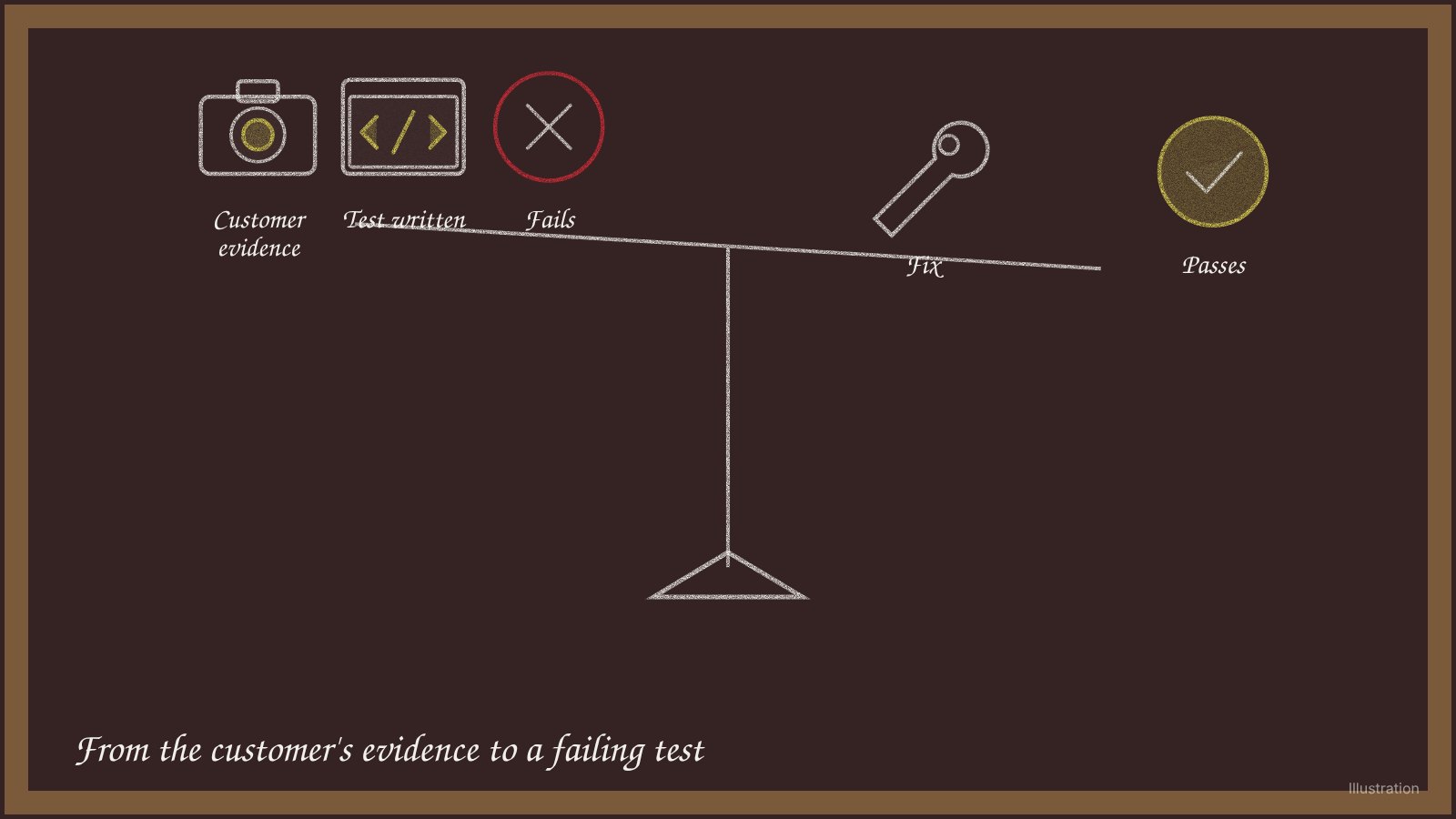
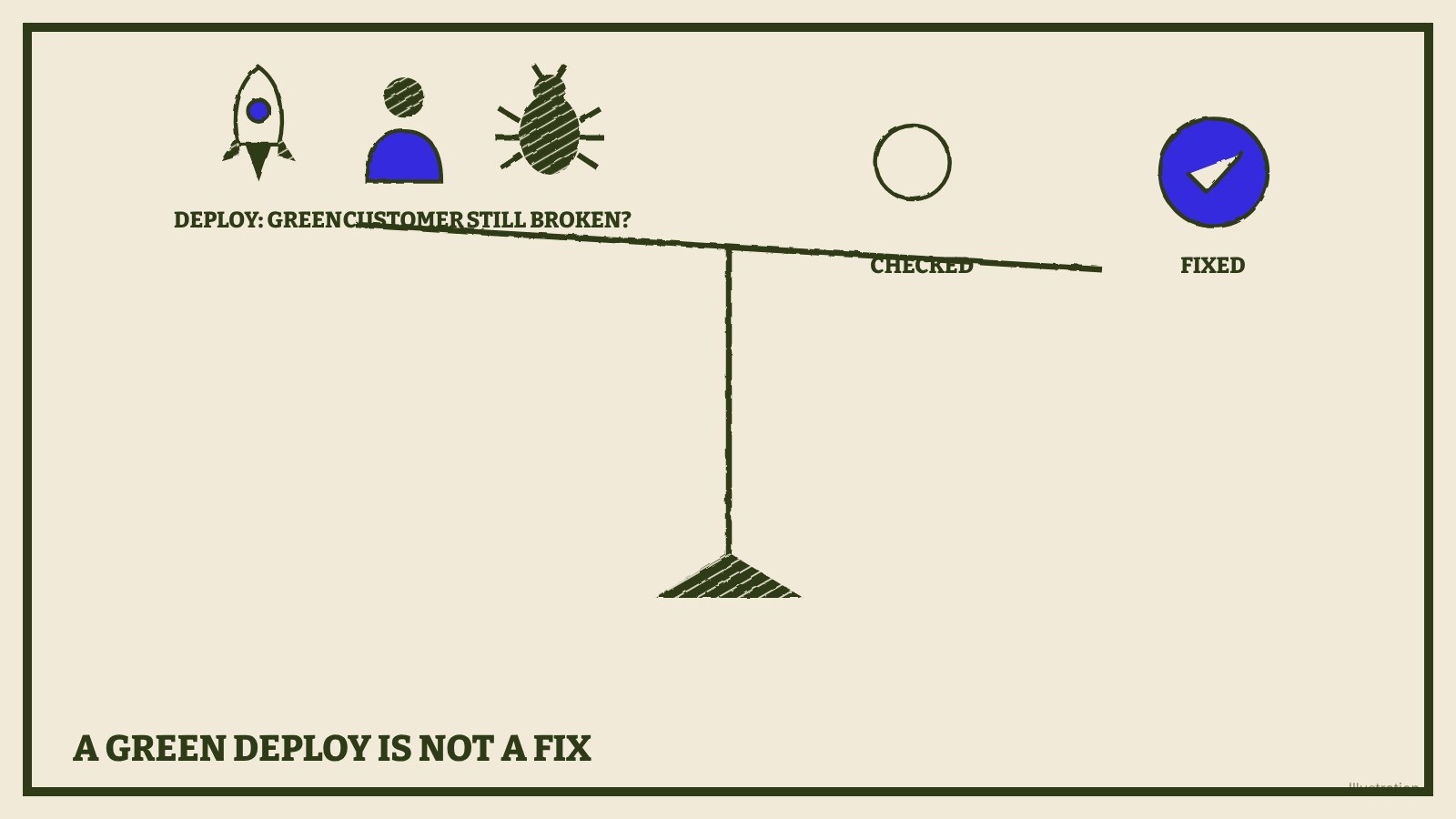
After the fix ships, one click asks the customer to repeat the same steps. The session then says whether the original failure still happens in their browser.
Automated replay doesn't work on every site, and we don't pretend it does. When it can't run, the guided manual mode produces the same structured evidence.
A worked example, start to finish
Here's the invoice-page ticket at the same company, with the browser recorder. The details are illustrative.
Monday 09:30. Support sends a Connect authorization link. The finance manager opens it, allows browser diagnostics, and starts recording on the invoice page.
09:32. The page spins. She stops the recording. The recorder captured:
- Failed request:
GET https://cdn.paywidget.example/v3/widget.js— blocked (no status); flagged as likely blocked by the browser. - Console error:
PayWidget is not definedatinvoices.js:212, with stack trace. - Slow request:
GET /api/invoices?page&filter— 3.2 s, mostly first byte. Parameter names kept, values not. - Performance: Largest Contentful Paint never reached.
09:33, review. Before anything is sent, she sees the review screen. Her e-mail address in a console message is already masked. She unticks a screenshot that shows a client's name. She presses Send. The server masks everything again on arrival.
09:40, evidence. Each item has a category (browser network, browser console), a sensitivity level, a masking report and a SHA-256 checksum. The slow /api/invoices request's request ID matches a server log line: 3.1 s in a database query, so it's linked strongly.
Sources disagree: the Connect agent's server-side check of /api/invoices returns 200 in 400 ms. Shown side by side. The slow request is a separate issue; the blocked widget is why the page never finishes.
10:00, reproduction steps. Support sends steps: 1. Open the invoice page (open a page). 2. Wait for Pay now (wait for something). Expected: Pay now appears. The customer approves, with automation. Step 2 fails: the button never appears; the blocked script is captured again.
10:15. Support asks her to allow cdn.paywidget.example in her ad blocker. The page loads. Engineering adds a fallback so the invoice list renders even if the widget is blocked.
Day 3. After the fix ships, support presses one click to ask her to repeat the steps, with the ad blocker on. Step 2 passes: the invoice list renders, with a message that payments need the widget. The session says the original failure no longer happens in her browser.
No HAR file. No cookies, no bank details, no form fields ever collected.
Five more real-world scenarios
1. A strict security policy
Situation. The customer's site blocks sending data from the page.
How TR handles it. The recorder saves a file; they upload it on the authorization page.
2. A "Pay" button in the steps
Situation. Support adds a step that clicks Pay.
How TR handles it. Refused unless marked as changing data, which needs the customer's separate permission.
3. Automation doesn't work
Situation. The site's structure stops automated replay.
How TR handles it. Guided manual mode produces the same structured evidence.
4. A custom pattern
Situation. Your workspace has customer reference numbers that look like CUS-123456.
How TR handles it. Add the pattern; it's masked with the others.
5. Opening evidence later
Situation. A colleague opens a recording a week later.
How TR handles it. Its SHA-256 checksum is checked every time someone opens it.
Before and after
Before. A screenshot of a spinner, a HAR file with a session cookie and bank details in an e-mail, and two days to find one blocked script.
After. A recording of what broke and nothing the customer typed, reviewed by the customer before sending, linked to the server by request ID, reproduced to the failing step, and checked again in their browser after the fix.
How to tell it's working
- HAR files stop appearing in tickets.
- Browser tickets reach the failing step on the first session.
- Evidence shows masking reports and checksums.
Who it's for
- Support engineers with browser-based products.
- Customers who don't want to export technical files.
- Security and privacy teams who worry about what support collects.
How it fits with the rest of TicketResolve
The recorder is part of TicketResolve Connect (Customer environment connect). Its evidence feeds reproduction scenarios, investigations and before / after verification.
Mistakes to avoid
- Asking for HAR files when the recorder will do.
- Ignoring disagreements between browser and server.
- Marking steps as changing data without need.
Do it in TicketResolve, step by step
Where: Connect → the session's Browser diagnostics tab (/dashboard/connect). You'll need: Customer environment connect. Full guides: TR Investigate: from a ticket to a verified fix, Browser recorder and evidence and Browser reproduction.
- Send the authorization link. The customer allows browser diagnostics.
- The customer records on their own page, and takes screenshots if they choose.
- They review and send. Masking is applied first; they untick anything they'd rather keep.
- Read the evidence: category, sensitivity, masking report, checksum and correlation keys.
- Look for disagreements between browser and server.
- Send reproduction steps with instructions, expected results and optional fixed actions.
- Read the step record to the failing step.
- After the fix, ask them to repeat the steps with one click.
How to check it worked: the session shows the failing step, linked browser and server evidence, and a masking report on each item.
Read the guides: Browser recorder and evidence and Browser reproduction.
Frequently asked questions
Does it read what the customer types? No. It never reads form fields, passwords, cookies or storage.
Does it capture request bodies? No. Not request or response bodies, or request headers.
What about URLs with tokens? Parameter names are kept; values never are.
Does the customer see what's sent? Yes. They review exactly what will be sent and can untick anything.
What's masked? Secrets, tokens, card numbers, e-mail addresses, phone numbers, IP addresses and your own patterns, in the browser and again on the server.
Can reproduction steps run code? No. They're data: open, click, wait, check, type a safe value.
Can it click Pay or Delete? Only if the step is marked as changing data, with the customer's separate permission.
What if automated replay can't run? Guided manual mode produces the same evidence.
Explore Topics
Written by
Ghulam Shabbir
Content creator and writer sharing insights and stories.