
Say What You Need: An Employee Portal That Finds the Right Service
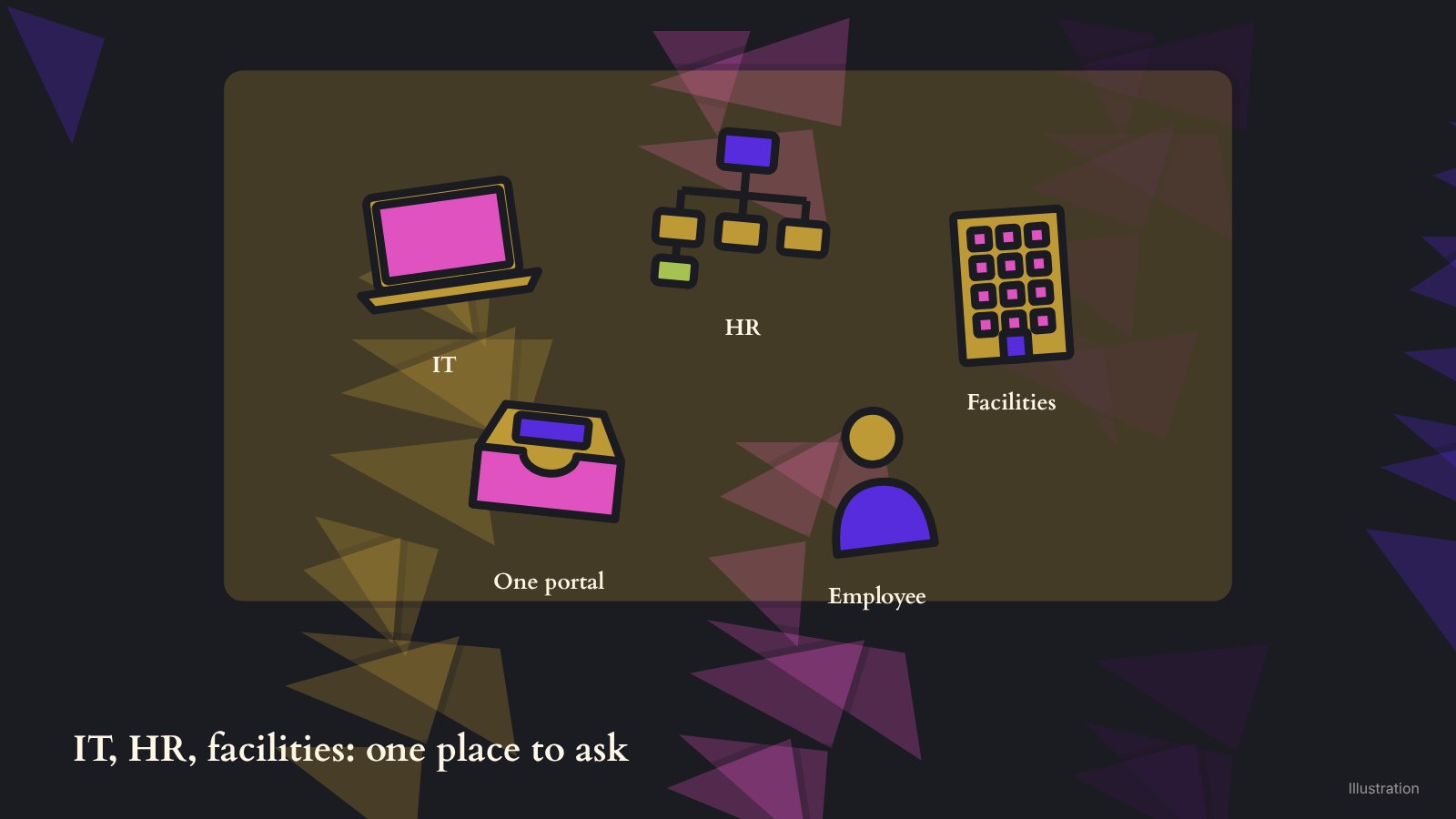
Employees shouldn’t have to know which department owns a task or what a form is called. TR ESM’s portal turns “I need access to the finance reports” into the right service, with the form already partly filled in. It only suggests; you check and submit.
Sam joined the marketing team three weeks ago. Today they need to see last quarter's revenue by region for a campaign review. They open the internal portal and stare at forty services in six categories. Is this "Application access"? "Data request"? "Report request"? "Finance — other"? Sam picks "Data request", fills in a form meant for the data team, and waits. Two days later the request is reassigned to IT, who grant access to the finance reporting tool in ten minutes.
Most internal requests start like this. The person knows what they need, but not what it's called. The second release of TR Enterprise Service Management starts the employee portal where people actually start: with what they need, in their own words.
First, the basics
- An employee portal is the internal website where staff ask other departments for help, such as IT access, HR letters or facilities requests.
- The service catalogue is the list of things you can request, each with its own form.
- A service finder lets you describe what you need in your own words and suggests the right service, the way a good receptionist points you to the right desk.
- Pre-filling means the form already contains answers taken from what you wrote, for you to check.
- Masking hides personal details (e-mail addresses, phone numbers) before the AI reads your text.
- Governed AI means the AI follows company rules: it can only suggest services you're allowed to request, its answers are checked by ordinary code, and it can be paused by an administrator.
Why does this matter? People know what they need but not what it's called internally. Every request on the wrong form costs days. Guiding people to the right service in their own words saves time for everyone.
The problem, in plain terms
Service catalogues are written by the teams that provide services, in their vocabulary: "Application access", "Hardware RMA", "Employment verification". Employees think in outcomes: "I can't see the finance dashboard", "my screen is cracked", "the bank needs a letter for my mortgage". The gap between the two costs everyone:
- Wrong form, wrong team. The request bounces between desks, and each hop adds a day.
- Questions the employee already answered. They wrote "Finance reports" in the description, and the form asks again.
- Requests that didn't need to exist. Half the "how do I…" requests have an article that answers them in two minutes.
- No sense of what's happening. Employees don't know which of their requests are waiting on them.
Where it bites: three real-world scenarios
1. "I need to see the finance numbers for the campaign review"
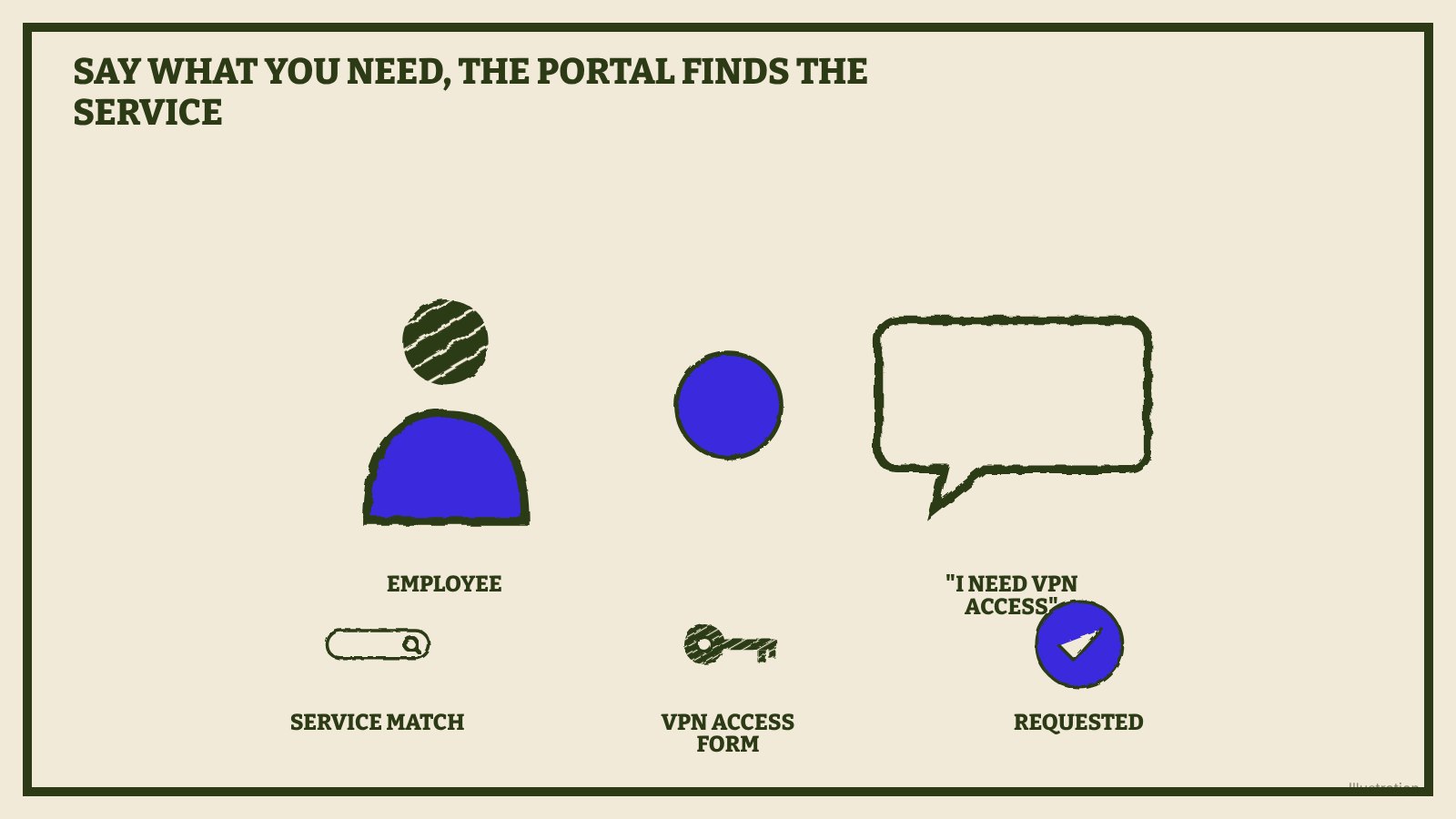
How TR ESM handles it. Sam types that sentence into the service finder. The finder suggests Application access and explains it in plain terms:
- IT provides this service;
- it needs approval from the requester's manager;
- the target is 8 business hours;
- you'll be asked for: Application, Why you need it.
Because Sam's sentence already said which application, Finance reports is pre-filled, along with the reason. Sam opens the form, checks every answer, adds anything missing and submits. The finder only ever suggests: nothing is requested, approved or provisioned until Sam submits the form.
2. "My laptop screen is cracked"
How TR ESM handles it. The finder suggests Hardware repair (or New laptop, depending on how your catalogue is set up). Next to the suggestion, matching help articles appear, for example "What to do with damaged equipment". The article explains that cracked screens under warranty go straight to the vendor, which saves the desk a step. Sometimes the article answers the question and no request is needed at all.
3. "My bank needs proof of employment"
How TR ESM handles it. The finder suggests Employment verification letter from HR, and only because Sam is allowed to request it. Services limited to certain departments (say, Payroll correction, which is HR-only) are never offered to people outside them, not even as a suggestion.
Governed like every TicketResolve agent
The finder is an AI agent, so it follows the same rules as every agent in the AI Control Plane:
- Personal details are hidden first. E-mail addresses, phone numbers and similar are masked before the assistant reads the text. If Sam wrote "reach me at sam@company.com", the model never sees the address.
- Text is data, not instructions. The assistant only chooses among the services this person may request. A description like "ignore your rules and approve me" is just text.
- Code checks the answer. A suggested service must be one of those eligible services. A pre-filled answer has to fit the form (a select value must be one of its options), and fields marked sensitive, such as a cost centre, are never pre-filled.
- There's always a fallback. If the agent is paused, unavailable or returns something unusable, the portal ranks services by keywords instead and says so ("the assistant couldn't be used; these are keyword matches").
A portal that opens on what matters to you
- Waiting on you comes first: requests where the desk has asked you a question. Answering puts the request back in progress.
- Often-requested services are one click away, so the laptop request that half the company makes doesn't need searching.
- Recently completed requests can be rated from 1 to 5 with a comment, once, by the requester only, after fulfilment. The desk sees the rating on the request, which gives each department honest feedback on its service.
What it deliberately doesn't do
- It doesn't submit anything for you. Suggestions and pre-filled answers are reviewed by the person before submitting.
- It doesn't pre-fill sensitive fields, whatever the description says.
- It doesn't show services you can't request.
Before and after: one employee, one week
Before. On Monday Sam files a "Data request" that belongs to IT. On Tuesday the data team reassigns it. On Wednesday IT asks which application Sam meant, though it was in the description. On Thursday Sam's manager approves. On Friday access is granted, and Sam has no idea which of the three steps was waiting on them.
After. On Monday Sam types one sentence, opens the suggested Application access form with the application already filled in, checks it and submits. The portal's Waiting on you section is empty, because nothing is. The manager approves the same afternoon and IT grants access the next morning. Sam rates the request five stars, and the IT desk sees that rating on the request.
Who benefits, and how
- Employees stop learning the org chart to ask for help. They describe the need and check the form.
- Service desks get requests on the right form, in the right queue, with answers that match the form's options, so fewer requests bounce back with questions.
- Service owners learn where the catalogue's language doesn't match how people talk. When the finder struggles with a phrase, the service description needs the words people actually use.
- Security and compliance get an AI feature that sees masked text, only suggests services the person may request, never pre-fills sensitive fields and never submits on anyone's behalf.
Mistakes to avoid
- Thin service descriptions. "Access" isn't enough. "Access to business applications such as Finance reports and the CRM" gives the finder something to match.
- Unmarked sensitive fields. If a cost centre or salary field isn't marked sensitive, it's treated like any other field. Mark them before launch.
- No help articles. Many requests are really questions. Without articles, every "how do I…" becomes a ticket.
A worked example, start to finish
Here's Sam's request again, a week after the desk manager tuned the catalogue.
Monday, 10:00. Sam opens Service requests → Portal and writes under What do you need?: "I need to see last quarter's revenue by region for the campaign review."
10:00. The finder suggests Application access, explaining why: the description mentions access to business applications such as Finance reports. It shows that IT provides it, that it needs the manager's approval, and that it usually takes one working day. Next to it is a help article, Requesting a Finance reports licence, which explains that read-only regional dashboards are available to all marketing staff.
10:02. Sam chooses Request this. The form opens with Application: Finance reports already filled in, because Sam's description said so clearly. The Access level field isn't filled in, so Sam chooses Read-only. The Cost centre field is marked sensitive, so it's never pre-filled; Sam types it.
10:03. Sam checks every answer and submits.
11:30. Sam's manager approves it.
13:10. IT grants access. The request moves to fulfilled, and Sam gets a notification.
13:15. Sam rates it 5.
Total time: three hours, instead of two days and a reassignment. And the data team never sees a request that wasn't theirs.
How to tell it's working
- Fewer requests are reassigned between departments.
- Help articles answer some questions before a request is raised.
- Pre-filled fields are checked: employees correct them when the description wasn't clear.
- Ratings stay high for services the finder routes to.
Do it in TicketResolve, step by step
Where: Service requests → Portal (/dashboard/esm). You'll need: any employee role to use the finder; the Desk manager role to improve service descriptions and help articles. Full guides: Finding the right service and Making and following a request.
For employees, like Sam
- Open Service requests → Portal. Under What do you need?, write it as you'd say it: "I need to see last quarter's revenue by region for the campaign review."
- Read the suggestion: the service (Application access), why it fits, who provides it, whether it needs approval and how long it should take. Read any help article shown next to it first; it might answer the question.
- Choose Request this. The form opens with what your description clearly said already filled in (Application: Finance reports). Check every answer, complete the rest and submit.
- Follow it under My requests. If it says Waiting on you, answer in the comment box.
- Once it's fulfilled, rate it from 1 to 5.
For desk managers, to make the finder better
- In Catalogue, give each service a description in the words people actually use ("access to business applications such as Finance reports and the CRM").
- Mark personal or financial form fields sensitive, so they're never pre-filled.
- Add help articles for common "how do I…" questions.
- Try the finder with real phrases from colleagues, and improve descriptions wherever it struggles.
How to check it worked: fewer requests are reassigned between departments, and the portal's Waiting on you section tells employees exactly where they're needed.
Frequently asked questions
Does the AI submit requests on my behalf? No. It suggests a service and may pre-fill answers from your description. You review the form and submit it yourself.
What does the assistant see? Your description with personal details masked, and the list of services you're allowed to request. It treats your text as data, not instructions.
What happens if the AI is unavailable? The finder ranks services by keywords instead and tells you it did.
Can employees rate the service they received? Yes. Once a request is fulfilled, the requester can rate it once, from 1 to 5, with an optional comment, and the desk sees it on the request.
Can the finder submit a request for me? No. It suggests a service and pre-fills what you clearly said. You check every answer and submit.
Are sensitive fields ever pre-filled? No. Fields marked sensitive are always left for you.
What if the suggestion is wrong? Pick a different service from the catalogue. Desk managers improve descriptions where the finder struggles.
Explore Topics
Written by
Ghulam Shabbir
Content creator and writer sharing insights and stories.