
After the Call: Troubleshooting Sessions That End With Owners, Not Good Intentions
Some tickets need a call, and the plan agreed on it usually lives in three people’s heads. Customer sessions books the call on your calendar against the ticket, turns minutes into owned action items that land in My tasks, and drafts the follow-up e-mail, without joining or recording the meeting.
Some tickets need a call. The customer shares their screen, an engineer spots the setting, and everyone leaves with a plan: "we'll ship the patch Thursday, you'll re-run the import, Sam will check the webhook logs."
Then the call ends, and the plan lives in three people's heads. A week later the customer writes back asking what happened.
Here's how that unravels at a company that sells a warehouse-management system. A distribution company's nightly import has been failing:
- Tuesday, the call. The agent, Kofi, a support engineer, Sam, and the customer's IT lead, Hanne, find two problems: a malformed date column and a webhook that times out.
- They agree: engineering ships a patch Thursday; Hanne re-runs the import Friday; Sam checks the webhook logs.
- After the call: Kofi writes a short note on the ticket. Sam has a different call straight after and forgets the logs. Hanne isn't sure the patch shipped, so she doesn't re-run the import.
- The next Wednesday, Hanne writes: "What happened with the patch? We're still failing."
Everyone meant well. The plan just had no owners written down and no follow-up.
First, the basics
- A customer session is a call with a customer, booked and recorded in TicketResolve and linked to a ticket.
- A connected calendar is Google Workspace or Microsoft 365, linked under Connectors → Calendar.
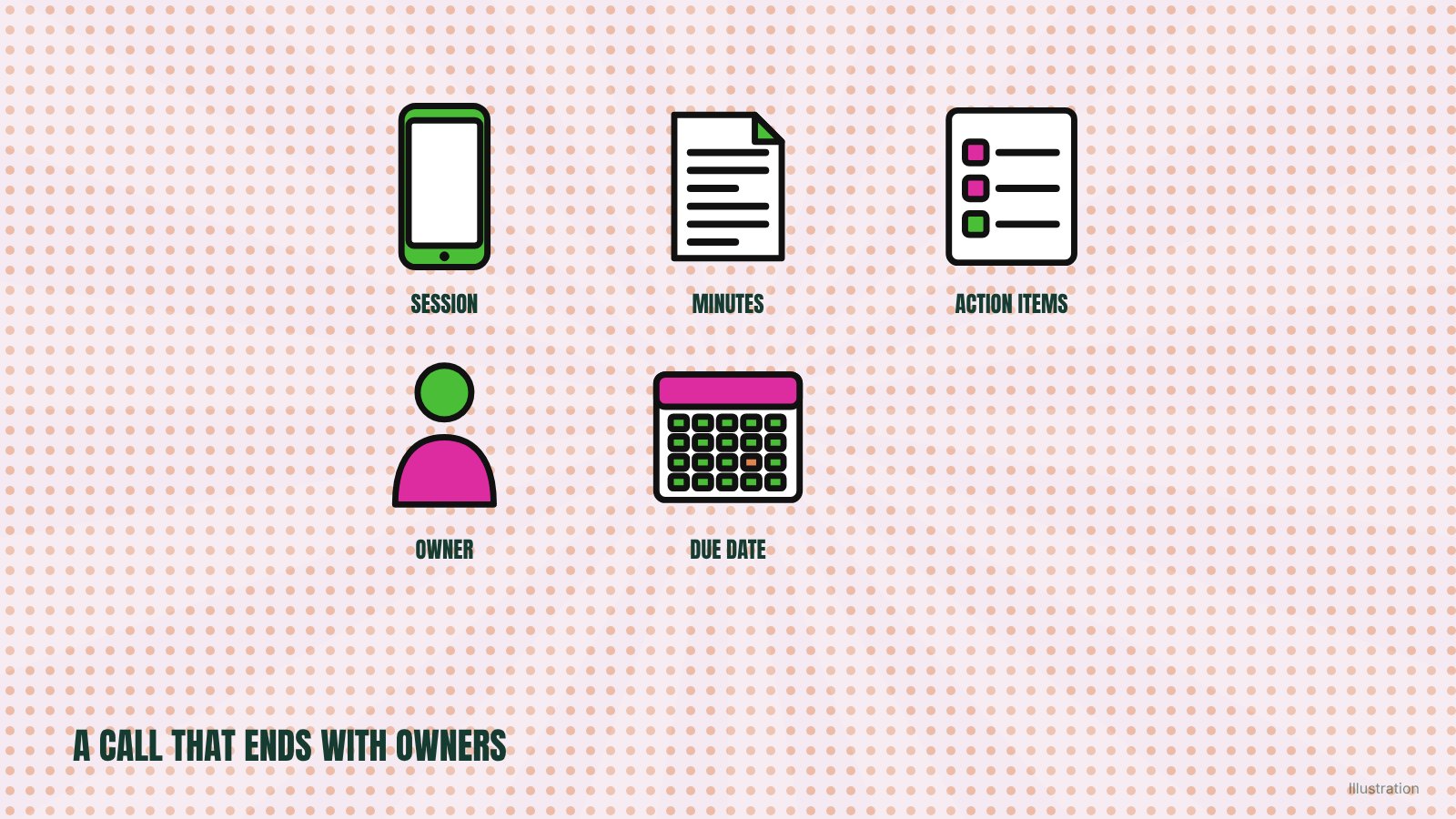
- Minutes are the written record of a call: summary, decisions, action items.
- An action item is a task with one owner (a teammate, the customer, or the team) and an optional due date.
- My tasks is where each teammate sees their action items.
- Find action items picks commitments out of pasted notes with a plain text pass.
- A follow-up e-mail summarises the call and next steps for the customer.
- The Notepad is each agent's private place for notes that aren't tasks.
Why does this matter? A call is only as good as what happens after it. Writing down what was agreed, giving each item an owner, and sending the customer the same list means the plan survives the end of the call.
The problem, in plain terms
- Calls aren't linked to tickets.
- Agreements live in people's heads.
- Action items have no owner.
- The customer doesn't get a written summary.
- Useful context from calls is lost.
Book the session where the ticket is
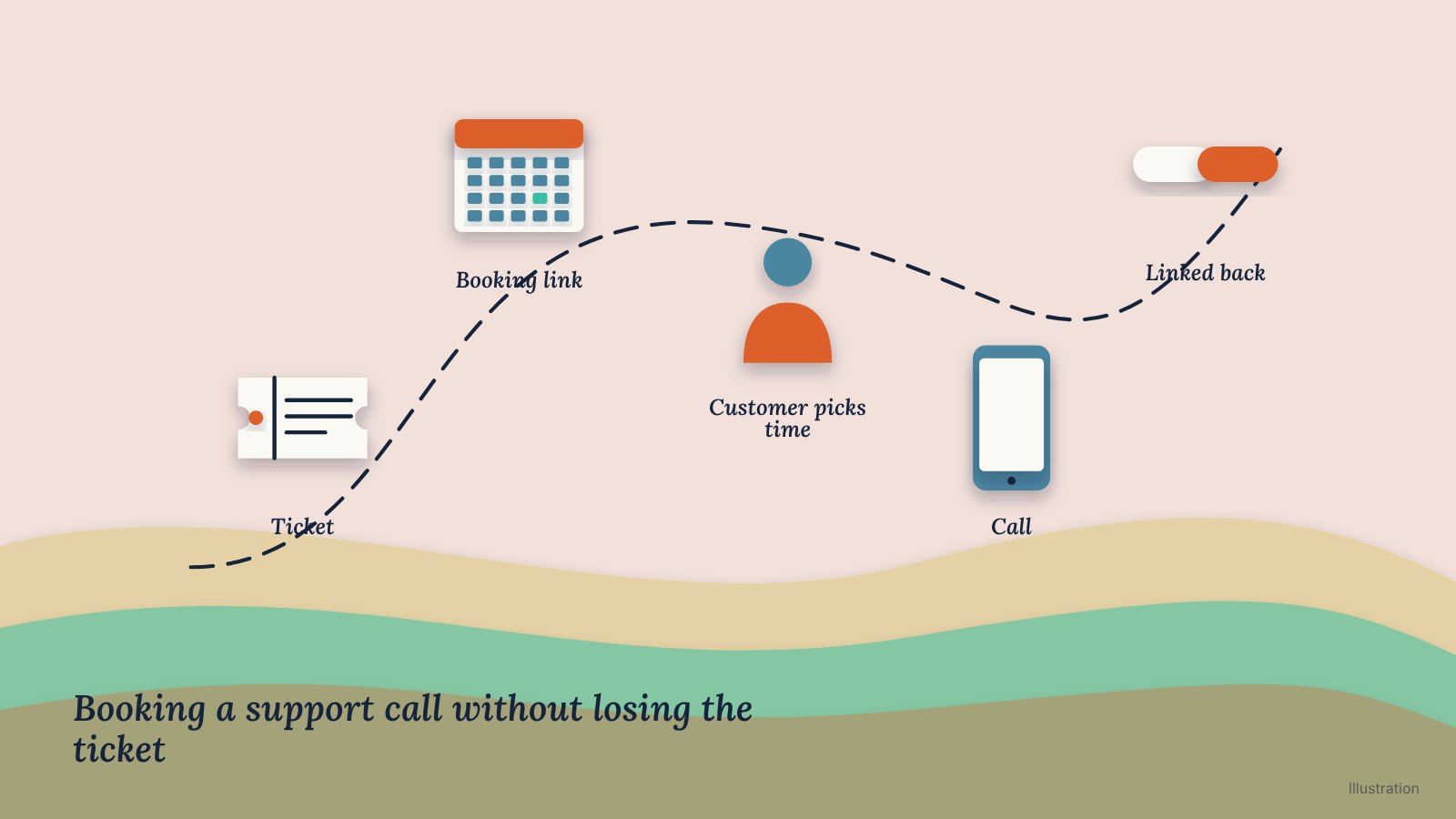
In TR-AI, Work → Customer sessions books a customer or troubleshooting session on a calendar your team has connected: Google Workspace or Microsoft 365. The customer gets a normal calendar invite with a Google Meet link (Teams for Microsoft 365) and your agenda. The session is linked to the ticket, so whoever picks up the ticket next can see that a call happened.
TR-AI doesn't join or record the meeting. It books it and keeps the record.
Minutes that produce work
After the call you write three things:
- A summary of what you found.
- What was agreed, one decision per line.
- Action items, each with an owner (a teammate, the customer, or the team) and an optional due date.
If you took notes during the call, or have a transcript from your meeting tool, paste it in. Find action items picks up the lines that look like commitments ("Action: …", "TODO", "[ ] …", "Sam will …") and matches names to your teammates. It's a plain text pass, not an AI guess, and you check every item before saving.
Owners, not intentions
Saving the minutes puts each teammate's items straight into their My tasks, marked as coming from a customer session with a link back to it. Edit the minutes later and the tasks follow; take an item out and it leaves the owner's list, unless they've already done it.
Items owned by the customer stay on the session, and they're in the follow-up e-mail TR-AI drafts for you: the summary, what you agreed, what your side will do and what you need from them. Copy it into your help desk and send it from there.
A notepad for the things that aren't tasks
Not everything from a call is an action item. Sometimes it's "this customer's proxy strips auth headers" or "the workaround that worked for the Safari issue". Work → Notepad is each agent's private notepad: only you can see your notes, they save as you type, and you can search and pin them.
A worked example, start to finish
Here's the warehouse import call, with customer sessions. The details are illustrative.
Monday, booking. Kofi opens Work → Customer sessions and books a troubleshooting session on the team's Google Workspace calendar for Tuesday 15:00, linked to ticket #9204. Hanne gets a normal calendar invite with a Google Meet link and the agenda: review failing import; check webhook timeouts.
Tuesday, the call. TR-AI doesn't join or record it. Kofi takes rough notes in a text box:
Date column has DD.MM.YYYY, parser expects ISO. Action: engineering ships patch Thursday Hanne will re-run the import Friday after the patch Sam will check webhook logs for timeouts [ ] Kofi to confirm patch is live before Friday
Tuesday, minutes. Kofi pastes his notes and clicks Find action items. The plain text pass picks up four lines and matches Sam and Kofi to teammates; Hanne isn't a teammate, so Kofi sets her item's owner to the customer. Kofi checks each item, sets owners and due dates:
- Team: ship the date-parsing patch, due Thursday.
- Customer (Hanne): re-run the import, due Friday.
- Sam: check webhook logs for timeouts, due Wednesday.
- Kofi: confirm the patch is live, due Friday morning.
He writes the summary and what was agreed, one decision per line, and saves.
Straight away. Sam's item lands in his My tasks, marked as coming from a customer session, with a link back. Kofi's too.
The follow-up. TR-AI drafts the e-mail: summary, what was agreed, what our side will do (patch Thursday, webhook check, confirmation Friday) and what we need from Hanne (re-run Friday). Kofi copies it into the help desk and sends it.
Wednesday. Sam checks the logs: a 30-second timeout on Hanne's server. He tells Kofi in the ticket's internal notes. Thursday: the patch ships. Friday 09:00: Kofi confirms it's live and tells Hanne. Friday: she re-runs the import. It works.
And the context. Kofi adds a note to his Notepad: "Hanne's company: server timeouts at 30 s; webhook payloads must stay small." Only he can see it.
Five more real-world scenarios
1. A Microsoft 365 team
Situation. The team uses Outlook calendars.
How TR handles it. The invite includes a Teams link.
2. A transcript from the meeting tool
Situation. The call was transcribed by the meeting tool.
How TR handles it. Paste it in; Find action items picks up the commitments.
3. An item removed later
Situation. An action item turns out not to be needed.
How TR handles it. Take it out; it leaves the owner's list, unless they've already done it.
4. A name that isn't a teammate
Situation. Notes mention the customer by name.
How TR handles it. You set the owner as the customer; their items go in the follow-up e-mail.
5. The next agent on the ticket
Situation. Another agent picks up #9204 next month.
How TR handles it. The session is linked to the ticket, so they see a call happened.
Before and after
Before. A good call, a short note, a forgotten log check, a customer unsure whether to re-run, and "what happened?" a week later.
After. A booked session linked to the ticket, four owned action items, Sam's in his My tasks, a follow-up e-mail with both sides' next steps, and an import working on Friday.
How to tell it's working
- Every call has minutes with owned action items.
- Customers receive a written follow-up.
- Fewer "what happened?" messages after calls.
Who it's for
- Support agents and engineers who run calls.
- Customer success managers with regular check-ins.
- Team leads who want calls to produce work, not just conversation.
How it fits with the rest of TicketResolve
Customer sessions connect your Google Workspace or Microsoft 365 calendar (and Calendly for booking links) to your tickets. Action items go to My tasks, follow-ups are sent from your help desk, and personal notes live in the Notepad.
Why not record the call?
Recording calls raises consent and privacy questions, especially across countries, and a recording nobody re-watches doesn't help anyone. TR-AI books the meeting and keeps the record you write: what you found, what you agreed, who does what. If your meeting tool produces a transcript, you can paste it in and pick out the commitments, but the minutes stay yours, checked by you.
Writing minutes that work
Good minutes are short. A summary in two or three sentences. Decisions one per line, in plain words. Action items that start with a verb and have one owner and a date: "Sam: check webhook logs for timeouts, Wednesday". Avoid items owned by "we"; if the team owns something, name the team. And send the follow-up the same day, while everyone still remembers the call.
Mistakes to avoid
- Action items without owners.
- Forgetting the customer's items; they go in the follow-up.
- Saving minutes days later.
Do it in TicketResolve, step by step
Where: Work → Customer sessions (/dashboard/sessions); personal notes in Work → Notepad. You'll need: a calendar connected under Connectors → Calendar. Full guides: Customer sessions, minutes and action items and My tasks: action items from your calls.
- Connect a calendar under Connectors → Calendar and add the people who run sessions.
- Book a session from Work → Customer sessions, linked to the ticket.
- Hold the call in Google Meet or Teams.
- Paste your notes or transcript and click Find action items.
- Check each item, set owners and due dates, write the summary and decisions, and save.
- Copy the drafted follow-up e-mail into your help desk and send it.
- Keep private context in the Notepad.
How to check it worked: teammates' items appear in their My tasks with a link back, and the session shows on the ticket.
Frequently asked questions
Which calendars are supported? Google Workspace and Microsoft 365, plus Calendly for booking links.
Does TR-AI join or record the call? No. It books it and keeps the record.
What do I write after the call? A summary, what was agreed, and action items with owners.
How does Find action items work? A plain text pass for lines that look like commitments; you check every item.
Where do teammates' items go? Straight into their My tasks, with a link back.
What about the customer's items? They stay on the session and go in the follow-up e-mail.
Who sends the follow-up? You do, from your help desk; TR-AI drafts it.
Is this on every plan? Yes.
Explore Topics
Written by
Ghulam Shabbir
Content creator and writer sharing insights and stories.