
“When Suits You?” Booking Support Calls with Calendly, Without Losing the Ticket
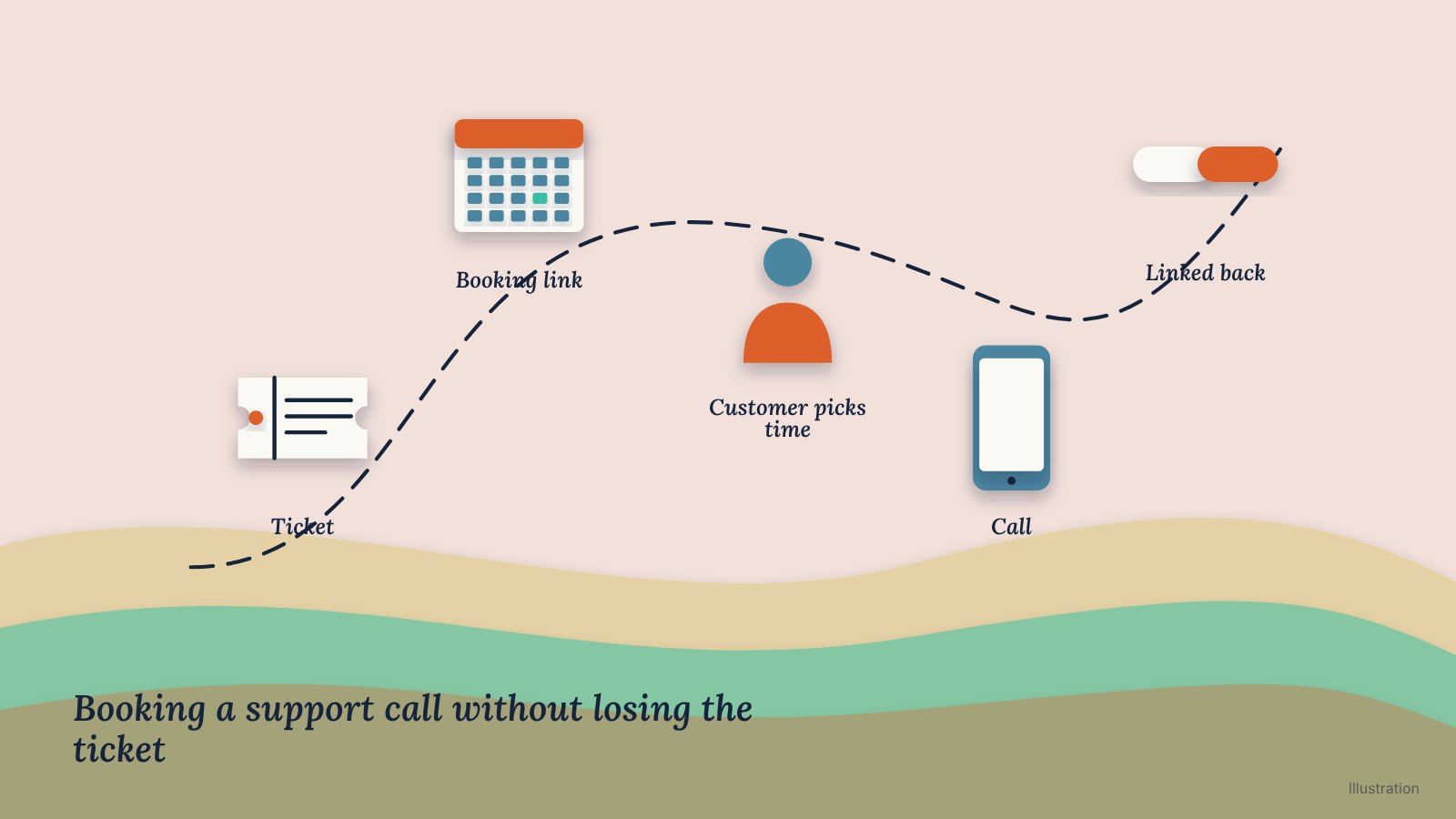
Scheduling a support call shouldn’t take three messages across time zones. Send a single-use Calendly link tied to the ticket; when the customer books, it becomes a customer session with the meeting link, the agent and the ticket attached, and the summary, action items and follow-up live in one place.
"Can we jump on a call?" "Sure, Tuesday at 3?" "That's 3 in the morning here. Wednesday?" Three messages later, the customer has waited a day for something that should have taken a minute.
Many teams solved this long ago with Calendly. The problem is what happens next: the booking lives in Calendly, the problem lives in the help desk, and the notes from the call live wherever the agent typed them.
Here's how that splits apart at a company that sells an inventory system to breweries. A brewery in New Zealand has a stock-count problem that's easier to show than explain:
- The agent, Owen, pastes his public Calendly link into the ticket. The customer books a slot.
- The booking shows up in Owen's calendar as "30 min with Aroha", with no ticket number.
- On the call, they agree three things: Owen will check the barcode mapping, a colleague will look at a sync log, and the customer will send a CSV export.
- Owen types notes in a text file. The colleague never hears about the sync log. The customer forgets the CSV.
- A week later, the ticket reopens. Nobody can find what was agreed.
First, the basics
- Calendly is a scheduling tool where people pick a time from your availability.
- An event type is a kind of meeting in Calendly, with its length and video tool.
- A single-use booking link can be used once, for one booking.
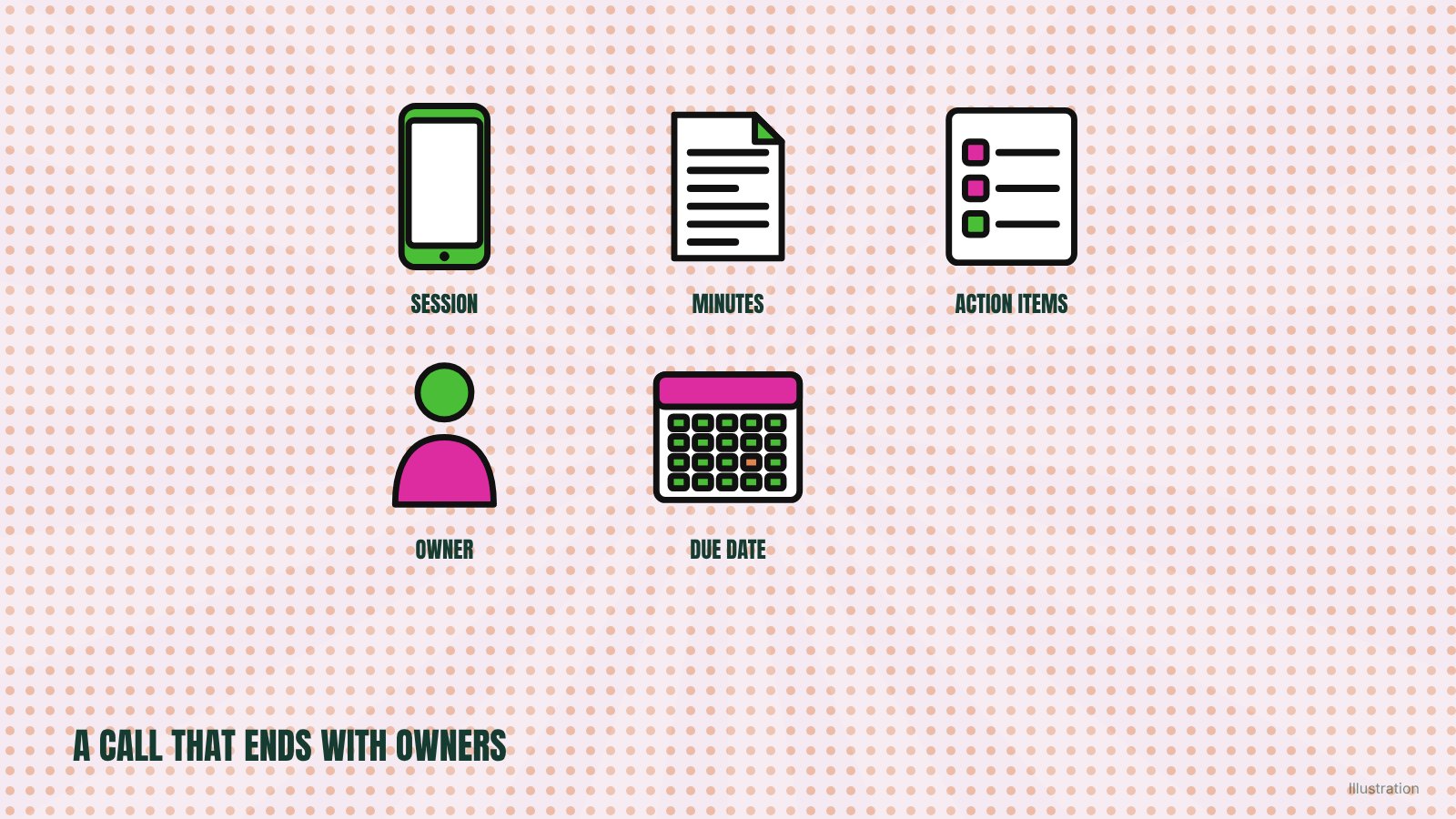
- A customer session in TicketResolve is a call linked to a ticket, with a summary, action items and follow-up.
- An action item is a task from a call with one owner: a teammate, the customer, or the team.
- My tasks is where each person sees their action items.
- A webhook is a message Calendly sends instantly when something happens; signed means it can be verified.
- A personal access token lets TicketResolve read your Calendly account without your password.
Why does this matter? A support call is only useful if what's agreed on it actually happens. Linking the booking to the ticket, and keeping the summary, action items and follow-up together, means nothing gets lost between the calendar, the help desk and someone's notes.
The problem, in plain terms
- Scheduling across time zones takes several messages.
- Bookings aren't linked to tickets.
- Notes from calls live in random places.
- Action items have no owner and no reminder.
- Cancellations and reschedules don't reach the ticket.
A booking link that knows the ticket
TicketResolve.ai now works with Calendly alongside Google Workspace and Microsoft 365 calendars. From Customer sessions, an agent picks the Calendly event type, adds the customer and the ticket number, and creates a single-use booking link. TR-AI drafts the message (the link, how long the call is, which ticket it's about) and the agent sends it from the help desk as usual.
When the customer picks a time, the booking comes back to TR-AI and becomes a session:
- linked to the ticket,
- organised by the agent who sent the link,
- with the meeting link Calendly created: Zoom, Google Meet, Teams or whatever the event type uses.
If the customer cancels or reschedules, the session follows.
After the call
From there it's a normal customer session. Write the summary and what you agreed, list the action items with an owner each (a teammate, the customer, or the team) and your teammates' items land in their My tasks. A follow-up e-mail with the next steps on both sides is drafted for you.
Your public page, too
Some customers book from your public Calendly page without a link from you. Admins can choose which event types count as support sessions, or all of them, and those bookings come in as sessions as well.
Setup
An admin connects Calendly once with a personal access token (Calendly → Integrations → API & Webhooks). It's stored encrypted and never shown again. On Calendly Standard or higher, bookings arrive instantly through signed webhooks; on other plans, TR-AI checks for new bookings every 10 minutes.
A worked example, start to finish
Here's the brewery call, with Calendly and customer sessions. The details are illustrative.
Setup. An admin has connected Calendly with a personal access token, stored encrypted. The team is on Calendly Standard, so bookings arrive instantly.
Monday, the link. Owen opens Customer sessions, picks the "30-minute troubleshooting" event type (it uses Google Meet), adds the customer, Aroha, and ticket #7713, and creates a single-use booking link. TR-AI drafts the message: "Here's a link to book a 30-minute call about your stock-count issue (#7713). Pick any time that suits you." Owen sends it from the help desk.
Monday night (NZ morning), the booking. Aroha picks Tuesday 21:00 Owen's time, 10:00 hers. The booking comes back to TR-AI and becomes a session: linked to #7713, organised by Owen, with the Google Meet link Calendly created. No back-and-forth.
Tuesday, a reschedule. Aroha moves it to Wednesday. The session follows.
Wednesday, the call. They find the problem: some kegs have two barcodes mapped to one product.
After the call. Owen writes the summary and what they agreed, then the action items, each with one owner:
- Owen: fix the barcode mapping for the two keg sizes.
- Teammate, Priyanka: check the sync log for duplicate scans. It lands in her My tasks.
- Customer, Aroha: send a CSV export of last week's counts.
TR-AI drafts a follow-up e-mail with the next steps on both sides. Owen checks it and sends it. Aroha sends the CSV that afternoon; Priyanka finds the duplicates; the ticket closes without reopening.
A public booking. Another brewery books from Owen's public Calendly page. The admin has chosen that the "troubleshooting" event type counts as a support session, so it comes in as a session too.
Five more real-world scenarios
1. Calendly free plan
Situation. The team isn't on Calendly Standard.
How TR handles it. TR-AI checks for new bookings every 10 minutes.
2. A cancellation
Situation. The customer cancels.
How TR handles it. The session follows.
3. A sales demo on the public page
Situation. Someone books a sales demo, not a support call.
How TR handles it. Admins choose which event types count as support sessions.
4. Teams instead of Zoom
Situation. The event type uses Microsoft Teams.
How TR handles it. The session carries whatever meeting link Calendly created.
5. Reusing a link
Situation. A customer forwards the link to a colleague.
How TR handles it. It's single-use; it works for one booking.
Before and after
Before. A public link with no ticket, notes in a text file, a colleague who never heard about the log, a customer who forgot the CSV, and a reopened ticket.
After. A single-use link tied to #7713, a session that followed a reschedule, action items with owners in My tasks, a drafted follow-up, and a ticket that closed for good.
How to tell it's working
- Calls are booked in one message.
- Every call has a summary and owned action items.
- Fewer tickets reopen after calls.
Who it's for
- Support agents who solve problems on calls.
- Customer success teams running check-ins.
- Teams across time zones.
How it fits with the rest of TicketResolve
Calendly works alongside Google Workspace and Microsoft 365 calendars in Customer sessions. Action items go to My tasks, follow-ups are sent from your help desk, and sessions link to their tickets.
Why single-use links
A public booking page is convenient, but it doesn't know which ticket a booking is about, and anyone can use it. A single-use link created for one customer and one ticket carries that context into the booking, so the session is linked automatically. It also can't be reused or forwarded to book a second slot. Public-page bookings still work, for the event types an admin chooses.
Good action items
An action item is only useful if someone owns it and it's specific. "Look into the sync" will drift; "Priyanka: check the sync log for duplicate scans on 12 March" won't. Give every item one owner, including the customer when they need to do something. Teammates see theirs in My tasks; the customer sees theirs in the follow-up e-mail. Both sides know what happens next.
Choosing event types for support
Calendly event types decide how long calls are and which video tool they use. A little care makes support calls easier.
- Keep support event types separate from sales demos and internal meetings, so admins can count only the right ones as support sessions.
- Match the length to the work. A 15-minute "quick check" and a 45-minute "screen-share troubleshooting" set expectations on both sides.
- Use the video tool your customers can open. Some enterprise customers can't join certain tools from work devices.
- Ask a question on the booking form if it helps, such as "What do you see when it fails?", so the agent arrives prepared.
Mistakes to avoid
- Sending your public link when a single-use link would carry the ticket.
- Action items without owners.
- Skipping the follow-up e-mail.
Do it in TicketResolve, step by step
Where: Work → Customer sessions (/dashboard/sessions). You'll need: an admin to connect Calendly with a personal access token. Full guides: Customer sessions, minutes and action items and My tasks: action items from your calls.
- (Admin) Connect Calendly with a personal access token (Calendly → Integrations → API & Webhooks).
- (Admin) Choose which event types from your public page count as support sessions.
- Open Customer sessions, pick an event type, add the customer and ticket, and create a single-use booking link.
- Send the drafted message from the help desk.
- When the customer books, the session appears with the ticket, organiser and meeting link.
- After the call, write the summary and action items with owners.
- Send the drafted follow-up e-mail.
How to check it worked: the session shows the ticket, the meeting link and action items, and teammates' items appear in their My tasks.
Frequently asked questions
Which calendars work with sessions? Google Workspace, Microsoft 365 and Calendly.
What's a single-use booking link? A Calendly link for one customer and one ticket, usable once.
What does the booking become? A session linked to the ticket, organised by the agent, with the meeting link.
What happens if the customer reschedules? The session follows.
Where do action items go? Teammates' items land in their My tasks.
Do public-page bookings count? For the event types an admin chooses.
How fast do bookings arrive? Instantly on Calendly Standard or higher; otherwise within 10 minutes.
Is the Calendly token safe? It's stored encrypted and never shown again.
Do I need a Calendly paid plan? No. Standard or higher gets instant webhooks; other plans are checked every 10 minutes.
Explore Topics
Written by
Ghulam Shabbir
Content creator and writer sharing insights and stories.