
A Fairer Way for Candidates to Take Hiring Assessments
Release 3 of the AI Recruitment Manager lets candidates take approved assessments by a one-time link — with a clear account of what to expect, a way to ask for adjustments, consent, a deadline kept on the server and answers saved as they go. Choice and number questions are scored by fixed rules, and people score written answers against a rubric. Updated: every assessment is now AI-proctored with two cameras, the whole screen and a desktop helper, and every flag goes to a person. How it works, what it refuses to do, an illustrative worked example, five scenarios and a step-by-step guide.
Updated 20 November 2026: every assessment is now proctored, with a laptop camera, a phone camera, the whole screen and a desktop helper. Flags go to a person, never to an automatic fail. See Part 4: proctoring.
A hiring assessment is often the first time a candidate deals with your process directly, and it shows. A link arrives with no explanation. The timer starts the moment the page opens. A dropped connection loses half the answers. Nobody asks whether the candidate needs extra time. And now that an AI assistant can answer most test questions in seconds, an unsupervised score may not be the candidate's own.
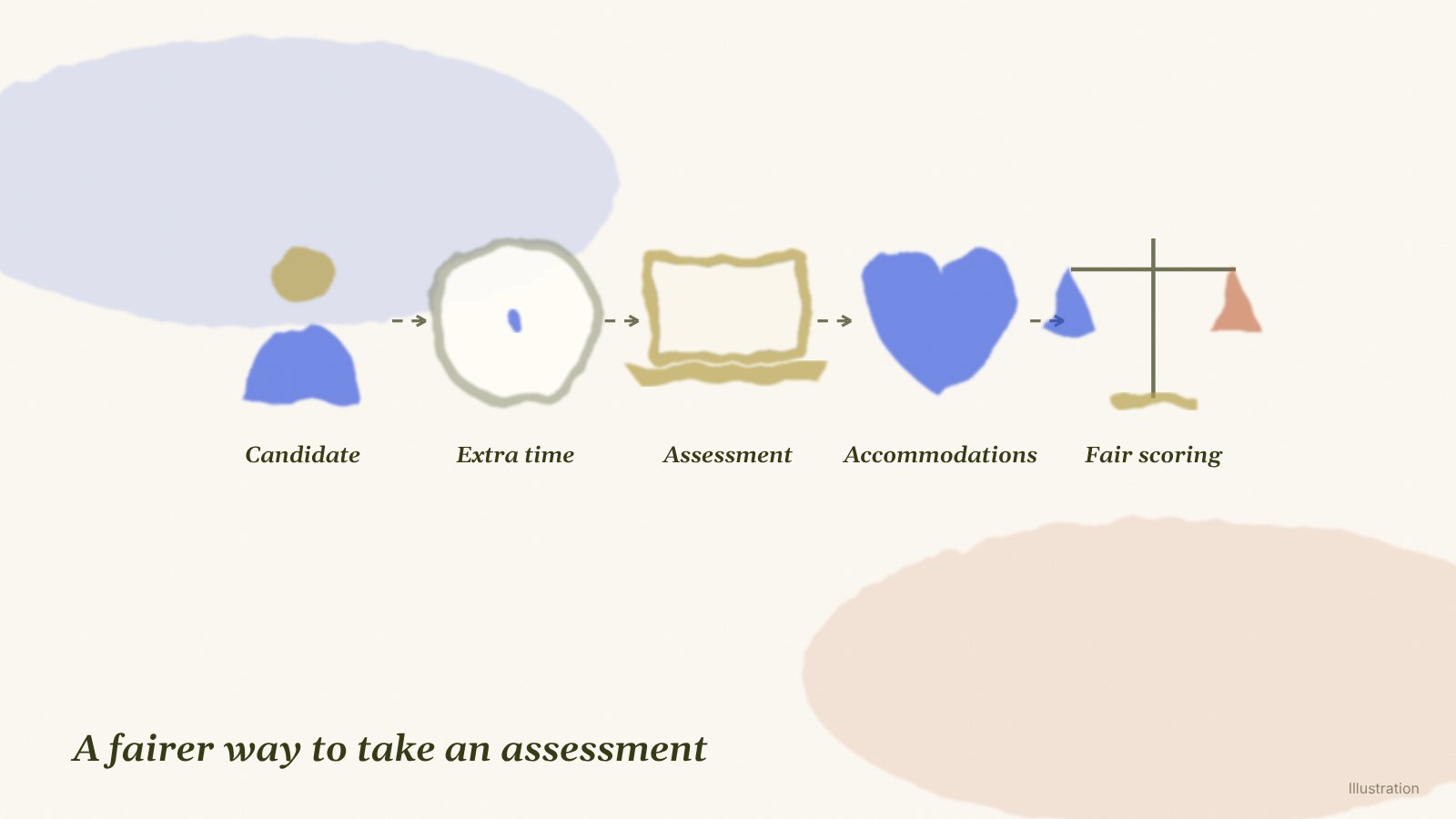
Release 3 of the AI Recruitment Manager takes a quieter route. The candidate gets one link and a plain account of what to expect. They can ask for an adjustment before they start, and they give consent. Their answers are saved as they go, and the deadline is kept by the server, not their browser. Choice and number questions are scored by fixed rules, and a person scores written answers against a rubric. The sitting is proctored, and any flag goes to a person, who decides.
A few terms used in this post:
- Sitting: one candidate's attempt at one assessment.
- Form: the exact questions in that sitting, fixed when the invitation is sent.
- Adjustment: a change agreed before the candidate starts, such as extra time.
- Fixed-rule scoring: the same answer always gets the same score, with no AI involved.
The problem, in plain terms
- Candidates don't know what they're walking into. How long will it take? Does the timer start now? What happens if the connection drops?
- Adjustments are an afterthought. By the time someone says they need extra time, the timer is already running.
- Browser timers can be gamed, and they fail. A clock in the page can be paused, and a closed tab can lose everything.
- Unsupervised results can't be trusted, and careless proctoring isn't fair. AI assistants, hidden "interview helper" overlays and a second phone make an unproctored score easy to fake. But tools that auto-fail people for looking away penalise candidates with certain disabilities, poor lighting or a shared space.
Part 1: sending an assessment
From a candidate's application, you choose an approved assessment. You also set how many days the link stays open (1 to 30), any extra minutes already agreed, and whether to e-mail it. The link is shown once, and only its fingerprint is stored: if it's lost, you cancel it and send a new one.
The exact questions are chosen when you send it and never change afterwards. A random or balanced assessment gives each candidate their own form, still built only from approved questions, and the form number lets you rebuild it exactly. The pipeline moves to Assessment invited.
Part 2: what the candidate sees
The candidate opens the link without an account. Before anything starts, they see:
- how many questions there are and how many minutes they'll have, including any agreed extra time;
- that the timer keeps running if they close the page, so they should start when they're ready;
- that answers are saved as they go, and that saved answers are submitted when time runs out;
- that the assessment is proctored: what is recorded (two cameras, the whole screen, browser signals, the desktop helper), that an AI model only raises flags and a person reviews each one, and when the pictures are deleted;
- that results are one input among others, never the only basis for a decision;
- when the link closes.
They can ask for an adjustment in their own words, without giving medical details. The recruiter sees "Adjustment requested" and can set extra time before they start. Then the candidate ticks a consent box and chooses when to start.
Part 3: during the sitting
Questions come one at a time, with a list for jumping between them. Choices are radio buttons or checkboxes, number answers go in a text box, and written answers go in a larger box. Every change is saved on the server as they go, with a visible "Saved" note, so a reload or a dropped connection loses nothing.
The deadline is set and enforced on the server: the time limit plus any agreed extra minutes. The page shows the time left and announces it to screen readers every five minutes and in the final minute. Answers sent after the deadline are refused. When time runs out, the saved answers are submitted.
When the candidate finishes, they see a thank-you. They never see the answers or their score.
Part 4: proctoring
Every sitting is proctored unless the hiring team grants an accommodation, which needs a recorded reason (for example, a candidate without a smartphone). After consent and before the start, the candidate sets up four sources. Start stays disabled until all four are live:
| Source | What it watches |
|---|---|
| Laptop camera | The candidate in front of the screen |
| Entire screen | The whole display. A single window or tab is refused, so other tabs and apps are in view. |
| Phone camera | Opened by QR code and placed to the side and behind, so it shows the candidate, the desk and the laptop screen |
| Desktop helper | A small app the candidate runs with a code. It reports AI assistants, interview overlays, remote-control and chat apps by name, and windows hidden from screen sharing, which is how some cheating overlays stay invisible. It sends only those matches, never the full list of apps, files or keystrokes. |
During the sitting:
- A picture is taken from each camera and the screen about every 30 seconds.
- The page reports leaving the tab, leaving full screen, pasting and a second display.
- If a camera or the screen share stops, the questions are covered until it's back.
- An AI vision model looks at the newest pictures together, at most once a minute. It checks for ChatGPT, Claude, Gemini, Copilot or similar on screen, other phones or devices on the desk, a second person, and whether the candidate is present. Text in the pictures is treated as data, and findings below 60% confidence are dropped.
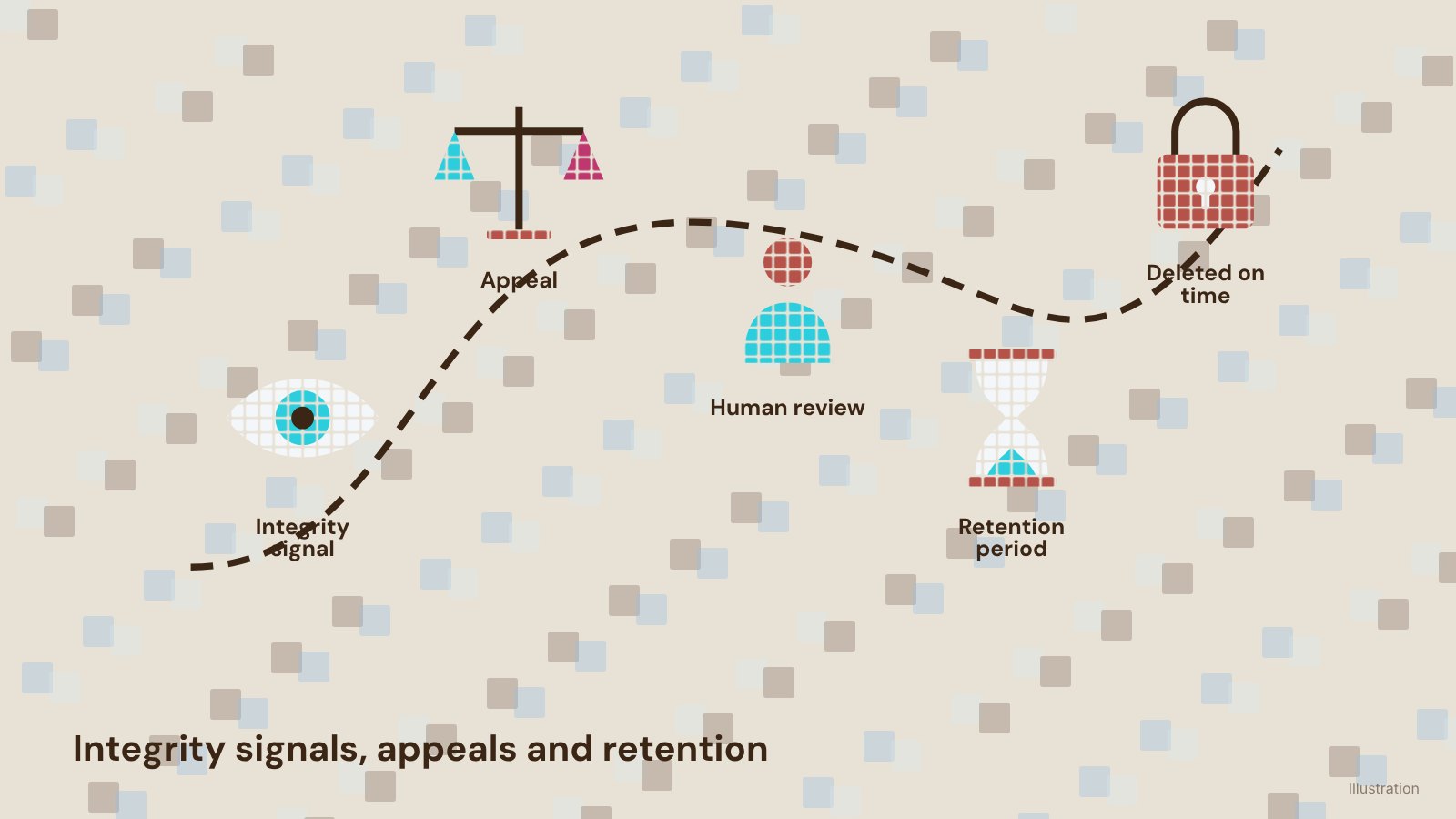
Every flag goes to a person. The recruiter sees each flag with its source, time and picture, confirms or dismisses it with a note, and then clears the sitting or records concerns. Flags never change the score, void the attempt or move the candidate. Pictures are deleted 30 days after the assessment ends; the flags and the review stay with the result.
The desktop helper is a beta for Windows, macOS and Linux. It isn't code-signed yet, so the candidate may see a security warning when they first run it.
Part 5: scoring
| Question type | How it's scored |
|---|---|
| One correct answer | 1 point for the correct option |
| Several correct answers | 1 point only for exactly the correct set |
| Number answer | 1 point within the accepted ± range |
| Situational judgement | The 0–3 points set for the chosen option |
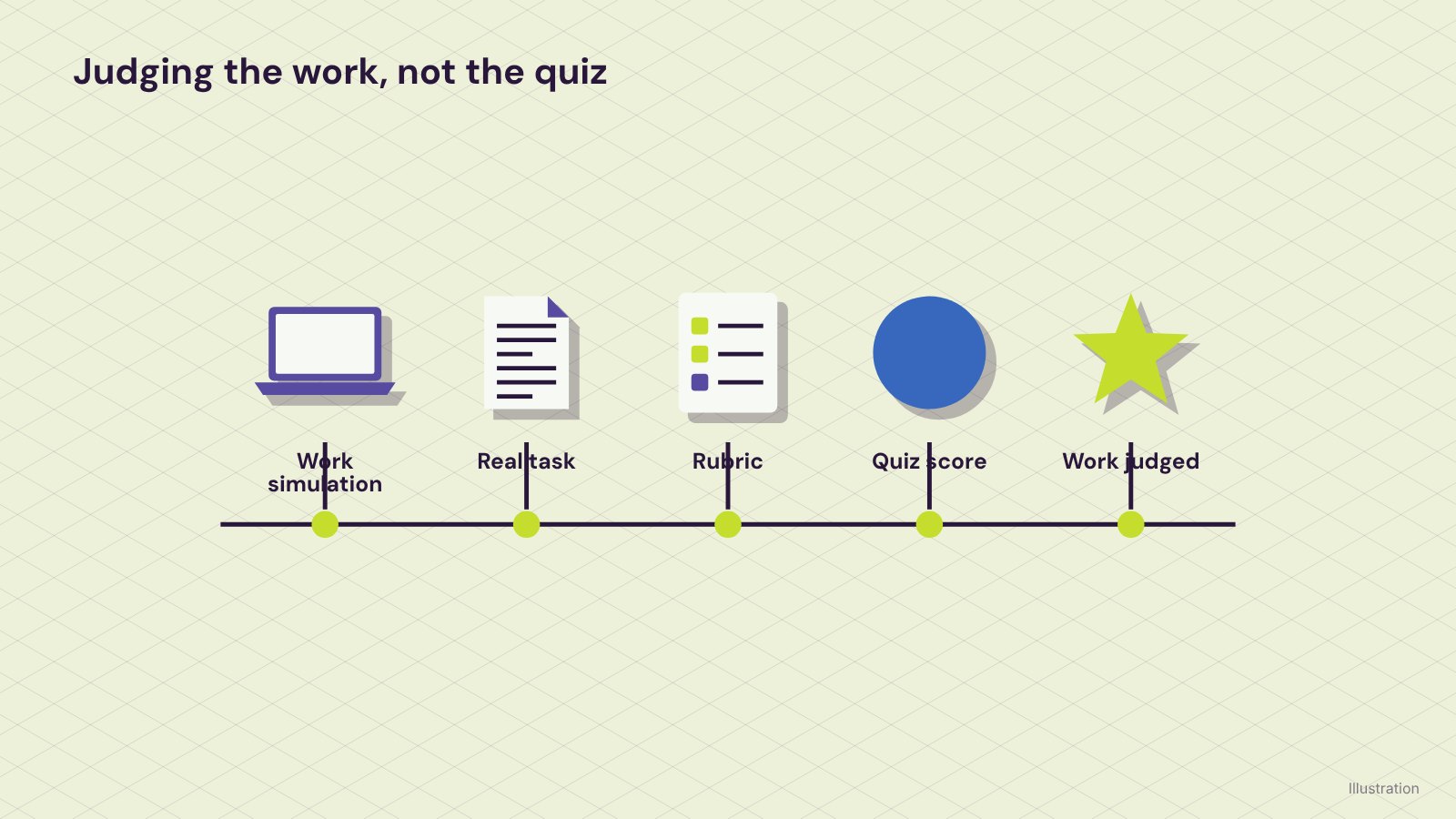
| Written answer | A person scores it against the rubric and notes which points it met |
The first four types are scored by fixed rules the moment the sitting ends. Written answers wait for a person and appear as "to score". Totals count them separately, never as zero, until they're scored. An unanswered written question scores 0, with the note "No answer given".
Part 6: reading the results
For each sitting you see:
- when it was sent, started and finished, and whether time ran out;
- the time allowed and any adjustment;
- the candidate's own request, if they made one;
- the form number;
- every answer next to the correct answer or the rubric, its points, and who or what scored it;
- totals by category and by competency.
Every result carries the reminder that the assessment hasn't been validated yet.
What it does, and what it doesn't
It does: send approved assessments by one-time link; support adjustment requests and agreed extra time; record consent; keep the deadline on the server; save answers as they go; score choice, number and situational questions by fixed rules; let people score written answers against a rubric; keep the pipeline in step.
It doesn't, yet: validate assessments from results, run structured interviews, or record hiring decisions. Those are next.
It never: fails, voids or rejects a candidate because of a proctoring flag (a person decides); proctors anyone before they've agreed; keeps pictures past the retention period; shows candidates their score; counts unscored written answers as zero; or makes a decision on its own.
A worked example, start to finish
This is an illustrative scenario, not a customer story.
A recruiter sends the approved "Support screen" assessment to a candidate for a support manager role. It has 3 questions and a 15-minute limit. The link is open for 7 days, and she ticks "E-mail it".
The candidate opens it that evening. Before starting, they write: "I use a screen reader." The recruiter sees the request a few minutes later and sets 15 extra minutes. When the candidate reloads the page, it now says 30 minutes. They tick the consent box and start.
They answer the multiple-choice question, then the number question. Their Wi-Fi drops, so they reload. Both answers are still there, marked as answered. They write the outage update and finish with 18 minutes to spare. They see a thank-you.
The recruiter opens the sitting. The choice and number answers have been scored by fixed rules: 2 out of 2. The written answer is waiting. She scores it 2 out of 3, noting "Acknowledges impact and gives the next update time; doesn't say what's being done." The total is now 4 out of 5, with a breakdown by category. The stage reads Assessment completed.
Five more real-world scenarios
Illustrative.
- A candidate who never starts. The link expires after the set number of days. The sitting shows Link expired, and you can send a new one.
- An invitation sent by mistake. Cancel it with a reason. The candidate's link then says the assessment was cancelled.
- A long written exercise. Several written questions show as "to score", and the totals say so instead of showing a misleading low score.
- A candidate asks for their data to be deleted. Deleting the candidate also erases their sittings and answers.
- A question later needs fixing. Retire it and approve a replacement. Past sittings still show exactly the question the candidate answered.
Do it in TicketResolve, step by step
- Approve an assessment in Assessments. (Building an assessment)
- Open the candidate's application → Assessments → Send an assessment. Choose it, set the days, any agreed extra minutes, and whether to e-mail it. Copy the link if you're sending it yourself. (Sending an assessment to a candidate)
- Watch for "Adjustment requested" and set extra time before the candidate starts.
- Open the finished sitting. Read the fixed-rule scores and score written answers against the rubric. (Scores and results)
The AI Recruitment Manager is part of the AI CPO, with no per-candidate or per-assessment charges. It builds on the question bank and assessment builder.
Frequently asked questions
Does the candidate need an account? No. The link is their only key, and only its fingerprint is stored.
What happens if the candidate's connection drops? Answers are saved as they go. They can reopen the link and carry on, and the deadline doesn't change.
Can the candidate pause the timer? No. The deadline is kept on the server, which is why the page tells them to start only when they're ready.
Is the assessment proctored? Yes. The laptop camera, a phone camera, the whole screen and a desktop helper are all used, after the candidate agrees. An AI model only raises flags, and a person reviews every one. A recorded accommodation can replace proctoring for a candidate who needs it.
Can proctoring fail a candidate automatically? No. Flags are leads for a person to check. The score stays what it is, and the review sits beside it.
Do candidates see their score? No. They see a thank-you when they finish.
Who scores written answers? A person, against the question's rubric, with a note on which points the answer met.
Are the scores validated? Not yet. Every assessment is labelled "Not validated" until enough results exist to check it, so treat results as one input among others.
The short version
Tell candidates what to expect, let them ask for what they need, and keep the clock on the server, not in their browser. Save every answer as it's given. Let fixed rules score what they can and people score the rest. Then use the result as one input, not the decision.
Explore Topics
Written by
Ghulam Shabbir
Content creator and writer sharing insights and stories.