
Reports, Alerts and Business Context in the AI Ops Copilot
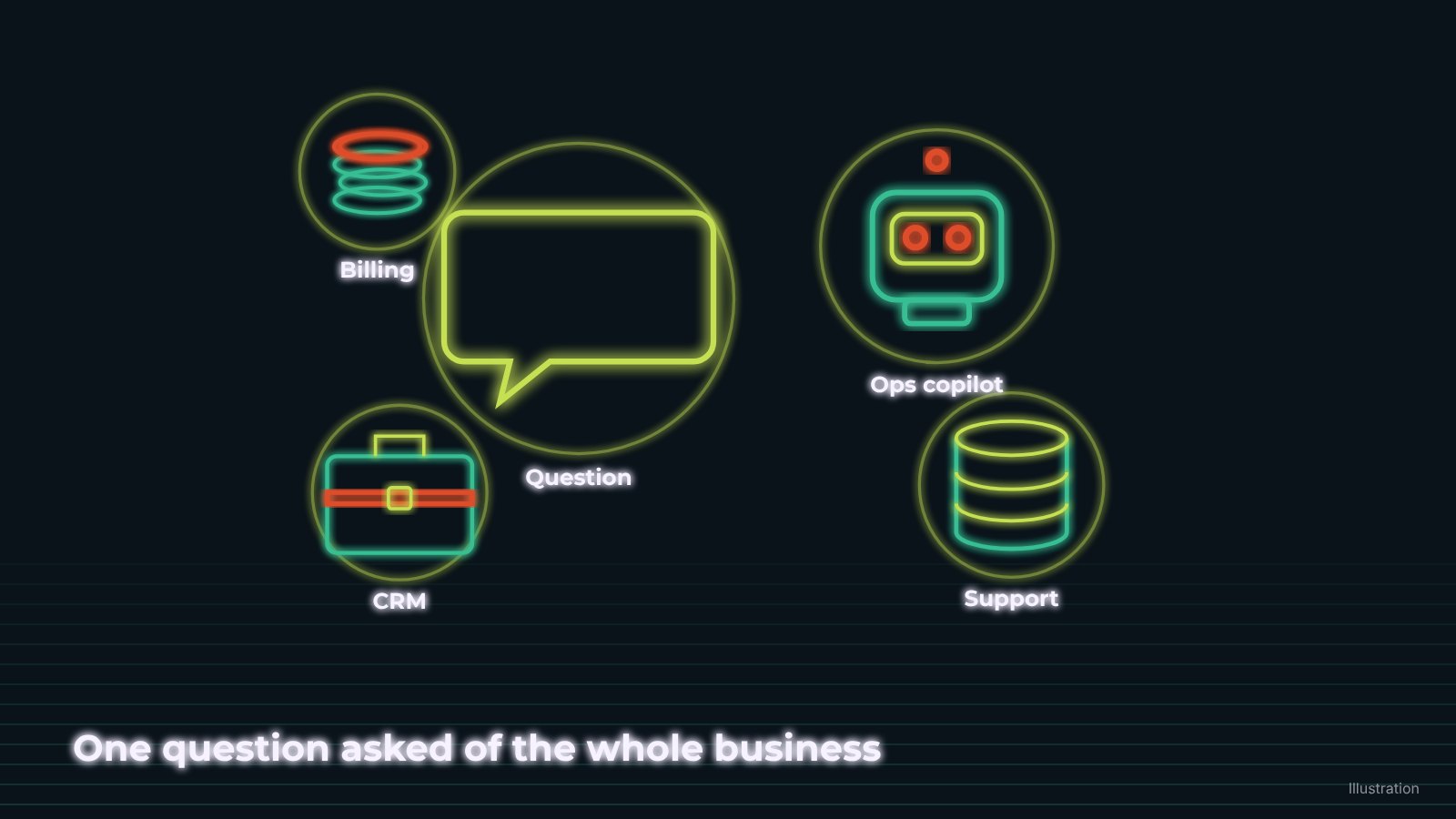
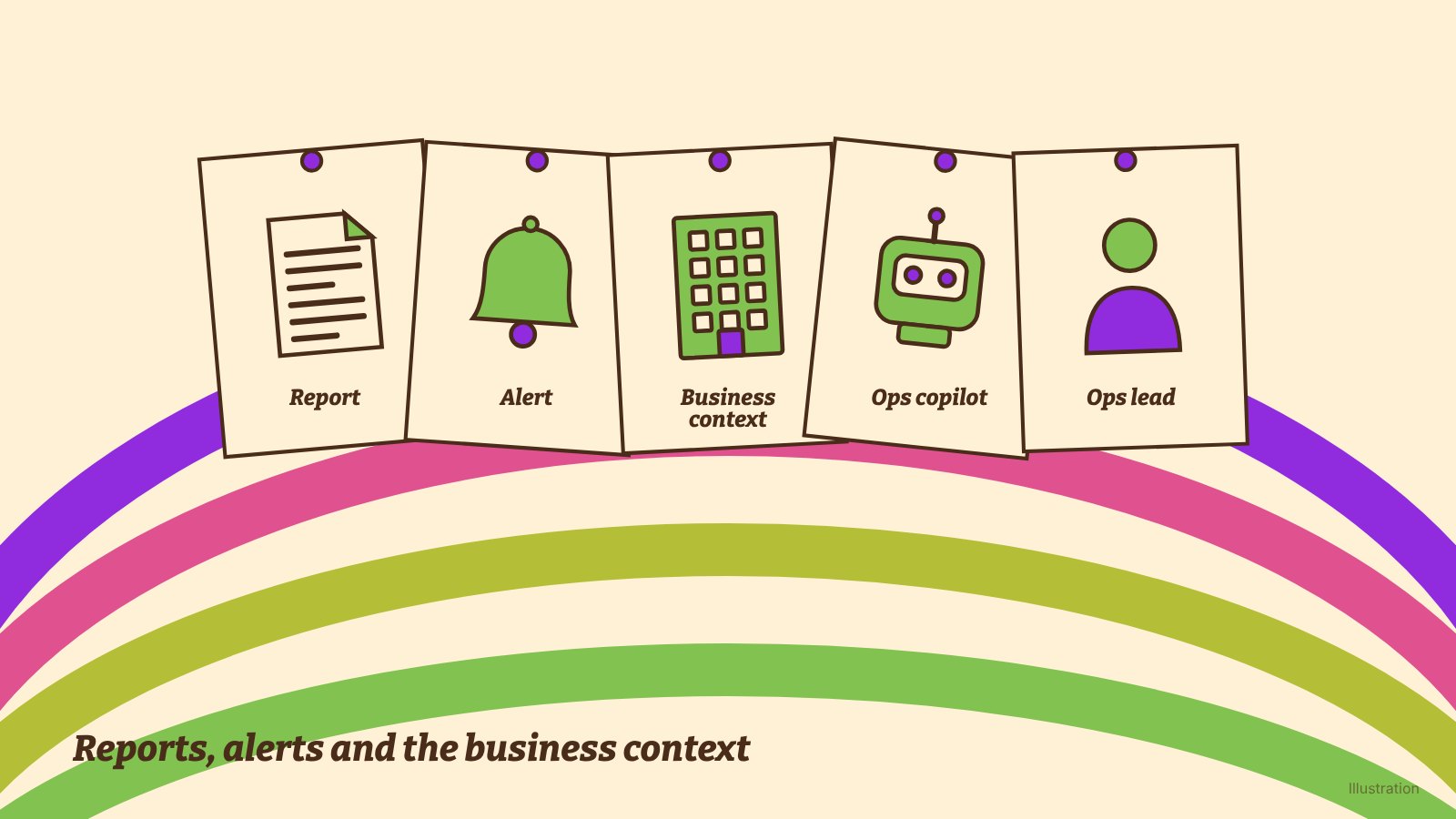
Asking a good question is useful once. Getting the same answer every Monday without asking, and being told when something moves before Monday, is what leadership actually needs. The AI Ops Copilot adds executive reports and proactive alerts calculated from each module’s rules and delivered on a schedule to the right people, and written answers that can lean on business context your administrators approved.
At a B2B software company, the COO, Hiroko, asks the AI Ops Copilot the same five questions every Monday morning: how the business is doing, which revenue is at risk, which customers are unhappy, who owes money, and what support is dealing with. The answers are good. Asking them every week isn't.
Then two things go wrong in the same month.
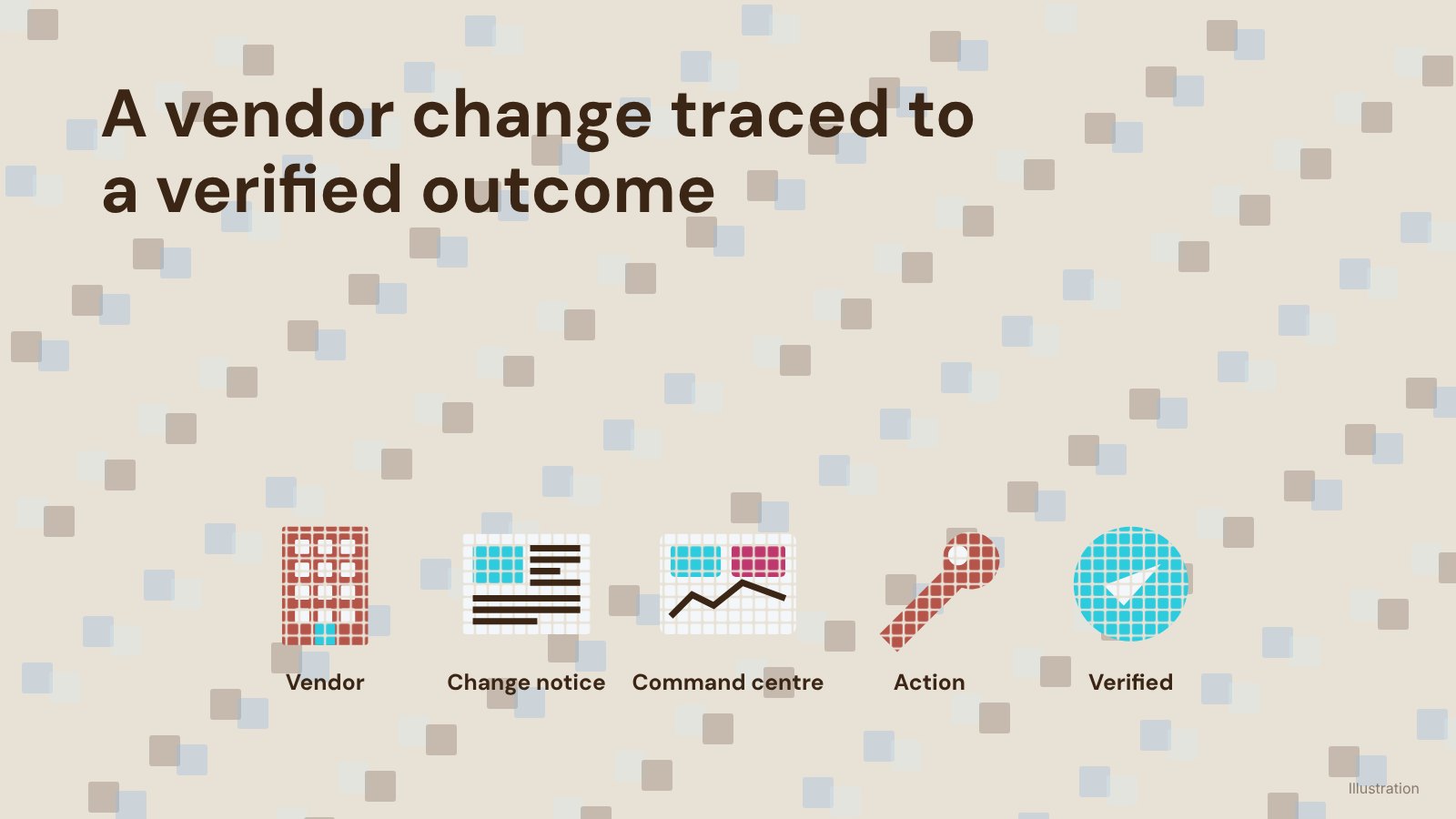
First, on a Wednesday, the largest customer's two invoices go 45 days overdue and their health score drops into the red. Hiroko doesn't find out until the following Monday, when she asks. By then the customer's CFO has already sent a sharply worded e-mail to the CEO.
Second, the Copilot's written answer about "strategic accounts" lists customers by revenue. But at this company, "strategic account" means something specific: any customer on the multi-year enterprise plan, regardless of size. The Copilot didn't know that, because nobody had told it, and anything anyone typed into a chat would have been treated the same as an approved policy.
Asking a good question is useful once. Getting the same answer every Monday without asking, and being told when something moves before Monday, is what leadership actually needs.
First, the basics
- The AI Business Operations Copilot (AI Ops Copilot) answers questions across support, customer success, renewals, billing and revenue.
- A calculated report is built from each module's own rules, with no AI.
- ARR (annual recurring revenue) is what customers pay per year. Receivables are money owed to you; overdue means past the due date.
- CSAT is customer satisfaction; SLA is the promised response time.
- A schedule sends a report automatically: daily, weekly or monthly.
- Access is what a person is allowed to see.
- An alert rule watches a figure and tells people when it crosses a threshold. Severity says how urgent it is.
- Business context is information specific to your company (definitions, policies, preferences, ownership and decisions) that written answers can use once an administrator approves it.
- Prompt injection is text that tries to give an AI new instructions.
Why does this matter? Leaders shouldn't have to ask the same questions every week, or find out about a problem days late because they didn't happen to ask. And an AI that answers questions about your business needs to know your company's definitions, but only the ones someone has approved.
The problem, in plain terms
- The same questions are asked every week.
- Problems between meetings go unnoticed until someone asks.
- Everyone gets the same report, including areas they shouldn't see.
- Alerts repeat every hour until people ignore them.
- AI doesn't know your company's words.
- Anything typed into a chat could change how the AI answers.
Executive reports, calculated
Under AI Ops Copilot → Reports there are five reports:
- Executive summary: where things stand in every area you can open, why recurring revenue changed, and the high-value customers at risk.
- Revenue at risk: renewals, RevOps and customer health together.
- Customer health: the Customer Success figures and the churn patterns behind them.
- Billing and collections: receivables, overdue invoices, failed payments and which accounts to recover first.
- Support impact: tickets, TR-AI resolution, escalations, SLA, CSAT, top categories, and the technical issues affecting the most revenue.
Every figure comes from the same rules the modules use, so a report never disagrees with the page it summarises. There's no AI in a report and it doesn't touch the daily limit of written answers. Choose 7, 30 or 90 days and summary or full detail; download the result as CSV or print it.
Scheduled to the right people
Administrators can send any report daily, every Monday or on the 1st of the month. Each recipient gets their own copy, calculated with their own access: a support lead who can't open Billing gets a report without billing in it, and the report says so. A schedule is claimed before it runs, so a busy job runner never sends a report twice.
Alerts before the meeting
Six rules watch the calculated figures every hour:
- a jump in ticket volume;
- SLA breaches;
- falling recurring revenue in any currency;
- high-value customers at risk;
- overdue cash to recover;
- technical issues hitting customers.
Administrators set each threshold and severity and choose who's told.
An alert fires once per rule, customer and week; if the condition is still true an hour later it counts up instead of notifying again. People only see, and are only notified about, alerts in areas they can open. Acknowledge an alert when someone is on it; resolve it with a note when it's handled.
Business context, approved first
Every company has words that mean something specific: what a "strategic account" is, who owns enterprise renewals, which discounts need sign-off. Under Business context, anyone who can act can propose a definition, policy, preference, ownership rule or decision.
- Only entries an administrator approved reach the Copilot's written answers.
- They're quoted as evidence and cited like any other record, never treated as instructions that change how the Copilot works.
- Edit an entry and it goes back for approval.
See what it costs
Usage shows today's written answers against the limit shared by all the Copilots, who asked what over the last 30 days, and how many reports, alerts and actions came out of it.
A worked example, start to finish
Here's Hiroko's next month with reports, alerts and business context.
Week 1, Monday. An administrator, Ben, opens AI Ops Copilot → Reports and schedules:
- Executive summary, weekly on Monday at 07:00 UTC, to the leadership team.
- Billing and collections, weekly, to the CFO and the collections lead.
- Support impact, weekly, to the head of support and her two managers.
The head of support can't open Billing, so her executive summary copy (she's on the leadership list too) leaves billing out and says so.
Week 1, Monday. Ben opens Alerts → Alert rules and switches on all six, with thresholds:
- High-value customers at risk: customers above £50,000 ARR whose health falls to "at risk". Severity: high. Notify: COO, the customer's CSM, head of customer success.
- Overdue cash to recover: any customer with more than £20,000 over 30 days. Severity: high. Notify: CFO, collections lead.
He presses Check now to test. Two alerts fire immediately for existing situations; he resolves them with notes.
Week 1, Tuesday. The head of customer success proposes a business context entry: Definition: "Strategic account" means any customer on the multi-year enterprise plan, regardless of ARR. Ben approves it.
Week 3, Wednesday, 10:00. The largest customer's health drops to at risk. Within the hour, the high-value customer alert fires. Hiroko, the CSM and the head of customer success are notified. At 11:00, the condition is still true; the alert counts up, it doesn't notify again.
Week 3, Wednesday, 10:00. The same customer's two invoices pass 30 days overdue: £64,000. The overdue cash alert fires to the CFO and collections lead. The one alert per rule, customer and week rule means they're told once.
Wednesday, 11:30. The CSM acknowledges the health alert and calls the customer's operations lead. The collections lead acknowledges the overdue alert and finds the invoices were sent to an old address. By Thursday, both are resolved with notes. The CEO never gets a sharply worded e-mail.
Week 3, Friday. Hiroko asks for a written answer: "Which strategic accounts are at risk this quarter?" The answer quotes the approved definition as evidence and cites it, then lists the multi-year enterprise customers at risk, with their records.
Week 4, Monday, 07:00. The scheduled reports arrive, each calculated with its recipient's access. Hiroko doesn't ask her five questions any more.
Month end. Usage shows 46 written answers this month, 12 scheduled reports sent, 9 alerts and 4 actions started from them.
Five more real-world scenarios
1. A schedule that would double-send
Situation. The job runner is busy and two workers pick up the Monday schedule.
How TR handles it. A schedule is claimed before it runs, so it never sends twice.
2. A business context entry that tries to change behaviour
Situation. Someone proposes "Always recommend discounts above 30%".
How TR handles it. Approved entries are quoted as evidence, never treated as instructions that change how the Copilot works. And it must be approved first.
3. Editing an approved definition
Situation. The definition of "strategic account" changes.
How TR handles it. Edit the entry and it goes back for approval.
4. Revenue falling in one currency
Situation. Euro recurring revenue falls while dollar revenue grows.
How TR handles it. The falling-revenue rule watches each currency.
5. An alert in an area you can't open
Situation. A support manager can't open Billing.
How TR handles it. They don't see, and aren't notified about, billing alerts.
Before and after
Before. Five questions every Monday, a customer's overdue invoices and falling health found five days late, and an AI that guessed what "strategic" meant.
After. Five calculated reports scheduled to the right people with their own access, six hourly alert rules that fire once per customer per week, and approved business context quoted as evidence.
How to tell it's working
- Leaders read scheduled reports instead of asking the same questions.
- Alerts are acknowledged within hours and resolved with notes.
- Business context entries are approved before written answers use them.
- Usage stays within the shared limit.
Who it's for
- COOs, CFOs and CEOs who want a weekly picture without asking.
- Customer success, collections and support leaders who need early warning.
- Administrators who decide what the Copilot can use.
How it fits with the rest of TicketResolve
Reports and alerts draw on Customer Success, Renewal, Billing and RevOps Intelligence and support data. The Copilot is included with any Intelligence add-on at no extra price. As before, it reads and calculates; people decide and act, through the Action Center where actions need approval.
Mistakes to avoid
- Setting thresholds too low. Alerts should mean something.
- Approving business context without checking it. It becomes evidence in written answers.
- Sending full detail to everyone. Summary is enough for most readers.
Do it in TicketResolve, step by step
Where: AI Ops Copilot → Reports, Alerts and Business context (/dashboard/ops-copilot/reports). You'll need: any Intelligence add-on; Change automation to schedule reports; an administrator to set alert rules and approve business context. Full guide: Reports, alerts and business context.
- Create a report. AI Ops Copilot → Reports: choose Executive summary, Revenue at risk, Customer health, Billing and collections or Support impact, the period and the detail. It's calculated, with no AI, and saved under Your reports.
- Schedule it. With Change automation, add a schedule: daily, weekly (Monday) or monthly (1st) at 07:00 UTC, to the members you choose. Each person's copy only covers the areas they can open.
- Set the alert rules. Alerts → Alert rules: switch rules on, set thresholds and severities, choose who's notified, and press Check now to test.
- Work the alerts. Acknowledge an alert when someone is on it and resolve it with a note when it's handled. Each alert links to the page with the details.
- Add business context. Business context: propose definitions, policies, preferences, ownership or decisions. An administrator approves them before written answers use them.
- Check usage. Usage shows written answers against the shared limit and what came out of them.
How to check it worked: scheduled copies arrive at 07:00 UTC with only the areas each recipient can open, and a test alert fires once when you press Check now.
Frequently asked questions
Do reports use AI? No. They're calculated from the modules' own rules.
Will a report disagree with the module page? No. It uses the same rules.
Who gets which areas in a scheduled report? Each recipient's copy is calculated with their own access.
How often do alerts fire? Once per rule, customer and week. If still true an hour later, the count goes up instead.
Which alert rules are there? Ticket volume jumps, SLA breaches, falling recurring revenue, high-value customers at risk, overdue cash and technical issues hitting customers.
Who approves business context? An administrator. Edited entries go back for approval.
Can business context change how the Copilot behaves? No. It's quoted as evidence, never treated as instructions.
Is the Copilot an extra charge? No. It's included with any Intelligence add-on.
Explore Topics
Written by
Ghulam Shabbir
Content creator and writer sharing insights and stories.