
Describe It, Review It, Switch It On: An AI Workflow Builder That Doesn’t Publish
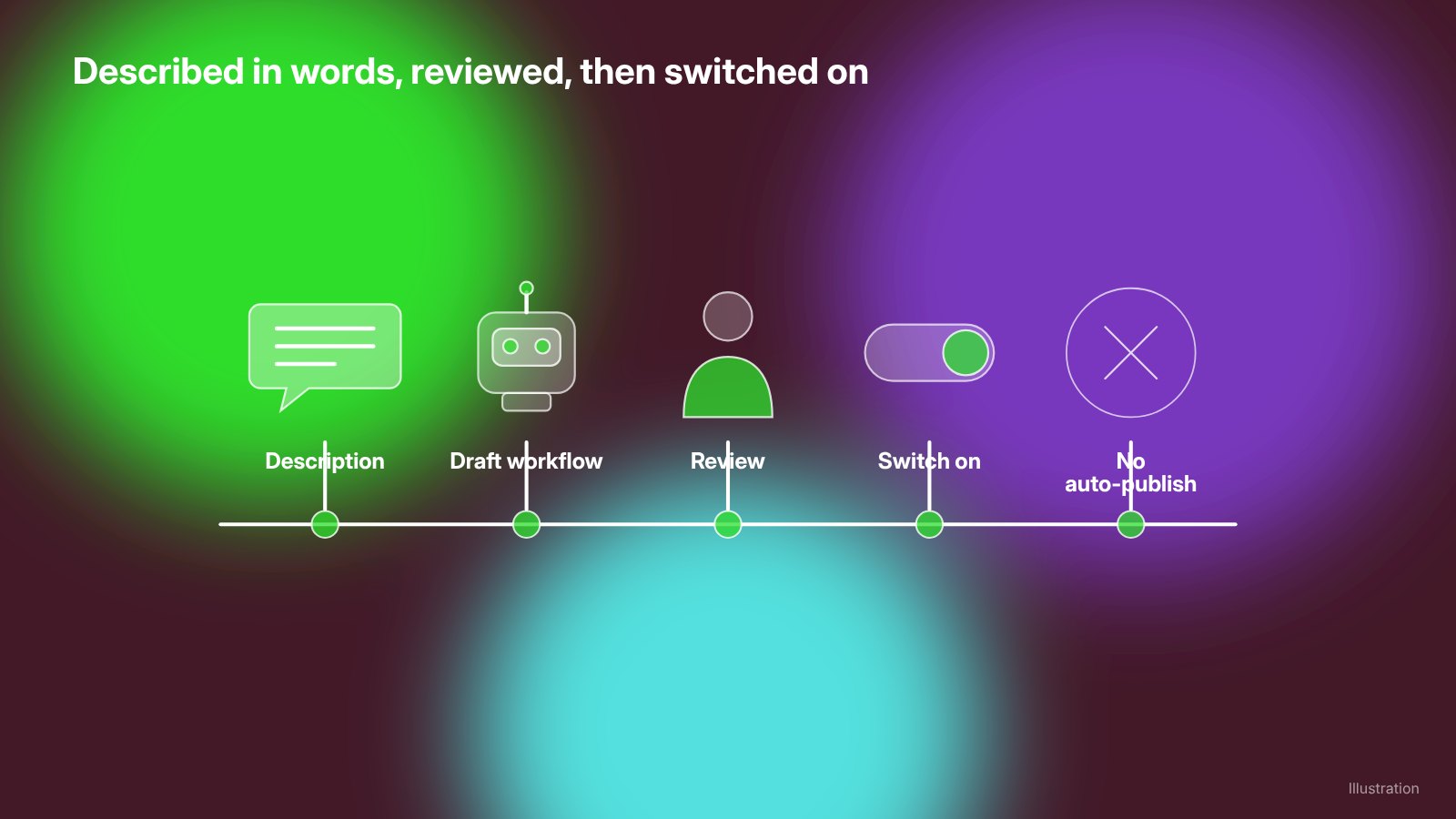
Describe a process in a sentence and TR Workflow OS drafts the workflow from the tools you actually have connected. It adds approvals before risky actions, explains every step and writes test scenarios. Then it waits, switched off, until a person reviews it.
Priya runs billing operations for a subscription software company. Every Monday she goes through the weekend's failed payments by hand. She checks whether the customer is a VIP, looks them up in Stripe, asks her manager before retrying a large charge, and sets a reminder to see whether the invoice got paid. She knows exactly how the process should work. What she doesn't know is the difference between a trigger event and a condition step, or which Stripe action takes a customer ID and which takes an invoice ID.
So she writes it down the way she'd explain it to a new hire:
When a VIP customer's payment fails, look them up in Stripe, ask a manager before retrying the charge, and check a day later that the invoice is paid.
In TR Workflow OS, that sentence is enough to get a draft. It is not enough to get something running, and that's deliberate.
First, the basics
- A workflow is a set of steps a computer follows automatically when something happens, for example "when a payment fails, look up the customer, ask a manager, retry the charge". It's like a checklist that does itself.
- A trigger is the event that starts a workflow: a failed payment, a new ticket, a form submitted.
- A connector is TicketResolve's link to another product you use, such as Stripe for payments or Zendesk for support tickets. A connector action is something that link can do, like "retry a charge".
- An approval is a pause where a named person must say yes before the workflow continues, usually before anything risky like moving money.
- Switched off means the workflow exists but won't run until someone turns it on.
Why does this matter? Most people who understand a business process aren't the people who know how to automate it. Letting them describe it in plain words is a big time saver, but only if the result is checked by a person before it can act. That's the balance this feature strikes.
The problem, in plain terms
Workflow builders put the burden on the person who knows the least about the tool. The people who understand the process (billing leads, support managers, onboarding coordinators) are rarely the ones who know the builder. So one of three things happens:
- The process stays manual, because nobody has time to learn the builder.
- Someone technical builds it from a description, and the details get lost in translation: the approval Priya always asks for quietly disappears.
- An AI tool generates something that looks right, uses an integration the company doesn't have, skips the approval and goes live before anyone has read it.
The third case is the newest, and the most dangerous. Generating a workflow is easy. Generating one you can trust is the hard part.
How the AI workflow builder works
What the AI is given
When you choose Describe a workflow, the model receives three things:
- Your description, masked first. E-mail addresses, phone numbers, card numbers and API keys are replaced before the model reads it. If Priya pastes "e.g. jane@bigcustomer.com's card ending 4242", the model never sees either.
- Your real catalogue. It gets the step types, the trigger events and only the connector actions you have actually connected, with their arguments. If you have Stripe and Zendesk connected but not Salesforce, Salesforce actions simply aren't on the menu.
- One attempt, plus one retry. A single model call drafts the workflow. If the answer can't be read or doesn't validate, the model gets one more try, with the reason it failed. There's no endless loop and no hidden cost spiral.
What we don't trust the AI with
Everything after the draft is done by plain code, not by the model:
- Missing tools are removed and listed. If the model reached for an action you haven't connected, it's taken out and shown under "tools you'd need to connect". It is never silently kept.
- Approvals are inserted before risky actions. Any step that cancels, deletes, deploys or moves money gets a manager approval in front of it, whether or not the AI remembered to add one. Priya's retry-the-charge step gets an approval even if her description hadn't mentioned it.
- Same validation as a hand-built workflow. The draft goes through the same validation and risk policy as anything a person builds in the editor. No AI shortcut.
What you get back
The draft is saved switched off and labelled AI draft. Next to it you get:
- why each step is there, in a sentence;
- the assumptions to check ("I assumed VIP means the customer has the
viptag in Stripe"); - the tools it needs that aren't connected;
- the execution plan: what runs, what verifies the result, and what can be undone;
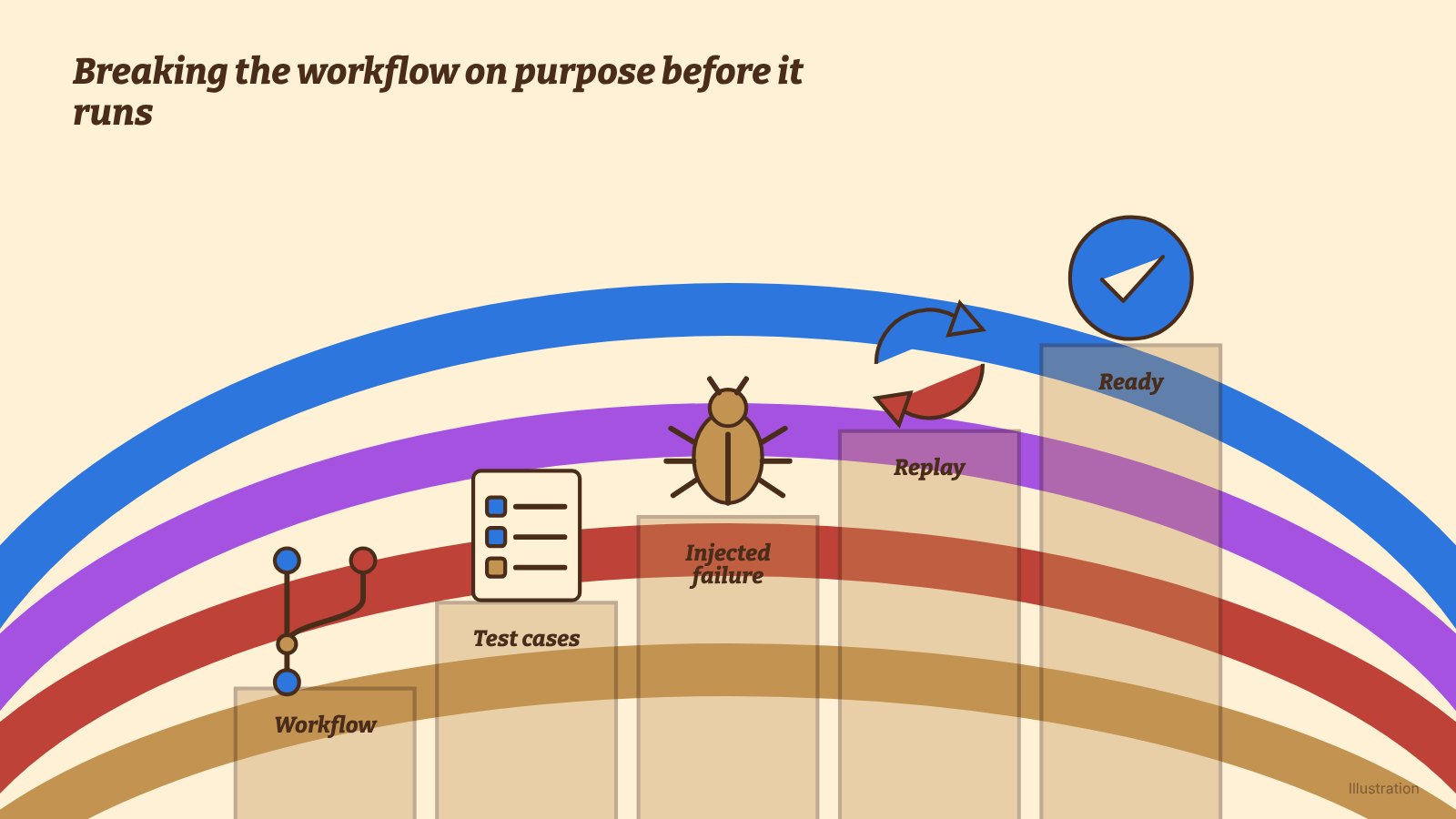
- two to four test scenarios: the normal case and the edge cases, each one a click away from a test run that changes nothing.
Three real-world scenarios
1. The VIP payment retry
Priya's sentence becomes a draft along these lines:
- trigger on Stripe's invoice payment failed event;
- a condition: is the customer tagged VIP?
- look the customer up in Stripe;
- manager approval before the retry, added by the risk policy because a retry moves money;
- retry the charge;
- wait one day, then check the invoice status and verify it's paid.
The assumptions panel flags the VIP definition. The test scenarios cover a VIP customer whose retry succeeds, a non-VIP customer (the workflow should stop at step 2) and a retry that fails again. Priya runs all three as test runs, sees that the non-VIP case stops where it should, changes "VIP" to her company's actual tag, and switches it on.
2. "Close stale tickets" from a support lead
A support lead writes: "Every night, close tickets that have been waiting on the customer for 14 days and tell them how to reopen." The draft uses the help-desk connector the workspace really has. Closing tickets in bulk is a destructive action, so an approval lands in front of it. The lead decides that for this workflow a nightly summary for a person to approve is exactly right, and keeps it.
3. A request that needs a tool you don't have
An operations manager writes: "When a deal closes in Salesforce, create the onboarding project and welcome the customer." The workspace has no Salesforce connection. The draft still builds the parts it can, lists Salesforce — not connected under the tools you'd need, and the execution plan shows that the trigger can't fire until it is. Nobody discovers this three weeks later from a workflow that never ran.
Guardrails that stay on
- Nothing is published by the AI. Until a person switches it on, the draft never runs.
- Limits. Up to 20 drafts per workspace per day, so a stuck script can't run up a bill.
- The description isn't stored. Only the resulting draft is kept.
- It's a governed agent. The AI workflow builder appears in the AI Control Plane next to every other agent, so an administrator can pause it like any of them.
Before and after
Before. Priya writes the process in a document, and an operations engineer builds it two weeks later. The approval she always asks for is lost in translation, and nobody finds out until a large charge is retried without a manager's say-so.
After. Priya's own sentence becomes the first draft within a minute. The approval is there because policy put it there. She reads the assumptions in her own business terms, runs three test scenarios that change nothing, and switches it on herself, or hands it to the engineer as a reviewed draft rather than a vague request.
Mistakes to avoid
- Describing the tool instead of the process. "Call the Stripe API" is less useful than "check whether the invoice is paid". Describe outcomes; the builder picks the actions.
- Skipping the assumptions. That's where the AI tells you what it guessed. One wrong guess, like what counts as a VIP, changes everything downstream.
- Switching on without running the scenarios. They take seconds and change nothing in your systems.
A worked example, start to finish
Here's Priya's Monday, a week after the workflow went live.
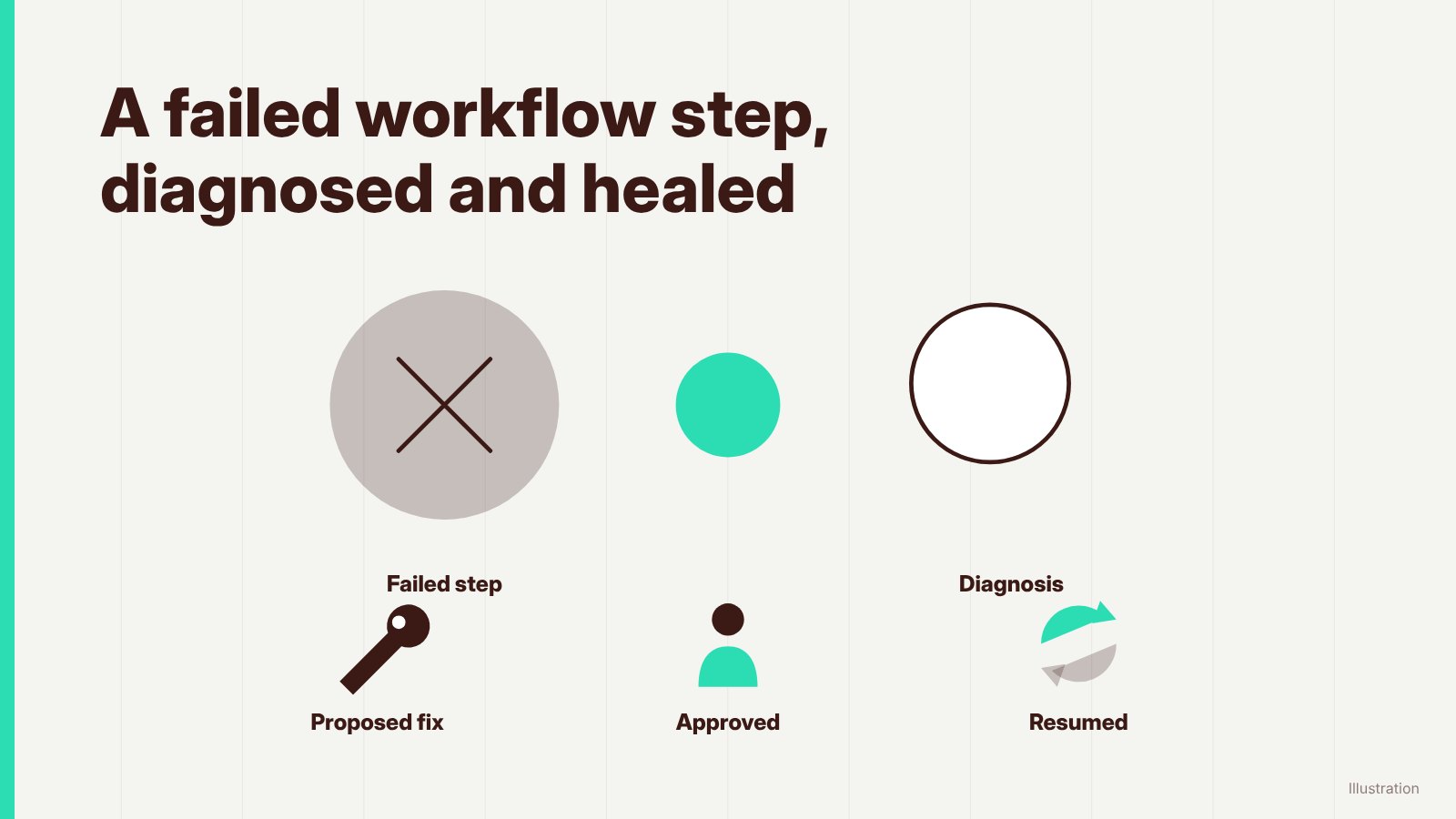
Saturday, 02:14. A VIP customer's payment fails. The workflow starts: it looks up the customer in Stripe, confirms the vip tag and reaches Manager approves retry. The billing lead is notified.
Saturday, 09:30. The billing lead approves the retry from her phone. The charge is retried and succeeds.
Saturday, 11:02. A non-VIP customer's payment fails. The run stops at the condition, as the test scenario showed it would, and the normal process handles it.
Sunday, 09:30. A day later, the workflow checks the invoice: paid. The run ends.
Sunday, 16:40. Another VIP payment fails. The retry is approved, but the charge fails again. The run ends where the failed-retry scenario said it would, and Priya finds it on Monday.
Monday, 09:00. Instead of going through every failed payment by hand, Priya reads three runs: two resolved, one needing a call to the customer. She's done by 09:20.
Monday, 10:00. She wants to add a step: e-mail the account manager when a VIP retry fails. She opens the workflow in the builder, adds it, runs the test scenarios again and switches the new version on.
How to tell it's working
- The draft's assumptions are corrected before anything runs.
- Test scenarios pass for the cases you care about, including the failure ones.
- Approvals happen where money moves, as the builder's safety changes require.
Do it in TicketResolve, step by step
Where: Workflows (/dashboard/workflows). You'll need: permission to manage automation, and the tools your process uses already connected under Integrations. Full guide: Describing a workflow to the AI builder.
Here's Priya's failed-payment process, from sentence to running workflow.
- Connect the tools first. Check that Stripe and your help desk show as connected under Integrations. The builder only drafts with connected actions, so anything missing will be listed rather than used.
- Open the builder. Go to Workflows → Describe a workflow.
- Describe the process in one or two sentences. Say what starts it, what should happen and who approves what: "When a VIP customer's payment fails, look them up in Stripe, ask a manager before retrying the charge, and check a day later that the invoice is paid." Don't worry about step names or API details.
- Read the draft from the top. You'll see each step with a one-line reason, then three panels:
- Assumptions: for example "VIP = Stripe customer tag vip". Correct anything that's wrong for your business.
- Tools you'd need: actions the AI wanted but you haven't connected.
- Changed for safety: for example "Approval added before Retry charge (moves money)".
- Run every test scenario. Click each one. They run as test runs, so nothing is charged, sent or changed. Check that the non-VIP scenario stops at the condition and that the failed-retry scenario ends where you expect.
- Open it in the builder and adjust. Choose Open in builder, fix the VIP tag, pick who approves (for example Billing lead), and save.
- Switch it on. Until you do, the draft never runs.
How to check it worked: the next real failed payment for a VIP customer shows a run waiting at Manager approves retry, and the approver is notified. A non-VIP failure shows a run that stopped at the condition.
Frequently asked questions
Can the AI switch a workflow on by itself? No. Drafts are always saved switched off. A person reviews and switches them on.
What if the AI forgets an approval? It doesn't need to remember. The risk policy adds an approval before every action that cancels, deletes, deploys or moves money.
Does the model see customer data? It sees your description with personal and payment details masked, plus the list of connected actions. It doesn't read your customers' records to draft a workflow.
Can I edit the draft? Yes. It opens in the normal builder like any other workflow, with the same validation.
Does the draft run before I switch it on? No. Until you switch it on, the draft never runs.
What if the AI wanted a tool I haven't connected? It's listed under Tools you'd need, rather than used.
Explore Topics
Written by
Ghulam Shabbir
Content creator and writer sharing insights and stories.