
Zendesk AI Copilot for Agents: Suggested Replies, Summaries and Actions in the Sidebar
Not ready for full automation? An AI copilot in the Zendesk sidebar drafts replies with sources, summarises tickets and runs procedures, with agents in control.
Full automation gets the headlines, but many support teams start somewhere else: giving their agents an AI assistant inside the help desk. It's lower risk, it helps on the tickets automation won't touch, and it builds the trust you need before letting AI answer customers on its own.
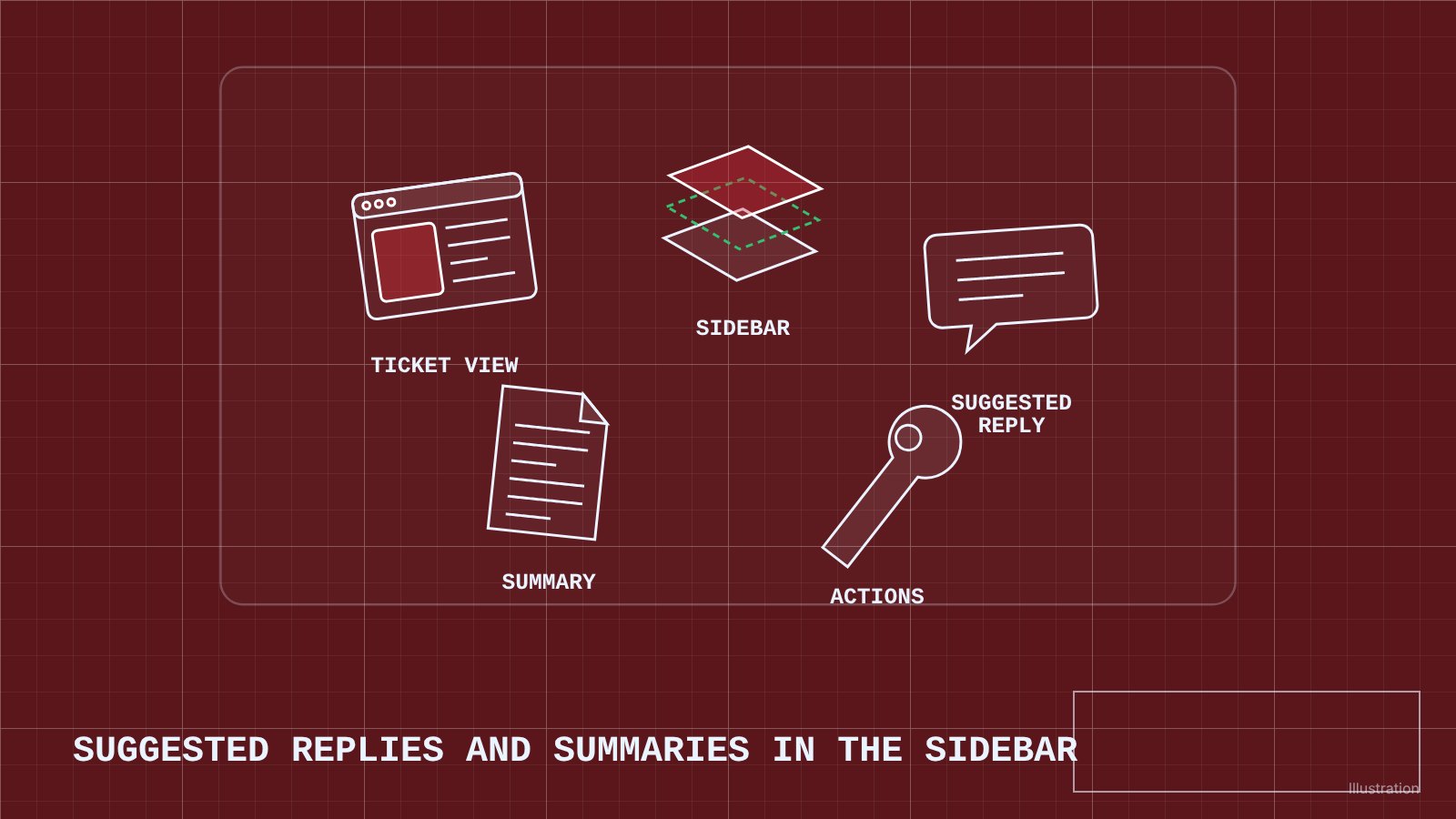
Short answer: a Zendesk AI copilot is a sidebar app that reads the open ticket and gives the agent a summary, the customer's sentiment, similar past tickets and a suggested reply grounded in your knowledge base and past answers, with sources. Good ones also translate, suggest a step-by-step resolution plan and fields, and can run approved actions. The agent always decides what is sent.
This guide covers what a copilot should do, how it differs from Zendesk's built-in features and from full automation, how to install one, and how to measure whether it's helping.
Copilot vs autonomous AI agent
| Copilot (agent assist) | Autonomous AI agent | |
|---|---|---|
| Who sends the reply | The agent | The AI, above a confidence threshold |
| Risk | Low: a person reviews every reply | Needs thresholds, review queues and tests |
| Best for | Complex, sensitive or new ticket types; new agents | High-volume repetitive questions |
| What it saves | Research and typing time per ticket | Whole tickets |
They aren't either/or. Most teams that automate well run both: the AI answers what it's confident about, and agents get copilot help on everything else — including the drafts the AI held for review.
What a good copilot should do
1. Summarise the ticket
A three-line summary of what the customer wants, what they've tried and what's blocking them. On long threads this alone saves minutes.
2. Show sentiment and similar past tickets
Knowing the customer is frustrated changes the tone of the reply. Seeing how your team solved the three most similar tickets is often faster than searching the help center.
3. Suggest a reply with sources
The draft should cite where each claim came from — a help article, a past resolution, product knowledge — so the agent can check it in seconds. A draft without sources forces the agent to verify everything from scratch, which defeats the purpose.
4. Plan and fields for unfamiliar tickets
A short resolution plan ("check X, ask for Y, escalate if Z") helps newer agents handle ticket types they haven't seen. Field suggestions — category, intent, urgency, language, tags — keep triage data clean.
5. Translate both ways
"Translate for me" turns the customer's message into the agent's language; "Translate" turns the reply into the customer's. Product names, codes and links should be kept as written, and nothing should be sent until the agent clicks.
6. Run approved actions
If you've automated actions like order lookups or address changes, the copilot should let an agent preview which procedure fits the ticket and run it — with write actions still waiting for approval if that's your rule.
7. Learn from what agents send
When an agent edits and sends a better reply, they should be able to mark it as learned, so the AI reuses it next time. Personal details should be removed, and if the ticket reopens, the learned reply should be forgotten.
How it fits with Zendesk
Zendesk has its own AI features, including Copilot as a paid add-on. A third-party copilot makes sense when you want answers grounded in sources Zendesk doesn't see — your product itself, multiple knowledge bases, other help desks — or when you're already using an AI layer for automation and want one source of truth for both. Check what's included in your Zendesk plan before buying anything; the right answer depends on your setup. Our comparison with Zendesk AI agents covers the differences factually.
Installing a copilot in Zendesk (example)
With TicketResolve, the Zendesk sidebar app installs as a private app:
- Download the app package from the Copilot page in the dashboard. It's built for your workspace.
- Upload it in Zendesk Admin Center → Apps and integrations → Zendesk Support apps → Upload private app.
- Paste the app key from Settings → API & connected apps. Zendesk stores it as a secure setting, so it never reaches agents' browsers.
Agents who work across several tools can use the browser extension instead; it shows the same suggestions next to tickets in Zendesk, Freshdesk, Intercom, HubSpot, Salesforce, Zoho Desk, ServiceNow and Jira. Details are in the Copilot guide.
A walkthrough: one ticket, with and without a copilot
Take a typical mid-complexity ticket: "We upgraded to the Team plan yesterday but two of our users still can't see the reporting tab. We've logged out and back in. Is this a bug?"
Without a copilot, the agent reads the thread, searches the help center for "reporting permissions", opens two articles, checks whether the plan change applied in the admin tool, searches past tickets for a similar case, writes a reply, and decides whether to escalate to engineering.
With a copilot, the sidebar already shows:
- Summary: customer upgraded yesterday; two users can't see Reporting; logout/login tried; asking if it's a bug.
- Sentiment: mildly frustrated.
- Similar past tickets: three resolved cases where Reporting needed a per-user role change after an upgrade.
- Plan: confirm the plan change applied → check the two users' role → if roles are correct and the tab is still missing, escalate as a bug with account ID and screenshots.
- Suggested reply explaining the role step, with the menu path and a link to the article — citing the article and one past resolution as sources.
The agent checks the sources, confirms the plan in the admin tool, tweaks one sentence and sends. The research steps collapse into a review step. And if the customer replies that roles were already correct, the plan already says what to do next.
Nothing in that flow is sent automatically — which is exactly why a copilot is a comfortable first step.
Copilot vs macros and triggers
Macros and triggers are still the right tool for fixed, predictable responses: "We've received your request", a standard refund policy, routing by form field. A copilot complements them:
- Macros are static text the agent picks. The copilot can suggest the matching macro for the open ticket, so agents don't have to remember 200 macro names.
- Triggers act on rules. The copilot acts on the content of the ticket — useful when the same request arrives in a hundred different wordings.
- Views and routing decide who gets the ticket; the copilot helps whoever got it.
Keep macro titles descriptive, because they're matched to tickets by their words.
Rolling it out
- Pick a pilot group of three to five agents, including one new hire and one of your most experienced agents.
- Agree the rules: the agent always reads the draft and checks its sources; nothing is sent unread.
- Run for two weeks and track acceptance (inserted as-is, edited, dismissed) per topic.
- Fix the content behind low acceptance. If agents keep rewriting drafts about one topic, the knowledge base usually disagrees with how they actually answer. Update the article, or let agents mark their better replies as learned.
- Expand to the whole team, then use the acceptance data to decide which topics are ready for automatic answers.
How to measure it
- Acceptance rate per agent and per topic (inserted or lightly edited vs dismissed).
- Handle time on copilot-assisted tickets vs before. See average handle time.
- Reopen rate on assisted replies — faster shouldn't mean worse. See reopen rate.
- New-agent ramp time: how long until a new hire reaches the team's average handle time.
- Quality score on assisted replies, if you score conversations.
Five more real-world scenarios
1. Agents who work in several tools
Situation. Some agents also handle Freshdesk and Jira tickets.
How TR handles it. The browser extension shows the same suggestions next to tickets in Zendesk, Freshdesk, Intercom, HubSpot, Salesforce, Zoho Desk, ServiceNow and Jira.
2. An order lookup
Situation. An agent needs the customer's order status.
How TR handles it. The copilot shows which procedure fits and lets the agent run it, with write actions still waiting for approval if that's your rule.
3. A better reply
Situation. An agent rewrites the suggestion and sends it.
How TR handles it. They can mark it as learned so it's reused, with personal details removed; if the ticket reopens, it's forgotten.
4. A held AI draft
Situation. The AI held a draft for review.
How TR handles it. Agents get copilot help on held drafts too: automation and copilot run side by side.
5. Security of the app key
Situation. IT worries about keys in agents' browsers.
How TR handles it. Zendesk stores the app key as a secure setting, so it never reaches agents' browsers.
Do it in TicketResolve, step by step
Where: Copilot (/dashboard/copilot) and Settings → API & connected apps. You'll need: a Zendesk admin to upload a private app. Full guides: Copilot, Agent assist and Procedures.
- Download the Zendesk app (.zip) from Dashboard → Copilot; it's built for your workspace.
- Upload it in Zendesk Admin Center → Apps and integrations → Zendesk Support apps → Upload private app.
- Paste the Copilot app key from Settings → API & connected apps.
- Open a ticket and check the summary, sentiment, similar tickets and suggested reply with sources.
- Try translation on a non-English ticket.
- Run a procedure from the sidebar on a test ticket.
- Mark a good edited reply as learned.
How to check it worked: the sidebar shows a suggested reply with its sources on an open ticket, and nothing is sent until the agent sends it.
Pitfalls
- Treating the draft as the answer. Agents must still check it, especially numbers, dates and prices in translated replies.
- No sources. If a copilot can't show where a claim came from, agents can't trust it quickly.
- Measuring only speed. Watch reopens and CSAT alongside handle time.
- Ignoring dismissed drafts. They're the best signal of where your knowledge is wrong.
Checklist for choosing a Zendesk copilot
- Does every suggested reply show its sources?
- Does it use your help center, past resolutions and product knowledge?
- Summaries, sentiment and similar tickets?
- Two-way translation that keeps product names and codes intact?
- Can agents run procedures or actions, with your approval rules?
- Can agents mark replies as learned, and are they forgotten on reopen?
- Is the app key stored securely, not in the agent's browser?
- Acceptance reporting per agent and topic?
Frequently asked questions
Is an AI copilot safe to use with customers? Yes, because a person reviews and sends every reply. The main risk is agents trusting drafts without checking — sources make checking fast.
Does it replace Zendesk macros? No. A good copilot suggests matching macros alongside drafted replies; keep your macro titles descriptive so they match well.
Can we use a copilot and automatic answers together? Yes. Most teams automate high-confidence tickets and use the copilot for the rest, including drafts held for review.
What languages does it support? Suggested replies can be translated into the customer's language from the sidebar; product names, codes and links are kept as written.
Where do I get the app package? Dashboard → Copilot → "Download Zendesk app (.zip)".
Does the copilot send replies itself? No. The agent always decides what is sent.
Can it run actions? Yes, approved procedures, with write actions still waiting for approval if that's your rule.
Is a copilot the same as an autonomous AI agent? No. A copilot helps the agent, who sends the reply; an autonomous agent sends replies itself above a confidence threshold. Most teams run both.
Can agents use it outside Zendesk? Yes, the browser extension works next to tickets in Freshdesk, Intercom, HubSpot, Salesforce, Zoho Desk, ServiceNow and Jira too.
Related: Zendesk AI integration guide, improve support team productivity with AI, Zendesk integration and agent assist (User Guide).
Explore Topics
Written by
Ghulam Shabbir
Content creator and writer sharing insights and stories.