
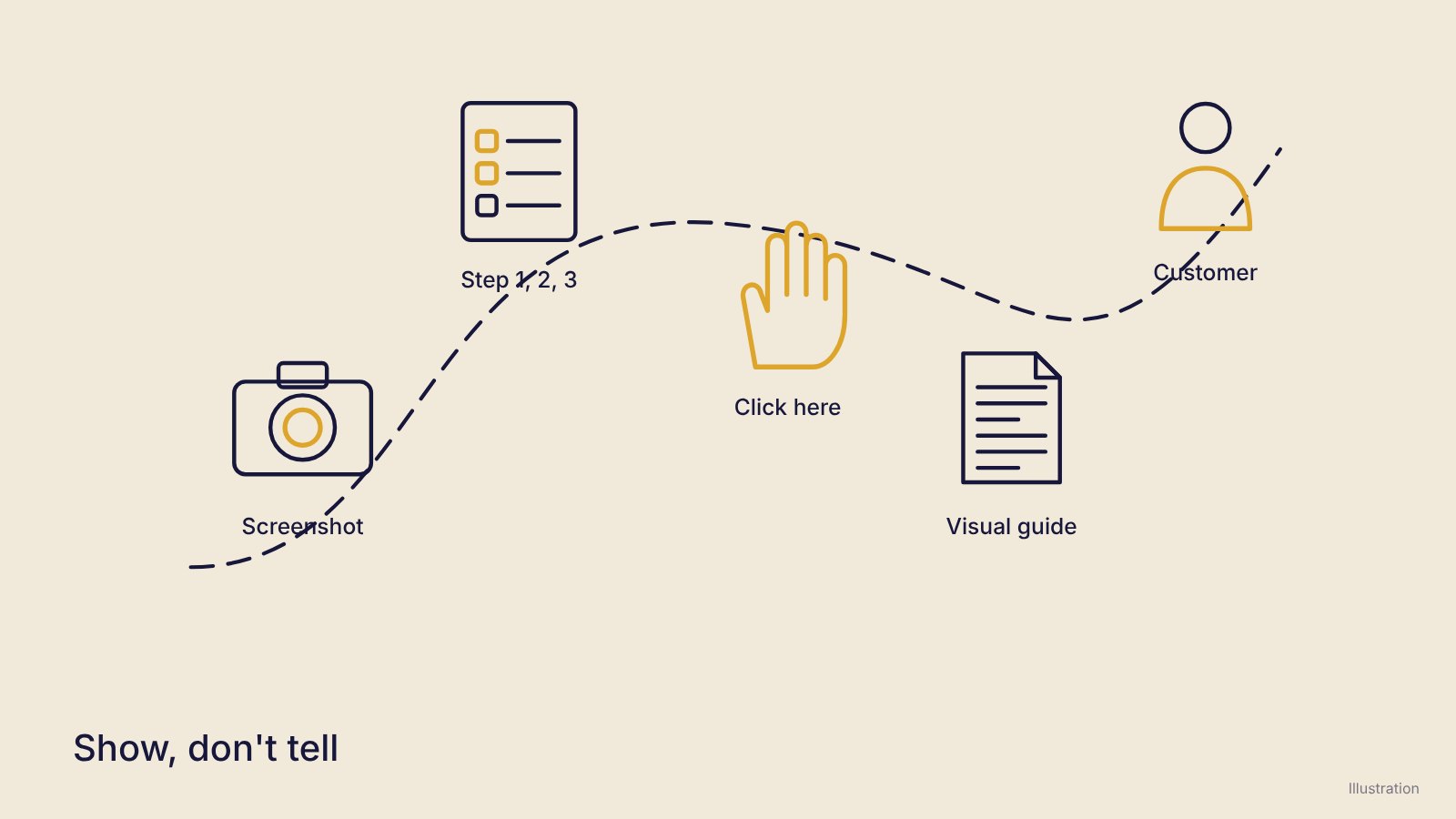
Show, Don’t Tell: Visual Step-by-Step Guides in Support Answers
“Click Settings, then Workspace, then Members…” is hard to follow in text. Support answers can link to a guide that shows each step on a real screenshot of your product with the exact button highlighted, personal data hidden, and screenshots refreshed every time TR-AI re-learns the product. With an illustrative how-to, start to finish.
"How do I add someone to my workspace?" The text answer is accurate: Go to Settings → Workspace → Members, click Invite, enter their email and choose a role. Half of customers still get lost, because their screen doesn't look the way they pictured it, the menu is collapsed, or the button sits somewhere unexpected.
Screenshots fix that. Making them by hand doesn't scale, though, and they go out of date with every release. This post covers how support answers can come with visual guides that stay current.
Here's how text-only how-tos create second tickets at a company that sells an appointment-booking app to hair salons:
- Monday: a salon owner asks how to add a new stylist. The answer gives the menu path.
- Monday afternoon: "I don't see Members anywhere." On her tablet, the menu is collapsed behind an icon.
- Tuesday: the agent sends a screenshot taken last year. The page has been redesigned since.
- Tuesday afternoon: "Mine doesn't look like that." A third reply, a video call, twenty minutes.
- Across the month: the same "can't find it" pattern shows up in dozens of how-to tickets.
Every answer was correct. Customers just couldn't map the words to their own screen, and the only screenshots anyone had were out of date.
First, the basics
- A visual guide shows each step of a how-to on a real screenshot of the product.
- A highlight marks the exact button, link, menu item or field to use.
- Product learning (domain learning) is TR-AI exploring your product in a test account to learn how it works.
- A learned workflow is a how-to TR-AI discovered during product learning.
- A signed link is a link that can't be guessed or altered and that expires.
- Masking hides typed values, emails and phone numbers before a screenshot is kept.
Why does this matter? Most "I can't find that button" tickets aren't about knowledge; they're about orientation. A picture with the right button highlighted answers the question the text can't, and guides that refresh themselves stop going stale after every release.
The problem, in plain terms
Why text-only how-to answers fail
- People scan screens visually. They look for a shape and a position, not a word.
- UI labels in documentation drift from the real product.
- Non-native speakers and new users struggle to map words to buttons.
- Every "I can't find that button" reply is a second ticket.
What a good visual guide looks like
- One step per screenshot, of the real screen.
- The exact button or field highlighted.
- Personal data hidden: no real emails, names or typed values in the images.
- A link, not attachments, so it works in every channel, from email to SMS.
- Current. When the product changes, the guide changes.
Where the screenshots come from
Making screenshots manually for every how-to doesn't scale. The practical source is the product itself. If your support AI has learned your product by exploring it in a test account (see training AI on your actual product), it already has a picture of every screen, and knows where each button, menu and field is. The same learning run that teaches it how to do something can capture what it looks like.
When the product changes, the next learning run updates the screenshots and spots renamed or moved buttons. See keeping AI answers up to date after every release.
How TR-AI's visual guides work
Visual step-by-step guides are on every plan:
- While TR-AI learns your product, it keeps one screenshot of each type of screen and the position of every button, link, menu item and field.
- When an answer comes from a learned workflow, the reply can end with "Step-by-step guide with screenshots: <link>". The guide shows each step on the real screen with the exact button or field highlighted.
- It works in every channel (email, help desks, chat, SMS) because the reply carries a link.
- Typed values, emails and phone numbers are hidden before each screenshot. Screenshots are encrypted at rest.
- Links are signed and expire after 90 days, and turning guides off stops every link at once. Replies held for review show the link too, so your team can check it first.
Settings are in Product knowledge (/dashboard/product-knowledge).
A worked example, start to finish
Here's the salon-booking app with visual guides. The names are illustrative.
Day 1. Learn the product. Kofi, the support lead, runs product learning from Product knowledge, using a test salon account. TR-AI explores the app, learns workflows such as "add a stylist", "change opening hours" and "set up a deposit", and keeps a screenshot of each type of screen with every button's position. Typed values and emails in the test account are hidden before each screenshot.
Day 1. Preview. Under Visual step-by-step guides, Kofi opens a preview link for "add a stylist" (preview links work for 24 hours, even while guides are off). Four steps, each on the real screen:
- Settings highlighted in the sidebar.
- Team highlighted on the settings page.
- Invite stylist highlighted.
- The email and role fields highlighted on the invite form.
On a tablet-sized screen, the first step highlights the collapsed menu icon.
Day 1. Turn it on. Kofi switches on "Add visual guide links to answers". For the first week, he keeps how-to answers in review so the team sees the links before customers do.
Day 3. A real question. A salon owner asks: "How do I add a new stylist?" The answer gives the steps in text and ends with "Step-by-step guide with screenshots: <link>". An agent checks the link in the review queue and approves.
Day 3, ten minutes later. The owner replies: "Perfect, done." No second ticket.
Month 2. A redesign. The product team moves "Team" into a new "People" section. Kofi runs product learning again after the release. The screenshots update, and the renamed section is flagged so articles that mention "Team" can be fixed too.
What changed: "I can't find it" tickets on how-to topics drop, agents stop hunting for old screenshots, and the guides follow the product instead of lagging behind it.
Five more real-world scenarios
1. An SMS customer
Situation. A customer asks by text message.
How TR handles it. The reply carries a link, so the guide works in SMS like any other channel.
2. A guide you'd rather check
Situation. You're not sure a guide is right yet.
How TR handles it. Replies held for review show the link, so your team checks it before customers see it.
3. Turning it off
Situation. You need to stop all guides quickly.
How TR handles it. Turning guides off stops every link at once.
4. An old link
Situation. A customer opens a guide link from four months ago.
How TR handles it. Links expire after 90 days.
5. A run from before the feature
Situation. Your last product learning finished before visual guides existed.
How TR handles it. Run it once more so screenshots are taken.
Before and after
Before. A correct menu path, a collapsed menu, a year-old screenshot, a twenty-minute call, and the same pattern across dozens of tickets.
After. The same steps with a link to real screenshots and highlighted buttons, a "done" ten minutes later, and screenshots that update when the product changes.
How to tell it's working
- Fewer follow-up tickets on how-to topics.
- Agents stop sending manual screenshots.
- Guides refresh after each product learning run.
- No personal data appears in screenshots.
Who it's for
- Products with menus that change or collapse on small screens.
- Customers who are new or writing in a second language.
- Support teams tired of maintaining screenshots.
How it fits with the rest of TicketResolve
Visual guides come from product domain learning. Product change watch flags articles affected by releases, and KB health shows gaps. Answers with guides go through the same confidence and review rules as any other answer.
Do screenshots in support answers reduce follow-up tickets?
They help people who get lost following text instructions, which is one of the common reasons a how-to answer leads to a second ticket. They don't replace good written steps; they sit alongside them for people who need to see where to click.
Why a link and not attached images
Attachments are blocked, resized or stripped by some channels, and they can't be withdrawn once sent. A link works everywhere, can expire, and can be switched off for everyone at once. It also means the guide a customer opens is always the version TR-AI has now, not a copy frozen in an old email.
Using a good test account
Screenshots are only as good as the account they're taken in. Use a test account that looks like a typical customer's: a realistic number of items, the common settings turned on, no half-finished experiments. Avoid real customer data entirely; typed values are hidden anyway, but a clean test account makes guides clearer. If you sell several plans with different screens, a test account on your most common plan usually covers most questions.
Mistakes to avoid
- Hand-made screenshots that go stale.
- Screenshots from a real customer account.
- Forgetting to re-run product learning after a redesign.
- Skipping the preview before turning guides on.
Do it in TicketResolve, step by step
Where: Product knowledge (/dashboard/product-knowledge). You'll need: a test account for product learning. Full guides: Visual step-by-step guides, Learning your product (domain learning) and Articles affected by product changes.
- Run product learning in Product knowledge with a test account.
- Open a preview link under Visual step-by-step guides.
- Check each step shows the real screen with the right button highlighted.
- Switch on "Add visual guide links to answers".
- Keep how-to answers in review for the first week if you want to check links.
- Re-run product learning after releases that change screens.
How to check it worked: answers from learned workflows end with a guide link, and the guide shows each step with the exact button highlighted.
Frequently asked questions
What is a visual step-by-step guide? A how-to guide that shows each step on a real screenshot of the product, with the exact button or field highlighted, linked from a support answer.
Do screenshots in support answers reduce follow-up tickets? They help people who get lost following text instructions, which is one of the common reasons a how-to answer leads to a second ticket.
How do you keep screenshots up to date? Capture them from the live product automatically during product learning, so each new learning run refreshes them and flags screens that changed.
Are customer details visible in the screenshots? They shouldn't be. Typed values, emails and phone numbers should be hidden before screenshots are taken, and screenshots should come from a test account.
Which plans include visual guides? Every plan.
Which channels work? Email, help desks, chat and SMS, because the reply carries a link.
How long do links last? 90 days; preview links last 24 hours.
Are screenshots encrypted? Yes, at rest.
Can I stop all links at once? Yes, by turning guides off.
Explore Topics
Written by
Ghulam Shabbir
Content creator and writer sharing insights and stories.