
When a Bug Only Happens on the Customer’s Side, TicketResolve Now Asks to See It
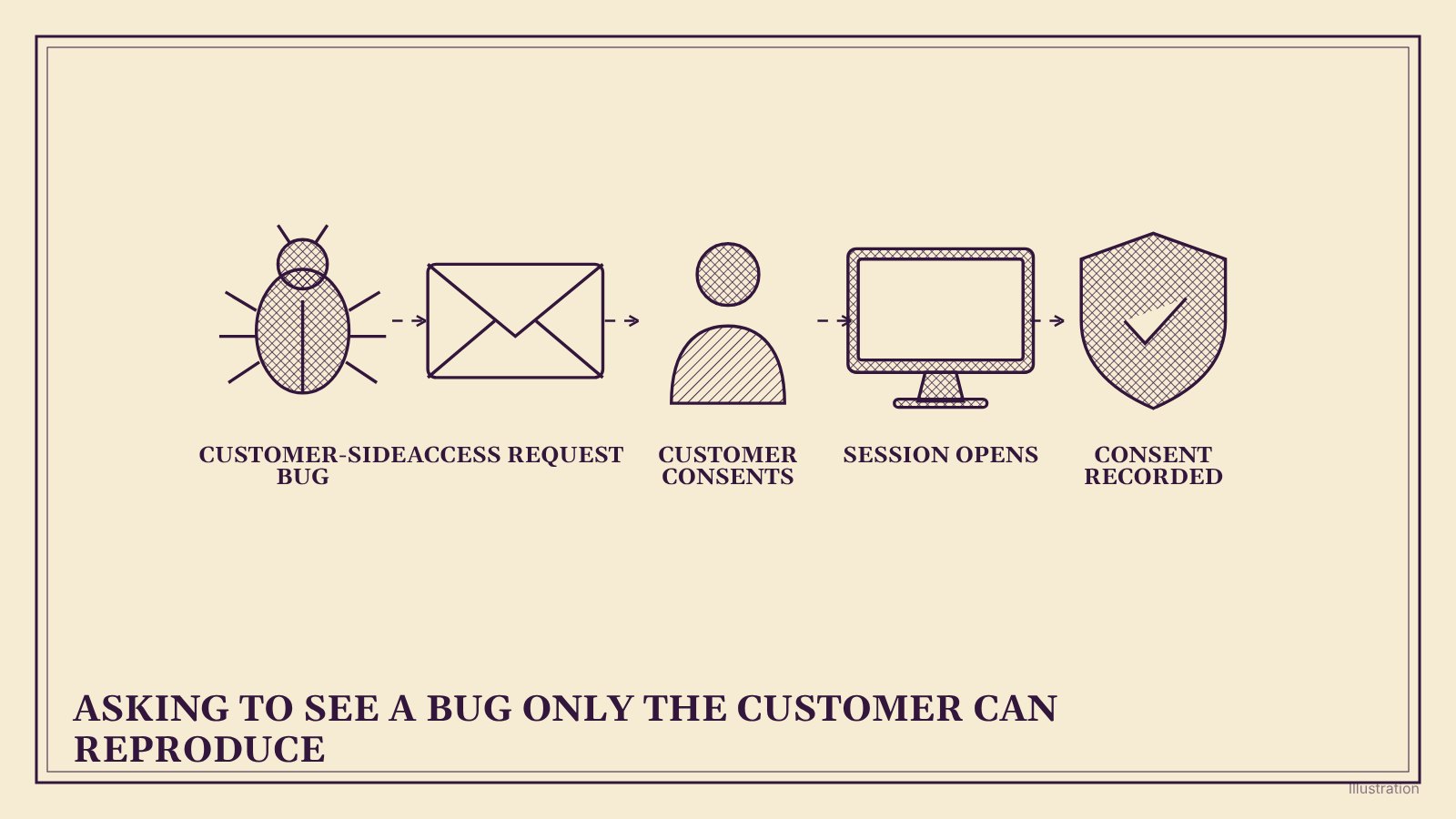
If TicketResolve can’t reproduce a reported bug in your test environment, it now prepares a TR Connect request by itself: why it needs the customer’s environment, what it already tried, and view-only permissions the customer grants item by item.
“Works on our side” is where many bug tickets stall. The steps look clear, the test environment behaves, and the customer still sees the error. The usual next move is a support engineer asking for screenshots, a browser version and a screen-share, one message at a time.
Each of those messages costs a day. The customer is busy, answers the first question, misses the second, and sends a screenshot of the wrong page. A week later the ticket has twelve messages, and nobody has seen the actual failure.
This release lets TicketResolve take that step itself, with the customer in control of every permission. This post covers when it happens, what the customer sees, what they can and can't be asked for, how your team controls it, and what happens when the customer says no.
A few terms used in this post:
- Reproduction Lab: TicketResolve’s own attempt to follow a reported bug’s steps in your test environment.
- TR Connect: the consent-based way a customer gives TicketResolve diagnostic access to their environment for one ticket.
- Permission level: L1 view-only, L2 guided interaction, L3 advanced diagnostics. Each item the customer allows has one.
- Session: one TR Connect request for one ticket, with its own link, its own permissions, its own time limits and its own audit timeline.
Why bugs that only happen on one side are so expensive
When a bug reproduces in your test environment, the path is short: someone sees it, the logs show it, an engineer fixes it. When it doesn't, the cost isn't the bug itself. It's the uncertainty.
The problem could be in the customer's browser, an extension that rewrites the page, a proxy that strips a header, a user role that's missing one permission, an older application version, a single sign-on setup nobody else uses, or a real defect that only shows up with their data. Each of those needs different evidence, and support usually has to guess which to ask for first.
The common result is one of three outcomes, none of them good:
- The ticket goes to engineering anyway, where an engineer spends hours trying to reproduce something that doesn't happen for them.
- The ticket is closed as "can't reproduce" and the customer keeps the problem.
- A long back-and-forth slowly gathers the evidence, and by the time it's complete the customer has found a workaround and stopped caring.
TR Connect already gave teams a better tool: a single link that asks the customer for exactly the diagnostics needed, item by item, with clear limits. This release removes the step where someone had to notice that a link was needed and prepare it.
What happens now
When the Reproduction Lab can’t reproduce a reported bug, or can’t complete the steps, TicketResolve looks at what it already tried:
- the knowledge sources it searched;
- the internal reproduction attempt, step by step;
- your connected logs and monitoring for the time and account in question.
It also looks at what the ticket says. Does the customer say it happens only on their side? Do they name a browser or device? Is their sign-in, network or integration setup involved? Do your logs show nothing that explains the error?
If the customer’s environment is likely to explain the problem, TicketResolve prepares a TR Connect request. The Connect page shows it under Recommended by TicketResolve, with:
- why — for example, the steps worked in the test environment and the customer reports it only in one browser;
- what was tried — the sources, the reproduction steps and their results, the logs checked;
- what would be asked for — each item with its permission level;
- the invitation the customer would receive, word for word.
What it asks for, and what it never asks for
An automatic request asks only for view-only items and browser errors:
- L1, view-only: environment details (browser, operating system, application version), a live view of one window the customer chooses to share, and a screenshot they pick.
- L3, browser errors: the errors their browser records on the page. This is a separate tick, so the customer can share view-only items and leave this one off.
It never asks for interaction by itself. L2, guided interaction — "Run reproduction steps", where steps are carried out in the customer's environment — can only be requested by a person, deliberately, for a specific session. An automatic system asking a customer to let it act inside their product is a step too far, so it doesn't.
The invitation says why
The message posted on the ticket is written for the customer, not for your engineers. It names the reported problem and the reason TicketResolve needs to look — for example, that the steps worked in its test environment and the problem may depend on the customer’s browser. It then lists:
- each permission with its level and what it collects;
- how long the link is valid, and how long access lasts once approved;
- how to end access at any time.
The secure link exists only in that message. It isn't stored anywhere else your team can copy it from, and it isn't shown again. If your help desk refuses the message — a closed ticket, a channel that doesn't accept links — the session is withdrawn and the card on the Connect page says Not delivered. A link nobody received can't be used.
Your admins decide how far it goes
Automatic requests have three settings, on the Connect page, for admins:
- Off — TicketResolve never prepares requests by itself. People can still request access manually.
- Recommend (the default) — TicketResolve prepares the request and shows it on the Connect page. A person reads it and sends the invitation with one click, or dismisses it.
- Send — TicketResolve posts the invitation on the ticket itself, through your help desk.
Most teams should start with Recommend. It shows you what TicketResolve would ask, why and how often, before you let it ask on its own. Once the recommendations consistently look like what your best support engineer would have sent, Send saves that engineer the click and the delay.
The customer stays in control
The authorization page — what the customer sees behind the link — is built around one rule: nothing happens until they say so, and they can stop it at any time.
The page shows who asked, the reported issue, and each item with what it collects and what it never collects, and its permission level. Only view-only items are ticked to begin with. The customer can untick anything, allow some items and not others, or decline with a reason. A link can be answered once.
Opening the link grants nothing. A customer who clicks it out of curiosity and closes the tab has given no access.
Once they approve, access is limited in time and scope:
- Access ends when the access window closes, when the customer ends it from their page, or when your team chooses End access.
- Every connector checks the session before it collects anything: approved, not expired, and that item allowed. A refused attempt is recorded.
- Evidence collected under a session is deleted when its retention period ends, and the deletion is recorded.
- The session’s timeline is sealed with the other audit trails, so you can show later exactly what was asked, granted and collected.
When the customer says no
If they decline, the link expires, or they end access, the investigation keeps everything it has. Nothing is lost, and nobody is penalised for privacy.
The customer is offered another way to help: a screenshot, their browser and version, the steps they take, or the console errors. Many customers are happy to send a screenshot even when they would rather not grant a live session. That choice is theirs.
TicketResolve doesn’t keep asking
An automatic system that asks for access can easily become an automatic system that nags. So requests are limited:
- none while a session is already open for the ticket;
- none within 72 hours of an earlier invitation;
- none for 14 days after a decline;
- at most two per ticket.
These limits apply to automatic requests. A person can still decide to ask again, and that decision is theirs and recorded as theirs.
A worked example, start to finish
This is an illustrative example.
A customer of a project-management product writes: "When I try to export my board to PDF, the button spins forever. My colleague in the same company says it works for her. I'm on Firefox."
Step 1 — the Reproduction Lab tries. TicketResolve follows the steps in the test environment: open a board, choose Export, choose PDF. The PDF downloads in a few seconds. The reproduction finishes as Not reproduced.
Step 2 — TicketResolve looks at what it has. Your connected logs show the customer's export request arriving and succeeding on the server side. No errors are recorded for their account. The ticket says it happens only for them, a colleague doesn't have it, and it names a browser. Everything points to the customer's side.
Step 3 — the request is prepared. Under Recommended by TicketResolve, the Connect page shows: "Couldn't reproduce in the test environment; the customer reports it in Firefox only, and server logs show the export succeeding. Asking for environment details, a screenshot, and browser errors." The invitation text is shown underneath.
Step 4 — a person sends it. The workspace is on Recommend. A support agent reads the card, agrees, and clicks Send. The invitation is posted on the ticket.
Step 5 — the customer decides. They open the link, read what each item collects, keep environment details and browser errors ticked, leave the screenshot off, and approve.
Step 6 — evidence arrives. The browser errors show the download being blocked by a content-security rule from a browser extension. Environment details show a Firefox version with that extension active.
Step 7 — access ends, and the answer goes back. The question is answered, access ends, and the evidence is added to the investigation as customer-reported. The agent replies with a short explanation and asks the customer to try the export with the extension paused. It works.
Nobody asked the customer five separate questions. Nobody filed an engineering ticket for a bug that wasn't in the product.
More real-world scenarios
These are illustrative.
A single sign-on problem. A customer says sign-in loops back to the login page, only for users in one office. The Reproduction Lab signs in fine with the test account. The ticket mentions their identity provider, so the request asks for environment details and browser errors. The errors show a cookie blocked by a policy on their managed browsers.
An integration that fails silently. A customer's data sync stops with no error on your side. The ticket mentions their own server setup. TicketResolve recommends a request; an engineer adds application logs to it manually, because logs from the customer's systems need the Connect agent, which a person should explain.
A mobile-only complaint. A customer reports a layout problem on a tablet. The request asks for a screenshot and environment details. The customer uploads a screenshot showing an old app version, and the fix is an update.
A customer who declines. A customer in a regulated industry declines any remote access. TicketResolve records the decline, won't ask again for 14 days, and the customer is offered the alternatives. They send their browser version and a screenshot, which turn out to be enough.
A ticket that was never going to need it. A customer reports an error that the Reproduction Lab reproduces on the first try. No request is prepared, because the problem is clearly on your side. The investigation goes straight to engineering.
Set it up, step by step
- Open Connect (TR Investigate). Check which connectors are available for your workspace.
- Choose the automatic request setting. Start with Recommend.
- Review the first few recommendations. For each one, read the reason and what was tried. If it would have been your choice too, send it. If not, dismiss it — your decision is recorded.
- Read the invitation as a customer would. It should make sense to someone who has never heard of TR Connect.
- Watch outcomes in Connect Health. It shows how often customers consent, how often a session connects and collects evidence, and how many investigations were resolved after a session.
- Move to Send when you trust it. The limits on repeated requests still apply.
Frequently asked questions
Does TicketResolve ever get control of the customer's computer? No. Automatic requests ask only for view-only items and browser errors. Interaction (L2) can only be requested by a person, and even then the customer must allow it explicitly.
What if the customer approves by mistake? They can end access from their page at any time, and your team can end it too. Evidence follows the retention period set for the session, and its deletion is recorded.
Can my team see the secure link? No. It exists only in the message posted to the customer. If that message isn't delivered, the session is withdrawn.
How often will customers be asked? At most twice per ticket, never while a session is open, never within 72 hours of an earlier invitation, and never for 14 days after a decline.
Is the evidence treated as proof? No. Everything collected through a session is marked customer-reported in the investigation, so it never counts as confirmed on its own.
What has happened since
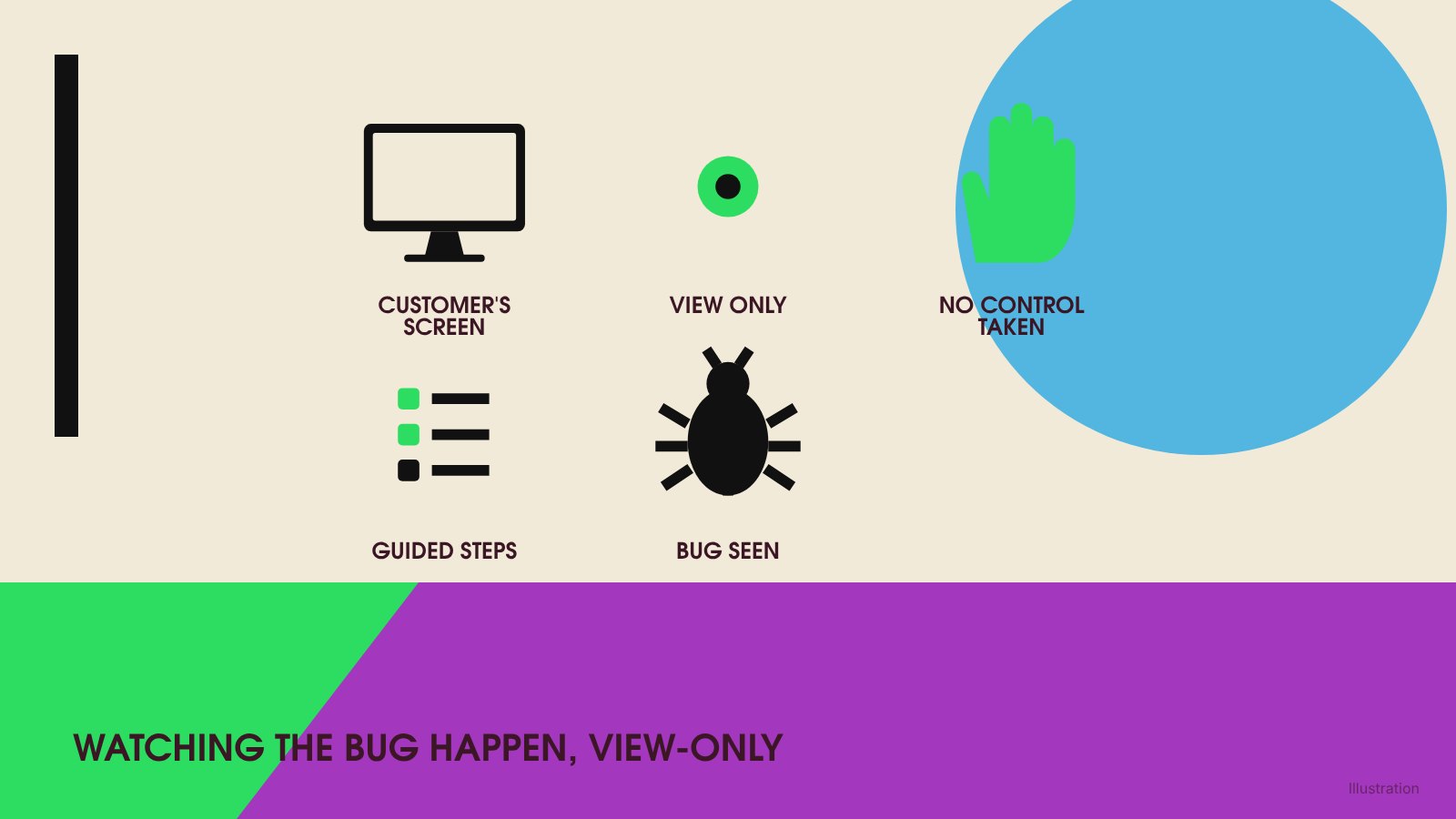
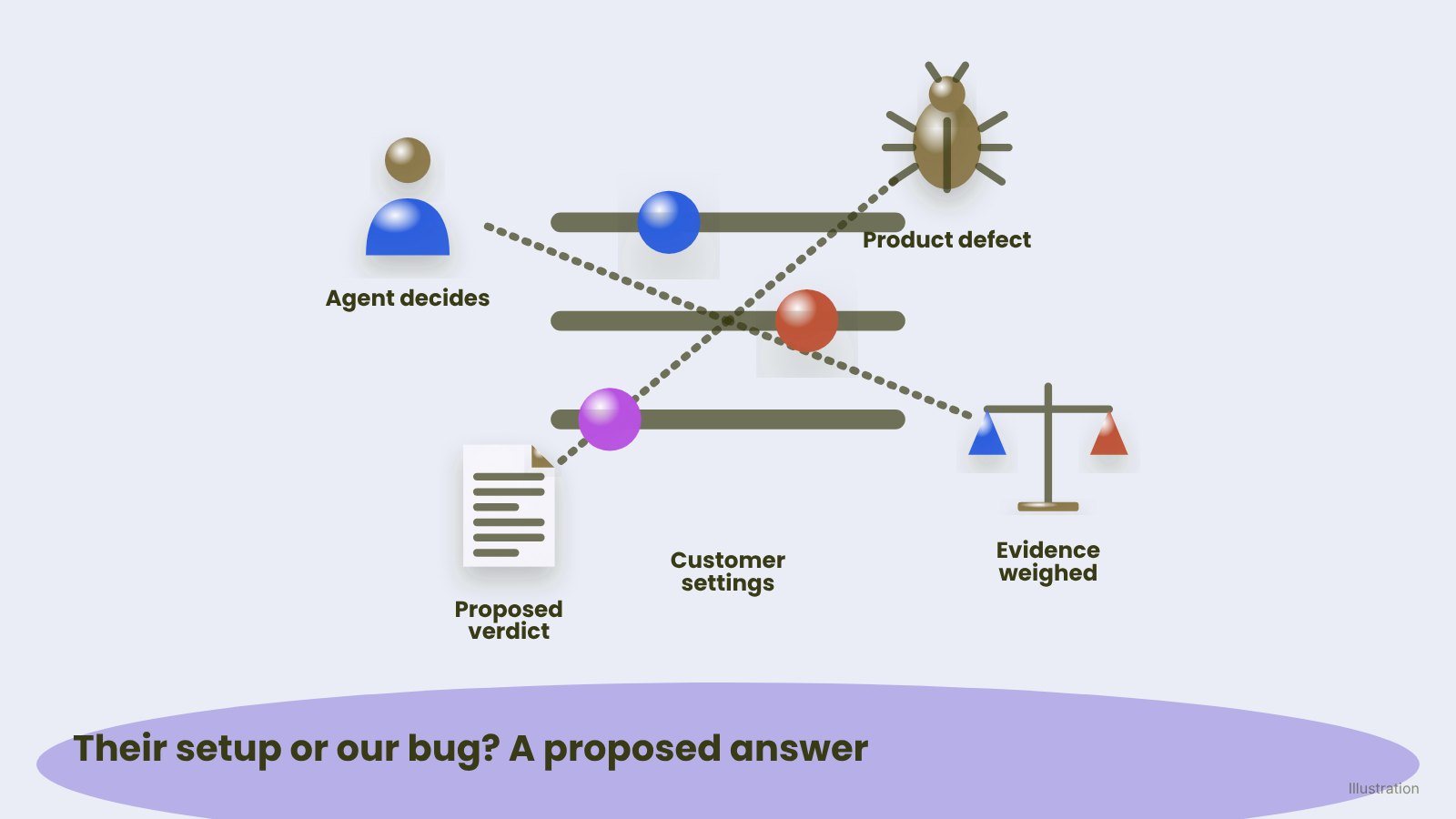
When this post was published, live view-only observation and guided steps for the customer were planned. Both have since shipped: see See the Bug Where It Happens and Live View That Knows When It Can’t Work. Telling a configuration problem from a product defect has shipped too, in Is It Their Setup or Our Bug?.
The short version
- When the Reproduction Lab can’t reproduce a bug and the customer's side is the likely explanation, TicketResolve prepares a TR Connect request: why, what was tried, what it asks for.
- It asks only for view-only items and browser errors, each a separate tick. Never interaction.
- Admins choose Off, Recommend (the default) or Send.
- The customer approves item by item, can end access any time, and is offered alternatives if they decline.
- No nagging: at most twice per ticket, with 72-hour and 14-day gaps.
Explore Topics
Written by
Ghulam Shabbir
Content creator and writer sharing insights and stories.