
Test Studio Desktop: Record and Run Tests on Your Own Computer, Share Only the Results
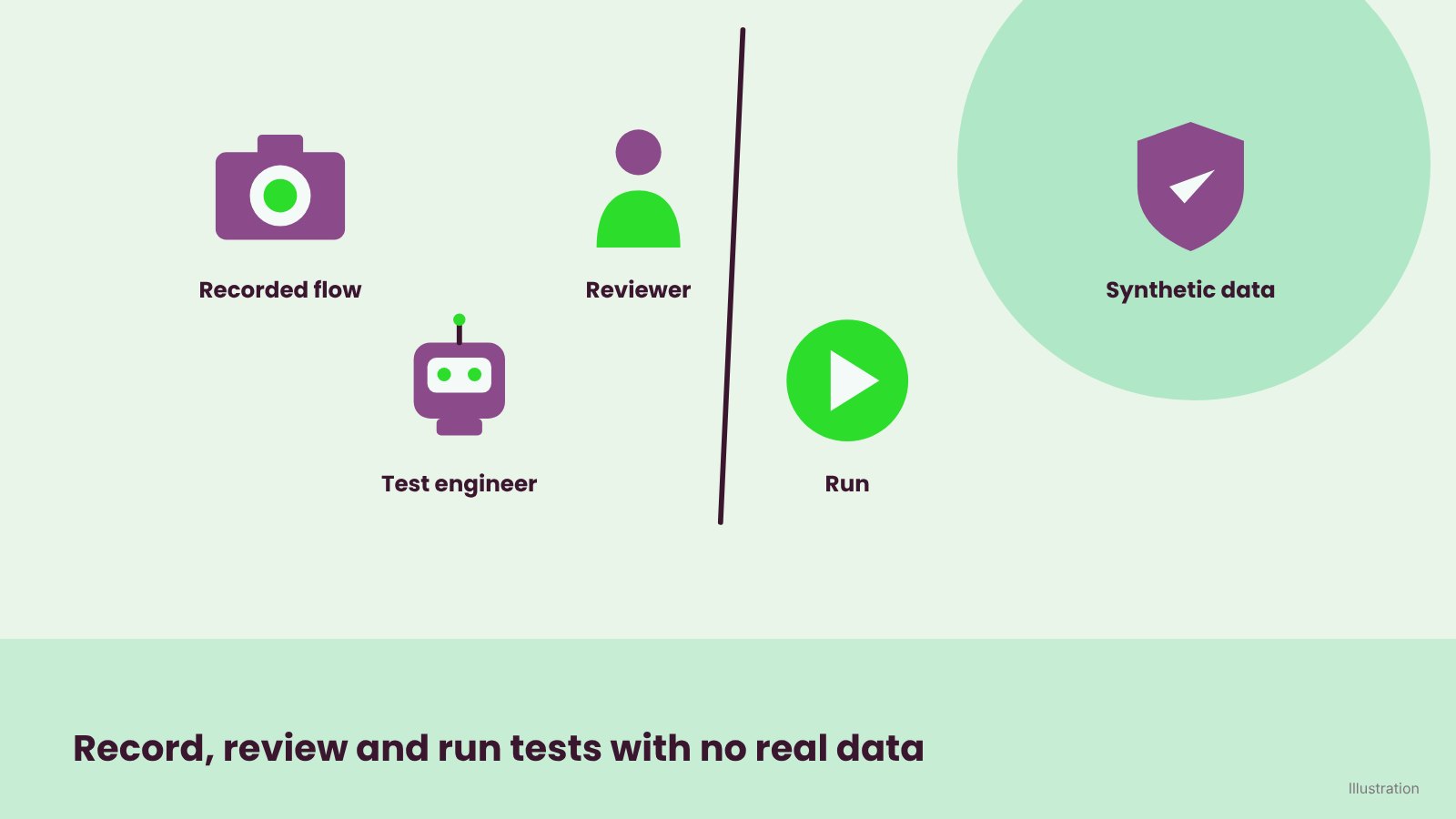
TicketResolve’s AI Software Test Engineer now records and runs browser tests in a desktop app for Mac and Windows. Recordings, screenshots, traces, videos and test passwords stay on the tester’s computer; masked test steps, run results and reports sync to TicketResolve for review, plans, coverage and defects. What changed, why, and how to use it, with an illustrative team, five scenarios and a step-by-step guide.
Testing a web application means handling things nobody wants copied around: test passwords, screenshots of half-filled forms, videos of a staging environment with somebody's name on it. The fewer places that evidence lives, the easier it is to look after.
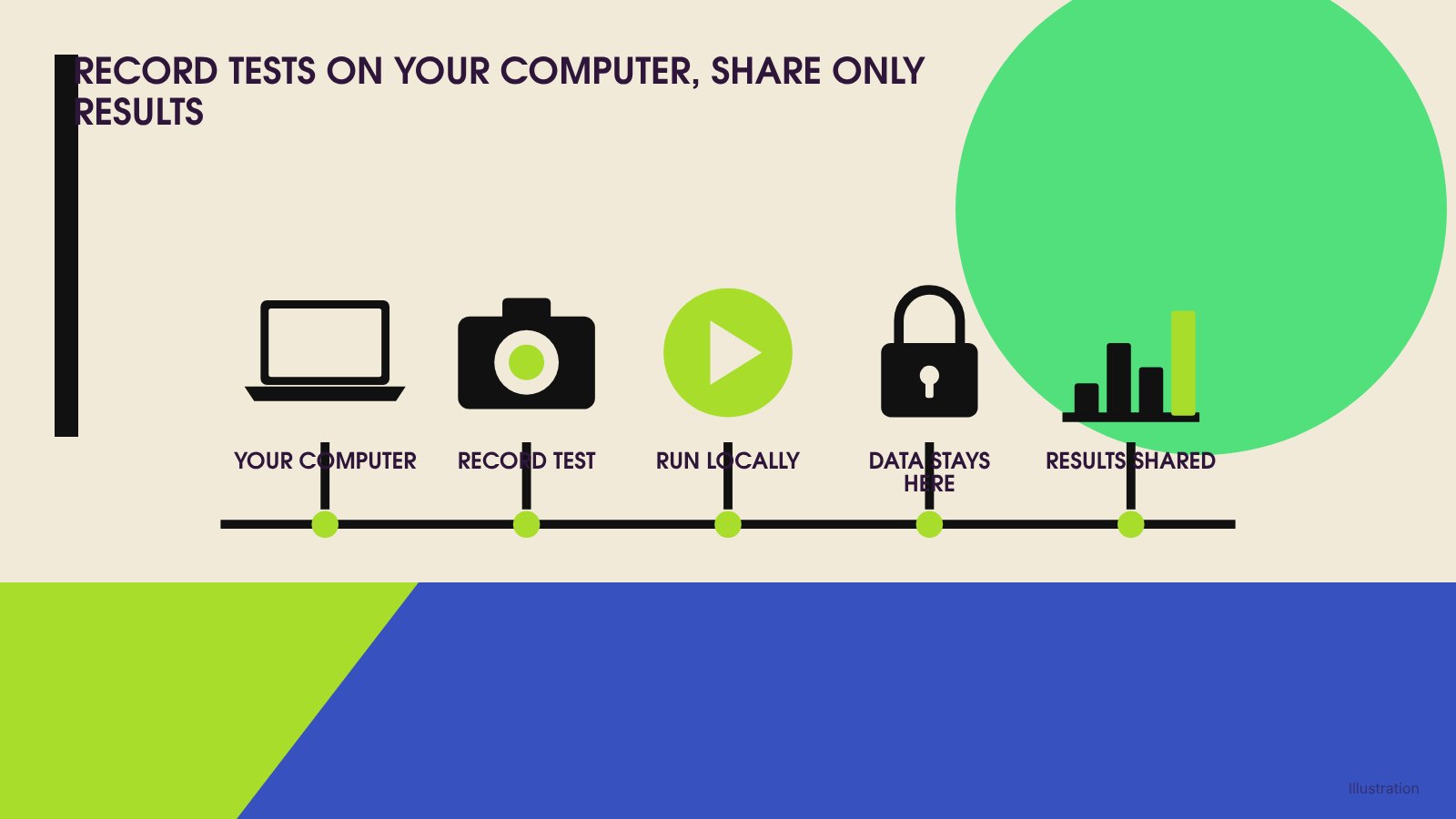
That's the idea behind Test Studio Desktop, the new way to record and run tests in TicketResolve's AI Software Test Engineer. It's an app for Mac and Windows. It records journeys and runs approved tests in the Chrome or Edge already on the tester's computer, and it keeps the heavy, sensitive evidence there. TicketResolve gets what the team actually shares: the test's steps with sensitive values masked, run results, failure analysis and reports. This post explains what changed, what stays where, and how to go from installing the app to a plan signed off for release.
Here's the situation at an illustrative company that builds booking software for gyms and studios:
- The team: three testers, a QA lead and eight developers, shipping every two weeks.
- The worry: test runs produce screenshots and videos of the staging site, and staging is seeded with copies of real class schedules. The security lead doesn't want those in another cloud service.
- The friction: the earlier setup needed a browser extension on each tester's machine and a separate test agent running somewhere. Two things to install, pair and keep updated.
- The ask: "Let testers record and run tests on their own laptops, and give me one place to see what passed, what failed and what's covered."
Test Studio Desktop is built for that ask.
First, the basics
A few terms used in this post:
- Test Studio is the part of TicketResolve where test cases, versions, reviews, plans, coverage and defects live. It's in Engineering Intelligence.
- Test Studio Desktop is the app for macOS and Windows that records journeys and runs tests on the computer it's installed on.
- A recording is the raw list of what a tester did in the browser: pages, clicks, typing, choices, checkpoints.
- A test case is what a recording becomes after it's cleaned up: numbered steps with locators (ways to find each element) and expected results.
- An approved version is a version of a test case that someone other than its author has reviewed and approved. Only approved versions run.
- Evidence means the screenshots, Playwright traces and videos captured while a test runs.
What changed, in plain terms
Until now, the AI Software Test Engineer had three moving parts: a browser extension to record, Test Studio to review, and a TR Test Agent (a small program run on your own machine or CI runner) to run tests. That worked, but it meant installing and pairing two separate tools. Recordings and failure screenshots were uploaded to TicketResolve, too.
Test Studio Desktop replaces the extension and the agent with one app, and moves where things live:
| Before | Now | |
|---|---|---|
| Recording | Browser extension, uploaded | Desktop app; recording stays on the computer |
| Running | TR Test Agent you set up and keep online | Desktop app, on the tester's computer |
| Screenshots | Uploaded with recordings and failed runs | Stay on the computer; one attached to a defect only by choice |
| Traces and video | Not kept | Kept on the computer, deleted after 30 days by default |
| Test passwords | Environment variables on the agent machine | Encrypted with the computer's keychain |
| What TicketResolve stores | Recordings, cases, runs, screenshots | Masked test cases, run results, analysis, plans, defects |
The extension and remote agents are retired. You can't create new pairings or agents, but recordings and runs they produced stay readable in Test Studio.
Part 1: recording on your computer
You choose a project and environment in the app, give the journey a title, confirm you're allowed to record that application, and start. The app opens Chrome or Edge with a fresh profile, so no cookies, saved passwords or extensions from your everyday browser come along.
Recording follows the same rules the extension did:
- Only allowed hosts. Each environment lists the hosts tests may use. If the page leaves them, recording pauses until it comes back.
- Masked in the page. Passwords, card numbers, one-time codes, tokens and fields that look sensitive are removed in the page before the app even receives them. They're masked again when the test case is saved, and once more on the server.
- Several locators per element. Test ID, role and accessible name, label, placeholder, stable attributes, a CSS path and an XPath, so tests survive small layout changes.
- Checkpoints. Mark what should be on the page at a given moment ("Booking confirmed" is shown), optionally with a screenshot. The screenshot stays on the computer.
When you stop, the app shows every recorded action and the test it would become, with warnings: a step with no expected result, a locator that looks generated, a step that changes data. Remove what you don't want, then Save as a test case. Only the steps travel to TicketResolve, as a draft. The recording stays in the app until you delete it.
Part 2: review stays in TicketResolve
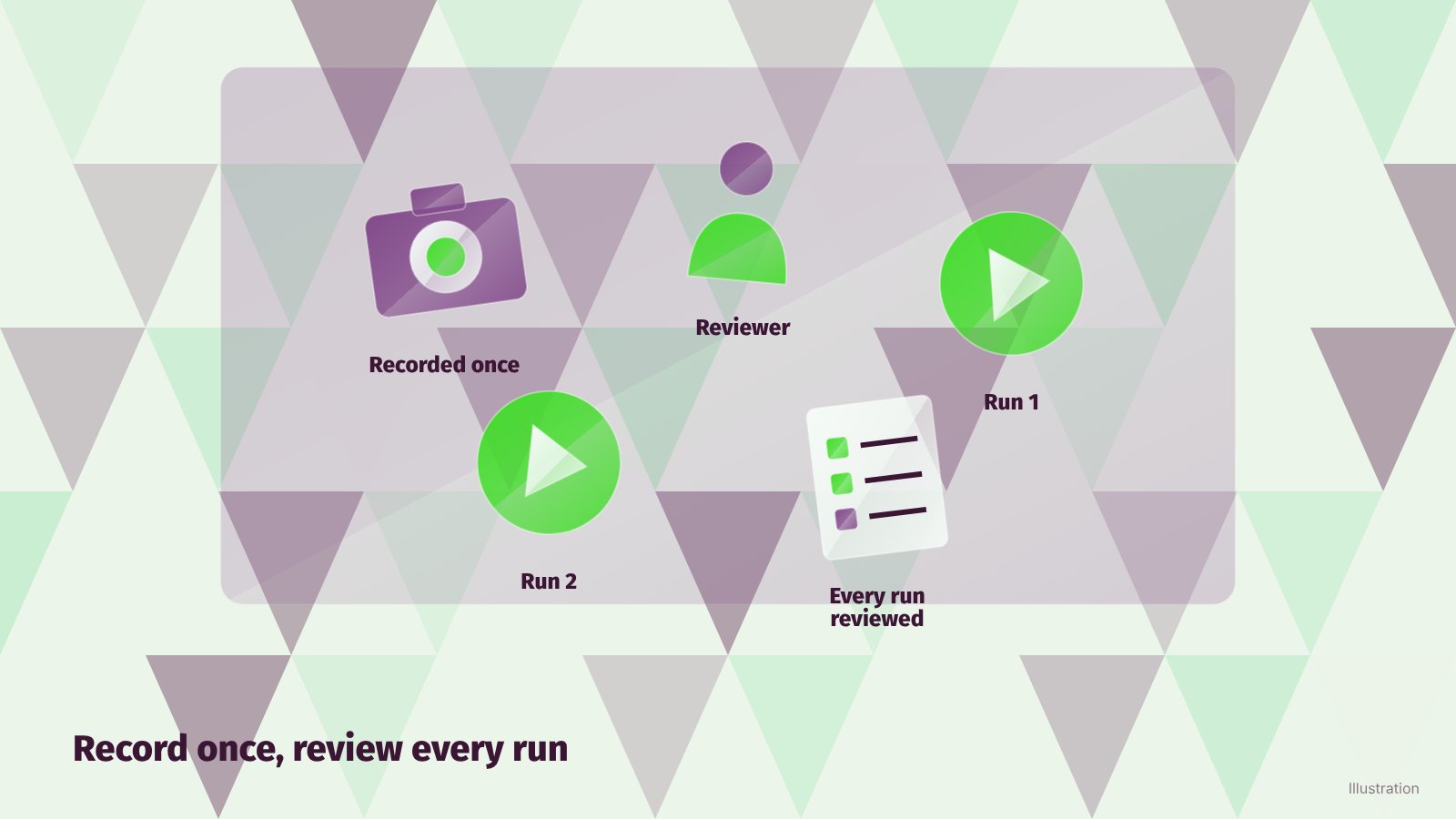
Nothing about review changed. Each edit is a new version with a note. A version is submitted for review, and nobody approves a version they wrote. Steps that look risky need a note explaining why approving them is safe. Every version still exports as Playwright, Cypress or Gherkin.
This is the part the whole team shares, so it stays in one place. Testers can submit a draft for review from the app, and reviewers approve in TicketResolve.
Part 3: running on your computer
Approved tests run from the app's Tests tab, and plan items from Plans (everything untested, or only the failures again). Each run:
- uses the approved version only, on an environment that's allowed to run tests (production needs a manager's written authorisation first);
- opens a fresh browser profile and can only reach the environment's allowed hosts;
- performs a fixed set of test actions (open, click, type, choose, tick, press, upload, and checks of text, visibility, values and addresses), never scripts or commands;
- fills masked fields from test data stored on the computer, encrypted with the macOS Keychain or the Windows account;
- keeps a Playwright trace (and a video, if you turn it on) in the run's own folder.
As each test finishes, the app sends TicketResolve its result: status, each step's result and timing, the error, the browser and OS, console errors and failed requests (addresses without query strings). Values that look like e-mail addresses, card numbers or secrets are masked before sending. If the computer is offline, the run is kept and can be synced later.
Part 4: when a test fails
The app works out a first failure analysis on the computer: is this likely a product defect, a test that needs fixing, an environment problem, a data issue, an intermittent failure or an outside dependency? It shows the evidence it used and a suggested next step. TicketResolve adds what only it knows, such as whether the same test failed the same way before.
From there you can draft a defect in TicketResolve with steps to reproduce, expected and actual results, failed requests and console errors. There's one tick box that matters: Attach the failure screenshot. Leave it unticked and the screenshot never leaves the computer. Tick it and the app resizes it and attaches it to that defect only. High-severity defects still need someone else's approval before they're filed in Jira, Linear, GitHub, Assembla or monday.com.
Part 5: plans, coverage and reports
Plans, requirements coverage, JUnit imports and sign-off work as before. The difference is that plan items now get results from desktop runs as well as manual results and uploaded JUnit files. A QA lead sees, in one place, which items passed, which failed, who ran them and on which computer, without anyone sending screenshots around.
A worked example, start to finish
Back at the illustrative gym-booking company. The QA lead wants the "member books a class" journey covered before the next release.
- Install. A tester downloads Test Studio Desktop for her MacBook from Test Studio → Downloads & keys. The build isn't code-signed yet, so she opens it once with Control-click → Open.
- Pair. In TicketResolve she opens Test Studio → Recordings → Test Studio Desktop, creates a pairing code and types it into the app. The app shows her name and the workspace.
- Record. She picks the "Members app" project and the Staging environment, titles the journey "Member books a class", ticks the confirmation and starts. Chrome opens on staging. She signs in with a test account, picks a class, books it, and adds a checkpoint on "You're booked".
- Review. The app lists eleven actions. She removes a stray click on the cookie banner. The preview shows the password became a test-data variable called
password, and the e-mail address was replaced with a placeholder. - Save. She saves it as MEM-14. Only the steps and locators reach TicketResolve.
- Approve. The QA lead reviews MEM-14 in TicketResolve, adds an expected result to the sign-in step and approves the version.
- Test data. In the app's settings she enters the staging test password once. It's encrypted on her laptop.
- Run. She runs MEM-14 on Staging. It passes in under ten seconds. TicketResolve shows the run, its eleven steps and their timings.
- Plan. Before release, the QA lead creates a plan with MEM-14 and nineteen other approved tests. A second tester on Windows runs "Run untested" from the Plans tab in Edge. Two fail.
- Failure. One failure is analysed as an environment problem (a 503 from the payments sandbox). The other looks like a product defect: the "Book" button is hidden behind a new banner. The tester drafts a defect, ticks Attach the failure screenshot because it shows only test data, and the QA lead approves it into Jira.
- Fix and verify. After the fix, "Rerun failures" passes, the defect is marked verified, and the QA lead signs off the plan.
Throughout, no recording, video or trace left either tester's computer. TicketResolve holds the cases, the results, one screenshot on one defect, and the sign-off.
Five more real-world scenarios
1. A regulated customer asks where test evidence lives
A security questionnaire asks whether screenshots of test environments are stored by third parties. With Test Studio Desktop the answer is narrower: evidence stays on testers' computers, deleted after a retention period you set, and only failure screenshots someone deliberately attached to a defect are stored in TicketResolve. You can point to the docs for the exact list.
2. A tester working from a train
The connection drops halfway through a plan. Tests keep running locally, because they don't depend on TicketResolve once they've started. Results that couldn't sync are marked "not synced" in Runs on this computer, and Retry sends them when the connection is back.
3. A test that wanders off to a partner site
A journey includes a link to a payment provider's page that isn't in the environment's allowed hosts. While recording, the app pauses as soon as the page leaves the allowed hosts. When the test runs, that navigation is blocked and logged. Either add the host to the environment deliberately, or end the test before the hand-off.
4. A flaky failure the night before release
A test fails once and passes on rerun. The analysis marks it as possibly intermittent and points to a slow request. The tester opens the Playwright trace from the evidence folder (with npx playwright show-trace, or at trace.playwright.dev, which opens it in the browser without uploading it) and sees the button rendered before its handler was attached. The fix is a better expected result on the step, not a defect.
5. A laptop that leaves the company
When someone leaves, a Test Studio manager revokes their computer under Test Studio → Recordings → Test Studio Desktop. The app can no longer read or write anything in the workspace. Test passwords on that laptop were encrypted with the person's own account, and the usual device return process covers the rest.
Before and after
| Before | After | |
|---|---|---|
| Tools to install | A browser extension and a test agent | One app |
| Where tests run | Wherever the agent was set up | On the tester's computer |
| Recordings | Uploaded | Stay local; only the masked test case syncs |
| Screenshots | Uploaded with every failure | Stay local unless attached to a defect |
| Debugging a failure | Step results and a screenshot | Step results, plus a local trace and optional video |
How to tell it's working
- Testers' computers appear under Test Studio → Recordings → Test Studio Desktop, with their app version and when they were last used.
- New test cases show "Recorded and converted in Test Studio Desktop" in their history.
- Runs from the app appear in Test Studio with the computer they ran on.
- A deliberately broken expected result fails, with a failure screenshot in the local evidence folder and none in TicketResolve unless you attach it.
Who it's for
- Testers who want to record and debug on their own machine, with traces and video at hand.
- QA leads who want plans, coverage and sign-off in one place without collecting screenshots from people.
- Security and compliance owners who want less test evidence stored outside the company's devices.
- Developers who need a reproducible failure with steps and failed requests in the tracker.
Mistakes to avoid
- Recording with real accounts. Masking catches passwords and card numbers, but a real customer's name on a page is still on the page. Use test accounts.
- Attaching screenshots by habit. Look at the screenshot before ticking "attach". If real data is visible, leave it local and describe it in the defect.
- Skipping the expected result. A test with no checkpoint can't be submitted for review. Add a checkpoint while recording; it's quicker than adding one later.
- Treating the unsigned build as normal. The first builds aren't code-signed. Download them only from TicketResolve's Downloads page, and expect signed builds to replace them.
Do it in TicketResolve, step by step
Where: Test Studio (/dashboard/test-studio) and the Test Studio Desktop app. You'll need: Engineering Intelligence; a Mac or a Windows 10 or 11 computer with Google Chrome or Microsoft Edge. Full guides: Installing and pairing Test Studio Desktop, Recording and running tests in Test Studio Desktop, Setting up a test project and environments, Reviewing and approving test cases, Failure analysis and defects, Test plans, coverage and CI results.
- Create a project and its environments with allowed hosts in Test Studio.
- Download Test Studio Desktop from Test Studio → Downloads & keys, or with your installer key on Downloads, and open it.
- Pair it with a code from Test Studio → Recordings → Test Studio Desktop.
- Record a journey with a checkpoint, review it in the app and save it as a test case.
- Submit it for review; someone else approves it.
- Add test data for masked fields in the app's settings.
- Run the approved test from the Tests tab, or a plan from the Plans tab, and read the results in the app and in Test Studio.
How to check it worked: the run appears in Test Studio with every step passed, and the evidence folder on your computer holds its trace.
Frequently asked questions
What is Test Studio Desktop? An app for Mac and Windows that records web journeys and runs approved tests on the computer it's installed on, as part of TicketResolve's AI Software Test Engineer.
How much does it cost? It's included in Engineering Intelligence at $149 per engineering seat a month. There's no charge per test, run, recording or computer, and it's in the 7-day free trial. Downloads use an installer key tied to your workspace's subscription.
Which operating systems and browsers does it support? macOS on Apple silicon or Intel, and Windows. It records and runs tests in Google Chrome or Microsoft Edge, using the copy already installed.
What leaves my computer? The test case made from a recording (steps and locators, with sensitive values masked), run results (status, step results and timings, errors, browser and OS, console errors and failed-request addresses), and a failure screenshot only if you attach it to a defect.
What stays on my computer? Recordings and what was typed, checkpoint and failure screenshots, Playwright traces, videos, test passwords and the app's log.
Is the app code-signed? Not yet. macOS and Windows show a warning the first time you open it; the help article explains how to open it. Signed builds are planned.
What happened to the browser extension and the TR Test Agent? Both are retired. You can't pair new ones, but recordings and runs they produced stay readable in Test Studio.
Can tests run in our CI pipeline? Test Studio Desktop runs on a tester's computer. For CI, export approved versions as Playwright or Cypress, run them in your pipeline and upload the JUnit results to Test Studio, where they're matched to cases by key.
Can it test production? Only on a production environment that a Test Studio manager has authorised with a written reason, and only on its allowed hosts. Steps that look like they change data are flagged for reviewers.
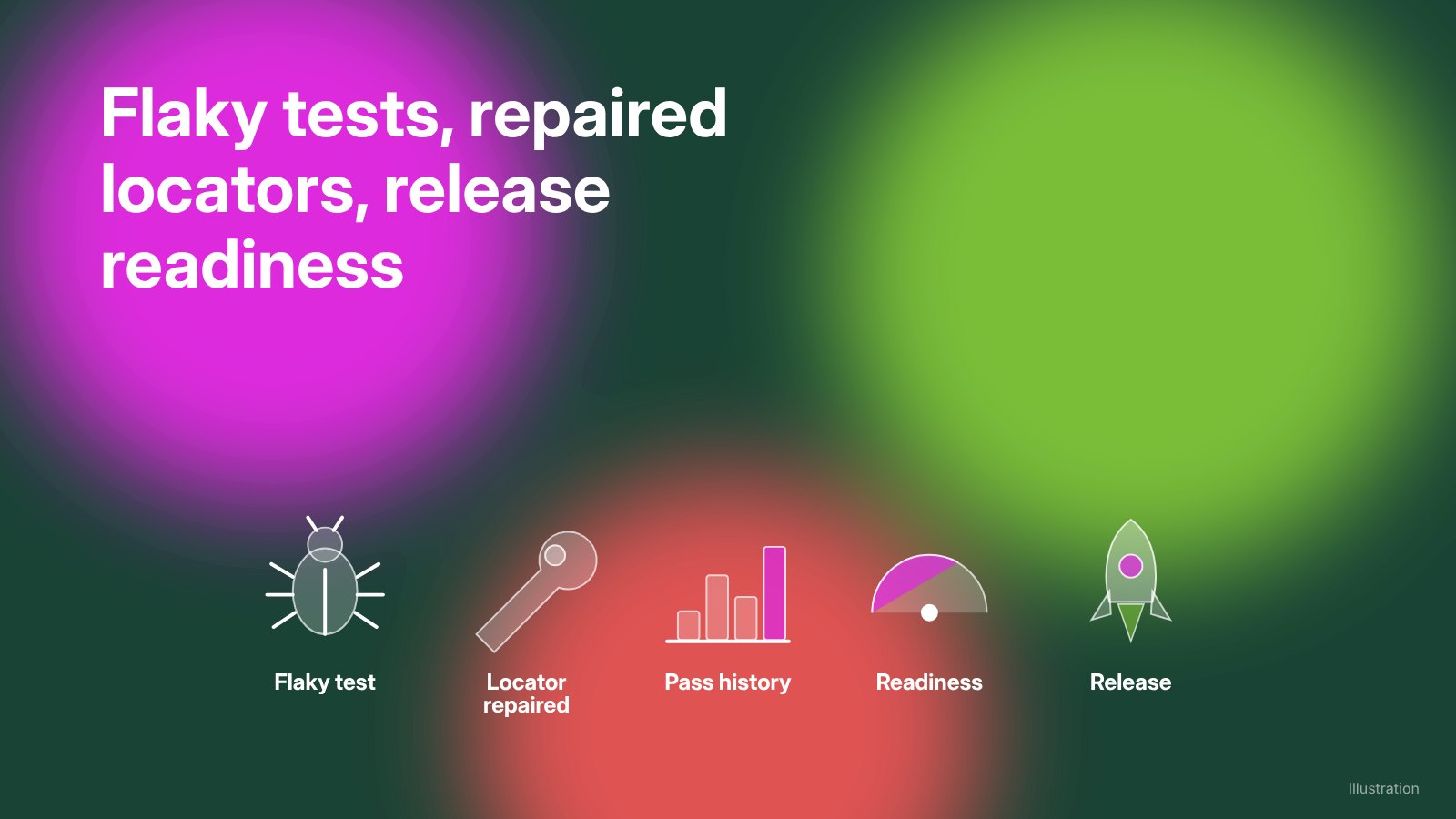
What's next? Signed builds for macOS and Windows, and test intelligence: locator repair suggestions, flaky-test detection and release quality. Both are planned and not available yet.
The short version
Test Studio Desktop puts recording and running where the browser and the evidence already are: on the tester's computer. TicketResolve keeps what the team shares (reviewed test cases, run results, plans, coverage and defects), so a QA lead can sign off a release without anyone shipping screenshots and videos around. Install it from Downloads, pair it with a code, and record your first journey.
Explore Topics
Written by
Ghulam Shabbir
Content creator and writer sharing insights and stories.