
Spelling and Grammar Check for Support Replies: Small Mistakes, Big Impressions
A typo in a support reply makes a company look careless, especially when the customer is already frustrated. The mistakes agents make most are grammar, not spelling, so browser spell check misses them. A reply checker built for support checks as you type, shows the fix, leaves names and codes alone, and runs in the browser so replies go nowhere. With an illustrative reply, start to finish.
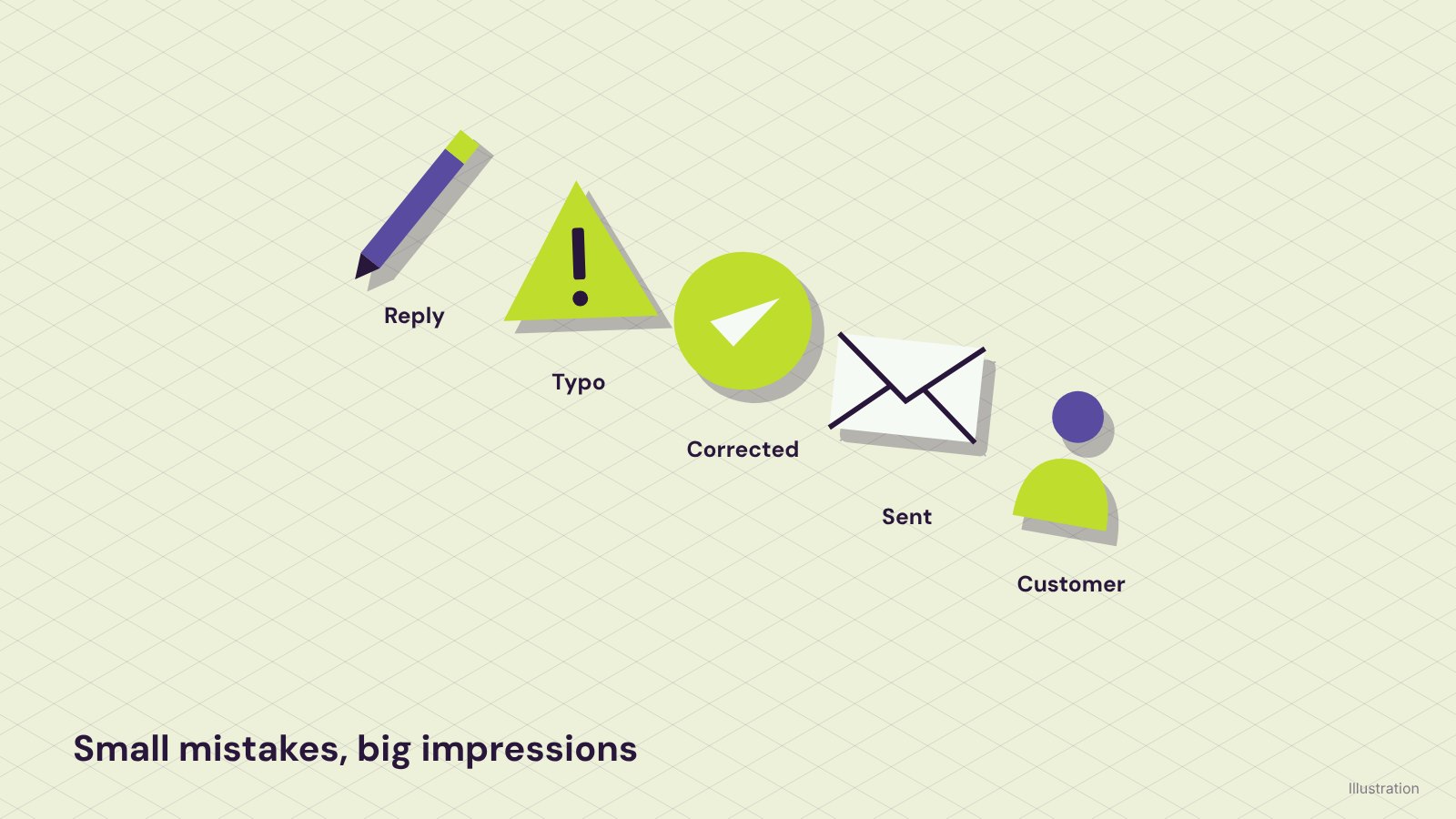
Support agents write all day, fast, often between three conversations at once. Mistakes slip in: "recieve", "you should of", "a email", "your welcome". Each one is small. To a customer who is already frustrated, they say "nobody is paying attention".
This post covers the mistakes that show up most in support replies, why a browser's spell check isn't enough, and what a reply checker built for support should do.
Here's how one small mistake lands at a company that sells a wedding-planning app:
- Friday 18:40: a bride writes, upset: the seating chart she spent a week on has disappeared, and the wedding is on Sunday.
- Friday 18:55: the agent finds the chart in a backup and restores it. Real, fast, careful work.
- Friday 18:57: the reply says: "Hi Sofia, your seating chart has been restored, you should of recieved a email confirming it. Your welcome to contact us if theres anything else!"
- Friday 19:10: Sofia's reply: "Thank you. Honestly I was worried when I read that, it didn't sound like anyone was paying attention."
The agent did everything right. Four small mistakes in two sentences made it look as if they hadn't.
First, the basics
- A spelling mistake is a word that isn't in the dictionary, such as "recieve".
- A grammar mistake uses real words wrongly, such as "should of" or "a email".
- Sound-alike words are words that sound the same but mean different things: your / you're, its / it's.
- Verb vs noun mistakes mix two-word verbs with one-word nouns: "log in" (verb) vs "login" (noun).
- A personal dictionary holds words you've told the checker are correct, such as a product name.
- US and UK English spell some words differently ("color" and "colour"); both are correct.
Why does this matter? Customers judge care by what they can see, and what they see is the reply. A clean reply makes good work look as good as it is. A reply with obvious mistakes makes careful work look careless, especially when emotions are high.
The problem, in plain terms
The mistakes agents make most
- Misspellings: receive, separate, definitely, occurred, inconvenience.
- Sound-alike words: your / you're, its / it's, then / than, lose / loose, advice / advise.
- Verb vs noun: "Please login" (log in), "setup your account" (set up), "checkout the page" (check out).
- Articles: "a email", "an user".
- Fast-typing slips: repeated words ("the the"), a lowercase "i", sentences starting with a small letter, a space before a comma, "!!!".
Why browser spell check isn't enough
Browser spell check only finds words that aren't in the dictionary. "You should of received a email" passes without a single underline, because every word in it is a real word. Most of the mistakes that make a reply look careless are grammar, not spelling.
At the same time, a generic checker flags things that are correct in support: product names, customer names, ticket numbers, links and error codes.
What a good reply checker does
- Checks as you type, in the box where you write the reply, not in a separate tool.
- Shows the fix, not just the problem: the right word, or the whole corrected sentence for grammar.
- One click to apply, plus "fix all" for mistakes with only one clear answer.
- Leaves support text alone: names, links, email addresses, code, ticket references and quoted customer text.
- Respects privacy: customer details in a reply shouldn't go to another service just to check grammar.
- Knows its limits: it should stay quiet on replies in other languages rather than flag every word.
How TR-AI checks replies
TR-AI's spelling and grammar check is on every plan:
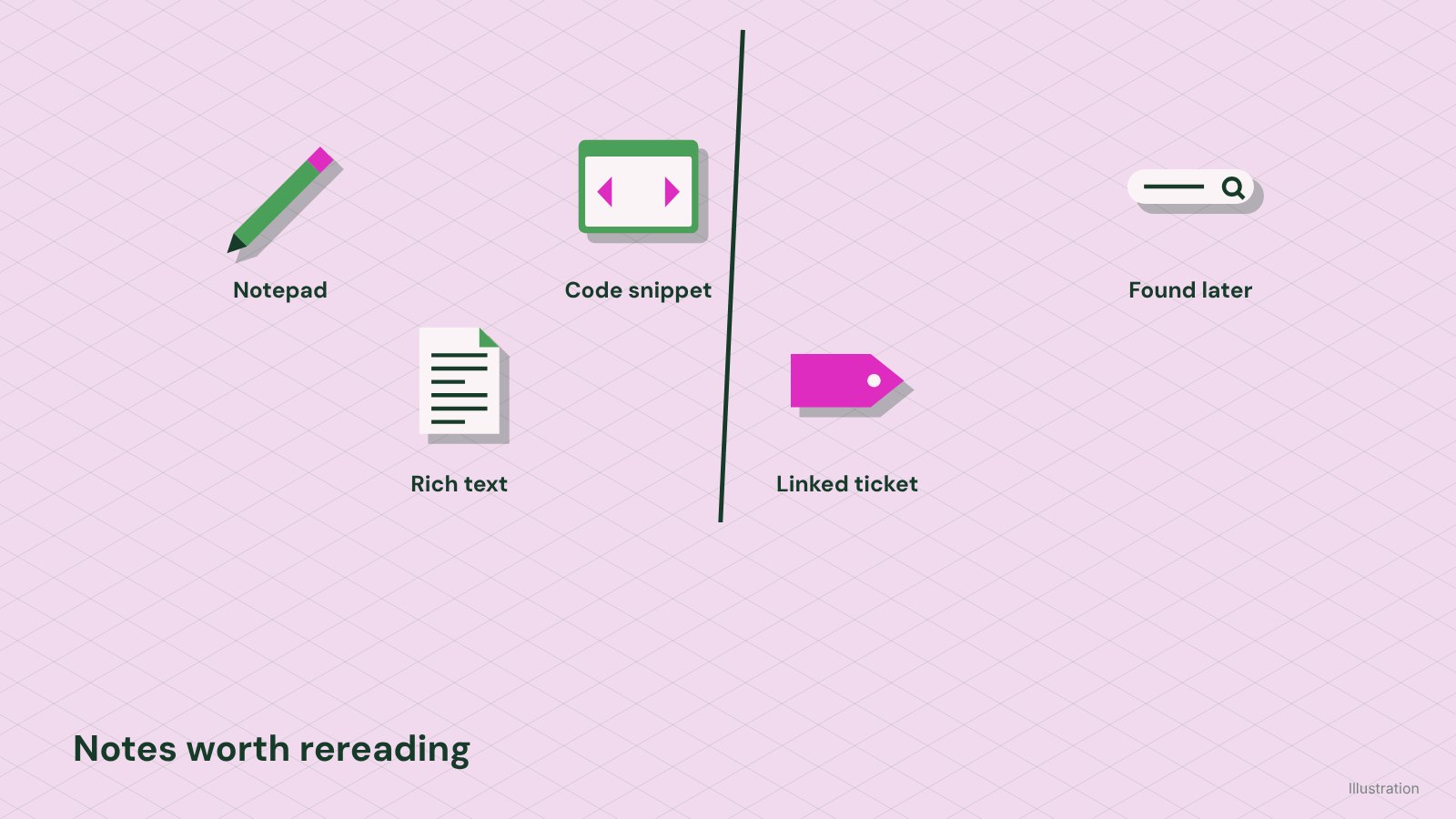
- Underlined as you type: red for spelling, blue for grammar and punctuation. It works wherever you write to a customer: editing a draft in the review queue, the reply in the ticket window, approved answers and Level 3 answers.
- The correction, ready to apply: each suggestion shows the right word, or for grammar the full corrected sentence. Apply it in one click, or use Fix all.
- US and UK English are both accepted, so "colour" and "color" are both fine.
- Support-aware: names mid-sentence, links, email addresses, code, ticket numbers and acronyms aren't flagged. Ignore a word, or add it to your dictionary.
- Private and instant: the check runs in your browser. Your reply isn't sent anywhere and there's no AI call.
It sits next to the rest of the reply workflow: brand voice keeps TR-AI's drafts on-tone, and the checker keeps the edits your agents make clean.
A worked example, start to finish
Here's the wedding-app reply with the checker on. The names are illustrative.
18:55. Ji-woo, the agent, restores the seating chart from the backup and starts typing the reply in the ticket window (/dashboard/level2):
"Hi Sofia, your seating chart has been restored, you should of recieved a email confirming it. Your welcome to contact us if theres anything else!"
As he types, the checker underlines:
- recieved in red → received.
- should of in blue → full corrected sentence: "you should have received an email confirming it".
- a email in blue → an email.
- Your welcome in blue → You're welcome.
- theres in red → there's.
"Sofia" isn't flagged: a name in the middle of a sentence. Neither is the ticket number he adds at the end.
18:56. He selects Fix all. Every suggestion with one clear answer is applied. The reply now reads:
"Hi Sofia, your seating chart has been restored, and you should have received an email confirming it. You're welcome to contact us if there's anything else, and congratulations for Sunday!"
He adds the last few words himself.
18:57. He sends it. The reply went nowhere except to Sofia; the check ran in his browser.
19:05. Sofia replies: "Thank you so much, that's a huge relief."
What changed: the same restore, the same speed, and a reply that showed the care that went into it.
Five more real-world scenarios
1. A product name
Situation. Your product is called "Planora" and it keeps getting underlined.
How TR handles it. Add it to your dictionary; it's remembered in your browser.
2. A ticket number and a link
Situation. The reply includes "#48213" and a help-centre link.
How TR handles it. Ticket numbers and links aren't flagged.
3. A word with several possible fixes
Situation. "Teh" could be several words.
How TR handles it. Fix all leaves misspellings with several possible words for you to choose.
4. A reply in Spanish
Situation. An agent answers a customer in Spanish.
How TR handles it. The checker stays quiet instead of flagging every word.
5. A British customer
Situation. An agent writes "organise" and "colour".
How TR handles it. US and UK English are both accepted.
Before and after
Before. Careful work sent with four mistakes in two sentences, and a customer who felt nobody was paying attention.
After. Mistakes underlined as typed, fixed in one click, names and ticket numbers left alone, the reply checked in the browser, and a customer who felt looked after.
How to tell it's working
- Fewer mistakes in QA reviews of replies.
- Agents use Fix all as a habit before sending.
- Personal dictionaries fill with product words, not real mistakes.
- No customer data leaves the browser for checking.
Who it's for
- Support agents writing replies all day.
- Agents writing in their second language.
- QA leads who review reply quality.
How it fits with the rest of TicketResolve
The checker works in the review queue, the ticket window, approved answers and Level 3 answers. Brand voice keeps AI drafts on tone, and the quality score reviews replies for accuracy and tone, so clean writing is one part of a wider quality picture.
Is it safe to grammar-check replies that contain customer data?
Choose a checker that runs in the browser, or one covered by your data processing agreement. TR-AI's check runs entirely in the agent's browser, so the reply isn't sent anywhere. Many popular grammar tools send text to their servers, which is worth checking before agents paste customer details into them.
Turning it off
Select Turn off under the box to go back to your browser's own spelling check; select "Check spelling and grammar" to turn it on again. Some agents prefer their browser's checker for certain work; the choice is theirs.
Why the checker never rewrites tone
A grammar checker should fix what's clearly wrong and leave the agent's voice alone. Suggestions cover spelling, grammar and punctuation with a clear correct answer; they don't try to make a reply more formal, shorter or "friendlier". That keeps agents in control of how they sound, which matters in support, where a warm, human tone often does more than perfect prose. Tone and style belong to brand voice and coaching, not to an automatic rewrite.
Mistakes to avoid
- Relying on browser spell check for grammar.
- Pasting replies into tools that send them elsewhere.
- Adding real mistakes to your dictionary.
- Ignoring blue underlines: they're the ones customers notice most.
Do it in TicketResolve, step by step
Where: wherever you write to a customer: the review queue (/dashboard), the ticket window and Level 3 (/dashboard/level2, /dashboard/level3). You'll need: nothing; it's on every plan. Full guides: Spelling and grammar check while you write a reply and Brand voice and tone.
- Start writing a reply. Red underlines are spelling; blue are grammar and punctuation.
- Select a suggestion to replace the underlined text, or select the message to jump to it.
- Use Fix all for mistakes with one clear answer.
- Choose among options for misspellings with several possible words.
- Ignore a word for this reply, or add it to your dictionary.
- Turn it off under the box if you prefer your browser's own check.
How to check it worked: mistakes are underlined as you type, and names, links, code and ticket numbers aren't.
Frequently asked questions
Does a spell checker catch grammar mistakes in support replies? Usually not. Spell check only flags words missing from the dictionary, so "you should of received a email" passes. You need grammar rules for sound-alike words, articles and verb forms.
Is it safe to grammar-check replies that contain customer data? Choose a checker that runs in the browser, or one covered by your data processing agreement. TR-AI's check runs entirely in the agent's browser, so the reply isn't sent anywhere.
Will the checker flag product names and customer names? A good one won't. TR-AI skips capitalised names in the middle of a sentence, acronyms, links, code and ticket numbers, and lets agents add words to their own dictionary.
Does it work for replies in other languages? TR-AI checks English (US and UK) spelling. For replies in other languages it stays quiet instead of flagging every word.
Is there an AI call? No. The check runs in your browser.
Which plans include it? Every plan.
What does Fix all do? Applies every suggestion with one clear answer; misspellings with several possible words are left for you.
Where is my dictionary stored? In your browser.
Can I turn it off? Yes, select Turn off under the box.
Explore Topics
Written by
Ghulam Shabbir
Content creator and writer sharing insights and stories.