
One Record per Employee: Organization Management That Every Team Can Trust
Who reports to whom, which team someone is on, and who to ask: TicketResolve now keeps one organization record for the whole workspace, with a directory everyone can search, profiles that show each field only to the people meant to see it, and a history that is never rewritten.
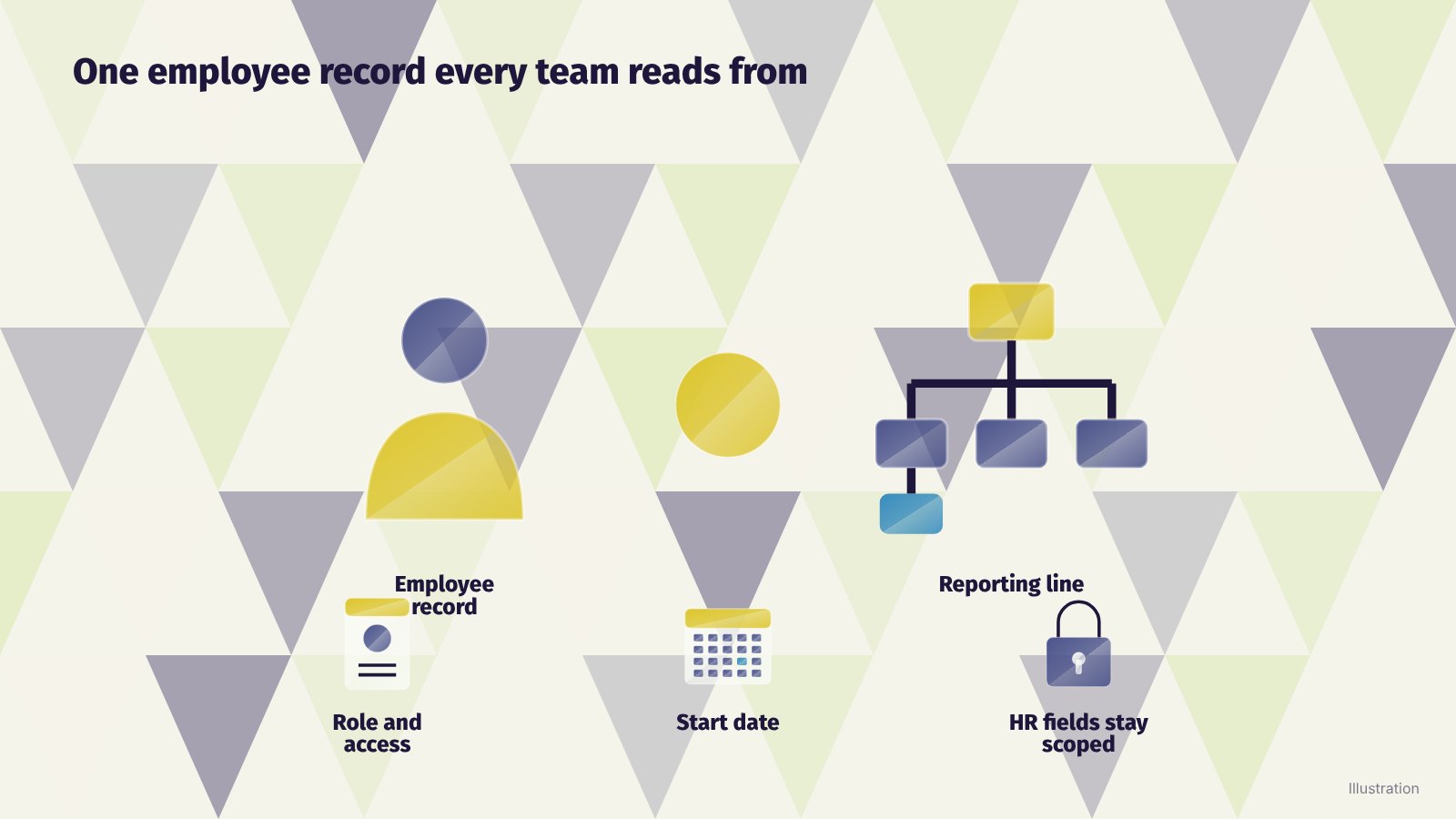
Every company has an organization chart. Most companies have four: one in the HR system, one in a slide someone made last quarter, one in the support tool's team settings and one in a spreadsheet that the finance team keeps for cost centers. They disagree, and nobody knows which one is right.
TicketResolve now keeps one organization record for the whole workspace, and every part of the product reads the same one.
Here's how that plays out at an illustrative company: a 180-person software firm that sells scheduling software to clinics. A clinic manager writes in because appointment reminders stopped going out. The support agent who picks it up knows it's a messaging problem, but not who owns messaging now. The team was reorganized in the summer. The old team page says Priya leads it. Priya moved to the payments team two months ago. The agent pings Priya, Priya forwards it, and the clinic waits an extra afternoon.
Nothing about that delay is technical. It's a stale answer to "who works on this?" The fix isn't another chart. It's one record that people keep current because everything else depends on it.
First, the basics
An organization record is the set of facts about how a company is arranged: who works there, which department and team they belong to, what their job title is, who they report to, and where they work.
A reporting line says who someone's manager is. The primary manager defines the official hierarchy. A functional or "dotted-line" manager is someone they also work for, such as a project lead, without changing the hierarchy.
A position is one approved seat in the organization, such as "Software Engineer, Platform team, Lahore office". A job title is the name many people can share. Two engineers can have the same title and hold two different positions.
Field-level privacy means each piece of information on a profile has its own audience. Your name is visible to everyone. Your personal address is visible to almost no one.
Why does this matter? Because every team that needs to know who someone is ends up building its own copy of the answer. Support needs it to route work, finance needs it for cost centers, IT needs it to know whose laptop to replace, and leaders need it to plan. Copies drift. One record, kept by the people responsible for it and readable by everyone who needs it, doesn't.
The problem, in plain terms
- The chart is out of date the day after a reorganization. People move teams, managers change, and the slide doesn't.
- The directory shows too much or too little. Either everyone can see everyone's phone number, or the directory is so locked down nobody uses it.
- Each tool keeps its own departments. The support tool has "Tier 2", finance has "Support Ops (CC-410)", and HR has "Customer Experience". They are the same people.
- History gets overwritten. When someone changes department, the old value is gone. Six months later nobody can answer "who was on the payments team in March?"
- Sensitive data leaks through convenience. An export for a team offsite includes home addresses because the spreadsheet had that column.
One record, shared by the products that need it
The first decision behind Organization is not to create another copy. Employees are the same records the AI Chief People Officer uses. Departments are the same department list that Operations Intelligence and service management already share. Legal entities come from the AI CFO's entity list. If your workspace already has departments, they appear in Organization straight away.
Employees don't have to sign in to TicketResolve. A company's organization includes people who never open a support ticket. Anyone can be an employee record. When an employee also has a TicketResolve login, HR links the two, and that is how managers get to see their own reporting line.
The module is available on every plan, with no add-on. It uses the existing permission model, so nothing about pricing or existing roles changes.
A directory everyone can use
Every member of the workspace can open the employee directory by default. Search covers name, job title, department, team and manager, plus work e-mail and location when the organization lets everyone see those fields. Filter by department, team, location, status or employment type, sort by name, department, title or joining date, and switch between a list and cards. Pages hold up to 100 people at a time, so a 10,000-person organization stays quick.
Search only covers fields the person searching may see. If work e-mail is set to "HR only", typing someone's address into the directory returns nothing for an ordinary member. Search doesn't confirm hidden values. People who have left are HR's view; to everyone else they simply aren't in the directory, and opening their profile returns the same "not found" as an id that doesn't exist.
Profiles that show each field to the right people
A profile shows the person's name, photo, job title, department, team, manager, reporting chain up to the top of the organization, direct reports, the number of indirect reports, functional managers and the teams they belong to. Those are always visible to anyone who can see the organization.
Eight fields have an audience the organization chooses: work e-mail, work phone, office location, biography, skills, responsibilities, start date and employment type. Each can be visible to everyone, to the person's managers and HR, or to HR only. People always see their own profile in full. The defaults are cautious: work phone and employment type for managers, start date for HR.
Managers see their reporting line because of the reporting data, not because someone remembered to grant a permission. If Erin reports to Max, Max sees the "managers" fields on Erin's profile. If Erin moves to a new manager tomorrow, Max stops seeing them tomorrow.
The server decides every field. A hidden field isn't sent to the browser, so it can't be found in the page source, the network tab or a cached response.
Restricted HR information stays restricted
Some information should never be on a profile at all: personal address, personal phone, personal e-mail and emergency contacts. Organization stores these encrypted, and returns them only to people with the "Restricted HR information" permission. Every view and every change is written to the audit log.
National ID numbers and bank details aren't stored by this module. Payroll systems keep them. Pay and performance ratings stay in the AI Chief People Officer behind their own "Compensation" and "Performance" permissions. The import refuses columns that look like any of these, and the export never contains them.
HR keeps the structure
People with "Manage the organization (HR)" can:
- Create and edit employees, including employee ID, work contact details, job title, position, department, primary team, location, legal entity, employment type, start date and a linked TicketResolve member.
- Change reporting lines. Someone can't report to themselves, a manager must be a current employee, and a change that would create a loop is refused with an explanation.
- Change status: active, on leave, suspended, notice period, terminated, archived and rehired. Records are never deleted. When someone leaves, their position opens again, their functional reporting lines end, and HR sees who still reports to them so those people can be moved.
- Keep departments, divisions, business units, teams and subteams, with heads, cost centers and locations. A department can't sit under one of its own subdepartments, and a department with current employees can't be closed.
- Keep job titles and positions. Job titles carry a family, a category and your own management level; positions are open, filled, on hold or cancelled.
- Import and export with CSV files.
Two HR people editing the same record don't overwrite each other. Each record carries a version. If someone else saved in between, the second save is refused with "reload and try again", and nothing is lost.
History that isn't rewritten
Every structural change is recorded with the date it takes effect. A transfer closes the old assignment on that date and opens the new one. A new manager closes the old reporting line and opens a new one. HR and auditors see both on the profile: department, team, title, location and status with their start and end dates, and every reporting line with who set it.
You can't back-date a change to before the current assignment started. If Sam joined Sales on 5 January, a transfer can't be dated 1 December. History is a record of what happened, not something to tidy up later.
A worked example, start to finish
This example is illustrative.
The scheduling-software firm from the opening decides to fix its organization record before its next reorganization.
Monday morning. Their HR administrator, Amira, exports the employee list from their payroll system and removes the salary and bank columns. She opens Organization → Settings → Import employees, uploads the file and clicks Check file. TicketResolve reads 180 rows. Two rows have an e-mail without an @, and one says "Contractor (old)" as the employment type. It also lists four departments, nine teams, twenty-two job titles and three locations that don't exist yet. Nothing has been saved.
Monday, ten minutes later. Amira fixes the three rows, checks again, and clicks Create them and import. 180 employees are added, with managers set from the manager column in a second pass. One manager reference pointed at someone who had left; that row is reported and the rest of the file is imported.
Monday afternoon. In Settings, Amira's colleague who administers the organization sets work phone to "Their managers and HR" and biography to "Everyone". The directory updates for everyone at once.
Tuesday. A support agent searches the directory for "messaging" and gets the six people on the Messaging team. The departments page shows the team's lead is Daniel, not Priya. Daniel's profile shows his reporting chain, his team and his work e-mail. The clinic's reminder problem reaches the right person the first time.
Two weeks later. Priya's team splits. HR moves six people to a new Notifications team, effective the first of the month. Each profile's history shows the old team ending and the new one starting on that date. The AI Chief People Officer's headcount figures show the new team without anyone re-entering it.
Five more real-world scenarios
A manager asks why they can't see a report's phone number. How TicketResolve handles it: The report's line in Organization still points at their previous manager. HR changes the primary manager; from that moment the new manager sees the "managers" fields.
Finance wants every employee by cost center. How TicketResolve handles it: Cost centers live on departments. An HR export lists each employee's department; finance matches the department to its cost center. Personal data isn't in the file.
Someone tries to make the CEO report to an engineer by mistake. How TicketResolve handles it: The change is refused because the engineer already reports, through the chain, to the CEO. Nothing is saved.
A contractor's engagement ends and they come back a year later. How TicketResolve handles it: HR sets them to terminated, then archives the record. A year later HR sets the same record back to active. Their earlier history stays, and the gap shows in the dates.
A workspace member who isn't in HR tries an employee export from the browser console. How TicketResolve handles it: The server refuses it because exporting needs "Manage the organization (HR)", whatever the request looks like.
Before and after
| Before | After | |
|---|---|---|
| Where the organization lives | A slide, a spreadsheet, team settings in several tools | One record, read by every product that needs it |
| Who reports to whom | Whatever the last chart said | Validated reporting lines, no loops |
| Phone numbers and bios | Everyone sees everything, or nobody does | Each field to its audience, set once |
| Home address and emergency contacts | In a spreadsheet column | Encrypted, restricted, every access logged |
| Last summer's reorganization | Overwritten | Dated history on each profile |
How to tell it's working
- People find the right owner in the directory instead of asking in chat.
- The overview's "needs attention" list is empty: no one without a manager or department, apart from the top of the organization.
- Profiles show a history that matches what actually happened.
- Exports go to finance and IT without a cleanup step to remove personal data.
Who it's for
HR administrators keep the structure in one place. Managers see their own reporting line. Every employee gets a directory they can rely on. Support, IT and finance teams get an answer to "who owns this?" that isn't three months old. Auditors get read-only history and an audit trail.
How it fits with the rest of TicketResolve
Organization is a foundation. The AI Chief People Officer reads the same employee records for headcount, hiring and attrition. Operations Intelligence and service management read the same departments. Other modules can ask the shared organization service for someone's department, team, job title, primary manager and reporting chain, instead of keeping their own copy.
What's planned next
These are planned, not shipped yet: notifications about changes and requests, and HR access limited to a department or legal entity.
What has changed since
Release 7.109.0 added the interactive organization chart, under Organization → Organization chart. It draws the same records as the directory in five ways: the reporting hierarchy, by department, by team, leadership only, or the structure under one manager. Functional managers appear as dotted lines, so a dotted-line relationship is visible without changing who someone officially reports to.
Search opens the branches above a person, highlights their chain to the top and centres the chart on them. Clicking a card opens a panel to view the profile, show direct reports or start the chart from that person; HR also gets shortcuts to edit the profile, change the manager or transfer the department. The chart can be filtered by department, location and, for HR, legal entity, and downloaded as PNG or PDF or printed. Each card is built on the server from the fields the viewer may see, so a chart export never shows more than the directory does.
Release 7.111.0 added organization changes and history. HR proposes a transfer, a promotion, a manager change, a termination or a restructuring under Organization → Changes, with the date it takes effect and the reason. With approval turned on, someone other than the person who proposed it approves or rejects it, and profiles no longer change the structure directly. A change dated in the future is applied on that date. A change applies all at once or not at all. If it no longer fits on the day, for example because someone has left, it is marked with the reason rather than half-applied.
Organization → History shows the organization as it was on any date, built from those dated records, and compares two dates: who moved, who changed manager or title, and which departments were created or closed.
Release 7.112.0 added vacant positions and self-service. With approval on, a new position waits for someone other than the person who created it. Filling a position is an organization change, so it is approved and recorded like a transfer. HR chooses whether approved vacancies are shown to managers or to everyone, and HR's notes stay with HR. Employees can ask HR to update their biography, skills, work phone or photo from their own profile. HR sees the current and requested values side by side, and never reviews its own request.
Release 7.113.0 added analytics and insights. Organization → Analytics counts headcount by department, location, employment type and level, along with spans and positions. It also draws headcount over time from the dated history, with filters. A breakdown of a field is only shown to people who may see that field on a profile. For HR and auditors, Insights apply fixed rules to the structure, such as wide spans, deep chains, departments without a head or manager positions left vacant. Each insight shows its evidence and a suggested action. They change nothing and never look at performance or pay.
Release 7.114.0 added notifications and limited HR access. The people involved hear about joiners, moves, new managers, promotions, reorganizations and leavers, and nobody is told about their own action. Approvers hear what's waiting for them, and whoever asked hears the decision. Administrators choose which kinds of news are sent. They can also limit an HR manager to some departments or legal entities. Inside those, the manager works as HR. Everywhere else they see what everyone sees, and the server checks this on every request.
Mistakes to avoid
- Importing pay columns "just in case". They're refused. Keep pay in the AI Chief People Officer, where it has its own permission.
- Using functional teams for the hierarchy. A project team doesn't change who reports to whom. Set the primary manager on the profile.
- Forgetting to link managers to their login. A manager without a linked TicketResolve member can't see their own reporting line.
- Setting every field to "Everyone" on day one. Start cautious and open up fields people ask for.
- Deleting people who left. You can't, by design. Terminate, then archive.
Do it in TicketResolve, step by step
Where: Organization in the sidebar: Organization overview, Employee directory, Departments & teams, Positions & job titles, Locations and Organization settings.
You'll need: "Manage the organization (HR)" to add and change records, "Organization settings" to choose field visibility, and "Restricted HR information" for personal details. Every member can view.
Full guides: Setting up your organization and Who sees what, and history.
- Add your departments and teams in Departments & teams.
- Add job titles, with your own levels, in Positions & job titles, and positions for approved seats.
- Add your offices and remote locations in Locations.
- Import employees in Organization settings → Import employees: check the file, then import.
- Mark the top of the organization and check the overview's "needs attention" list.
- Choose who sees each profile field in Organization settings.
- Link employees who sign in to their TicketResolve member, so managers see their reporting line.
How to check it worked: open the directory as an ordinary member and confirm you see names, titles and managers but not the fields set to "HR only"; open a manager's profile and confirm their direct reports are listed.
Frequently asked questions
Does every employee need a TicketResolve login? No. Employees can be records only. Link a login when the person uses TicketResolve, especially managers.
Is this a separate product to buy? No. Organization is available on every plan with no add-on and no price change.
Can ordinary employees see salaries or home addresses? No. Pay and ratings stay in the AI Chief People Officer behind their own permissions. Home address, personal phone and emergency contacts are encrypted and shown only with "Restricted HR information".
What happens to someone's records when they leave? Nothing is deleted. Their status changes to terminated, their position opens again, and their history stays. HR can archive the record and later rehire the same person.
Can someone have two managers? One primary manager, which defines the hierarchy, and any number of functional managers.
What stops a reporting loop? Every change to a primary manager is checked against the whole organization before it is saved. A change that would make someone report, directly or indirectly, to one of their own reports is refused.
Can I import from my HR system? Yes, with a CSV export. Check the file first, then import. Columns for protected characteristics, national IDs, bank details or pay are refused.
Is there an organization chart picture? Yes, since release 7.109.0: Organization → Organization chart shows the hierarchy, departments, teams, leadership or one manager's team, with search, zoom and PNG, PDF or print exports.
Who can change which fields are visible? People with "Organization settings", usually organization administrators.
Explore Topics
Written by
Ghulam Shabbir
Content creator and writer sharing insights and stories.