
How to Connect to a Customer’s Environment, Step by Step, With TicketResolve Connect
A practical walkthrough of connecting to a customer’s environment with TicketResolve Connect: asking for access, the customer’s approval, running the Connect agent on a server, in Docker or in Kubernetes, sharing browser evidence, read-only keys, reproducing the issue and ending access, all within what the customer approves.
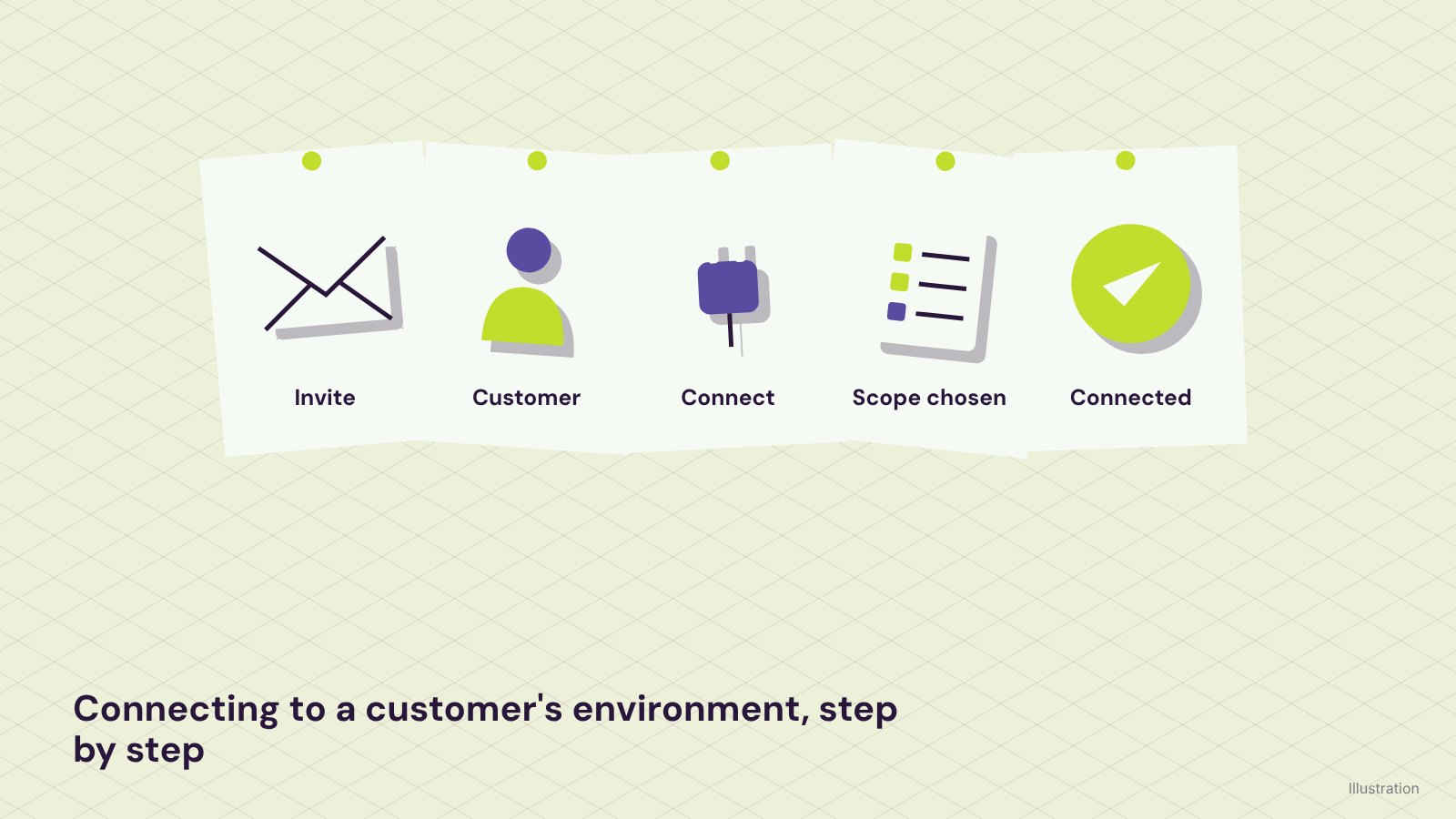
TicketResolve Connect gives your support team diagnostic access to one customer's environment, for one ticket, within what that customer approves. This post walks through the whole connection, from the first request to the moment access ends.
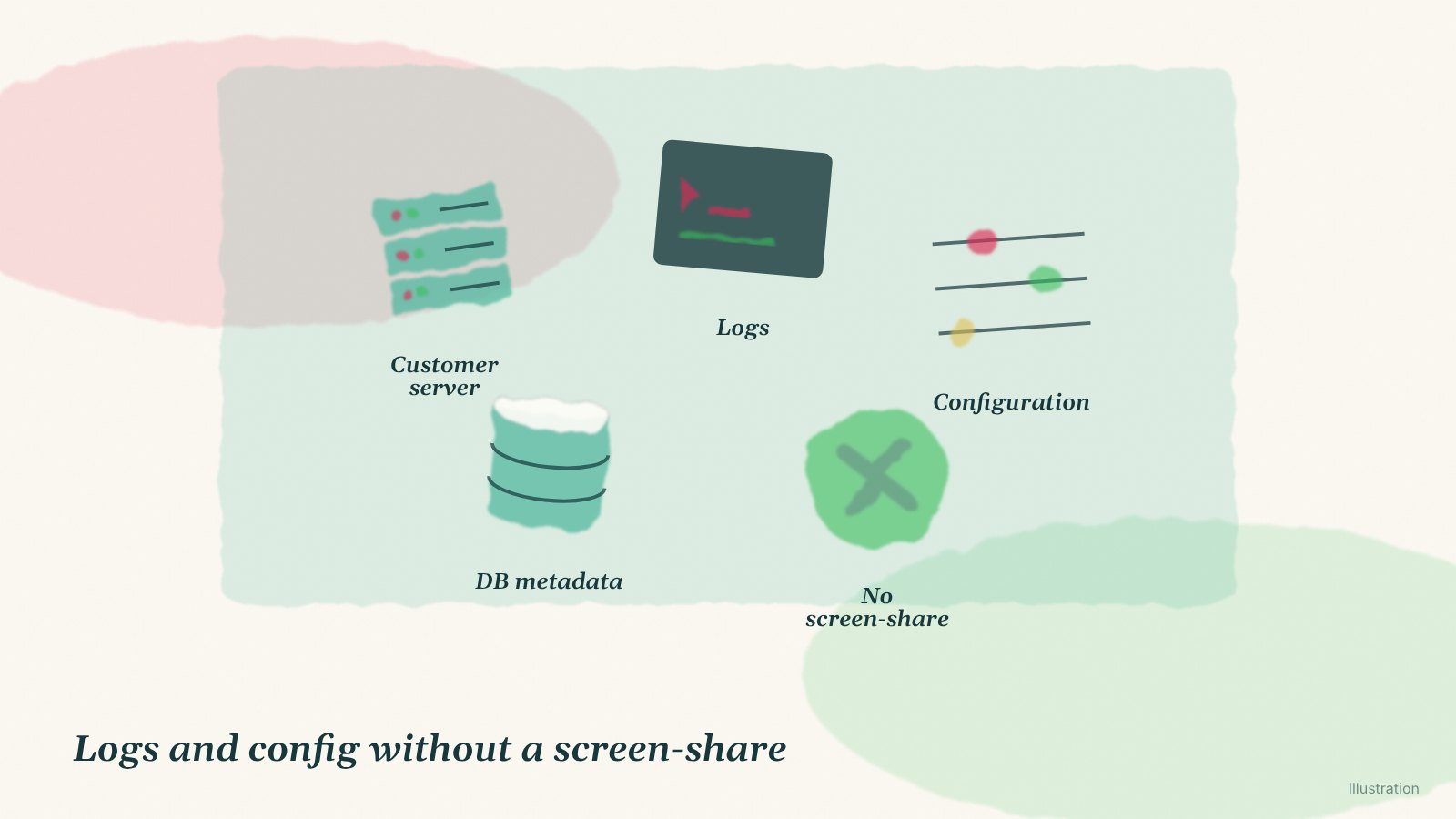
Before we start, here's why it's worth doing properly. Picture a support engineer at a company that sells on-premises analytics software, working a ticket from a hospital: "Dashboards stopped refreshing after Tuesday's update." Without Connect, the usual routine goes: ask for logs (the hospital's IT can't send patient-adjacent data by e-mail), ask for a screen-share (booked for next week), ask them to run some commands (they won't run unknown commands on a clinical network). A week passes. With Connect, the hospital's IT approves exactly what may be collected, runs a single, inspectable agent that only reads, and can end access at any moment. The evidence arrives the same morning.
The full reference, with every setting, permission and error message, is the TicketResolve Connect guide.
First, the basics
- An investigation is TicketResolve's structured look at a technical ticket. Connect access is requested from it.
- The authorization link is what the customer opens to approve; the authorization page shows what each item collects and never collects.
- The Connect agent is a single Node.js file that collects what the customer allowed. It makes outbound HTTPS connections only; nothing connects into the customer's network.
- A token identifies the agent for one session. Environment variables tell it what it may read.
- Docker and Kubernetes run software in containers; a service account limits what a Kubernetes pod may do.
- A HAR file records browser network traffic; console output is the browser's log.
- A read-only key lets TicketResolve read from the customer's monitoring or cloud tool.
- Retention is how long collected evidence is kept.
Why does this matter? The facts behind a technical ticket are usually in the customer's environment. A connection the customer controls, item by item, read-only and time-limited, gets those facts quickly without asking them to trust you with more than they should.
The problem, in plain terms
- Customers can't e-mail sensitive logs.
- Screen-shares take days to book.
- Customers won't run unknown commands.
- Access, once granted, is hard to end.
The three ways evidence arrives
| Channel | Set up by | Direction |
|---|---|---|
| Connect agent | The customer, on a machine that can reach their systems | Outbound HTTPS only, nothing connects in |
| Their browser | The customer, on the authorization page | Their browser uploads to TicketResolve |
| Read-only keys | The customer, on the authorization page | TicketResolve calls their tool's API with the key |
Whichever channel is used, the same check runs before anything is collected. The session must be approved and not expired, and the customer must have allowed that item.
Step 1: Ask for access
On the investigation's Engineering tab, open Customer environment access and choose Request diagnostic access. Then:
- Describe the issue as the customer will see it, and say why you need access.
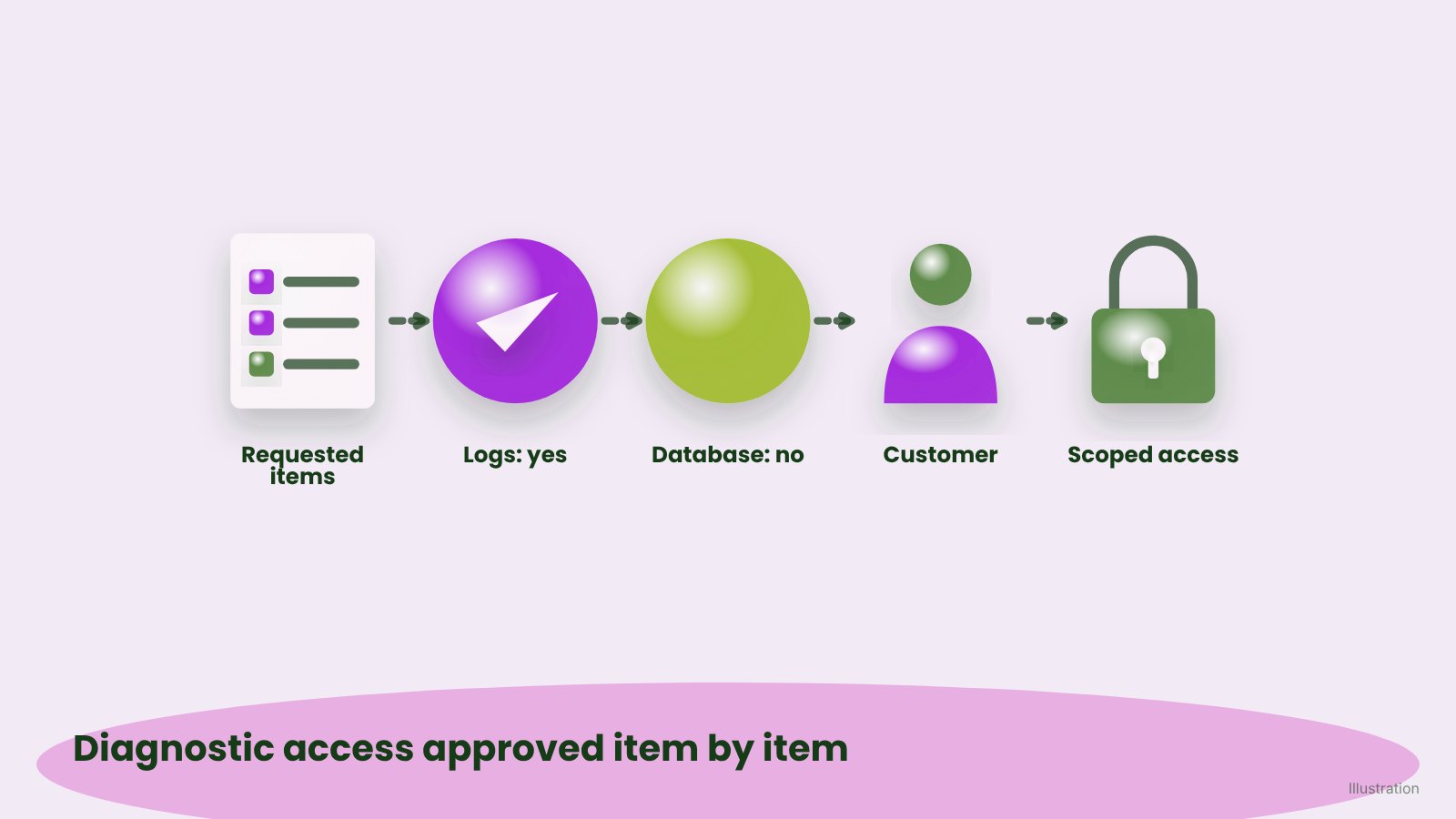
- Choose what to ask for. Environment details, application logs and browser errors are pre-selected. Ask for the least that answers your question.
- List the endpoints if you want API checks or reproduction. Requests go only to these addresses.
- Set the time limits. The link stays valid for up to 7 days, access lasts up to 72 hours once approved, and evidence is kept for up to 90 days.
- Copy the link. It's shown only once. Send it in the ticket.
Step 2: The customer approves
The link opens a page that shows who is asking, for which issue, and what each item collects and never collects. The customer unticks anything they don't want to share, types their name, confirms they're allowed to grant access, and approves. They can also decline. A link can be answered only once, and the same page later lets them end access at any time.
Step 3: The customer runs the Connect agent
This step is only needed for evidence from their systems. The agent is a single Node.js file (Node 18 or later). It needs outbound HTTPS to TicketResolve and nothing else.
-
On the authorization page, they choose Create the agent token and copy the command. The token is shown only to them.
-
They download the agent:
curl -O https://www.ticketresolve.ai/agent/tr-connect-agent.mjs -
They tell it what it may read, using environment variables on their side:
export TR_CONNECT_TOKEN=trc_…
export TR_URL=https://www.ticketresolve.ai
export TR_APP_VERSION=4.12.1
export TR_LOG_FILES=/var/log/app/app.log
export TR_DB_MAIN=postgres://tr_connect:…@db.internal:5432/app
node tr-connect-agent.mjs
The agent checks for work every 15 seconds. It runs only the fixed collectors built into it, never a command it is sent, and it stops by itself when access ends.
In Docker, mount only what it should read, read-only. The Docker socket is needed only for container state and container logs, and the guide explains the trade-off.
In Kubernetes, run it as a pod whose service account can only get and list pods and events in the allowed namespaces. The guide has a complete manifest.
For databases, give it a read-only user that can see metadata but not rows. For example, PostgreSQL's pg_monitor, MySQL's PROCESS plus REFERENCES, or SQL Server's VIEW SERVER STATE plus VIEW DEFINITION. The database URL never leaves their machine.
Step 4: The customer shares from their browser (optional)
With Browser errors allowed, the authorization page offers three things:
- Browser details: the browser, OS, screen size and time zone it detects.
- A HAR file from the developer tools' Network tab. Only failed and slow requests are kept: no bodies, cookies or query strings.
- Pasted console output. Only errors and warnings are kept.
With Screenshot allowed, they can also upload one image.
Step 5: The customer adds read-only keys (optional)
If they'd rather not run the agent for their monitoring or cloud account, they can add a read-only key for one of these:
- Sentry, Datadog, New Relic, Grafana, Splunk, Elasticsearch, CloudWatch Logs, Azure Monitor, Prometheus or Rollbar
- AWS or Azure resources
The page says which permission is enough for each tool. Keys are encrypted at once, never shown to anyone, and deleted when access ends.
Step 6: Collect and reproduce
Back on the session, collect only what the customer allowed:
- discover the environment
- read logs or configuration
- check containers and pods, the database, or API endpoints
- search their monitoring or read their cloud resources
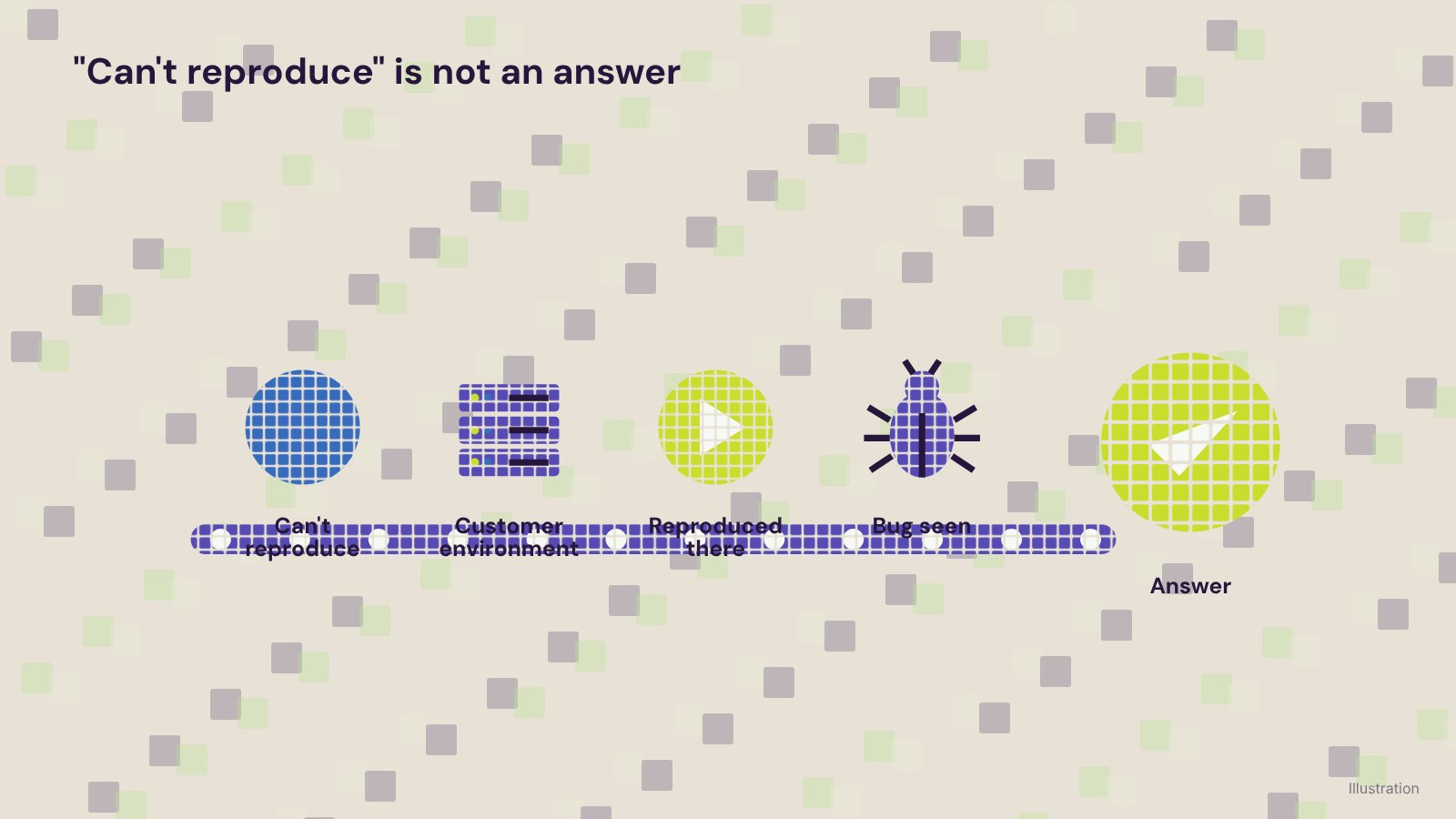
Then choose Plan a reproduction. Steps are built from what's recorded, with no AI call. Each step is repeated, and you get a verdict: reproduced, suspected, not reproduced or inconclusive, with the reasons. Steps that change data run only after the customer approves the exact list on their page.
Step 7: On to the pull request
The session shows the path from authorization to a draft pull request, with what's done and what's next: root cause, approved fix, CI tests, validation report and pull request. People do each step, and your reviewers merge.
When access ends
Access ends when its window closes, or when either side ends it. At that point:
- the agent is told to stop
- waiting work is cancelled
- the customer's keys are deleted
When the retention period ends, the collected evidence is deleted too. Every step is recorded on the session's tamper-evident timeline.
A worked example, start to finish
Here's the hospital's dashboard ticket, through every step. The details are illustrative.
Monday 09:00, step 1. The engineer, Iris, opens the investigation's Customer environment access → Request diagnostic access. Issue: "Dashboards stopped refreshing after Tuesday's update. We'd like to read the application log and check the database connection." She keeps environment details and application logs, adds database metadata, unticks browser errors (not needed), lists the endpoint https://analytics.internal/api/refresh, and sets access 24 hours, retention 30 days. She copies the link (shown once) into the ticket.
09:40, step 2. The hospital's IT lead opens the page: who's asking, the issue, what each item collects and never collects. He unticks nothing, types his name, confirms he's allowed to grant access, and approves.
10:00, step 3. He creates the agent token (shown only to him), downloads tr-connect-agent.mjs, and runs it in Docker with the log directory mounted read-only. For the database he uses an existing pg_monitor user; the URL stays on his machine. The agent checks for work every 15 seconds.
10:05, step 6, collect. Iris collects: environment discovery shows version 4.12.1; the application log shows refresh job: could not obtain lock on table metrics_cache every 5 minutes since Tuesday; database metadata shows a long-running query holding that lock, started Tuesday 02:10, from the update's migration.
10:20, reproduce. Plan a reproduction: one step, call /api/refresh, repeated 3 times: reproduced, each times out on the lock.
10:40. The cause is clear: a migration step left a query running. The hospital's DBA ends it; dashboards refresh at 10:45. Iris's team adds a timeout to the migration step for the next release.
11:00, access ends. The IT lead ends access from the same page. The agent is told to stop; waiting work is cancelled. Every step is on the session's timeline. The evidence is deleted when its 30-day retention ends.
Five more real-world scenarios
1. A step that changes data
Situation. A reproduction needs to create a test record.
How TR handles it. Steps that change data run only after the customer approves the exact list on their page.
2. Kubernetes
Situation. The product runs in a Kubernetes cluster.
How TR handles it. The agent runs as a pod whose service account can only get and list pods and events in allowed namespaces.
3. No agent
Situation. The customer won't run any software.
How TR handles it. Browser evidence and read-only keys don't need the agent.
4. A sent command
Situation. Someone wants the agent to run a shell command.
How TR handles it. It runs only its fixed collectors, never a command it is sent.
5. A link answered twice
Situation. Two people open the link.
How TR handles it. A link can be answered only once.
Before and after
Before. Logs that couldn't be e-mailed, a screen-share next week, commands the customer wouldn't run, and a week without evidence.
After. A request asking for the least that answers the question, approval item by item, a read-only agent with outbound HTTPS only, evidence the same morning, and access ended by the customer when they chose.
How to tell it's working
- Evidence arrives within hours of the request.
- Requests ask for less, and customers approve more often.
- Access ends promptly, with keys deleted.
Who it's for
- Support engineers working technical tickets for customer-hosted products.
- Customers' IT and security teams who approve access.
- Engineering, who get evidence instead of paraphrases.
How it fits with the rest of TicketResolve
Connect is Customer environment connect. Its evidence feeds investigations, reproduction scenarios, fix verification and Autonomous engineering.
Mistakes to avoid
- Asking for everything. Ask for the least that answers the question.
- Running the agent with write access to databases. Use metadata-only users.
- Mounting the Docker socket when you don't need container state.
Do it in TicketResolve, step by step
Where: the investigation's Engineering tab → Customer environment access, and Connect (/dashboard/connect). You'll need: Customer environment connect. Full guides: TR Investigate: from a ticket to a verified fix and the TicketResolve Connect guide.
- Request diagnostic access: describe the issue, choose items, list endpoints, set limits, copy the link.
- The customer approves item by item.
- The customer runs the agent on a server, in Docker or in Kubernetes, with only what it may read.
- The customer shares browser evidence (optional).
- The customer adds read-only keys (optional).
- Collect and reproduce within what was allowed.
- Follow the path to a draft pull request.
- End access when you're done.
How to check it worked: the session's timeline shows the approval, each collection, the reproduction verdict and the end of access.
For every setting, permission and error message, see the TicketResolve Connect guide.
Frequently asked questions
Does anything connect into the customer's network? No. The agent uses outbound HTTPS only.
How long does access last? Up to 72 hours once approved. The link is valid for up to 7 days.
How long is evidence kept? Up to 90 days, then deleted.
Can the agent run commands? No. Only its fixed collectors.
Does the database URL leave their machine? No.
What's kept from a HAR file? Only failed and slow requests: no bodies, cookies or query strings.
Who sees the agent token? Only the customer.
Can the customer stop it? Yes, at any time, from the same page.
Explore Topics
Written by
Ghulam Shabbir
Content creator and writer sharing insights and stories.