
Which Customers Did That Error Hurt? Linking Production Errors to Tickets and Accounts
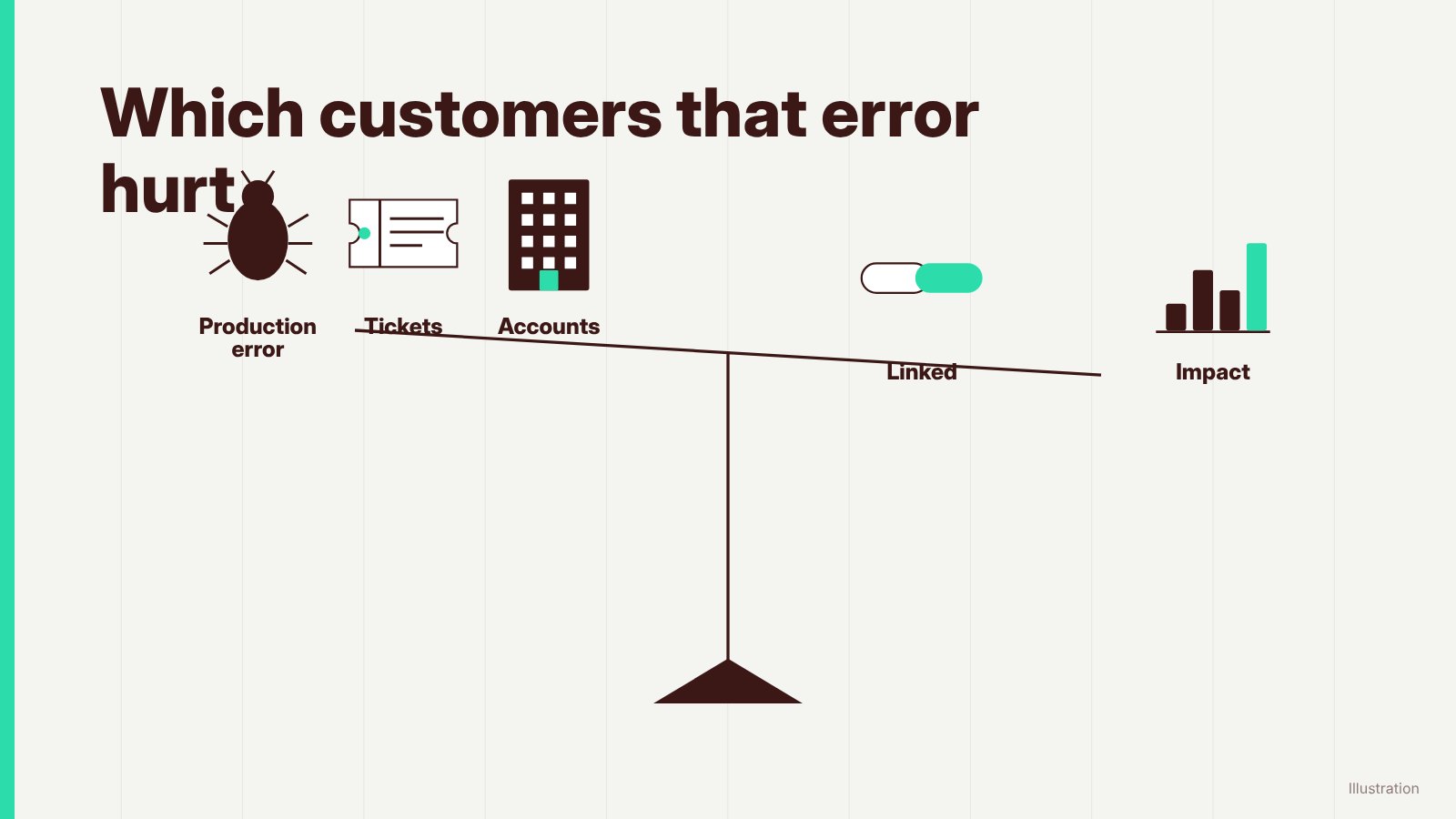
“InvoiceRenderTimeout fired 180 times for 52 users” doesn’t say who they were, who wrote in, or whether one is renewing next month. Customer impact starts from each production error, finds the tickets written while it was happening, groups them by company, and shows why each ticket matched.
Your monitoring tool says InvoiceRenderTimeout fired 180 times for 52 users. That number is real, but it doesn't answer the questions support and account managers ask first: who were those users, did any of them write in, and is one of them the account renewing next month?
Here's how that gap plays out at a company that sells invoicing software to accountancy firms:
- Monday. An agent pastes a stack trace containing
InvoiceRenderTimeoutinto a Jira issue. That one ticket is linked. - Nine other tickets about the same failure ("invoice PDF won't generate", "stuck on rendering") are answered one by one, unlinked.
- One of them is from a large firm whose renewal is next month. Their account manager, Freya, doesn't hear about it.
- Three weeks later, at the renewal call: "Your invoicing broke during our busiest week and nobody told us you knew."
The error and the tickets were all recorded. They were never connected to companies.
First, the basics
- A production error is a failure your monitoring tool records, with a type, message, count and users affected.
- An exception type names the kind of error, like
InvoiceRenderTimeout. Generic types likeErrorsay little. - An error code like
INV_504or an HTTP status like 503 is specific to a failure. - A match links a ticket to an error because the ticket mentions distinctive terms.
- The window is from an hour before the error first appeared to a day after it was last seen.
- By cause lists errors, incidents, investigations and problems with the companies they reached.
- By customer lists companies with everything that affected them.
- Historical search looks through stored errors, traces and logs.
Why does this matter? Account managers and support leads need to know which customers a problem reached, not just how many events it produced. Starting from the error and finding every related ticket, grouped by company, turns an engineering number into a list of people to help.
The problem, in plain terms
- Errors are linked to tickets one at a time.
- Most related tickets are never connected.
- Error titles are noisy, so naive matching links the wrong tickets.
- Account managers don't hear about problems hitting their accounts.
- Older questions need four tools to answer.
Start from the error, not the ticket
Most teams link errors to tickets one at a time, when an agent pastes a stack trace into a Jira issue. That works for the ticket in front of you and misses the other nine about the same failure.
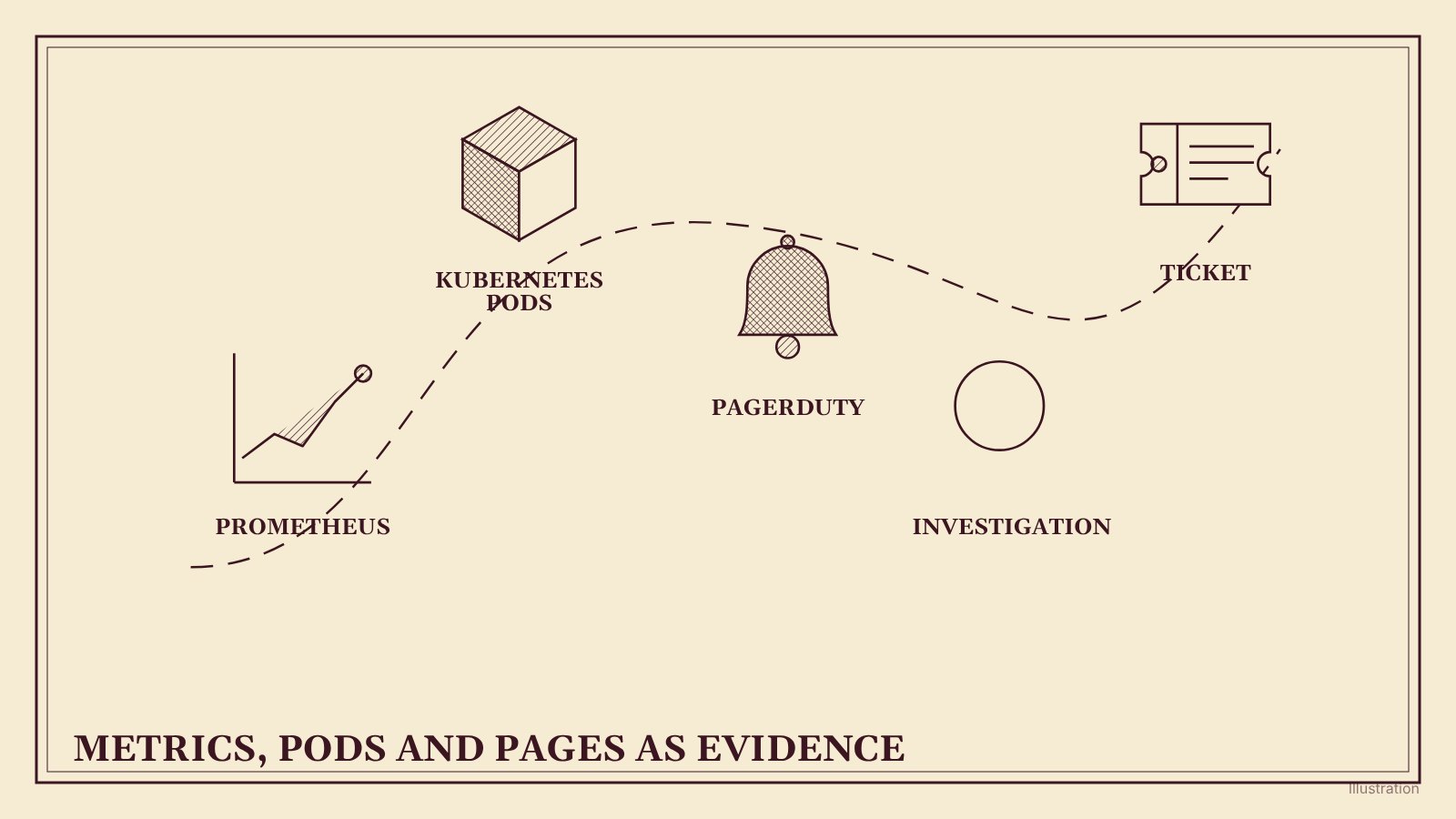
Turn it around. For each production error, look for the tickets written while it was happening (from an hour before it first appeared to a day after it was last seen) that mention it. Then group those tickets by company.
Match on what is distinctive
Error titles are noisy. "Error: request failed" matches half your inbox. Good matching uses what is specific to this failure:
- the exception type, when it isn't generic (
InvoiceRenderTimeout, notError) - error codes and HTTP statuses (
INV_504,HTTP 503) - two distinctive words from the message
TR Investigate uses exactly these terms and shows them next to the result: "matched on InvoiceRenderTimeout, INV_504". That way an agent can see why a ticket was linked before contacting anyone.
Then the deployment before it
An error that first appears six minutes after release 2.6.0, tagged with release 2.6.0, is worth a look. TR Investigate lists the deployments in the 24 hours before the error's first appearance and marks the one whose version matches the error's release. It doesn't call it the cause; that's what the investigation is for.
One view by cause, one by customer
Errors aren't the only thing that reaches customers. Incidents, investigations and recurring problems do too. A useful impact page puts them side by side:
| By cause | By customer |
|---|---|
| Each error, incident, investigation and problem, with the companies it reached | Each company, with everything that affected it this week |
The customer view is the one account managers want: "Acme was hit by the invoice error and the export incident, and two of their tickets are still with your team."
Be honest about what matching is
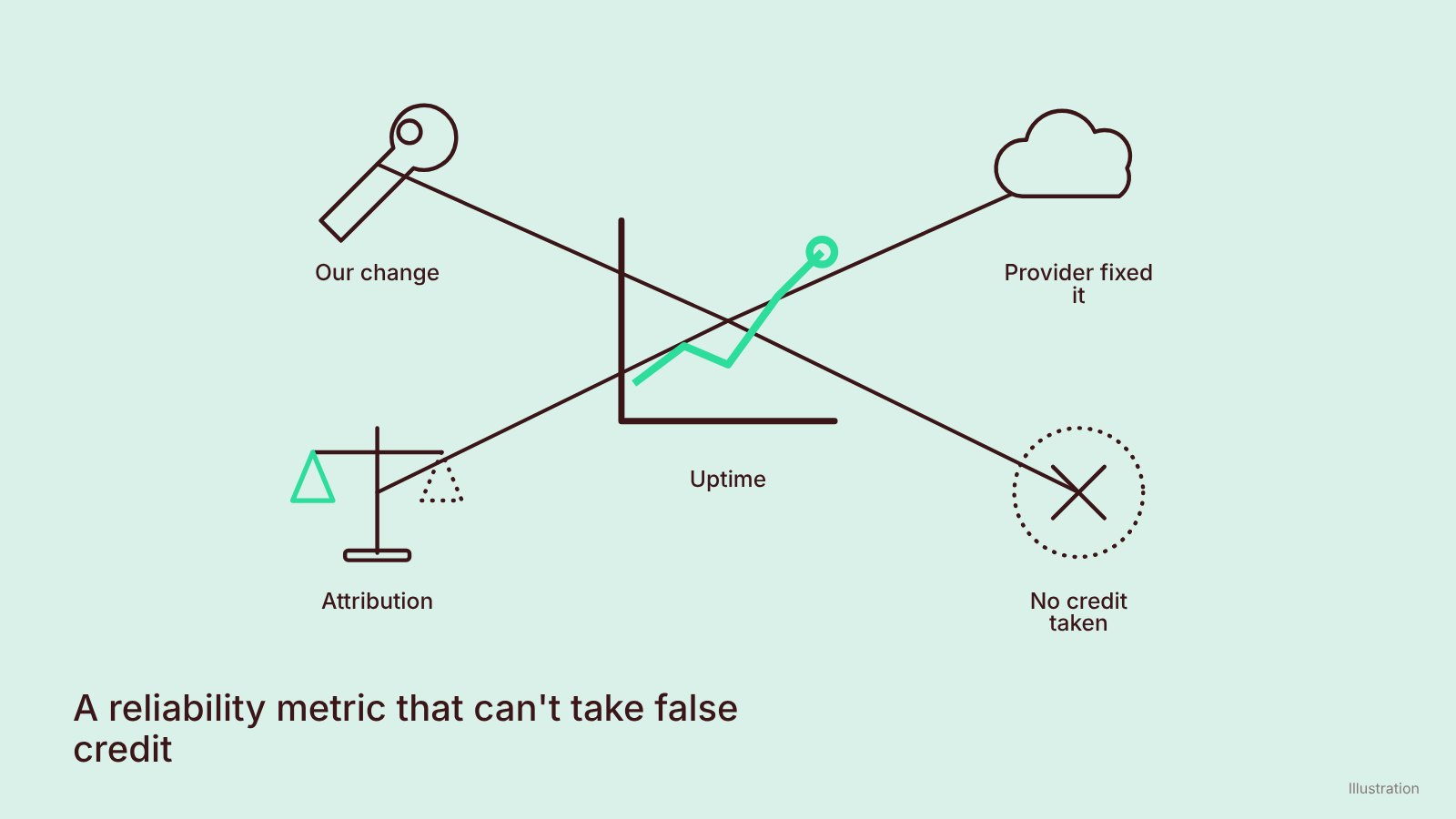
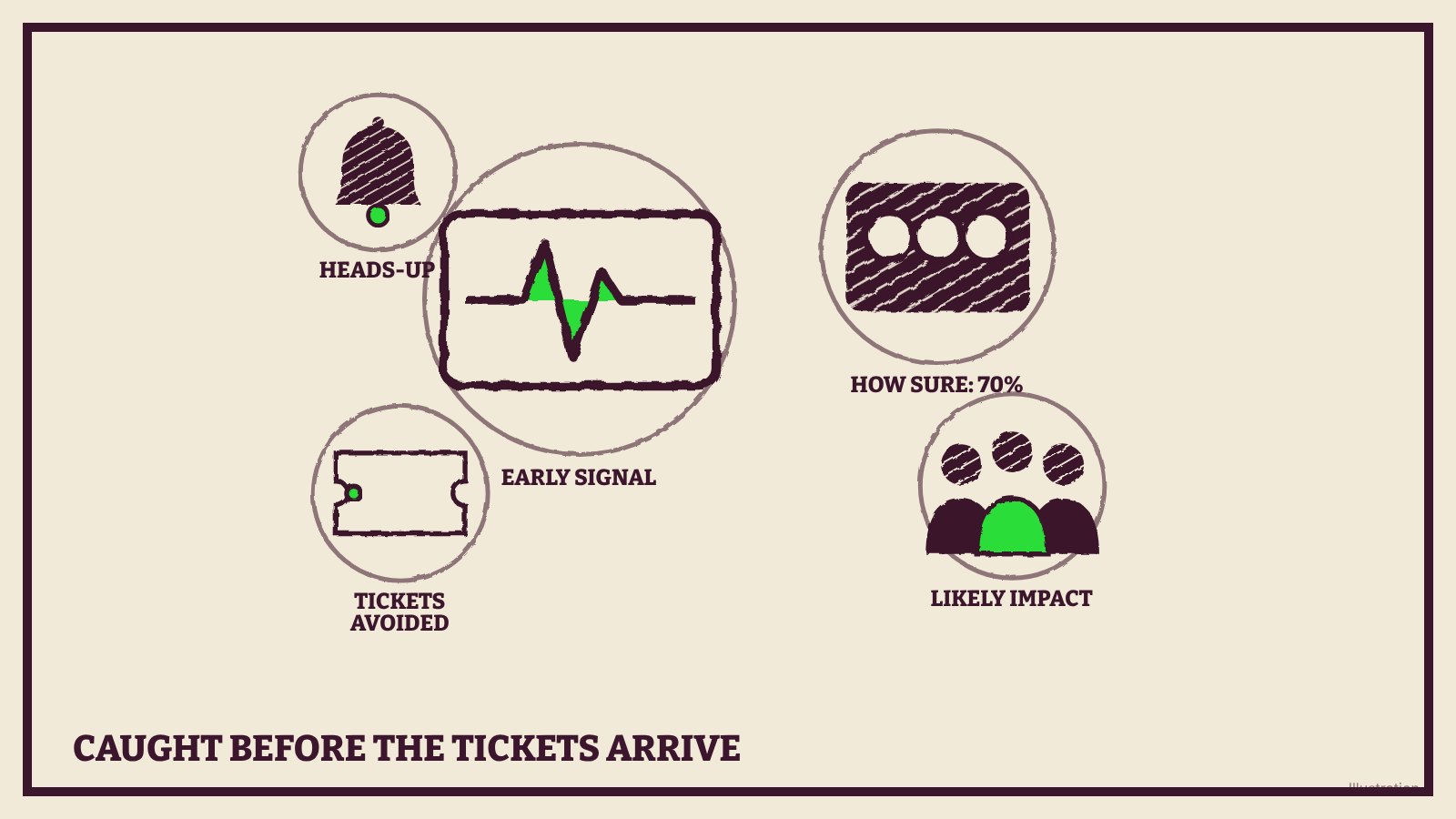
Text matching finds the tickets most likely to be about an error. It isn't proof. That's why the matched terms are shown, why tickets (not just counts) are listed, and why the page says to check before you send a proactive message.
Search the history too
Sometimes the question is older: "Did we see this timeout before the October release?" Historical search over stored errors, traces and logs (by text, trace id or request id, service and environment, up to 92 days at a time) answers it without opening four tools.
A worked example, start to finish
Here's the invoicing company, with customer impact. The details are illustrative.
Monday 11:00, by cause. The support lead, Rahul, opens TR Investigate → Customer impact. InvoiceRenderTimeout: first seen 09:42, 180 events, 52 users. In its window, 10 tickets mention it, from 6 companies. Each shows "matched on InvoiceRenderTimeout, INV_504" or "matched on rendering, stuck".
The deployment before it. Deployments in the 24 hours before 09:42: release 2.6.0 at 09:36, marked because the error is tagged with 2.6.0. Not called the cause.
Monday 11:05, check before acting. Rahul opens two tickets matched only on "rendering". One is about a different PDF problem. He leaves it out. The others clearly describe the timeout.
Monday 11:10, by customer. The customer view shows Hartley & Co: hit by the invoice error and last week's export incident, with two tickets still with the team. Rahul tells their account manager, Freya.
Monday 11:30. Freya calls Hartley & Co: "We know invoices were failing this morning; we're on it, and here's the workaround." Engineering links the error to an investigation, which confirms the 2.6.0 cause.
Wednesday, history. An engineer asks: "Did we see this timeout before the October release?" Historical search by text and service, over 92 days: three occurrences in September, all on one customer with very large invoices. A clue for the fix.
Next month. Hartley & Co renews. At the renewal call, they mention the call on Monday as the reason they trust the team.
Five more real-world scenarios
1. A generic error
Situation. The error type is just Error.
How TR handles it. Generic types aren't used for matching; codes and distinctive words are.
2. A false match
Situation. A ticket matched on two words but is about something else.
How TR handles it. The matched terms are shown, so an agent can leave it out before contacting anyone.
3. An incident and an error
Situation. A customer was hit by both.
How TR handles it. The customer view shows everything that affected them this week.
4. A trace ID from a customer
Situation. A customer gives a request ID from last month.
How TR handles it. Historical search by request ID, up to 92 days at a time.
5. A per-error view
Situation. An engineer wants tickets for one error.
How TR handles it. Observability → "Tickets, customers, deployments".
Before and after
Before. One ticket linked by hand, nine answered blind, an account manager who never heard, and a difficult renewal call.
After. Ten tickets matched with their reasons, one false match left out, six companies identified, an account manager calling the same morning, and history searched in minutes.
How to tell it's working
- Account managers hear about problems hitting their accounts the same day.
- Proactive messages go only to customers checked first.
- Engineers find history without opening four tools.
Who it's for
- Support leads.
- Account managers and customer success.
- Engineers who want to know who an error reached.
How it fits with the rest of TicketResolve
Customer impact uses production errors from your monitoring, tickets, companies from Customer 360, deployments, incidents, investigations and problems. It feeds proactive outreach and the incident customer-success view.
Why show the matched terms
A list of "affected customers" that nobody can explain is risky: contact the wrong customer about the wrong problem and you've created a new one. Showing exactly which terms linked each ticket (the exception type, the error code, the distinctive words) lets an agent check in seconds before contacting anyone. That's what makes it safe to act on.
From impact to outreach
Once you've checked the matches, the customer view tells you who to tell and what else affected them. Start with customers who still have open tickets, then accounts with renewals coming up, then everyone else the error reached. Use proactive outreach for a consistent message; a one-line call from an account manager to a key account often matters more.
Mistakes to avoid
- Contacting customers without checking the matched terms.
- Treating a deployment before an error as its cause.
- Ignoring the customer view when an account is hit by several problems.
Do it in TicketResolve, step by step
Where: TR Investigate → Customer impact (/dashboard/customer-impact); per-error links under Observability → "Tickets, customers, deployments". You'll need: a monitoring tool; Customer 360 companies; deployments connected. Full guides: TR Investigate reliability and Incidents: group, review and split tickets.
- Open Customer impact.
- Pick an error in the by-cause view.
- Read the tickets in its window and the companies they come from.
- Check the matched terms on each ticket.
- Note the deployment marked before the error's first appearance.
- Switch to the by-customer view to see everything affecting each company.
- Search history by text, trace ID or request ID when needed.
How to check it worked: each linked ticket shows the terms it matched on, and each company shows everything that affected it.
Frequently asked questions
How are tickets linked to errors? By distinctive terms (exception type, error codes, HTTP statuses, distinctive words) in tickets written while the error was happening.
What's the window? From an hour before the error first appeared to a day after it was last seen.
Can I see why a ticket matched? Yes. The matched terms are shown.
Is matching proof? No. It finds the most likely tickets; check before contacting anyone.
Is the deployment before an error its cause? Not necessarily. It's marked, and the investigation decides.
What are the two views? By cause, and by customer.
How far back can I search? Up to 92 days at a time, by text, trace ID or request ID, service and environment.
Where are per-error links? Under Observability → "Tickets, customers, deployments".
Does it work for incidents and problems too? Yes. The by-cause view lists errors, incidents, investigations and problems with the companies they reached.
Which companies are listed? Those whose tickets in the error's window mention its distinctive terms, grouped by company from Customer 360.
Explore Topics
Written by
Ghulam Shabbir
Content creator and writer sharing insights and stories.