

A 200 Is Not a Result: Workflows That Verify, Recover and Ask First
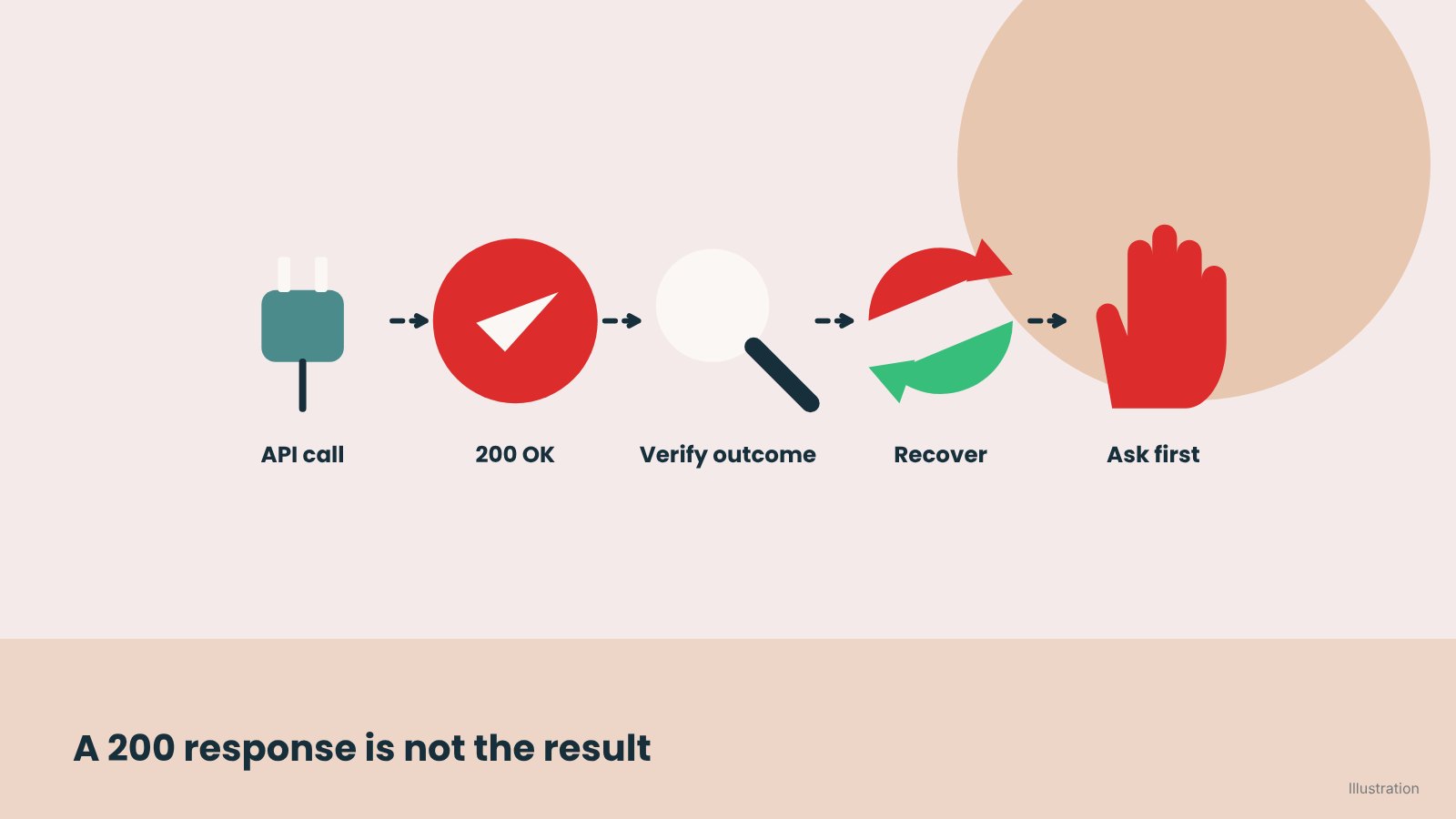
An automation that calls an API and gets a 200 back has made a request, nothing more. TicketResolve workflows now classify every step by risk, require an approval before anything privileged, destructive or production-impacting, re-read the system to verify the outcome, and can be resumed or undone when they fail.
A support operations team builds an automation for refund requests. A ticket comes in, the customer's last charge is looked up, a refund is issued through the payment provider's API, and the ticket is closed with a friendly note. The API replies 200 OK every time. The dashboard shows hundreds of "successful" refunds a month.
Two months later, finance reconciles the books. Sixty-three refunds never happened. The payment provider had accepted the requests (that's what the 200 meant) and then rejected them asynchronously, because the original charges were older than its refund window. Sixty-three customers had been told "your refund is on its way". Several had already disputed the charge with their bank.
An automation that calls an API and gets a 200 back has done exactly one thing: it made a request. Whether the refund landed, the ticket reached engineering or the incident was mitigated is a separate question, and most automation tools stop at the 200.
First, the basics
- A workflow is an automated sequence of steps, such as checking a charge, issuing a refund and updating a ticket.
- An API is how one system asks another to do something. "200 OK" is the standard reply meaning "I received your request". It doesn't mean the job is done, any more than a shop saying "order received" means the parcel arrived.
- Verification means going back afterwards and checking the result: is the refund actually showing as completed in the payment system?
- A risk class describes how dangerous a step is: reading data is harmless; moving money, deleting things or restarting production systems are not.
- An approval is a pause for a named person to agree before a risky step runs.
- A dead-letter list is where runs that failed repeatedly wait for a person, so nothing silently disappears.
- An undo (compensation) step reverses an earlier step if the run has to be rolled back.
Why does this matter? Automations that report success without checking it create a false picture: customers are promised things that never happen, and problems surface weeks later as complaints, disputes or accounting errors. Automation is only trustworthy when it checks its own results and asks a person before doing anything dangerous.
The problem, in plain terms
- Sent is counted as done. A request accepted by an API is reported as a success.
- Risky steps run unchecked. Refunds, deletions and production restarts run with the same ease as reading a value.
- Failures vanish or repeat. A failed step either quietly ends the run, or retries forever against a broken service.
- There's no way back. When a run half-completes, nobody knows what to undo, or how.
Every step has a risk class
Each step is read-only, write, privileged, destructive or production-impacting:
- moving money is privileged;
- deleting, cancelling or revoking is destructive;
- deploying, rolling back or restarting is production-impacting.
The last three need an approval step before them on every path through the workflow, or the workflow can't be saved. If one step genuinely doesn't need it (restarting a staging worker, say), you can record a narrow exception with the reason, and it goes in the audit log.
Before you switch a workflow on, its execution plan shows each step's class, how it's approved, what verifies it and what would undo it.
Approvals that fit the risk
- An approval can need one person or two different people.
- The person who started the run can't approve it.
- Approvals expire after a time you set, and can escalate to managers once instead of quietly ending the run.
- Waiting approvals show up in the Intelligence decision inbox alongside everything else that needs a person.
Verification re-reads the system
A verify step checks what actually happened:
- the investigation reached "verified";
- the engineering ticket is in progress;
- the drafted reply was sent;
- the security finding was verified fixed by a re-scan;
- the incident was mitigated;
- or a value read back through a connector matches what was expected.
It can check again later, up to 10 times, and if it still can't confirm, it escalates, fails the run or records it.
A run counts as verified in Outcome Assurance only when its checks pass. Otherwise it stays "executed", which is what it was.
When something fails
- Failed steps retry with backoff (after 1, 4, 16… minutes; you choose 0–5 retries), then go to the dead-letter list.
- From there a person can retry from the failed step, or skip the step and record what they did by hand, and the run resumes.
- A connector action that fails five times in fifteen minutes pauses for ten minutes instead of hammering a broken service.
- Steps can name an undo step. Undo changes runs the undo steps of whatever the run completed, last first, through the usual approvals, or automatically if you set the workflow to. A compensated run counts as reversed.
- Workflows that start other workflows stop at three levels and ten runs, and a run stops after twenty AI calls.
Four real-world scenarios
1. The refunds that never happened, caught on the same day
How TR handles it. The refund step is privileged (it moves money), so an approval sits before it, and refunds over a set amount need a team lead. After the refund call, a verify step reads the refund's status back through the payment connector and expects succeeded. For an out-of-window charge, the status comes back failed. The verify step escalates, the ticket isn't closed with a false promise, and the run shows executed, not verified. The team sees the pattern in the first week, not after reconciliation.
2. Restarting a production service
Situation. An infrastructure-health workflow restarts a service when it's unhealthy.
How TR handles it. Restart is production-impacting, so the workflow can't be saved without an approval before it on every path. For the staging worker, the team records a narrow exception with the reason "staging only, no customer impact", and it's in the audit log.
3. A half-finished customer migration
Situation. A workflow creates the account, migrates data, then fails at "send welcome e-mail" because the e-mail service is down.
How TR handles it. The run retries with backoff, then lands in the dead-letter list. An operator waits for the e-mail service, then retries from the failed step. Nothing is redone. If the migration had been wrong, Undo changes would have run the undo steps for the data migration and account creation, last first.
4. An engineering hand-off that actually arrived
Situation. A workflow files a bug in Jira for every confirmed defect.
How TR handles it. The verify step checks the engineering ticket reached in progress within a day. If it hasn't, it escalates to the support lead, so hand-offs don't sit unseen in a backlog.
Before and after
Before. Hundreds of "successful" runs, sixty-three of which didn't happen, and no way to tell which.
After. Risky steps need a person, outcomes are re-read from the system, failures wait visibly with clear options, half-finished runs can be undone, and only verified runs count as verified.
Who it's for
- Support and operations leads who automate customer-facing actions.
- Finance and risk teams who need money-moving automation to be approved and verified.
- Engineering and SRE teams automating incident and infrastructure responses.
How it fits with the rest of TicketResolve
Verified runs feed Outcome Assurance, which reports verified versus executed honestly. Approvals appear in the Intelligence decision inbox. Connector actions come from Procedures, and money-moving actions also go through Backend Actions approvals. Later Workflow OS releases build on this foundation: parallel branches, testing, health and insights.
Mistakes to avoid
- Skipping verify steps because "the API returned 200". That's the problem this solves.
- Broad exceptions. Record exceptions per step, with a specific reason.
- Ignoring the dead-letter list. It's where real customers are waiting.
Do it in TicketResolve, step by step
Where: Workflows (/dashboard/workflows). You'll need: permission to manage automation, the payment connector set up under Procedures, and approvers with approval rights. Full guide: Workflows: multi-step automation with approvals.
Here's the refund workflow, built safely.
- Start from a template or a new workflow. Workflows → Template gallery (for example customer issue), or New workflow. New workflows are off until you switch them on.
- Set the trigger. When something happens: a ticket tagged refund request is handed to a person, with a condition on the ticket's category.
- Identify the customer. Add identify customer to load the company, plan and recent charges.
- Add the approval before the money moves. Add an approval step: one approver for small refunds, or a condition that routes refunds over your limit to an approval needing two different people. Set an expiry (for example 8 hours) and escalate to managers once.
- Add the refund. Add a tool step running your connector's refund action. It's classed privileged; the workflow won't save unless every path to it has an approval.
- Verify the result. Add a verify step: a read-only connector action that fetches the refund, expecting
status = succeeded. Let it check again later, and choose escalate if it can't confirm. - Name an undo step where it makes sense, for example cancelling a pending refund.
- Only then tell the customer. Add ticket reply (a drafted reply that waits in Reviews) after the verify step, not before.
- Set retries and limits. Choose retries for the tool step, and the workflow's maximum runs per hour and per day.
- Read the execution plan. Check each step's class, approval, verification and undo. Then Run as a test (actions are simulated, approvals skipped, nothing is posted).
- Switch it on, and watch Needs attention. Approvals and the dead-letter list are under Workflows → Needs attention, and in the Intelligence decision inbox.
How to check it worked: in Outcome Assurance, refund runs show as verified only when the payment system confirmed them. Any that say executed are the ones to look at.
Frequently asked questions
Why can't I save a workflow with a refund step and no approval? Privileged, destructive and production-impacting steps need an approval on every path, unless you record a narrow exception with a reason.
Can the person who started a run approve it? No.
What does "executed" mean in Outcome Assurance? The steps ran, but verification didn't confirm the result. Only confirmed runs count as verified.
What happens when a step keeps failing? It retries with backoff, then goes to the dead-letter list, where a person can retry it, skip it and record what they did, or undo the run.
Can a workflow call the AI as often as it likes? No. A run stops after 20 AI calls, and chains of workflows stop at 3 levels and 10 runs.
Explore Topics
Written by
Ghulam Shabbir
Content creator and writer sharing insights and stories.