
Sign a PDF Yourself and Download It: Introducing TicketResolve Sign
TicketResolve Sign lets you upload a PDF or Word document, add a drawn, typed or uploaded signature and the other fields a form needs, confirm, and download the signed PDF straight away, with every version kept and hashed, a completion certificate, e-mail from TicketResolve and a record of documents signed elsewhere. How it works, what it proves and what it doesn’t, with an illustrative example, five scenarios and a step-by-step guide.
A surprising amount of work still stops at "can you sign this and send it back?" A supplier form, an NDA before a call, a policy acknowledgement, a statement of work. Most of the time nobody else needs to sign through a system: you just need to sign, keep a clean copy, and send it on.
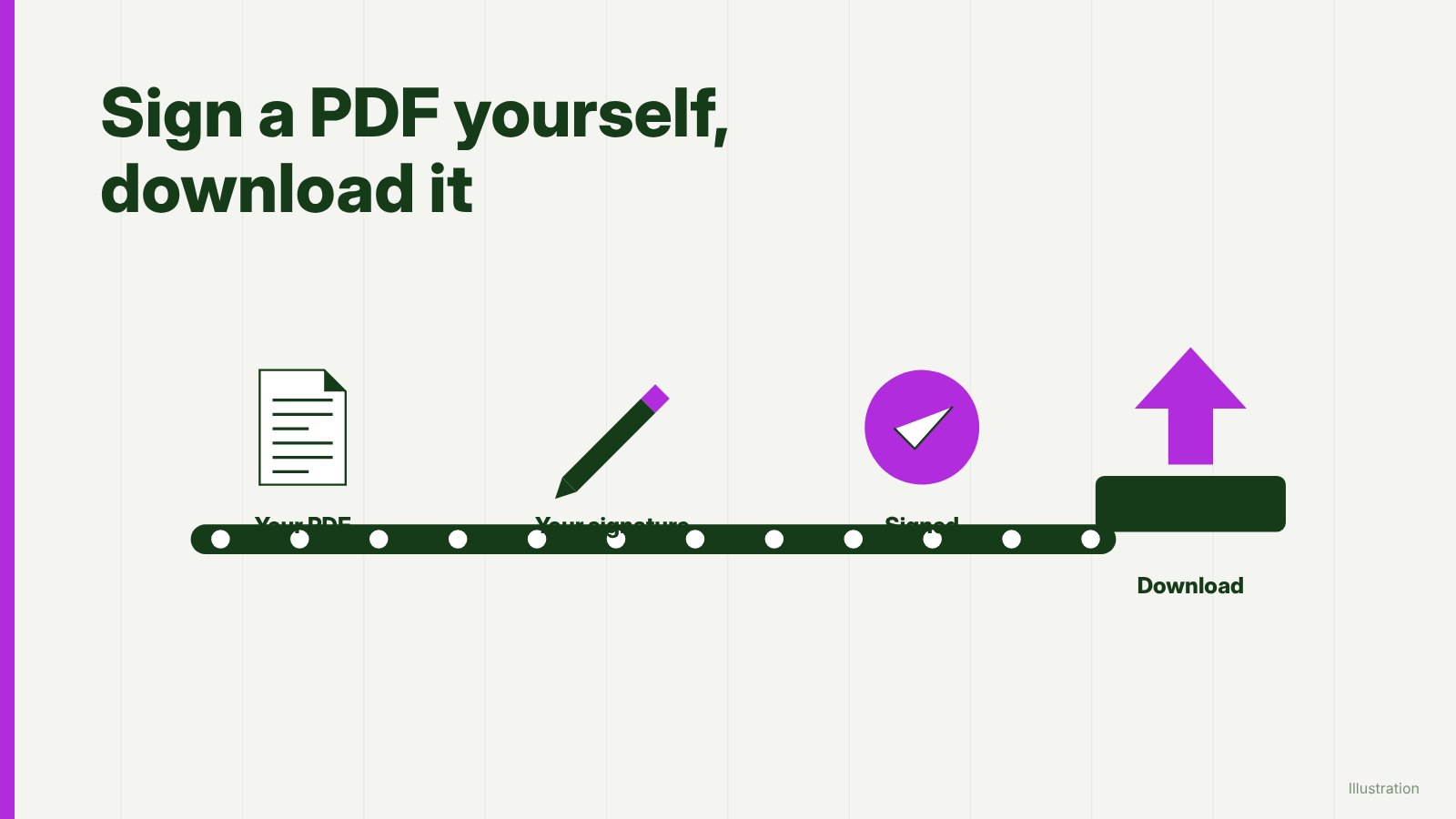
TicketResolve Sign is built for exactly that first. Sign & Download PDF lets you upload a document, place your signature and whatever else the form asks for, confirm, and download the signed PDF straight away. TicketResolve keeps the original and the signed copy as separate, hashed versions, writes a completion certificate, records every step, and lets you e-mail the signed PDF without leaving the page. This post explains how it works, what it proves and what it doesn't, and how to get from an unsigned file to a signed copy in someone's inbox.
Here's the situation at an illustrative 30-person agency:
- The paperwork: every week there are a few forms to sign: client NDAs, supplier onboarding forms, the occasional consent letter.
- The workaround: print, sign, scan on a phone, crop, e-mail. Or a free online tool that asks you to upload the client's NDA to a site nobody has checked.
- The worry: six months later, a client asks for "the signed version from March", and nobody is sure which of three PDFs it is.
- The ask: "Let us sign things properly from the tool we already use, and keep a copy we can prove is the one we signed."
That's the job Sign & Download PDF does.
First, the basics
A few terms used in this post:
- Sign & Agreements is the part of TicketResolve where signing lives.
- Sign & Download PDF is signing a document yourself, with nobody else involved.
- Send for Signature is sending a document to other people to sign. It's covered in its own post: Send a document for signature.
- A version is one exact file: the document as uploaded, or as signed. Versions are never edited; a new one is added instead.
- A hash (SHA-256) is a 64-character fingerprint of a file. Change one character in the file and the hash changes completely.
- An electronic signature is a signature applied electronically, here as an image of your signature embedded in the PDF along with a record of who, when and how.
- A certificate-based digital signature is a cryptographic signature from a certificate authority that Adobe Reader can validate on its own. TicketResolve doesn't apply these yet, and says so.
The problem, in plain terms
Signing is easy. Proving later what was signed, by whom and when is the hard part. A scanned page proves very little: anyone can paste a signature onto a PDF, and a file that has been edited looks the same as one that hasn't. What gives a signed document weight is the record around it: the original, the signed copy, how they differ, who signed, how they confirmed it, and evidence that none of it changed afterwards.
So TicketResolve Sign keeps that record by default, without you doing anything extra.
Part 1: from upload to a signing-ready PDF
Choose Sign & Download PDF and drop in a file. PDFs are used as they are. Word documents (.docx) are converted to PDF on our servers, keeping text, bold and italic, headings, lists, tables and images; things like columns, text boxes, headers and footers are simplified, and the editor says so, so you check the preview before signing. Images become a page each, and text files are laid out on A4.
Files can be up to 15 MB and 300 pages. Password-protected or damaged PDFs are refused with a reason, rather than half-working.
Part 2: the editor
The editor shows every page of the document. A bar across the top holds the fields:
- Signature and initials: as many as the document needs, on any page.
- Date signed: filled in automatically at the moment you sign, in the format you choose.
- Name, company and designation: your name is filled in for you.
- Text and paragraph fields for anything else the form asks.
- Checkboxes, radio buttons and dropdowns for choices.
- Acknowledgements: a statement with a box to tick, such as "I have read and agree to the terms."
Drag a field onto the page, or choose it and tap where it goes, which is easier on a phone. Drag to move, use the corner to resize, and fields snap to line up with the ones around them. Duplicate, delete, align, undo and redo, zoom, jump between pages, and preview the document exactly as it will be signed. Every change saves itself.
For the signature, click the field and choose how to sign:
- Draw with a mouse, trackpad, finger or pen; strokes get thinner when you move quickly, like ink.
- Type your name and pick one of four handwriting styles.
- Upload a photo or scan of your signature; the white background is removed.
- Saved: reuse a signature you kept from before. Saving is optional, needs your explicit agreement, and keeps it in your account only.
Part 3: confirming and signing
When everything required is filled, Review and sign shows every page as it will be signed and asks you to confirm one thing in plain words: that you intend to sign this document electronically and agree that your electronic signature is the legal equivalent of your handwritten one. Until you tick that, the Sign button stays disabled.
Then TicketResolve:
- checks the original against the hash recorded when you uploaded it, and refuses to sign if they differ;
- embeds your signatures and fields into the pages, keeping page sizes and order, and flattens any form fields the PDF already had;
- stores the result as a new version with its own hash, leaving the original untouched;
- records the signing with your account, the time, your IP address, your browser and the confirmation text.
Part 4: the completion screen
The moment it's signed you see a completion screen with six actions:
- Download signed PDF. The hash is shown on screen, so you can check the copy you have is the one TicketResolve holds.
- Download completion certificate. A one-page PDF with the document ID and version, the original and signed hashes, the signer, time, signing session, method, the confirmation, the sign-in evidence (for example, e-mail verified and two-factor on) and the key steps. It says plainly that this was a self-signing.
- Save to TicketResolve Documents with a title, so it's in your library.
- E-mail signed PDF (see the next part).
- View signing history.
- Sign another document.
Part 5: e-mailing the signed PDF
Add one or more addresses or pick from your workspace's members and people you've sent signed documents to before. Edit the subject and message, and tick whether to attach the completion certificate. Then Preview shows exactly what will go out: sender, recipients, subject, message, attachments and the file's hash. Nothing is sent until you press Send, and every attempt, sent or failed, appears in the document's history.
E-mail attachments can be up to 2 MB. A bigger signed PDF goes as a download link that works for seven days, and the preview tells you before you send.
Part 6: documents signed somewhere else
Not every signature happens in TicketResolve. A client might print, sign and scan, or use their own tool. From an unsigned document you can download the unsigned PDF, collect the signature however you like, and then upload the signed copy with who signed it, their e-mail and the date. Both versions are kept. The document is labelled externally signed and uploaded, and TicketResolve is explicit that it recorded what you reported and did not verify that signature. You can attach supporting evidence too, such as the e-mail the signed scan arrived with.
What it proves, and what it doesn't
Every signed document carries one of these labels, and nothing claims more than happened:
| Label | What it means |
|---|---|
| Signed through TicketResolve | Your signature and fields were embedded by TicketResolve, with your account, time, IP address and confirmation recorded and both versions hashed. |
| Externally signed and uploaded | Signed elsewhere; who and when are as reported by the person who uploaded it. Not verified. |
| Certificate-based digital signature | Not offered yet. Never shown unless it actually happened. |
Two more protections sit underneath. Check a file in Audit & Evidence hashes any PDF you choose and tells you whether it's exactly a version you can see. And the activity log is append-only and hash-chained: each entry includes the hash of the one before it, so if an entry were changed or removed, Verify the log would show exactly where.
A worked example, start to finish
Back at the illustrative agency. A new client sends a two-page NDA as a Word document on Monday morning.
- Upload. The account director opens Sign & Download PDF and drops in the .docx. It's converted to PDF; the note reminds her to check the layout, and the table of parties looks right.
- Place fields. On page 2 she drags a signature onto the signature line, her name and title below it, and the date beside it. On page 1, the client asked for initials in the corner, so she adds initials there.
- Sign. She draws her signature with her trackpad and ticks "save for reuse". The initials she types in the Formal style.
- Fill and check. Her name is already there; she types "Account Director" as designation. The bar shows nothing left to do. Preview looks right.
- Confirm. She reads both pages, ticks the confirmation and signs. The completion screen appears with the signed PDF's hash.
- Download and keep. She downloads the signed PDF and the certificate, and saves the document to Documents as "Client NDA — signed".
- Send. She chooses E-mail, picks the client's address from recent recipients, attaches the certificate, previews and sends. The history shows the e-mail as sent.
- Six months later. The client asks for "the version we signed". She finds it in Documents, and for good measure checks the copy in her inbox with Check a file. It matches version 2.
Total time: a few minutes, with no printer, no phone scan and no third-party website.
Five more real-world scenarios
1. A supplier form that's only a scan
A supplier sends a JPEG of their form. Upload it; it becomes a one-page PDF. Add text fields for the details and a signature, sign and download. The image is embedded at its original quality.
2. A policy every new hire acknowledges
HR keeps a policy as a template with an acknowledgement ("I have read and agree to the policy"), name, date and signature already placed. Each new hire starts from the template, signs and downloads in a minute. Templates never keep anyone's signature or typed values.
3. A contract the other side signs on paper
The client won't use any e-signature tool. Download the unsigned PDF, post it, and when the signed scan comes back, upload it with their name and the date they signed, and attach their cover e-mail as evidence. The document now has the original, the externally signed copy and the e-mail, each with its hash, and it's clearly labelled as signed externally.
4. A signed PDF that's too big to attach
A 9 MB brochure-style agreement can't be attached. The e-mail preview says the PDF will go as a seven-day link instead. The recipient downloads it from the link; the download is recorded.
5. A mistake after signing
You notice you dated a field wrongly after signing. Signed versions can't be edited, by design. Open the document and choose New unsigned copy: a fresh copy of the original opens for signing, and the first signed version stays exactly as it was, with its history.
Before and after
| Before | After | |
|---|---|---|
| Signing | Print, sign, scan, crop | Draw, type or upload in the browser |
| Word documents | Export to PDF first | Converted on upload |
| Proof of what was signed | Whichever PDF is in the inbox | Original and signed versions with hashes |
| Record of signing | None | Certificate and append-only history |
| Sending the signed copy | Separate e-mail, attachment hunting | Preview and send from the completion screen |
How to tell it's working
- Signed documents show Signed with the label "Signed through TicketResolve".
- The document's Versions list shows the original and the signed PDF with different hashes.
- Check a file on your downloaded copy says it matches the signed version.
- Verify the log (for Sign managers) reports that every activity entry verifies.
Who it's for
- Anyone who signs forms as part of their work: account managers, office and operations managers, founders.
- HR and people teams collecting policy acknowledgements with templates.
- Finance and procurement signing supplier and vendor paperwork.
- Compliance owners who want each signed document's history and hash on record.
Mistakes to avoid
- Signing a Word conversion without looking. Complex layouts are simplified. Use Preview; if the layout matters, export to PDF from Word first and upload that.
- Treating "electronic" as "certificate-based". TicketResolve applies an electronic signature with a strong record around it. If a counterparty requires a certificate-based digital signature, it isn't available yet.
- Uploading someone else's signature. Upload and draw are for your own signature. Every signing is recorded against your account.
- Keeping copies only in e-mail. Save signed documents to Documents so the versions, certificate and history stay together.
Do it in TicketResolve, step by step
Where: Sign & Agreements (/dashboard/sign). You'll need: a TicketResolve account with the "Sign documents" permission; agents, account managers, leads, admins and owners have it. Full guides: Signing a document and downloading the signed PDF, What a signed PDF and its certificate prove, E-mailing a signed PDF and recording documents signed elsewhere, Templates and saved signatures.
- Open Sign & Download PDF and drop in a PDF, Word document, image or text file.
- Place your fields from the bar: signature, initials, date, name and anything else the document asks for.
- Add your signature by drawing, typing or uploading it.
- Fill in the rest until the bar shows nothing left to do.
- Review and sign: read every page, tick the confirmation and sign.
- Download the signed PDF and the completion certificate, and save it to Documents.
- E-mail it if needed: preview, then send.
How to check it worked: the document shows Signed, its Versions list has the original and the signed PDF with different hashes, and Check a file says your downloaded copy matches.
Frequently asked questions
What is TicketResolve Sign? The part of TicketResolve for signing documents. Today it does Sign & Download PDF: signing a document yourself and downloading the signed PDF. Sending documents to other people for signature is the next release.
How much does it cost? Sign & Download PDF is included in every TicketResolve plan and in the 7-day free trial. Usage is counted per month in Sign → Settings.
Which files can I sign? PDFs, Word documents (.docx), PNG and JPEG images and text files, up to 15 MB and 300 pages.
How do I add my signature? Draw it with a mouse, trackpad, finger or pen; type your name in one of four handwriting styles; upload an image of it; or reuse one you saved.
Is the signed PDF changed when I download it? No. The download is exactly the signed version, and its SHA-256 hash is shown on screen and recorded, so you can check it any time.
Is this legally binding? Electronic signatures are widely recognised for many kinds of documents, but requirements depend on your country and the document. TicketResolve records the evidence courts and counterparties usually look for; check with your legal adviser for specific documents.
Is it a certificate-based digital signature? No. It's an electronic signature embedded in the PDF with a full record. Certificate-based digital signatures aren't available yet, and TicketResolve never labels a document as one unless it is.
Who can see my signed documents? You. People with the Sign & Agreements settings permission can see documents for audit but can't sign or change them. Nobody outside your workspace can.
Can I send a document to someone else to sign? Yes, with Send for Signature: several people, in order or all at once, with reminders and a certificate covering everyone. See Send a document for signature. You can also still collect a signature outside TicketResolve and upload the signed copy, which is kept as its own version.
What happens to signatures I save? They're kept in your account only, used only by you, and removed (the image deleted, not hidden) when you delete them in Sign → Settings.
The short version
Sign & Download PDF turns "can you sign this and send it back?" into a few minutes in the browser: upload, place fields, sign, confirm, download, send. Behind it, TicketResolve keeps the original and the signed copy as hashed versions, writes a completion certificate, and records every step in a log that shows if anything was changed. Open Sign & Agreements and sign your next document there.
Explore Topics
Written by
Ghulam Shabbir
Content creator and writer sharing insights and stories.