

Each Role Sees Its Own Area: A Menu Built Around the Job, Not the Product
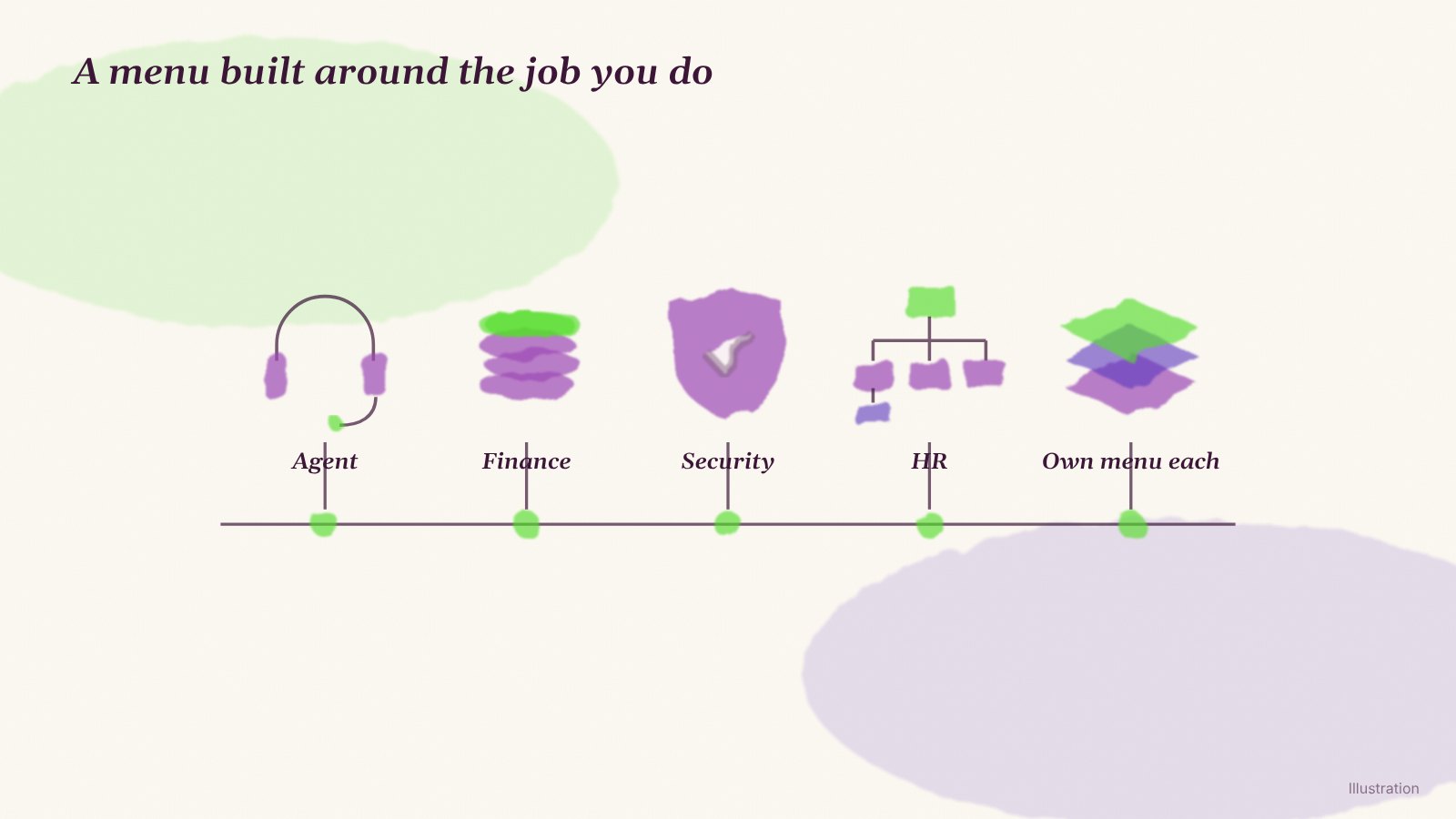
TicketResolve now shows each role the pages it is for. A CFO sees finance, a recruiter sees hiring, a Support Agent sees the queues and investigation pages. Owners and auditors keep the full menu, anyone can show everything with one click, and permissions are unchanged.
A product that does many things has a menu problem. TicketResolve covers support, customer success, renewals, billing, finance, operations, engineering, security, hiring and more. That's useful for the company that buys it and confusing for the person who uses it. A finance controller who opens the app to check receivables shouldn't have to scroll past DevOps topology, the Level 2 queue and interview scorecards to find them.
This release builds the menu around the job. Each role now sees the pages it is for. Nothing else about access changes: what a person may open or do is still decided by their permissions and checked on the server for every request.
A few terms used in this post:
- Role: a set of permissions given to a person, such as Support Agent, AI CFO, Recruiter or QA Lead. TicketResolve ships 89 ready-made roles in 23 departments, and you can build your own.
- Permission: one thing a person may do, such as "View the ticket log" or "See AI cost & usage".
- Menu: the sidebar and the "All features" list on the Overview.
- Go to a page: the search box at the top of the sidebar (⌘K), which jumps to any page by name.
What was wrong
Before this release, the menu had a shortcut: anyone allowed to read the activity log saw nearly every page. The idea was sound for auditors, whose job is to look across everything. But many senior roles also hold that permission, because leaders need to see who changed what in their area.
We counted. 28 of the built-in roles held it, and each saw between 380 and 389 of the 389 pages in the product. That included the CFO, the Controller, the Head of Product, the Security Lead, the Chief People Officer, the QA Lead and the Service Desk Manager. A CFO saw the Level 2 support queue, the DevOps topology map and the recruiting pipeline. A QA Lead saw the revenue command centre.
There was a second, smaller problem. About a dozen pages were open to anyone with basic dashboard access: Observability, Deployment intelligence, Synthetic monitoring, the six AI Ops Copilot pages, Compatibility and Defect priorities. So even the plain Employee role, with two permissions, saw monitoring pages, and a recruiter saw Ops Copilot usage.
None of this was a security hole. The server refuses data a person isn't allowed to see. It was a usability problem: the menu didn't help people find their work.
What changes
Each role sees its own area. The menu lists the pages a role's permissions are for, plus the Work pages everyone has: team chat, calls, My tasks, notepad, mentions and My assessment results. An AI CFO now sees 46 pages instead of 380: the AI CFO pages, Work, and the reports their permissions include. A Head of Product sees 44, a Security Lead 45, a QA Lead 19.
People whose job is to look across everything keep the full menu. These are the owner, the Workspace · Auditor and Workspace · Executive roles, and admins invited before roles existed (they have no role to focus on).
Anyone can see everything with one click. At the bottom of the sidebar, "Show everything I can access (N more)" lists every page the person's permissions open. "Show only my area" goes back. The choice is kept in that browser, and the Overview's feature list follows it.
Go to a page still finds everything. The search box searches every page a person can open, whatever the menu shows. Nothing is hidden behind the focus.
Shared pages appear for each team that uses them. Observability, Deployment intelligence and Synthetic monitoring now appear for support, SRE and engineering roles. Defect priorities and Compatibility appear for support, product, engineering and implementation. Technical intelligence and Engineering performance appear for support leads, managers and engineering. The AI Ops Copilot appears for the business-intelligence roles. They no longer appear for roles that have nothing to do with them.
A small move. "My assessment results" used to sit alone under AI Chief People Officer, so that whole section appeared for every employee. It now lives under Work.
What doesn't change
- Permissions. No permission was removed from any role. A person who could open a page before can still open it, from the search box or with "Show everything".
- Server checks. Every request is still checked against the person's permissions. The menu is a convenience, not the protection.
- Custom roles. Roles you built work the same way: the menu follows their permissions.
- Your settings. No migration, nothing to configure.
How the menu decides what to show
The rule is simple enough to predict, which matters when you're setting up roles for a team.
- Every page is for something. Each page in TicketResolve is tied to the permission it is for: the AI CFO command centre to "View AI CFO", the Level 2 queue to "View the ticket log", and so on. A few pages serve several teams, and those are tied to each team's permission.
- A person sees the pages their permissions are for. If a role holds "View AI CFO", the finance pages appear. If it doesn't, they don't.
- Everyone sees Work. Team chat, calls, My tasks, notepad, mentions and My assessment results are part of everyone's day.
- Some roles see everything. Owners, auditors, the executive role and admins without a role see every page their permissions open, as before.
- Anyone can widen their own menu. "Show everything I can access" adds every page their permissions open, for that browser only. It never adds a page they can't open.
So if a role's menu is missing something it needs, the fix is to give the role the permission that page is for. The page then appears for everyone with that role. If a menu shows too much, the role holds permissions it may not need, and the Roles tab is the place to check.
This also means the menu can't drift out of step with access. There is no second list of "pages per role" to maintain: the role's permissions decide both what a person may do and what their menu shows.
Two fixes found along the way
Testing each role in a real browser turned up two problems that weren't about the menu.
First, the Overview crashed for people who can't see AI costs. The server correctly removes cost figures for them, but the Performance card expected the "Cost saved" number to be there. It now hides that tile instead.
Second, the page search dialog had no title for screen readers. It now announces itself as "Go to a page".
How we tested it
For every one of the 89 built-in roles, an automated test checks that the role still sees every page its own permissions are for, and the Overview. Further tests check that department leaders see far fewer pages than before, and that employees, recruiters, interviewers and marketers no longer see monitoring or Ops Copilot pages. They also check that support agents, SREs and product managers still see the shared pages they use, and that "Show everything" brings the full list back.
A browser test signs in as three people: an owner, an AI CFO and a Support Agent. It checks:
- the CFO's sidebar lists AI CFO but not DevOps, people management or investigation pages;
- "Show everything" works and is remembered after a reload;
- "Show only my area" returns to the focused menu;
- the Overview follows the same choice;
- page search still finds pages outside the area;
- the Support Agent sees Observability;
- the owner sees every section and no switch.
It also runs an accessibility check on the sidebar.
A worked example, start to finish
This is an illustrative example.
Maya joins a software company as Finance Controller. The owner invites her with the built-in Finance · Controller role.
She signs in. The sidebar shows Work (team chat, calls, My tasks, notepad, mentions, My assessment results), AI CFO (the finance command centre, statements, receivables, payables, budgets and the rest) and the reports her role includes under Dashboards & reports. She doesn't see DevOps, recruiting or support queues.
On Wednesday, the support lead mentions a refund spike on a known issue. Maya wants to see the defect behind it. She types "defect" in Go to a page, and Defect priorities opens. Her role can read it, it just isn't part of her daily menu.
On Friday, an auditor asks her to check a vendor contract in Operations. She clicks "Show everything I can access", finds the vendors page, and clicks "Show only my area" when she's done.
Her permissions never changed. Only her menu did.
Five more real-world scenarios
These are illustrative.
- A new support agent. The menu shows the queues, the review queue, Copilot, TR Investigate and reliability pages. No finance, no hiring, no security dashboards. Onboarding talks about what's on screen.
- A recruiter. The menu shows Work and the AI Recruitment Manager pages. Ops Copilot and monitoring pages are gone.
- A security lead. The menu shows TR Security Intelligence and the reports the role includes, not the 380 pages it showed before.
- An external auditor. Signed in with the Workspace · Auditor role, they see every page, because looking across the company is their job. They still can't change anything.
- A custom "Billing analyst" role. Built with billing and AR permissions, its menu shows billing and finance receivables pages. Adding a permission later adds its pages to the menu automatically.
Do it in TicketResolve, step by step
- Check what a role is for. Open Team & roles → Roles and read the role's permissions. The menu follows them. (Roles & permissions)
- Give people the role that matches their job. Members → Invite, or Edit access for someone already in the workspace. (Roles & permissions)
- Add a page to someone's area. Grant the permission the page is for, on the role or for one person. (Roles & permissions)
- Use the full menu when you need it. Click "Show everything I can access" at the bottom of the sidebar. (Roles & permissions)
- Jump to any page. Press ⌘K (Ctrl+K on Windows) and type its name. (Roles & permissions)
Frequently asked questions
Did anyone lose access? No. Permissions are unchanged. Anything a person could open before, they can still open from the search box or with "Show everything I can access".
Why do owners and auditors keep the full menu? Their job is to look across every area. For everyone else, a focused menu makes the daily work easier to find.
What does "Show everything I can access" show? Every page the person's permissions open, the same list the menu showed before this release. The count next to it says how many extra pages that adds.
Is the choice remembered? Yes, in that browser. On another computer the menu starts focused again.
How do custom roles behave? The same as built-in ones: the menu lists the pages their permissions are for. If a custom role holds "See the activity log", that no longer expands the menu, unless the person chooses to show everything.
Can I make a role see a particular page by default? Yes. Give the role the permission that page is for. The page then appears in that role's menu.
Does this change what the API returns? No. API access, data redaction and server checks are exactly as before.
The short version
The menu now follows the job. Each role sees the pages it is for: finance for the CFO, hiring for recruiters, queues and investigation pages for agents. Owners, auditors and the executive role keep the full menu, anyone can show everything with one click, and the search box still finds every page. Permissions and server checks are unchanged.
Explore Topics
Written by
Ghulam Shabbir
Content creator and writer sharing insights and stories.